How to Manage Multiple Mailboxes in Outlook?


In this blog, we show you how to set up and manage multiple mailboxes in Outlook 2021, 2019, 2016, and 2013. We all know the benefits of Microsoft Outlook. The currently best desktop-based email client application that allows the user to create and log in multiple accounts in one place.
Users have created multiple accounts without thinking about how to handle them. This can lead to corruption, accidental deletion of data, and misdirected data. To avoid such problems, we need to know how to manage multiple email accounts in Outlook free to avoid such problems.
How to Setup Multiple Email Accounts in Outlook
As explained above, the user can add multiple email accounts in Outlook and easily access them in one place. Follow these steps to set up multiple email accounts:
Methods to Manage Multiple Mailboxes in Outlook?
To manage multiple email accounts from one place in Outlook, follow the below-listed steps:
Setup Multiple Email Accounts in Outlook
- Click the File menu.
- Go to the Info tab and click Add Account.
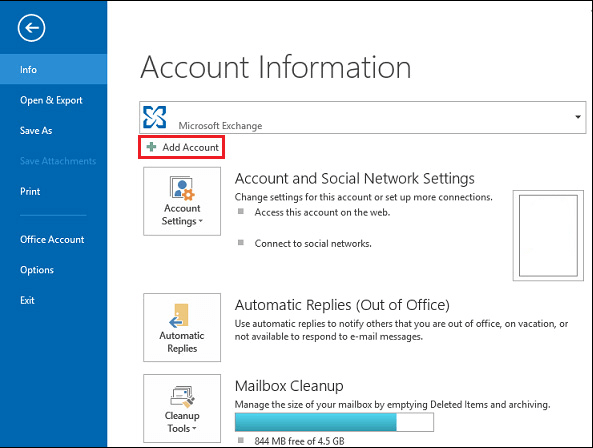
- Now enter your email address and click on Connect.
- Follow the Outlook instructions step by step. You can now view the account in Outlook.
Switch Between Email Accounts
- To switch from the first to the second account, all you have to do is select the inbox.
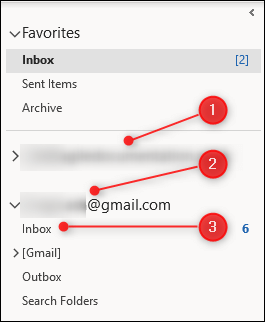
Tip: You can add the inbox of the second account to the favorites area of the navigation pane. This is useful for finding the inbox quickly.
Find Emails from Multiple Accounts
Unfortunately, Outlook does not allow the user to view all emails in one folder. As emails from different accounts are stored in different folders and you get a lot of folders if you have multiple email accounts.
- To search or check emails from multiple accounts, you can click the search box in Email View and change the location to “All Mailboxes”.
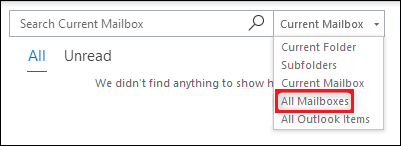
- You can now easily search for something in mailboxes, like emails, notes, calendar entries and more.
Add Folders to Each Account
You can add folders to an account. To do this, simply right-click on your account and click on “New Folder“.
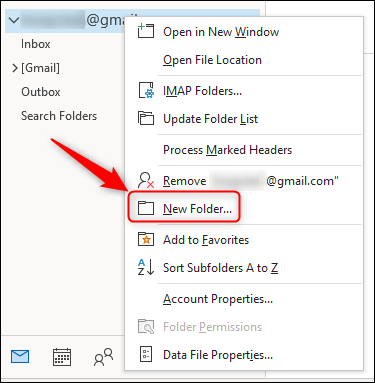
This new folder will appear as a child of your email account that you right-clicked on.
Send Mail From Different Accounts
If you add multiple email accounts in Outlook, the “New Email” line automatically turns on the From line. You can choose which account you want to send email from.
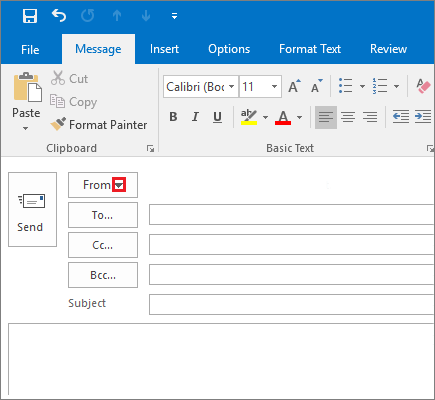
If you need to send the email from one of your accounts, just click New Email. Click the arrow next to “From” and choose an account you have in Outlook.
Remove an Account from Outlook
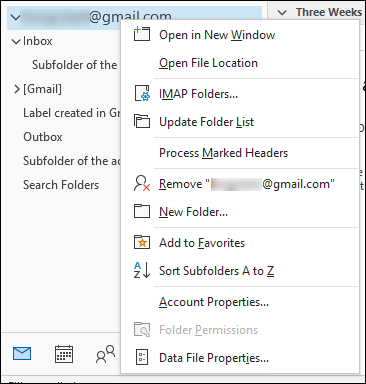
To remove an account from Microsoft Outlook, right-click on the account and select “Remove [Account Name]”.
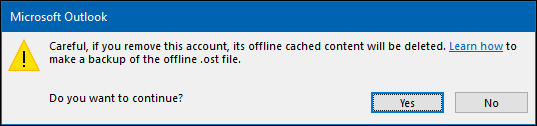
A confirmation message will appear. If you are sure to remove the account, click Yes.
Best Alternative Solution to Manage Multiple Mailboxes in Outlook
If you want to manage Outlook data files Instantly, then FreeViewer PST File Merge is the right software for those users who can merge multiple archive PST files in Outlook 2021, 2019, 2016, 2013, and 2010 without worrying about data loss. No prior or technical knowledge is required to perform this task.
This utility allows you to merge multiple archive PST files from multiple accounts including email, notes, calendar data, contacts, and more. This program supports all Outlook file types for the integrated PST process. Users can easily merge archived files, password-protected files, active files, and web PST files in a few simple steps without any necessary files. It can also merge ANSI and UNICODE PST files.
Steps to Manage Multiple Email Accounts from One Place
- Download and install the aforementioned software on your system.
- Select Add files or Add folder option to choose PST data files or folder.
- Press Merge or Join option.
- Select the option to merge in New PST/Existing PST/Outlook Profile.
- Choose mailbox items and click the Next button.


Features of This Dedicated Software
The software offers several useful functions, some of which are listed here:
- User-friendly interface with excellent functionality
- Merge several PST files with all elements into one
- Supports archive, network, active, and password-protected PST files
- Merge UNICODE and ANSI files
- Compatibility with MS Outlook 2019 and Windows 10
- Eliminate duplicate emails from Outlook, contacts, tasks, notes, calendars, etc.
- No problems with file size, version, file types, or data loss issues
Conclusion
In this guide, we have explained how to manage multiple mailboxes in Outlook using both manual & automated methods. We also discussed how a user can easily set up an email account to manage it for high performance. Also, we have suggested using an expert certified software for better management of your MS Outlook profile.
FAQs on Handling Several Mailboxes in Outlook
Q.1 How to Set Up Multiple Profiles in Outlook?
A. To merge two or multiple email accounts in Outlook, users can choose a professional tool designed by FreeViewer. This will give the option to merge data into an existing PST, Outlook profile, or new PST file.
Q.2 How Can a User Merge Their Outlook Data Folders?
A. You can easily join the Outlook folders by using the above-mentioned software.
Q.3 Can I Combine ANSI and UNICODE PST Files?
A. Yes, using this software, one can combine both UNICODE and ANSI PST files into a single file.