How to Save Old Emails in Gmail Without Data Loss


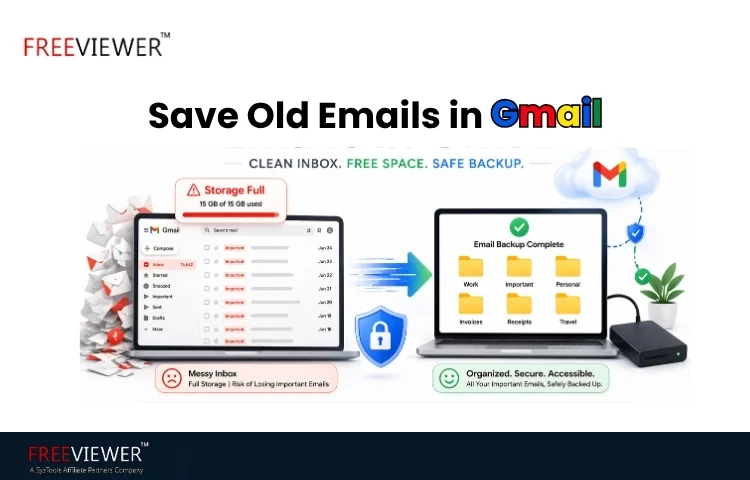
Blog Overview – Many people search how to save old emails in Gmail, when their inbox starts feeling like a messy warehouse of emails. They feel their old important emails will remain buried, and storage fills up. Fear remains planted “What if some extremely important email gets deleted? If you have been in this situation, you are not alone.
In this guide, we will walk you through safe and simple ways to save your old emails safely. Step by step, so you can remain relaxed knowing your data is secured.
Why Saving Old Emails in Gmail is Important
Emails are considered records of your life and work. People depend on emails for tax proofs, legal communication, job offers, and business records. Losing even one important email can invite real problems. The catch is Gmail doesn’t provide unlimited space. The provided limited space which is shared with Google Drive and Google Photos. Once it is filled, we stop receiving emails.
This is the reason saving old emails is not just about cleaning space. It is about protecting important information before it gets into accidental deletion.
How to Save Old Emails in Gmail (Manual Methods)
Method – Saving Emails Using Gmail Built-in Options – User can save emails manually using Gmail’s built-in options. Let’s check them out.
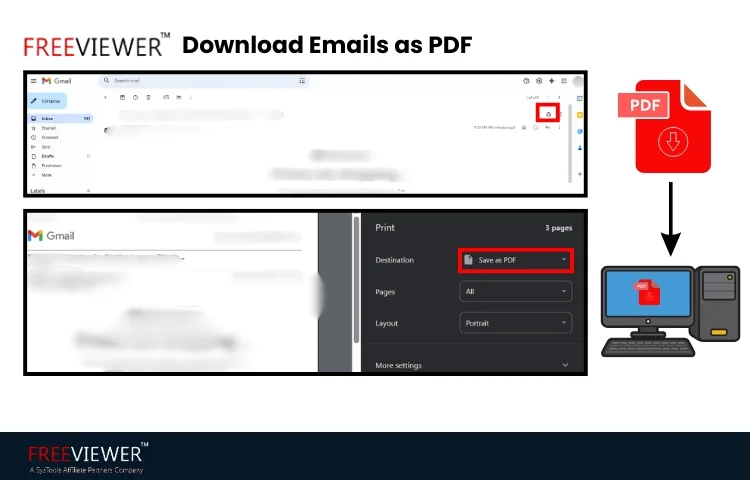
- Download Emails as PDF
-
- Step 1: Download Emails as PDF
- Step 2: Open Email.
- Step 3: Click print icon,
- Step 4: Save as PDF
- Step 5: Select your desired location.
- Step 6: Save.
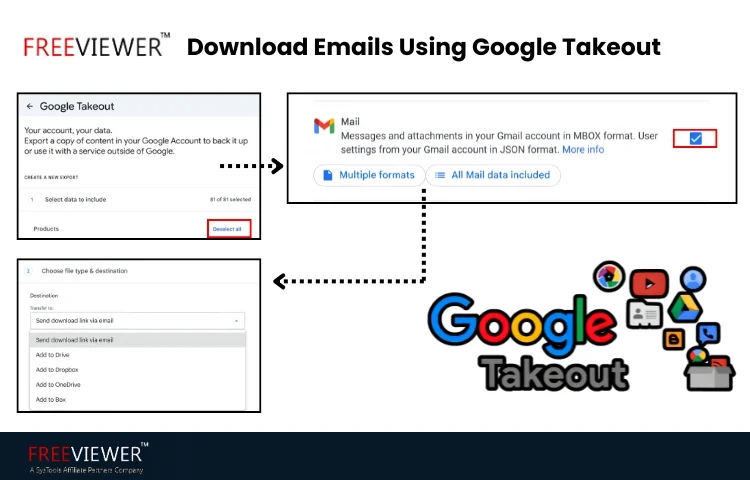
- Using Google Takeout
-
- Step 1: Open https://takeout.google.com/
- Step 2: Click Deselect all.
- Step 3: Select the Mail option
- Step 4: Select your destination (download via link, add to drive, etc.)
- Step 5: Select file size.
- Step 6: Start Export.
The process of how to save old emails in Gmail when done with manual methods is preferred when data to be saved is small. When data is large, a smarter approach is preferred.
Related Read – How to save Gmail email to PDF file format.
Smarter Way: Save Old Gmail Emails Automatically
Instead of saving emails manually. The preferred method is to create a safe backup of your old emails in your desired format and at your desired location, like a hard drive. In an error-free way, where they can be accessed anytime.
Think of it like this: Saving emails one by one is like clicking photos of the documents. Creating a backup is like having a full duplicate file cabinet. Proper backup ensures:
- Nothing is missed.
- Everything remains organized.
- You can access emails anytime.
For this, Gmail Backup Tool steps in and creates an efficient backup of your Gmail data, let us check how easily this tool can be operated.
Related Read – Best tips to export Gmail emails to hard drive.
Save Old Emails in Gmail Using a Professional Tool
- Step 1: Download and install the tool.
- Step 2: Select source of backup as Gmail.
- Step 3: Decide your desired backup format through a destination platform (PDF, MBOX, MSG, File System, etc.)
- Step 4: Select your date range to decide from where to where you want the data to be backed up.
- Step 5: Sign in to your Gmail account and verify yourself.
- Step 6: Select your desired location of storage, like a hard drive, PC, etc.
- Step 7: Start backup process.
How this approach helps:
- Saves multiple emails, date-based as per your choice.
- Keeps attachments, labels and folder structure organized.
- Stores data safely at your desired location
- You can save emails, contacts, Google Drive documents, and Calendar data through this approach.
When you follow this process, you have an effective approach on how to save old emails in Gmail.
Common Mistakes People Make While Saving Emails
There are some mistakes that people make, which are as follows:
- Assuming Gmail stores everything forever – Gmail stores your data, but there is a limit to it; once that is exhausted or when data is deleted, emails will not come back.
- Waiting Too Long – Many people act only when storage is full, and emails are lost through accidental deletion. Smart actions should be taken in your digital life.
- Saving Only “Important” Emails – User only saves selected emails. People never know when something will become important later.
Quick Answers for Gmail Users on: How to Save Old Emails in Gmail
- Open your Gmail and locate the emails you want to save.
- Use “Save as PDF” method for smaller needs.
- Use Google Takeout
- For a large, important and reliable backup, use a professional tool-based approach.
- Store saved emails on your system securely.
We hope that from the information above you clearly know how to save old emails in Gmail.
Frequently Asked Questions
Q: How can I save old emails in Gmail permanently?
A – It is possible, but Gmail storage is limited. To keep emails permanently. User needs to save them offline or use a backup solution.
Q: What is the easiest way to save old Gmail emails?
A – If you have a small dataset, like only a few emails. PDF works best, but for larger and important data, a professional tool works best.
Q: Does deleting free up Gmail storage?
A – Yes, email deletion frees up space. A responsible user should save important ones before removing them.
Q: Is Google Takeout safe for email backup?
A – Yes, it is safe, but its backup may not organize your data well, and it can become challenging for the management of large data.
Q: When should one back up their Gmail emails?
One should create a backup to prevent data loss, manage storage and keep important records accessible anytime.