Attachments Not Showing in Gmail? Here’s Exactly Why and How to Fix It


Blog Overview – You open your Gmail inbox. Opened an important email containing an attachment, saw the paperclip icon on an attachment. You clicked. Nothing. That panic, where did the file go? This is something many Gmail users experience every single day. Attachments not showing in Gmail is one of the most searched problems on Google.
In this comprehensive guide, we will tell you exactly why your Gmail attachments are not showing. We will walk you exactly through the precise fix for each cause. Every situation will be covered in depth.
Why are attachments not showing in Gmail?
Before we fix anything. We need to understand what is actually happening. To understand, think of Gmail like a postal sorting office. Where your attachments are parcels, sometimes that parcel gets stuck in the back room, sometimes it is too large for the slot. There can be a case sometimes where security confiscated it at the gate.
Fix is completely different in each case. Here are six reasons, attachments are not showing in Gmail.
- Your Google storage is full: Gmail, Google Drive and Google Photos all share 15GB of free storage. When that is almost consumed. Emails stop arriving, and sometimes attachments stop loading completely.
- Gmail blocked the file type: Gmail automatically strips certain file types before they reach you. It is a part of the security feature. The email arrives and attachment does not.
- Browser causing problem: Outdated browser, a corrupted cache, or an extension can put a break on how Gmail renders attachments.
- Internet connection: To open large attachments, we need a stable internet connection to fully load. Shaky signal can leave them stuck halfway. Visible but unclickable.
- Attachment icon are missing because file is embedded inline: Sometimes senders paste images into an email body. Due to this reason, the paperclip icons appear because the file is inside an email.
- Attachments not appearing in Gmail app: Mobile app responds differently from browser. This is common in older Android or iOS versions with cache buildup.
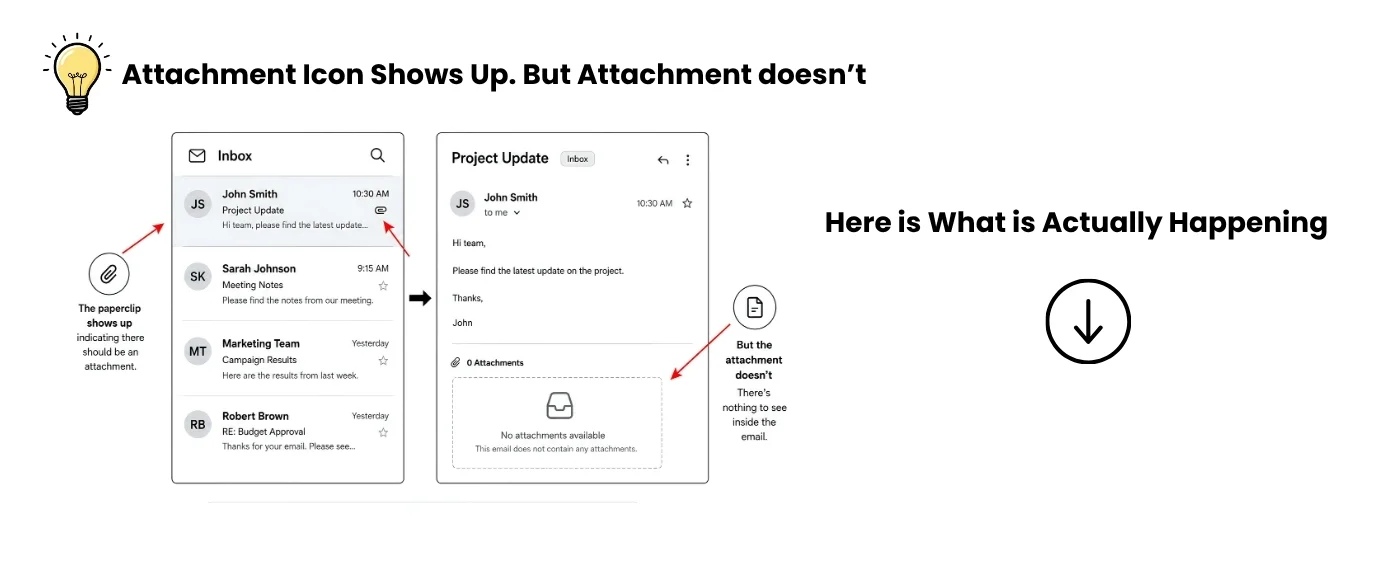
Related Read – How to Preserve Emails in Gmail Securely
How to fix attachments not showing in Gmail (Step by Step)
If attachments not showing in Gmail. Work on these fixes in a proper order, your issue will be resolved. Most people find their answer in first three.
Fix 1: Check if Google storage is full
- Open a new browser tab and go to one.google.com
- In left panel click on storage button.
- You will see, how much of your 15GB you have used divided into Gmail, Drive, and Photos.
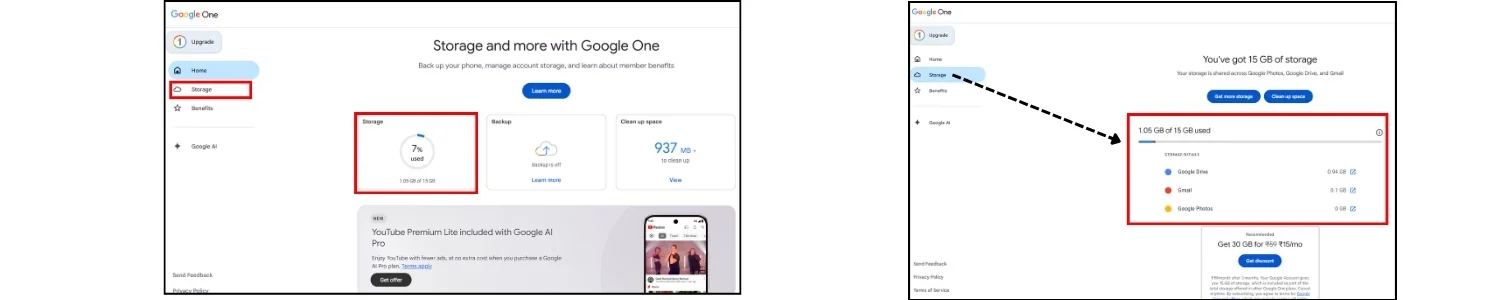
If you are close to the limit or over it. This is your problem. A full storage quota blocks Gmail from properly receiving and displaying new attachments.
To Free up Space Quickly:
- In Gmail’s search bar type has:attachment larger:10MB.
- This shows emails with large attachments in your inbox.

- Delete the ones you no longer need and empty the Trash.
In Google Drive
- Visit drive.google.com.
- Click Storage in left panel.
- On right you will see the sorting icon. Sort by file size, and delete what you no longer use.
- Once space is free.
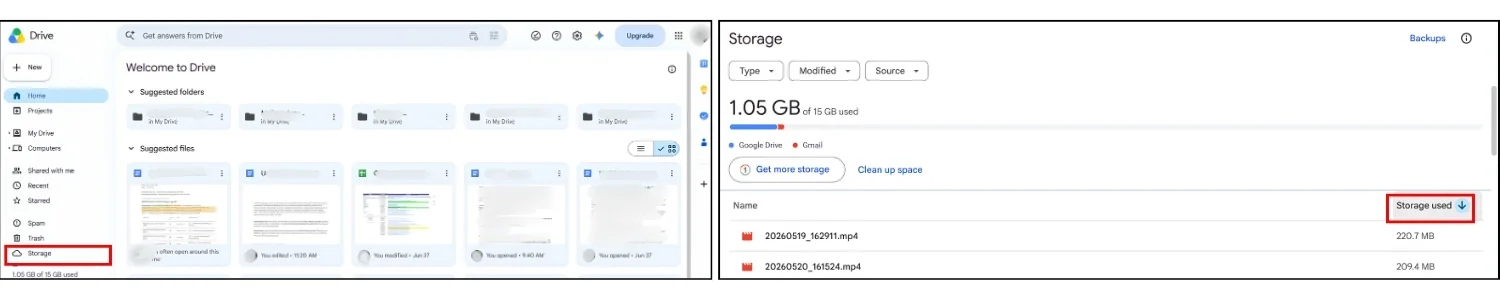
- Go to the email and try opening the attachment again.
Fix 2: Check if Gmail blocked the file type
Gmail maintains a list of file types it blocks for security. When a blocked file type is sent to you Gmail strips it silently. The email arrives. The attachment does not. Gmail blocks certain file types for security reasons. Which are as follows:
| Blocked Extension | What it is |
|---|---|
| .exe | Windows Executable |
| .apk | Android app installer |
| .bat | Windows batch script |
| .cmd | Command prompt script |
| .dmg | Mac disk image |
| .jar | Java executable |
| .msi | Windows installer |
| .vbs | Visual Basic script |
| .hta | HTML application |
| .scr | Screensaver/script file |
| .pif | Program information file |
| .lnk | Windows Shortcut |
Important: Since 2002, Gmail also scans inside ZIP files and blocks prohibited file types even when compressed.
The correct workaround: Ask sender to upload file to Google Drive and share it with you as link. Drive links can bypass Gmail’s attachment filter.
Fix 3: Clear your browser cache
Your browser stores old versions of websites to speed up their loading. Over time this stored data gets corrupted and corrupted cache can break how Gmail loads attachments in your inbox.
On Chrome:
- Press Ctrl + Shift + Delete
- Set time range to “All time”
- Check “Cached images and files”
- Click Delete data.
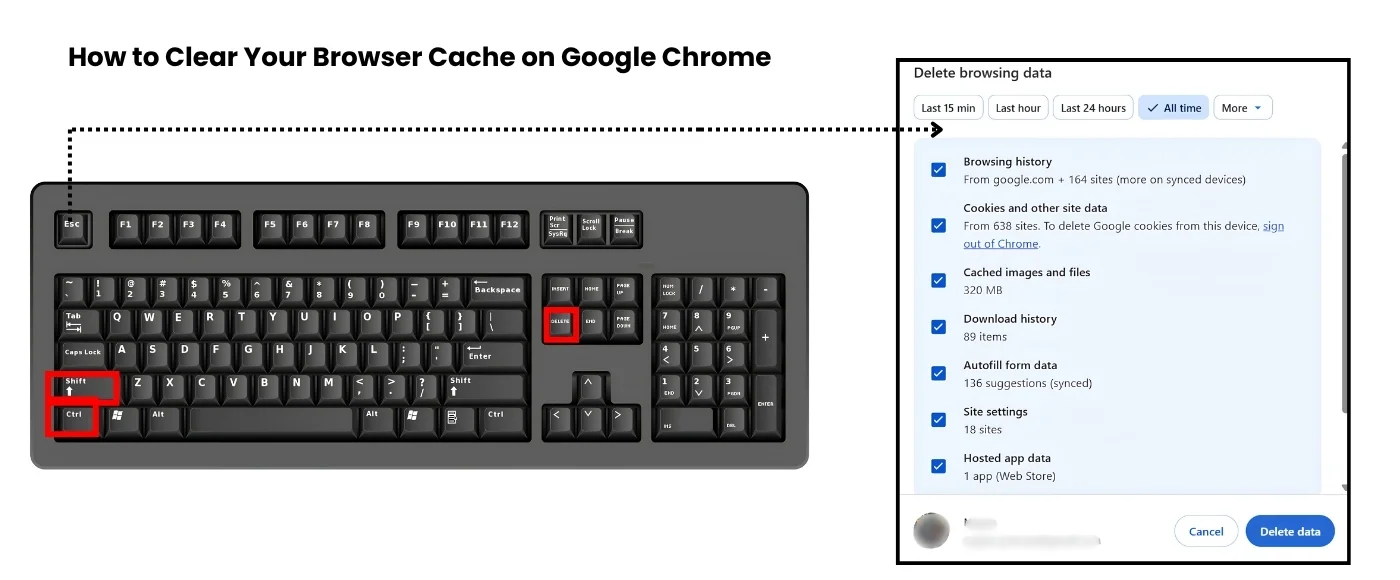
After clearing, reload Gmail and try the attachment again.
If it still does not work: Open Gmail in private or incognito window right now. If attachment loads there properly, browser extension must be blocking it. To fix this disable your extensions one by one in normal mode until you find the culprit. In this situations Ad blockers and security extensions are most common offenders.
Fix 4: Update or switch your browser
Gmail is built and optimised for modern browsers. Outdated version of Chrome, Firefox, Edge or Safari can silently break attachment loading without any visible error.
If attachments not showing in Gmail, check your browser version today and update if an update is available. If even update does not fix the problem. Open Gmail in a different browser. If attachment loads in a new browser. Then the problem was with your previous browser.
Fix 5: Fix attachments not showing on Gmail app on Android
If attachments not showing in Gmail app on your Android phone. The solution of this specific problem 9 out of 10 times is corrupted app cache. To resolve this.
- Step 1: Go to your, phone’s Settings, Apps, Gmail, Storage, Tap “Clear Cache.”
- Step 2: Force-stop the Gmail app. Reopen it.
- Step 3: Try downloading attachment again.
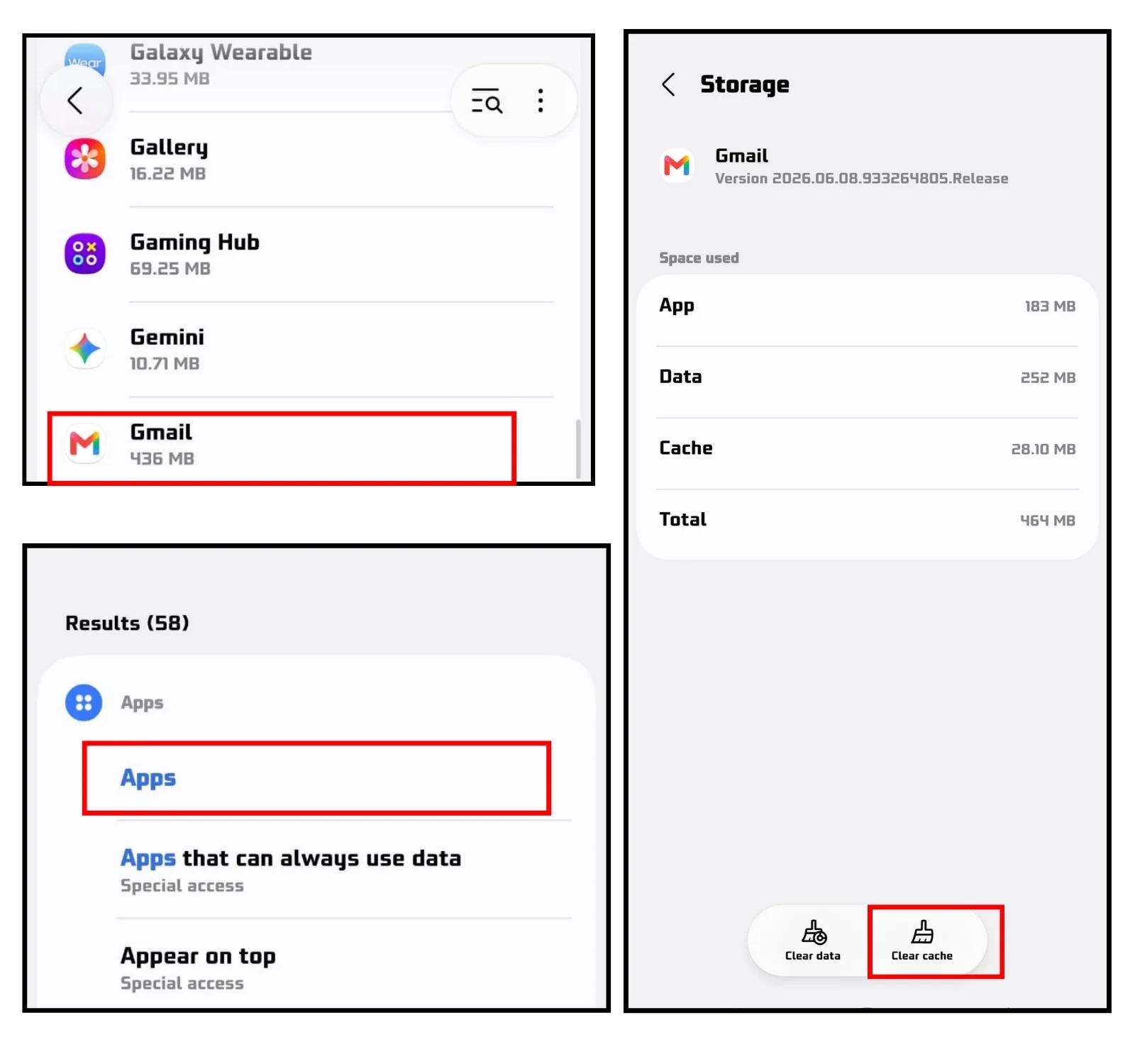
If it still not work. Check Android version, For Gmail app to run smoothly and as a good tech habit one should keep Android updated. The Latest version of June, 2026 is Android 16, So always keep your device updated.
How to Keep Gmail Attachments Secured
Gmail keep your attachments inside an email and your Email on its servers. So if you have important attachments in your Gmail inbox. It becomes important to safeguard your important Gmail data via keeping an offline backup secured in your PC or external drive. To do this efficiently Freeviewer Gmail Backup Tool, is of great use. It securely backup your Gmail, Google Drive, Google Contacts and Calendar data at your desired location in your desired format.
Frequently Asked Questions
Q – How to fix attachment issues on Gmail?
A – Start with the browser, clear your cache and test in an incognito window. Then check your Google storage Look at whether the file type is on Gmail’s blocked list.
For mobile users, clear the Gmail app cache on Android or force-close and reinstall Gmail app.
Q – How do I enable attachments in Gmail?
A – Gmail has attachments enabled by default. There is no setting to switch them on or off. If the paperclip attach button is missing when you are composing an email, either your browser is outdated, a browser extension is hiding the Gmail toolbar, or your internet connection dropped while the compose window was loading. Update your browser, disable extensions, and check your connection.