How to Migrate Apple Mail to Gmail: A Complete 2026 Guide


Summary: The primary mechanism behind this migration process (Apple Mail to Gmail) is data portability. You will have an easily searchable, secure, and accessible location for all of your communication regardless of where you are located when you successfully migrate Apple Mail to Gmail. This may be especially important for you as a professional consolidating client information or for you as a home user reducing clutter from your digital environment.
The real value of migrating to Gmail is that once you use the method explained in this article and successfully migrate from Apple Mail to Gmail, you free yourself from the limitations of proprietary operating system-dependent software.
What is the Need to Migrate Apple Mail to Gmail?
If you are attempting to migrate Apple Mail to Gmail, it is likely that you feel Apple’s local file-based approach to storage may be limiting your productivity on digital platforms beyond macOS. As such, you may feel frustrated by the restrictions of the Mail application on macOS when interested in retrieving legacy emails from other devices or systems. The transition from an Apple Mail to a Gmail account may also create feelings of anxiety regarding your years of archived email messages, folder structures, and important attachments that may not be accessible after migrating from Apple to Google services.
To clarify the challenge of why this is a pain point, it’s helpful to understand the underlying reason. Apple Mail usually keeps its data stored in “On My Mac” folders (stored in your local file system) which are tied to the physical hardware of your computer. On the other hand, Gmail is built from the ground up as a cloud-based solution that allows you to access your email on multiple devices (iPhone, Android, tablet and a web browser) that instantly synchronizes your email across those devices. By exporting from Apple Mail to Gmail, you are moving from a closed system to a shared archive, which is a huge improvement both professionally and personally.
Essential Pre-Migration Checklist
Before beginning your migration from Apple Mail to Gmail, make sure you prepare the following to avoid common pitfalls:
- Stable internet connection: Since large migrations can take time and require continuous data to be fully migrated, you’ll need a good connection for uninterrupted transfers.
- Gmail account storage: Check your Google account for enough space to accommodate all of the data being transferred from Apple Mail to your Gmail account.
- App-Specific Password (for two-factor-authentication enabled accounts): If you have two-factor-authentication enabled on your Google account, you will need to create an App-Specific Password from your Google Account Settings page in order to authorize the migration.
- Full backup: Always keep a copy of your current .mbox files, for safety reasons, before starting any mass transfers.
How to Migrate Apple Mail to Gmail Manually? Step-by-Step
A Simple Way to Move From Apple Mail to Gmail Using the Drag-and-Drop Method
- This is the best way to transfer your email from Apple Mail to Gmail if you do not have too much data.
- From Apple Mail, click on the menu item called “Mail” and then click on the menu item for “Add Account.”
- Click on the “Google” account and enter your information to log in.
- Your Gmail account will now be visible in the sidebar of Apple Mail after you complete the setup process.
- Next, create a new folder (or label) within your Gmail account using Apple Mail.
- Finally, you can drag and drop the emails from your “On My Mac” folders into your new Gmail folder.
- Once the drag-and-drop action has been completed, wait for your new email folders to sync back to Gmail. Please keep in mind that larger folders will take a longer period of time to upload.
Limitations of Using the Manual Method
While you can use the drag-and-drop method for free after importing your account into your Mac’s default program, the drag-and-drop method can be, to various degrees, unreliable. If you are moving thousands of emails, you may encounter IMAP throttling limits that are created by Google, resulting in email not being moved at all, skipped altogether, or stalling out within the process.
This limitation applies to local folders as when the computer stores folders “On My Mac,” these folders are invisible to any type of email server (for example, Gmail). Therefore, you must have these folders imported into an active account (IMAP), or into a folder that is connected to an active email account, to be able to copy them to the Gmail server.
Migrating Apple Mail to Gmail using Professional Tool
Apple Mail to GSuite Import Tool is a professional migration tool that seamlessly and reliably transitions data from local desktop clients to cloud solutions. This is done through the automation of a complex transfer process providing 100% assurance that emails, including attachments and metadata, will be transferred to your Gmail account in a secure manner without any chance of losing data.
This professional utility can easily migrate your Apple Mail files into Gmail. First you need to export MBOX file from Apple Mail using the steps explained as below:
How do I export MBOX from Apple Mail?
To export MBOX properly from Apple Mail, you need to:
- First, open the Apple Mail program on your Mac.
- Select the mailbox (folder) you want to export from the sidebar of your Apple Mail application. (You will only be able to select the local mailbox folder; you cannot select individual messages).
- Once you have selected the mailbox, you are ready to export it – from the top menu bar, select Mailbox > Export Mailbox…
- For the next step, you will see a file browser window, where you’ll want to navigate to the location on your hard drive where you want the .mbox file to be stored.
- Finally, you will need to click Choose, to export the mailbox. All messages in that folder will now be exported by Apple Mail to one single .mbox file.
How do you use the Apple Mail to GSuite Migration tool?
- Run the Apple Mail to GSuite Migration Tool.
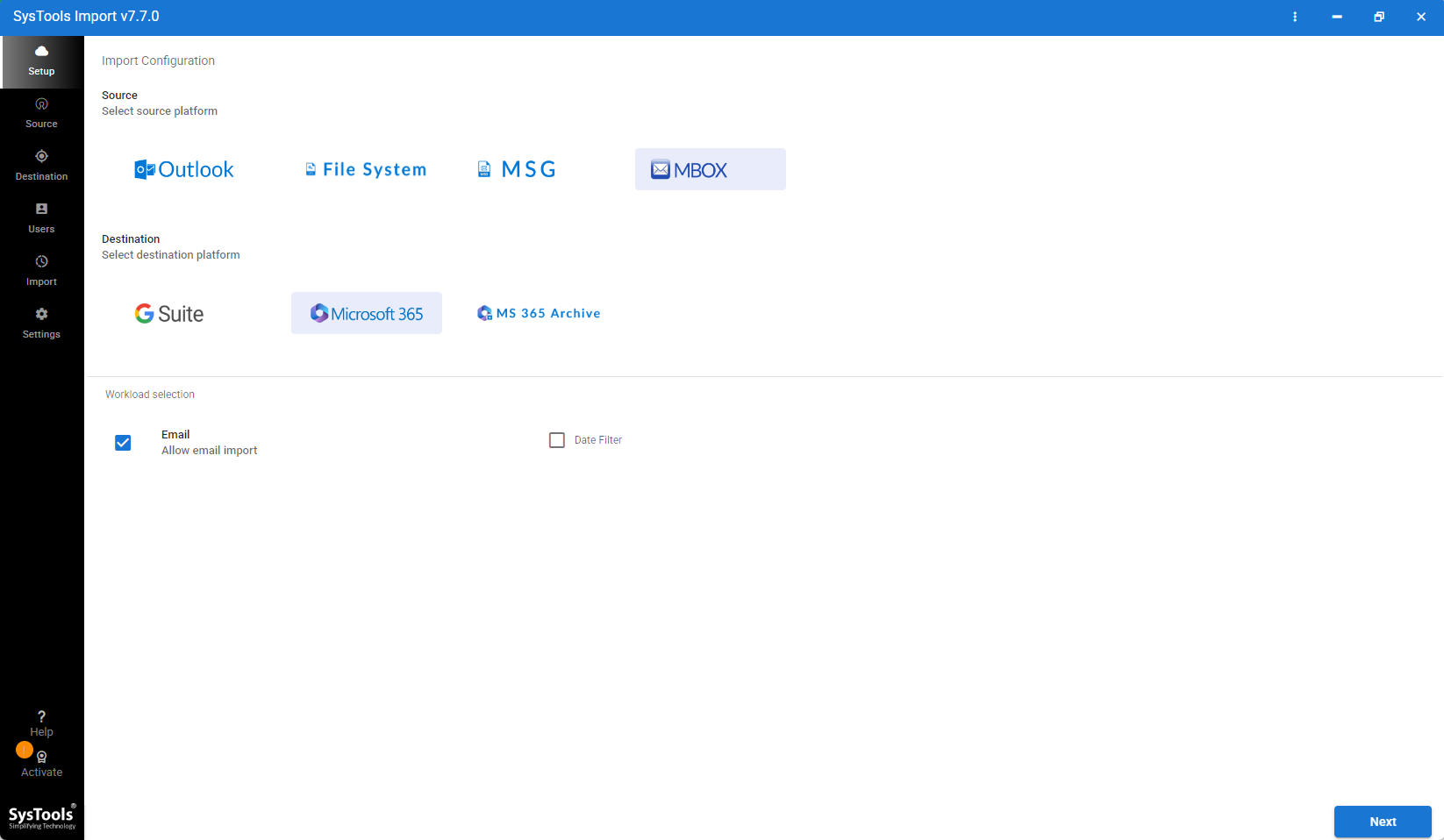
- Choose MBOX as the source, and GSuite as the target for the Platforms.
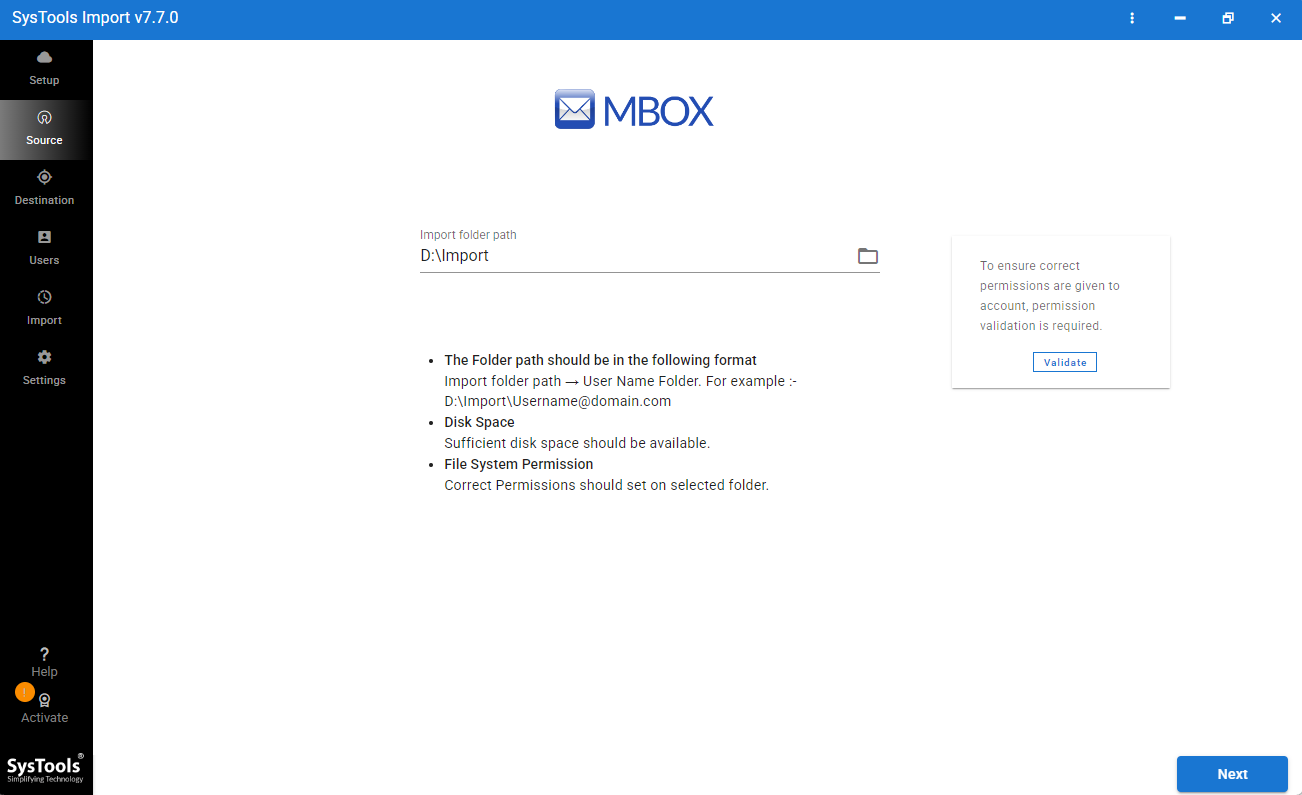
- Enable Email Type from the Workload, and use a Start and End Date Filter.
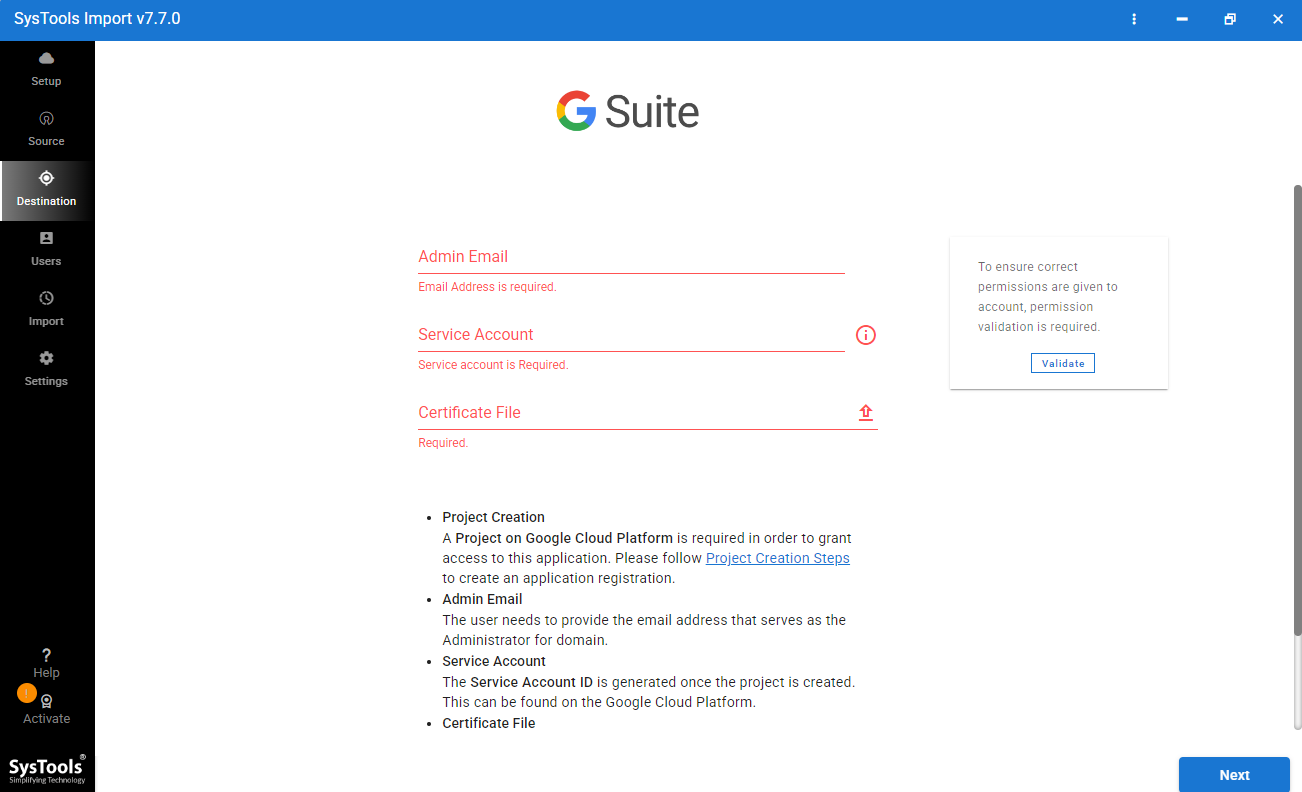
- Provide your G Suite login credentials for validation.
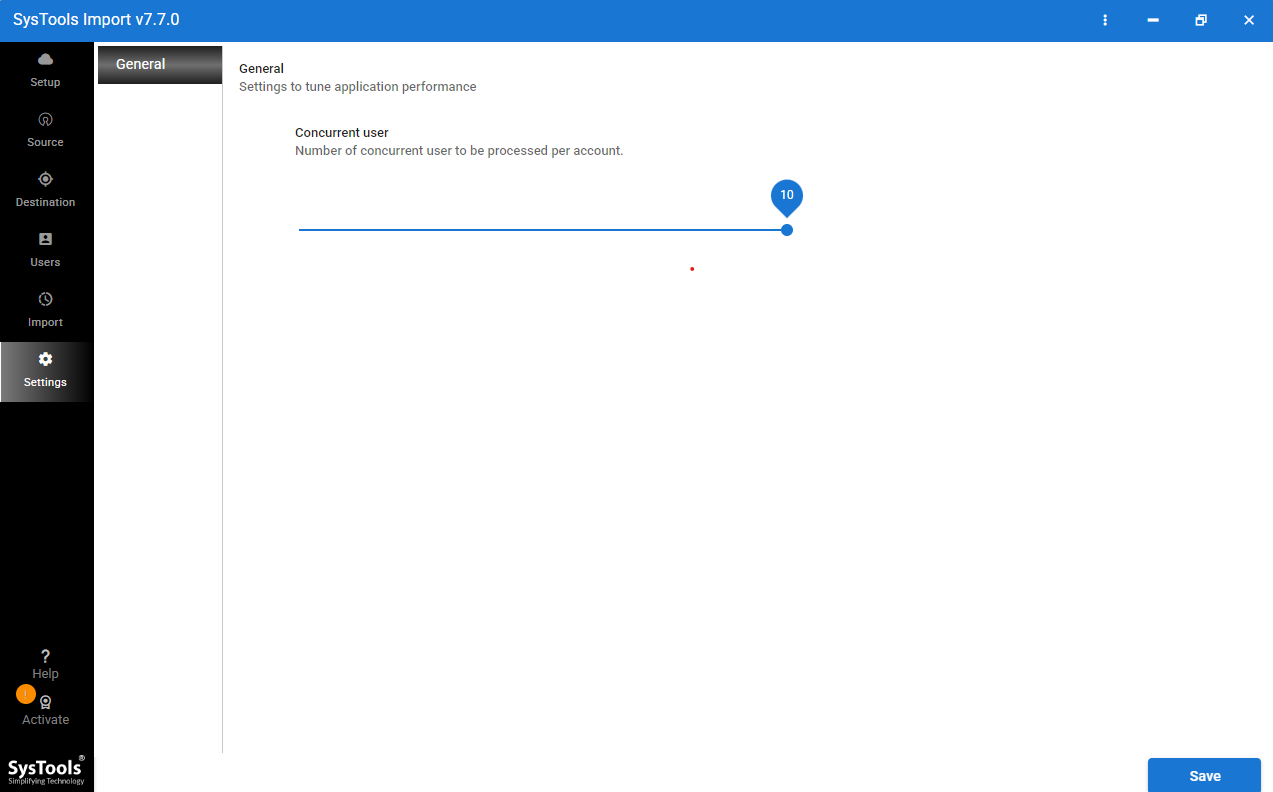
- Choose Concurrent settings and select the user accounts to import, and click Start Import.
Core Functionality/Features
- Bulk migrate Apple Mail, MBS, and MBX files
- Migrate from Apple mail, and other email clients
- Retain the original folder structure
- Selective migration using date range filters
- Impersonate an admin account for multiple mailboxes at once
- Receive real-time progress reports during migration
- Retain email metadata (To, CC, BCC, Sent Date, etc.)
- All original message attachments will be migrated
- Ability to migrate an Thunderbird file that has been deleted or corrupted
- Compatible with any edition of Windows OS
Questions & Answers (FAQ)
Q: Is there a cost to transfer Apple Mail to Gmail?
Yes, you can transfer emails from Apple Mail to Gmail using drag-and-drop at no charge for small to medium sized archives.
Q: Will I lose my email attachments?
Typically, no, you won’t lose your email attachments if you use a standard export/import process.
Q: Will my contacts and calendar migrate?
No, migrating only emails. You need to export contacts to vCard and import them into Google Contacts separately.
Time to Wrap!
Migrating your email from Apple Mail to Gmail is a great way to improve access and accountability. If you move your digital history into the cloud via drag-and-drop or using a 3rd party based application for larger email collections; groundwork and patience will be vital. Following this article’s guidance will allow you to securely, easily, and continually have access to your emails, unless otherwise noted.