Export Gmail to MBOX: Step-by-Step Guide


Blog Overview – You want to export Gmail to MBOX, because your Gmail inbox contains valuable data and due to reasons like storage shortage, and you are scared to lose it. In this comprehensive guide, I will show you exactly how to get a real, private copy of your Gmail data in MBOX format. That copy is saved on your own computer or external drive.
Quick Answer: The fastest free way to export Gmail to MBOX is Google’s own tool, Google Takeout:
- Go to takeout.google.com and sign in with your Gmail account.
- Click “Deselect all,” and select only “Mail” with Gmail icon.
- Select destination as send download link via email.
- Opt for file type as .zip and file size as per your preference.
- Click “Create export” and wait for Google’s email.
- Download the zipped file from link Google sent you.
- Unzip and your MBOX file ready.

Note – This is the short method. Keep reading and I will show you when this free method fails on big mailboxes. I will also show how to export Gmail to MBOX if you have a big dataset. Let’s start from scratch.
What Is an MBOX File
In simple terms, MBOX is a single file that holds an entire mailbox.
- Every Email
- Attachment
- Sender
- Subject line
All stitched together as plain text. It is not flashy; it is simply the oldest, most universal way to store emails outside of Gmail’s server or to free up Google storage space. Once users have MBOX file they can open it in Thunderbird, Apple Mail and many other programs; no Google account is required. It is a pure Gmail backup, fully independent of anything Google controls.
How to Export Gmail to MBOX Using Google Takeout
Google built a free tool for this job, called Google Takeout. It is the official, and a free way to export Gmail to MBOX format, and here is exactly how to use it.
Step 1: Set Up Google Takeout Export
- Go to takeout.google.com and sign in with the Gmail account you want to back up.
- Click “Deselect all” at the top. This will stop Google from bundling in Photos, Calendar, and everything else you don’t need.
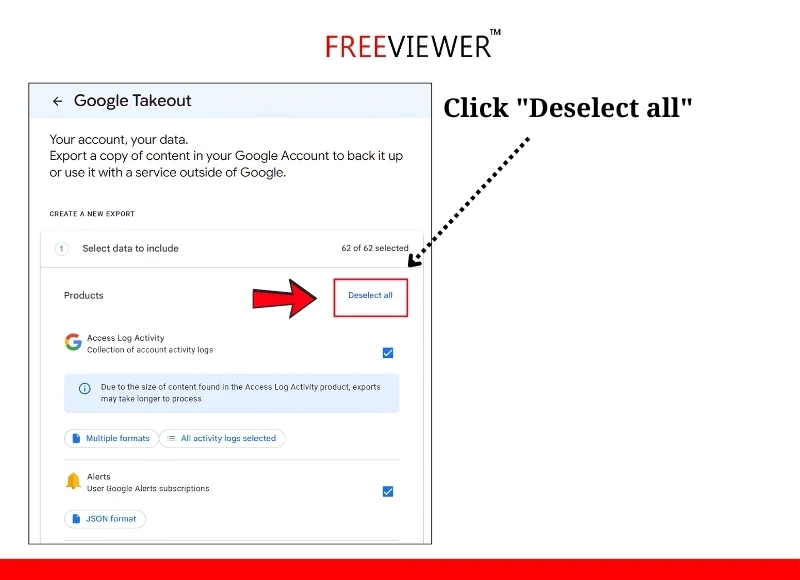
- Scroll down and check the box next to “Mail.” with Gmail icon.

- Click “All Mail data included“. Uncheck if you only want specific labels.
Step 2: Select Delivery and Download Settings
- Click “Next step” at the bottom of the page.
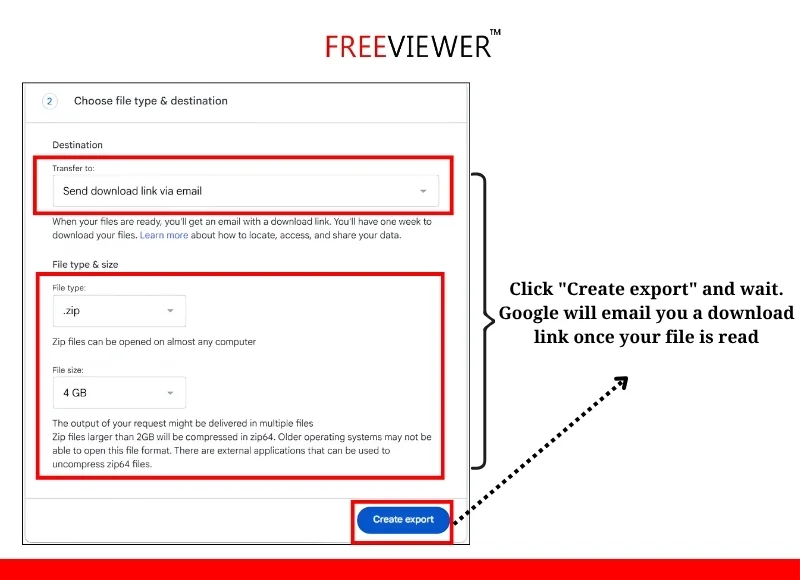
- Choose how you want to receive it. “Send download link via email” is the simplest option for the masses.
- Pick .zip as your file type, and choose a file size (2GB is a safe default for most inboxes). In screenshot, I opted for 4 GB.
- Click “Create export” and wait. Google will email you a download link once your file is ready.
Related Read: How to organize your inbox in Gmail
Where Google Takeout Can Fall Short
Google Takeout is free, and it works. It is not built for speed for personal inbox with small data this tool is perfect. For a larger, professional and sensitive inbox, here are some of its disadvantages.
- Wait can stretch into days – Google creates your export in the background. Large mailboxes can take till several days before the download link even arrives.
- Big inboxes get split into pieces: Once your mailbox crosses the size you picked, Google slices your export into several individual files instead of one clean MBOX..
- No control over what you export: You either take everything, or manually hunt through labels one by one. There’s no simple way to filter by date or sender.
- No Resume from where you left: If export fails, gets interrupted, or misses something, you start the entire multi-hour process again from scratch.
Now you must be thinking is there a faster and more secured way that can Export Gmail to MBOX in an errorless way. Yes there is. Let us know what it is.
Related Read: How to clean Gmail inbox without deleting
The Faster, Safer Way: Usage of a Professional Tool
If Google Takeout demands more patience than you have, that’s exactly the gap the Freeviewer Gmail Backup Tool was built to close. It works as a direct Gmail to MBOX converter, connecting straight to your account and saving your emails to your own machine as clean MBOX file, with no zip files, and no splitting. Now let us check how this tool operates.
How It Works:
- Download and install the tool on your Windows or Mac machine and open it.
- Gmail as source will be autoselected. Select MBOX as destination format from available formats.

- Choose email as workload selection.

- Select specific dates if you want to backup emails from specific date range only.

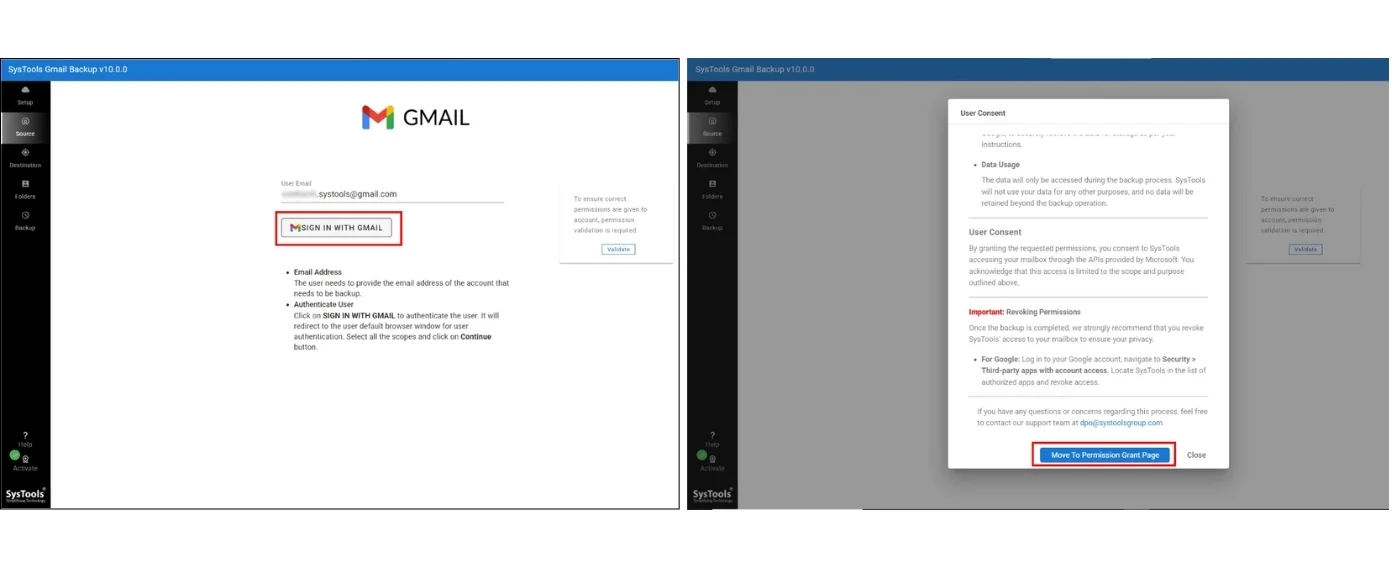
- Sign in with your Gmail account and validate permissions.
- Select folder in which you want that file to be delivered.

- Start your backup process.

Within a short time your data will be backed up completely and you will have your file delivered to your specific folder. I hope from the information above you are clear on how to export Gmail to MBOX file.
Related Read – How to save old emails in Gmail without data loss
What to Do With Your MBOX File Once You Have It
MBOX files do not open like a PDF or a Word document. You will require an email client that can speak its language, Here is how to load into two most common ones.
Thunderbird: Install free ImportExportTools NG add-on, right-click any folder in Thunderbird, choose “Import MBOX file,”. Select your exported file, your emails will start appearing .
Apple Mail: Open your Mail app.
- Go to File > Import Mailboxes.
- Select “Files in MBOX format.”
- Choose your file.
Apple Mail will build a new mailbox folder from it automatically.
Google Takeout vs Professional Tool: Side-by-Side Comparison
| Feature | Google Takeout | Professional Tool |
|---|---|---|
| Cost | Free | Free trial, paid full version |
| Speed | Hours to days | Minutes, real-time |
| File splitting | Yes, on large mailboxes | No, single neat and clean file |
| Filter by date/folder | Very limited | Full filters |
| Pause & resume | No | Yes |
| Best for | Small mailboxes, one-time backup | Large mailboxes, ongoing backups |
Both paths will get you to the same place. Your Gmail emails. Safely saved as an MBOX file. If your inbox is small opt for Google Takeout, if your inbox is large and you want backup today opt for a professional tool.
Frequently Asked Questions
Q – Is Google Takeout really free?
A – Yes, Google Takeout is free and comes with no hidden charges. The only “cost” is your time. Large mailboxes can take hours to days. Google doesn’t provide any paid option to speed up this process.
Q – Why my MBOX file split into multiple files?
A – Google Takeout automatically splits your export once it crosses the file size limit you selected like 2 GB or 4 GB. Instead of one MBOX file. You will get several numbered folders, each one holding your portion of mailbox.
Q – Can I open an MBOX file without installing any software?
A – You cannot view it directly through Windows or Mac’s default file viewer. You can preview it using a free MBOX viewer tool or import it into a Thunderbird or Apple Mail, both of which read MBOX files natively.