How to Save Gmail Emails as PDF: All Methods & Devices


Saving Gmail emails as PDF is easier than it looks. Open the Gmail message, select Print, choose Save as PDF in print dialogue, and save your preferred file to your preferred folder. Gmail also allows users to print an entire conversation when they need all messages together.
For one email, Gmail’s built-in option is all you need. This process works even if users want to export Gmail emails to hard drive. The question is what to do when you need full conversation, phone-friendly method, attachments, or hundreds of emails saved offline.
Quick answer
| What you need | Best Approach |
|---|---|
| One Gmail email | Gmail print, save as PDF |
| Full conversation | Print all |
| Android | Gmail App, Three dots icon, Print |
| iPhone/iPad | Gmail App, Share icon, Print all |
| Large data. | Dedicated bulk export or backup. |
| Offline Gmail archive | Gmail backup dedicated tool |
How do you save a Gmail email as PDF on a computer?
Users can save Gmail email as PDF on computer without installing any additional software. Gmail’s current desktop instructions let you know how to save a Gmail email as PDF.
- Open Gmail on your computer.
- Open the email you want to save.
- Select three-dot icon and click Print.
- Print dialog box will open Save as PDF.
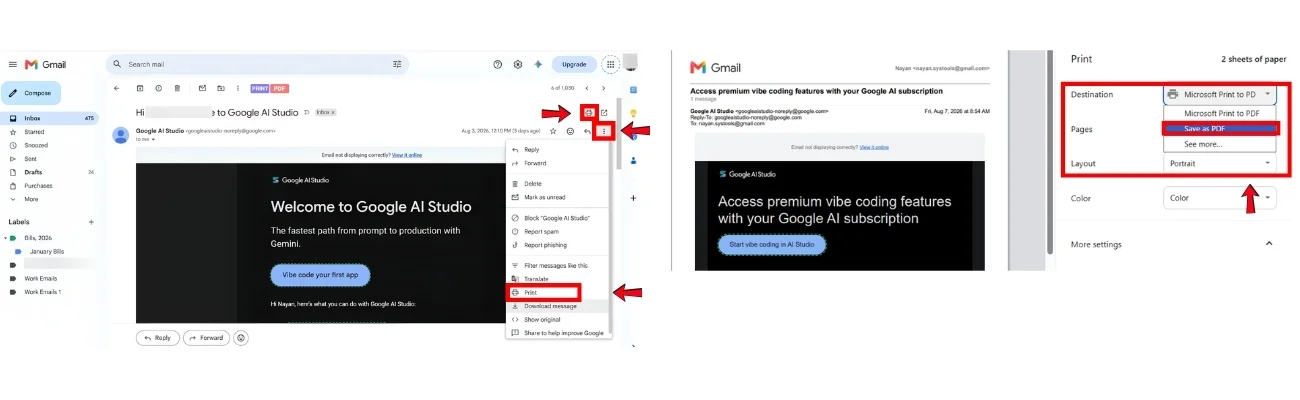
This is how do you save one Gmail email as PDF. This is the best option when we need readable copy of one email, The result is normal PDF file you can open, share, archive, or attach to another document.
Why saving a Gmail email as PDF useful for everyday tasks
Saving an email as PDF gives users a portable copy that is easy to read, share, and store outside your inbox. It becomes even more useful when the email itself is document you need to keep, rather than the Gmail mailbox behind it. Think about a train confirmation message in your inbox. You may not need to preserve emails in Gmail or your entire Gmail account. You simply need clean copy you can send to someone or keep with your trip documents. PDF is therefore best form of readable document copy, not a complete Gmail backup.
How to Save an Entire Gmail Conversation as PDF
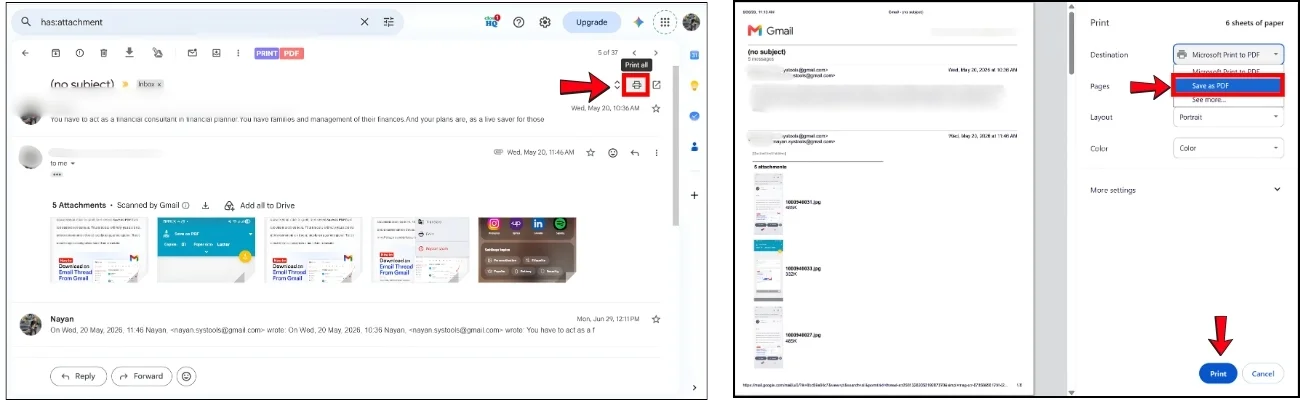
For saving an entire Gmail conversation as PDF, we have to select Print all instead of printing one message. Gmail provides a separate option for printing every message in the conversation. This is useful when you want to save entire Gmail thread into a PDF safe with you.
Steps
- Open the Gmail conversation.
- Make sure the messages you need are in conversation.
- Click Print all icon.
- Choose Save as PDF in the print dialog.
- Save full conversation as PDF in your desired location.
Quick distinction
| Requirement | Gmail Option |
|---|---|
| One Message | |
| Full Conversation | Print all |
How To Save an Email as PDF on Android
In Android, users can save an email as PDF through Gmail’s print workflow. Steps to do is as follows:
Steps
- Open Gmail app.
- Open the email or entire conversation.
- Tap three-dots icon.
- Tap Print or Print all if you want to save entire conversation as PDF.
- Select your PDF-saving option in the print screen.
- Choose where to save the file.
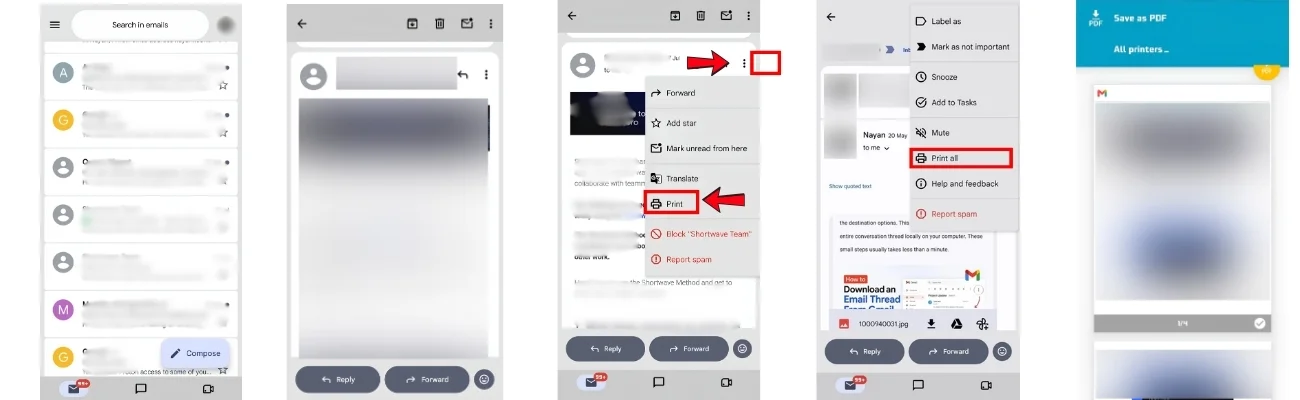
The exact PDF-saving screen can vary slightly by Android device because the final print interface depends on the device’s printing system.
How do you save an email as PDF on iPhone or iPad?
On iPhone and iPad, Gmail lets you print an individual message or every message in a conversation. Open the Gmail app, open the email, tap More, and choose Print. For a complete thread, use Print all.
The final step depends on the iOS print workflow available on your device. You can use the system sharing and saving options to keep the resulting document as a PDF.
Steps
- Open Gmail.
- Open email you need.
- Tap the three dot icon.
- Choose Print all for entire conversation and Print for single email.
- Use the iPhone/iPad print or share options to save the document.
Do Gmail PDFs Include email attachments
Saving a Gmail email as PDF will not include attachments in that email. The PDF saved is a printed representation of the email, while original attachment remains an attachment that have to be downloaded separately.
If a user want to save an email that contains a message and a PDF invoice, for example. In this case user will have to download PDF of the email message and attached invoice file separately.
Consider how time taking it will be if user has 2000 emails to save as PDF and among them 700 are those that contains important attachments. For this the solution is using solution built for this purpose.
Save Multiple Gmail Emails to PDF Files With Attachments
In order to save multiple emails and attachments in PDF files, use Gmail Email Backup Tool. It provides a folder filter option to select particular folder emails in PDF format. You can even select emails according to a certain date range using the date filter of the tool. Or you can entirely save Gmail email to PDF format. The tool allows you to save PDF files anywhere on your computer in just a few clicks.
Note: The free version of the software allows you to save the first 100 emails as PDF or in another file format & downloads calendars, contacts, and documents.
The steps to save Gmail emails to PDF are as follows:
- Download the utility on your system and install it.
- Gmail will be auto selected as source.
- Select destination as PDF. Workload station as email.

- Users can select how they want attachments to be saved, separately or intact.

- Decide your date range, if you want to save Gmail emails of specific time period.

- Sign in to your Gmail account and provide permissions.

- Select your folder where you want Gmail data to be stored.

- Start your backup process.

How to Solve Unable to Delete Emails from Gmail Issue?
Time to Wrap Up
How to save Gmail email to PDF format – A query that is not only raised by a technician but, by normal computer users also asks for such query. Using portable documents for sharing information is a well-known means for a person who is operating a PC. One can export Gmail message to PDF and then, enable security to those documents.
In today’s date, what matters is how safely you keep your data. Therefore, users should save multiple Gmail emails as PDFs. To make it possible for those who are facing issues while executing the process, we have explained different ways(Manual and automated) to get the backup of Gmail messages in PDF format. This will help to download the emails and access them when needed.
Frequently Asked Questions
Q1. How do I save an entire Gmail email as a PDF?
We have clearly explained this query in the above-mentioned post. You can use either the manual methods or the offline automated tool to save gmail email to PDF format.
Q2. Does it have any limitation on the size of backup?
No, the software doesn’t have any file size restriction
Q3. Can we download all our emails from Gmail using this tool?
Yes, you get the option to either backup entire Gmail emails or get selected emails based on your choice.