How to Protect PDF from Printing? 4 Effective Methods


The PDF Reader or by pressing Ctrl + P, can make printable copies of your confidential documents. This may cause content plagiarism and tampering with copyrighted files, and other personal information. It highlights the need of how to protect PDF from printing to prevent information from being leaked. Luckily, this guide explains all practical and advanced ways to lock PDF file from being printed. So, let’s begin the discussion.
Fastest Way to Lock PDF from Printing
- Download and launch the FreeViewer PDF Locker Tool on your desired PC.
- To protect PDF files from printing, upload the files using “Add Files or Folders”.
- After this, click Change to browse the path for the resultant PDF > Next.
- Go to Apply Document Restriction and pick “Not Allowed” under Print protection.
- Provide the password > hit the Lock button to prevent printing.
What is PDF Print Protection & How It Works?
PDF Print Protection is a type of owner password permission that blocks the printing action. Under this security setting, viewers can access the document for reading, copying, and more, rather than printing pages. Due to this protection, you may address the issue of “print option is not showing in PDF or greyed out” when printing the document.
The purpose of applying print protection is to improve document sharing while eliminating the risk of unwanted distribution and making hard copies. Here’s what happens when owners apply print restriction on PDF:
- Only view, read or access the content instead of printing
- Viewers get printed PDFs at low resolution or quality (i.e., 150 DPI)
- Full blocking of PDF page printing; print feature not visible
Overall, the print protection on a PDF document is useful for ensuring secure sharing and distribution. Below is how the PDF print lock works:
- Printing Not Allowed: The print feature is not accessible.
- Printing Under Low-Resolution: The viewer can print the PDF only in low quality or 150 DPI.
- High-Resolution PDF Printing: Allow PDF printing in high-quality with major limitations.
In summary, PDF print protection is a type of owner-applied security that prevents users from printing or making hard copies of the document. Now, let’s discover the reasons for applying this protection.
Why Lock PDF from Printing? Common Reasons
Protecting PDF from printing is highly beneficial for controlling document sharing and making hard copies. Without print protection, anyone can create printable files of your copyrighted, paid, and other confidential content. Below are the reasons why PDF print permission matters:
- Block Document Printing: By pressing Ctrl + P, anyone can print their sensitive PDF files. Hence, it is essential to block the action of printing to secure business reports, invoices, copyright material, research papers, etc.
- Limit Interaction: Sometimes, owners share the document for review purposes. Instead of providing full document interaction, applying print lock allows viewers only to view or read the information. This way, no one can make copies of important documents.
- Meet Industry and Data Protection Standards: After locking the PDF from printing, both individuals and business professionals can meet data security or protection standards with ease. With this, users can ensure document protection from unauthorized access.
Overall, these are the benefits of using print protection to safeguard the content from theft and plagiarism. Now, let’s understand how to protect PDF document from printing without any data loss.
How to Protect PDF from Printing – 4 Best Ways
If you’re wondering how to prevent a PDF from being printed, here are online and offline methods to stop printable copies from being made. Whether you’re a professional, student, or business worker, you can use these solutions to protect your paid and other copyrighted files from unauthorized distribution.
Here’s how to protect PDF document from printing:
- Adobe Acrobat Pro Software
- MS Word (Basic)
- Free Online PDF Tools
- FreeViewer PDF Print Protector Tool (Best for Individuals & Businesses)
Now, let’s understand the methods one after another.
How to Lock PDF File from Printing Using Adobe Acrobat Utility
To protect PDF from being printed, you need advanced solution, i.e. Adobe Acrobat Pro software. Using the tool, you can completely block the print feature while ensuring data privacy. Moreover, this premium software supports different types of document protection, ideal for businesses and individual protection. Besides this, it provides smart print settings to block PDF printing. Now, follow the quick steps:
- Launch Acrobat to open the desired PDF file.
- After this, navigate to the Tools feature and then pick the option of Protect.
- Now, use Restrict Editing and create a custom password.
- Look for “Print Allowed” and here, turn off or click None to block printing.
- Finally, use the OK button to download PDF with print protection.
Limitation of Premium Acrobat Utility
- To block PDF from printing, you need to purchase the full version of Acrobat. It is quite expensive and based on a subscription.
- For beginners or non-technical users, the software isn’t a flexible choice.
- The tool doesn’t offer batch processing for large volumes of documents
How to Protect PDF from Printing – MS Word
Word is the basic way of locking PDF from being printed. Remember, this is not a dedicated way of applying print protection to a PDF document. Now, follow the detailed steps to block PDF file from printing using MS Word:
- Open MS Word instantly.
- Navigate to File feature and use Open to upload the document.
- After this, it shows a message to access PDF as editable file > OK.
- Now, again click the File button and use Save As.
- Go to Options to optimize the export settings and download the new document.
- To protect the file, use Info > Encrypt with Password.
Drawbacks of MS Word
- It doesn’t offer settings to apply print protection.
- Many times, the process causes formatting and layout issues.
- No dedicated functions to lock PDF from editing and printing pages.
How to Protect PDF from Being Printed Online – Use Free Online Tools
Online tools are another way to lock PDF from printing pages. Using these web-based tools, users can instantly limit the print action with ease. Moreover, it allows users to block printing from PDF in batch mode. Without depending on Adobe or costly third-party tools, you can secure the important document from printing. Now, follow the quick steps on how to lock PDF for printing using online tools:
- Visit any free online PDF tools on any device.
- Use the drag & drop feature to browse the file.
- After this, set the protection > press Start.
Disadvantages of Free Online Tools
- Online websites are risky; they may cause data leakage when uploading files to an unfamiliar server.
- During the process, it can cause formatting and other layout issues. So, not recommended for professionals.
- The free tools limit the number of usages, hence require a subscription to lock PDF from printing in batch mode.
How to Protect PDF from Printing – Automated PDF Print Protecting Tool
To lock PDF from printing, use the FreeViewer PDF Print Protector tool. The offline and dedicated professional software for locking documents from tampering or misuse. Moreover, the tool allows users to apply all types of owner-level protection, such as printing, text copying, modifying, and more.
Using this advanced solution, owners can partially and completely block PDF printing. Hence, this is a standalone utility to control the viewer’s actions when using the sensitive files. Here are key features of the software:
- Prevent PDF printing in batch mode without formatting issues.
- Option to apply PDF printing with both low resolution (150 DPI) and high quality.
- Preserve file formatting, metadata, and other embedded content with ease.
- 100% offline tool; no server upload and no ads during the process.
- Download the utility on Windows or macOS, especially the latest versions.
Stepwise Guide to Prevent PDF Printing
- Download and start the aforementioned utility on your computer or laptop.
- To import the PDF files, use the Add Files or Folders option.
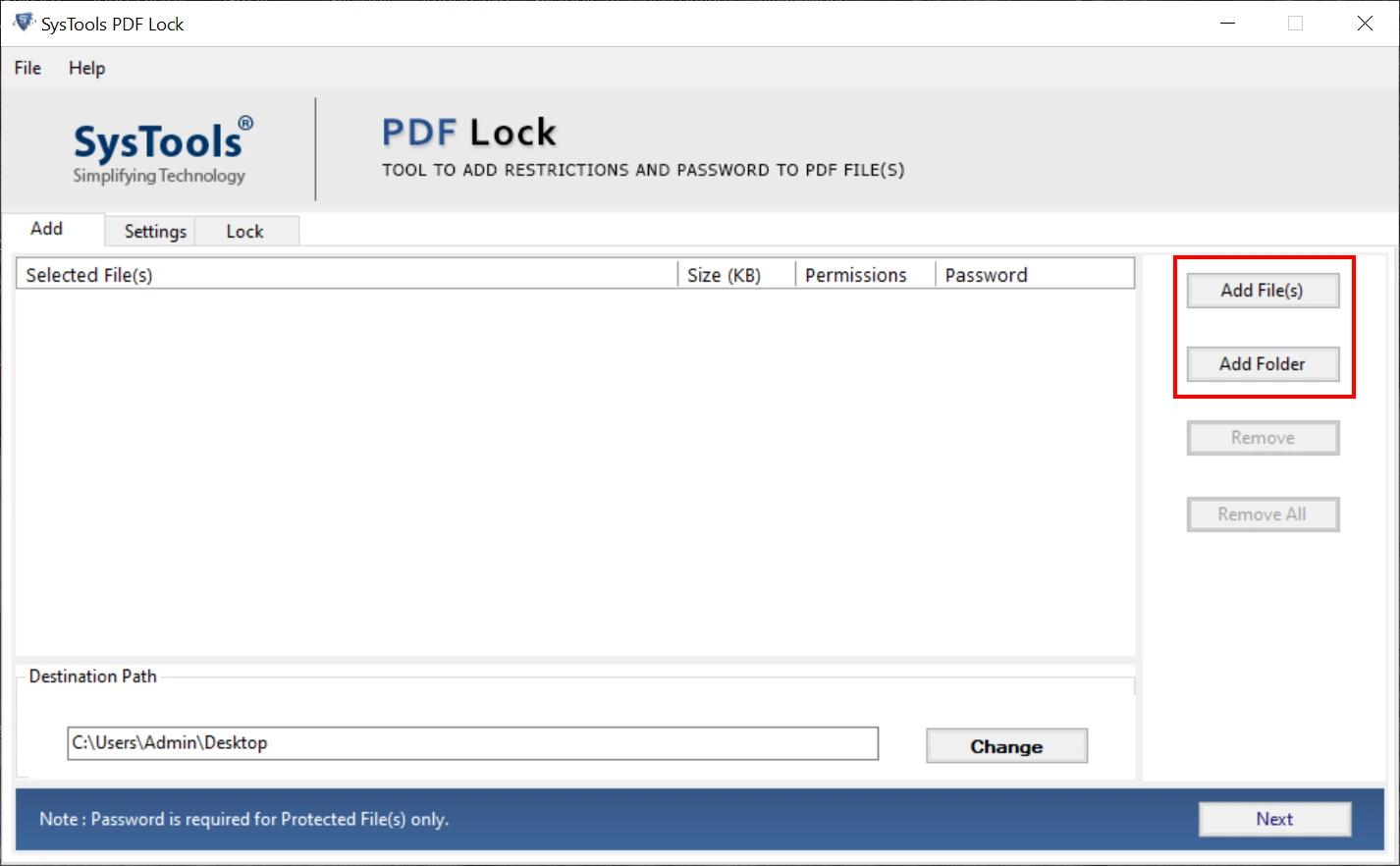
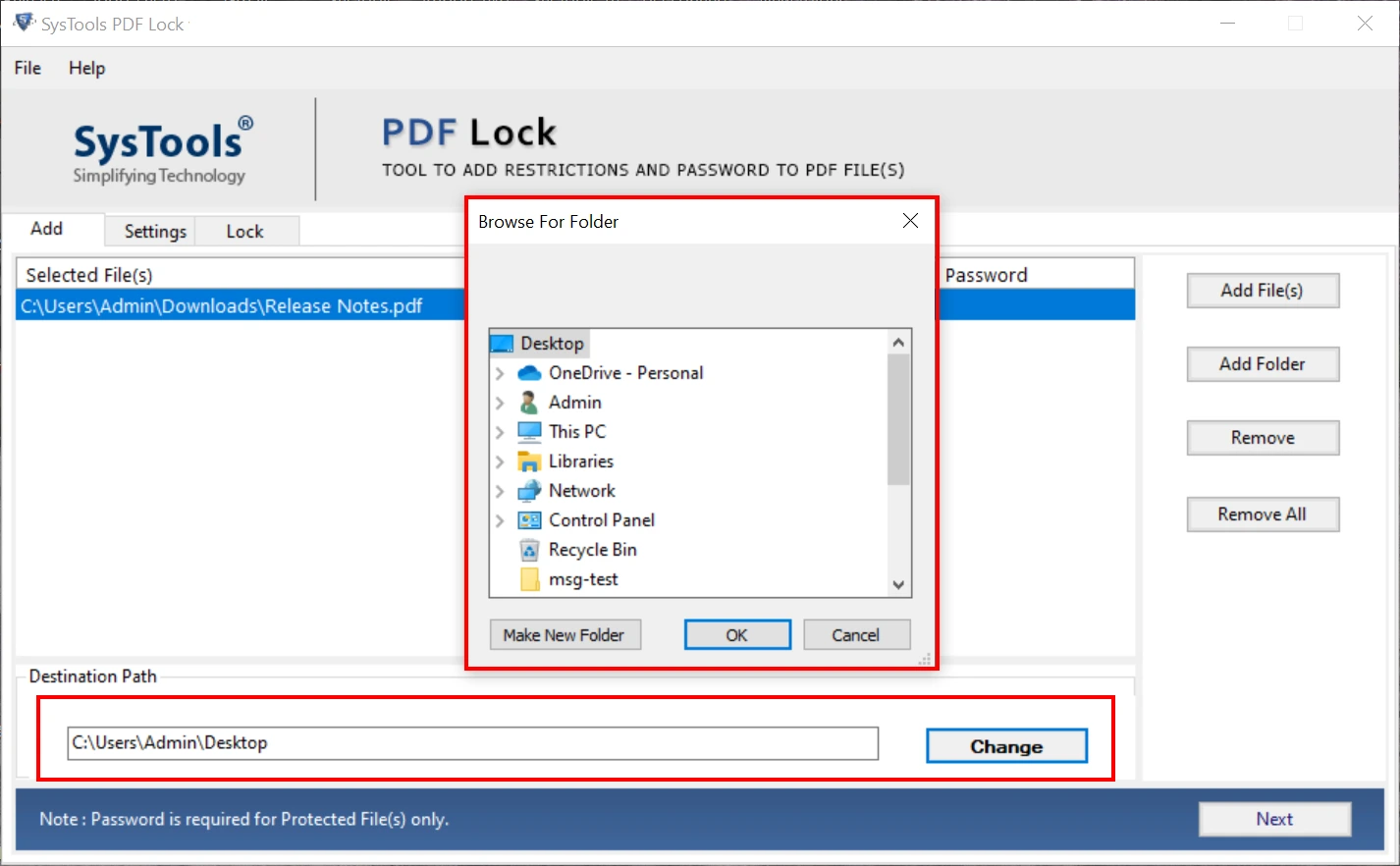
- Look for Change to browse the location for the resultant PDF > Next.
- In the Apply Owner Restriction > use Print Not Allowed option.

- Finally, hit the Lock button to lock PDF file from printing.
Bonus Tip: If you want to remove print restriction from PDF, you can use the offline software, i.e., Free PDF Unlocker. There are various reasons where you require free access, so use the utility to disable protection.
Final Words
In the above how-to guide, we have shared 4 effective ways on how to protect PDF from printing. Using these methods, you can reduce the risk of unauthorized distribution of printable copies when sharing sensitive files. Among all the techniques, the automated software is useful for all. It is based on a one-time license payment with lifetime access. So, download the utility to secure PDF from printing pages.