How to Lock PDF with Password? Complete Guide


PDFs are becoming the standard file extension for sharing or managing information. This independent document is useful for businesses, individuals, researchers, IT professionals, students, and more. Whether it is a contract, legal filing, financial records, or HR documents, everything is managed under the PDF file format. But keeping them unprotected is the biggest risk. It further increases the danger of document tampering or misuse when sharing with anyone. Here, you must seek how to lock PDF with password for better security.
With the right PDF Password Protector or Locker, users can apply the strong protection that limits the uses. Moreover, it is among the best practices for protecting PDFs with passwords. Follow this detailed guide to learn about PDF Locker and why it is necessary for locking PDF files. Also, we will discover how to choose the right tool that meets your needs. So, let’s begin the discussion.
What is PDF Locker & How Does It Work?
PDF Locker Tool is commonly known by many names, such as Password Protector. This is a modern or powerful solution for protecting the PDF with a password. Remember, this software isn’t just for convenience; it’s to fulfill data protection requirements and ensure the risk-free transmission of information.
Since PDFs hold vast data, including confidential data. Here, the risk of intentional or unintentional tampering of the file is quite high. Luckily, the powerful PDF Password Protector software targets such needs. Moreover, this is a professional-grade and trustworthy utility to lock PDF with password and other major protection.
Overall, a PDF file locker software works by locking PDFs with major security. It prevents the direct or unauthorized access of the viewer. Below are the types of password protection comes under PDF Locker Tool:
- Open Document Password (or User Password): This is an absolute security that protects the whole document with a password. With the authorized user password, the viewer can view or read the content. If you don’t have the correct passkey, the information remains inaccessible, even if you have a PDF. Moreover, user protection lock a PDF with a password if the data is sensitive.
- Owner Permission Password/ Restriction: Besides password protection, there is another way of protecting the PDF files, i.e., Owner Permission Password. It mainly controls the actions, including text editing, content repurposing, copying, form filling, commenting, and more.
In summary, these are the two major modes of protection delivered by the PDF File Locker tool to lock PDF with a password. Using these security measures, you can safeguard your PDFs that contain information about your identity or business.
What Encryption Standards Does the PDF Locker Tool Offer? (Beyond Password Protection)
The advanced PDF Password Protector Software supports robust encryption standards to lock PDF with password and unbreakable encryption. Below is a detailed understanding of the powerful algorithms of encryption in the PDF Lock Tool:
- AES 256-bit: This is among the most advanced and professional-grade protection applied to a PDF document. Moreover, this multi-layer security is even used by official departments or groups, such as the US Defense, Healthcare, Finance, Government sector, or even Medical. FreeViewer PDF Locker offers the strongest PDF encryption to protect PDFs from malicious access.
- 128-bit: This is another encryption standard that is less powerful compared to AES 256-bit (Advanced Encryption Standard). This protection is useful for securing financial records, or more.
- RC4 128-bit & RC4 40-bit: These encryption algorithms aren’t recommended for confidential files. Moreover, modern PDF Unlocker can easily crack the protection when needed access.
Overall, these protections work beyond passwords. It is mainly used to protect highly sensitive files while encrypting the information. Now, let’s move to learn why we need a PDF document locker to protect PDFs with a password.
Who Needs a PDF Password Protector to Lock PDF with Password?
The need to lock the PDF files is merely dependent on industries or data type. Understanding the document information, users combine the right type of protection to safeguard the PDF file. Here is the breakdown of who uses PDF Lock Software to lock a PDF with password protection:
- IT & HR Department: In the IT or, especially, the HR department, the need for a PDF Locking tool is quite high. Since HRs need to maintain the employee records, including the personal information, such as Aadhaar card, bank statements, payslips, contacts, and more. Moreover, the company must to follow the data protection regulations or standards like GDPR for securing employee personal details. With tools like PDF Locker, HRs can easily protect PDF with a password security to focus on data security and privacy.
- Financial Records & Accounting: The financial records of any company or organization contain in-depth information on profits, statements, intellectual property, balances, taxes, invoices, and more. Keeping audit reports or accounting statements unprotected brings a grave risk of leakage or even damage to trust. Hence, it becomes essential to protect the PDF files to ensure risk-free sharing or archiving of data.
- Legal Department: Under the legal or compliance department, there is a vast range of information, including contracts, court filings, agreements, and more. Hence, legal departments need to share sensitive files with the court or clients. It is necessary to follow preventive or data protection practices. Applying the right password protection helps the document creator ensure data security.
Overall, the need for PDF Lock tools is widespread. Whether you fall in legal, financial, education, HR, healthcare, or any other government sector, you must to lock a PDF with a password security to ensure data safety.
Now, you might be wondering about the best way to lock a PDF with a password. So, follow the guide below.
FreeViewer PDF Locker – Best Way to Lock PDF File with Password Free & Fast
If you’re wondering for the right tool to lock PDF files with password, try FreeViewer PDF Lock Tool. Among online and other desktop-based solutions, this software is completely different. Moreover, it is a standalone utility that fulfils personal or industrial requirements.
This powerful tool combines all PDF protections, including user- and owner-level permissions. Beyond the password, the utility covers advanced encryption algorithms, such as AES 256-bit or 128-bit. Hence, users have the opportunity to apply military-grade password protection on PDF files.
Most importantly, the tool offers a free download (demo version) and independently works on Windows or macOS machines. Now, let’s walk through its core features.
Why FreeViewer PDF Password Protector is the Right Choice?
Here is a detailed understanding of why PDF Locker by FreeViewer is a standout for everyone:
- Apply User & Owner Protection: Many tools claim to support user or owner password protection, but fail to secure your files. Luckily, this PDF File Locker is compatible with applying the user (open PDF password) and owner permissions at once. This way, you can ensure data privacy or security while sharing it with a client or team.
- Powerful AES 256 & 128-bit Encryption: For top sensitive files, the encryption algorithms, like 256-bit and 128-bit, are applied to the PDF document. Unlike ordinary tools, FreeViewer PDF Lock Tool is an ideal solution that provides military-grade encryption. This way, professionals can add multi-layer or premium-level protection to secret documents.
- Unlimited PDF Locking: Using this reliable tool, users can lock PDF with password for free and unlimited. Moreover, there is no limitation on file size or usage. Additionally, users can upload a single PDF or an entire folder to lock the PDF files with legitimate protection. Hence, it makes fast delivery and accessibility of locked PDFs in seconds.
- Independent & Offline Tool: Uploading your sensitive PDFs online brings bad consequences; the remote access is available on a third-party server. Choosing an offline PDF password protector is a safe choice. Here, users can operate all the operations locally on their desktops without interference from online solutions. Moreover, it is 100% secure and offline solution for locking the PDF with desired password.
- Supports 5+ Permission Security: With this Free PDF Lock Tool, users can apply 5+ permissions to control viewers’ activities. Some of the top protections include Copying, Printing, form-filling, Text Editing, and more. Below is the breakdown of these protections:
a) Text Modification: This controls the actions of intentional or unintentional modification of content or other elements. This way, users can protect PDF from editing with ease.
b) Copying or Repurposing: After applying this protection, viewers can’t copy or extract content for respurposing or misuse.
c) Print Protection: It prevents making printable copies of PDF files. Besides this, owners can change page resolution settings (low or high) to limit printing.
d) Commenting: This prevents anyone from commenting or adding unnecessary feedback in the PDF document. With this, professionals limit the action viewers from performing comments.
- No Subscription Required (One-time Payment): The subscription model may hurt your pockets. Download the FreeViewer PDF Locker; it offers a one-time payment, making the software available for life. This way, you can lock the PDF with a password in batch mode without any failure or formatting issues. So, try the utility for free.
Overall, these are the features to look for when looking for the best PDF Lock tool. Luckily, you can opt all these options in the FreeViewer designed software. Now, let’s move on to learn how to password-protect the PDF using this tool.
#1 How to Lock PDF with Password Using FreeViewer PDF Lock Tool (Official)
To lock a PDF with a password, install the software on your Windows or macOS machine. Now, follow the stepwise guide:
- Install the FreeViewer PDF Password Protector on your desired system.
- “Add Files or Folders” to browse or upload the PDFs to the dashboard.
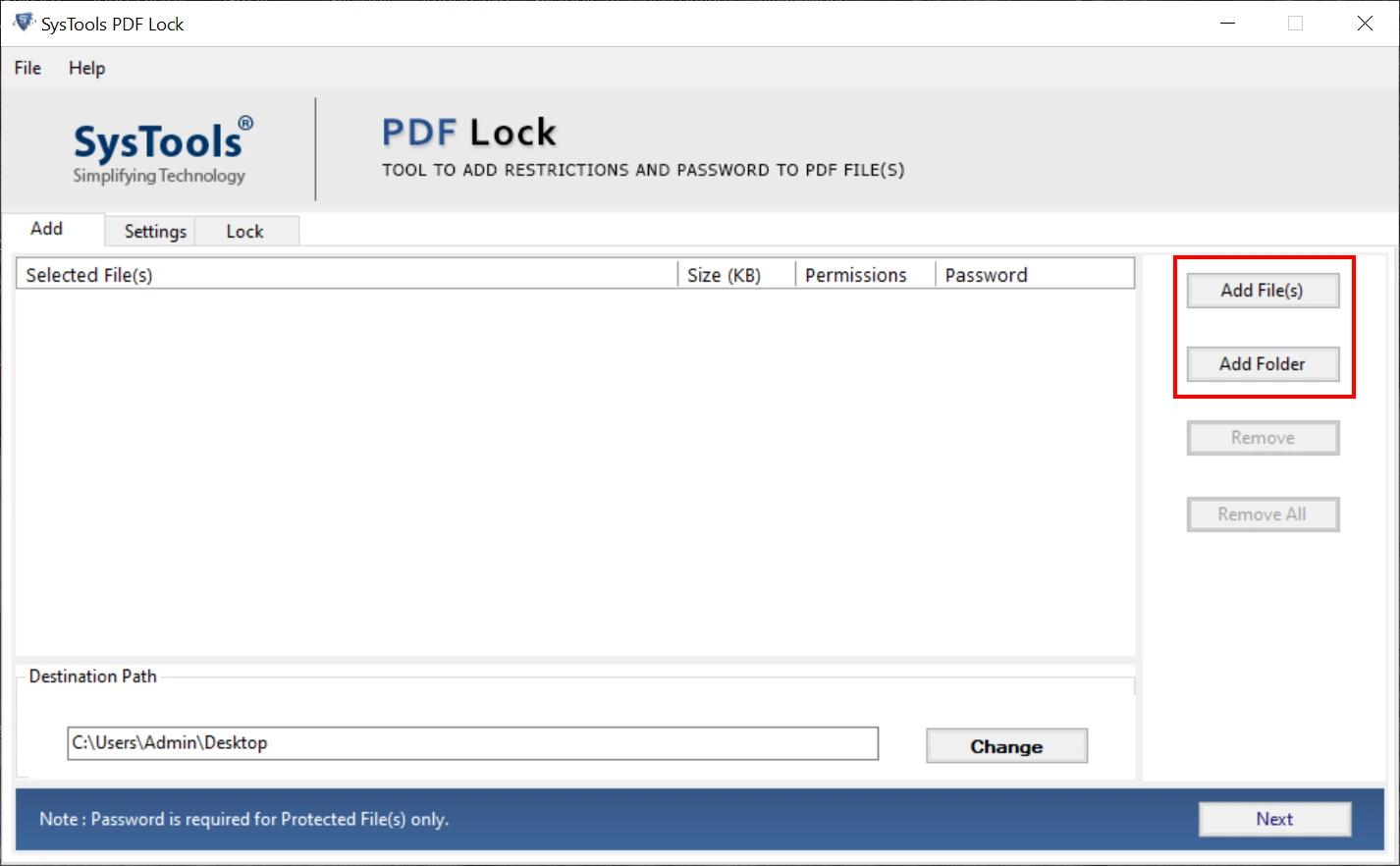
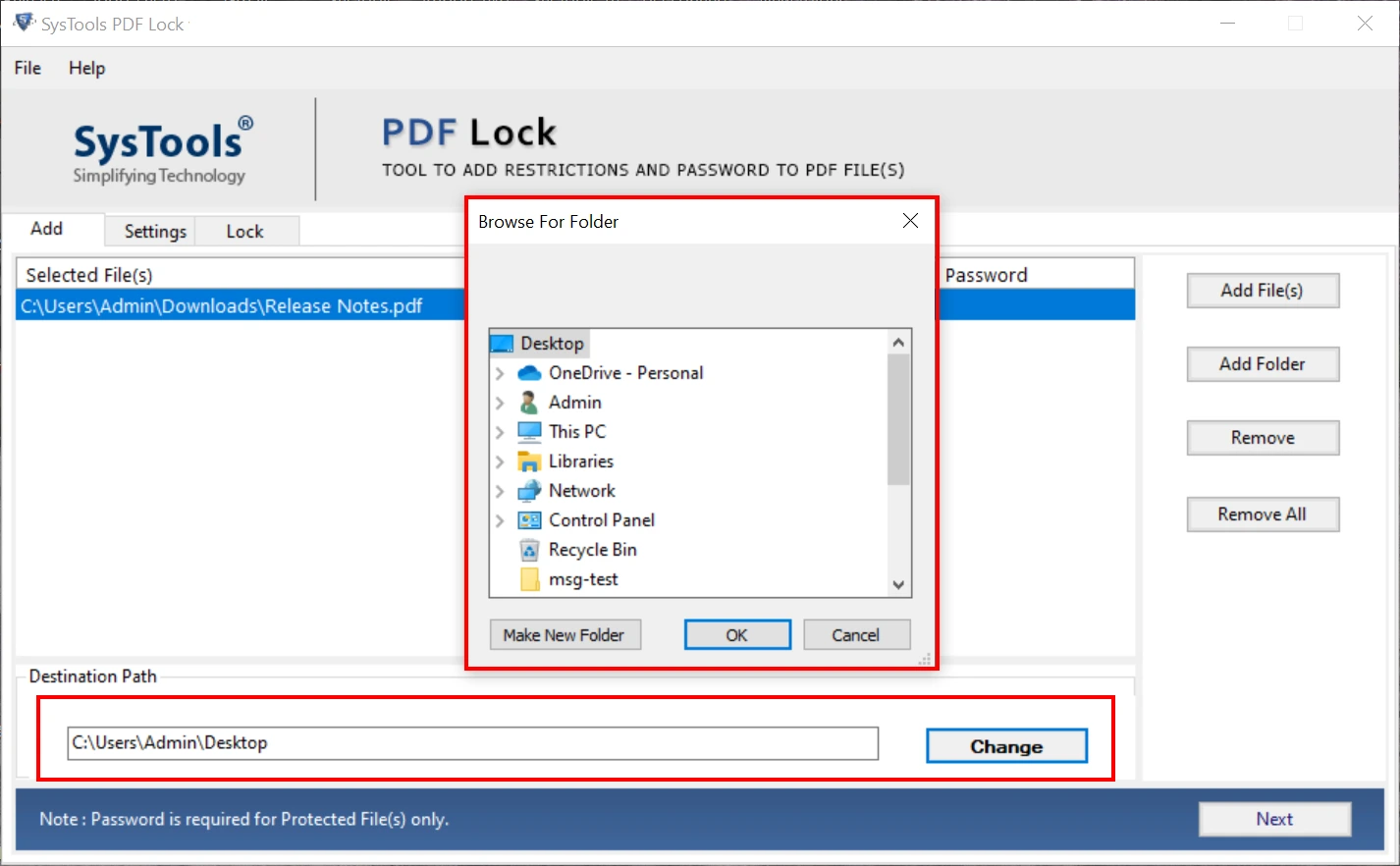
- Tab Change to discover the path for the resultant file > hit Next.
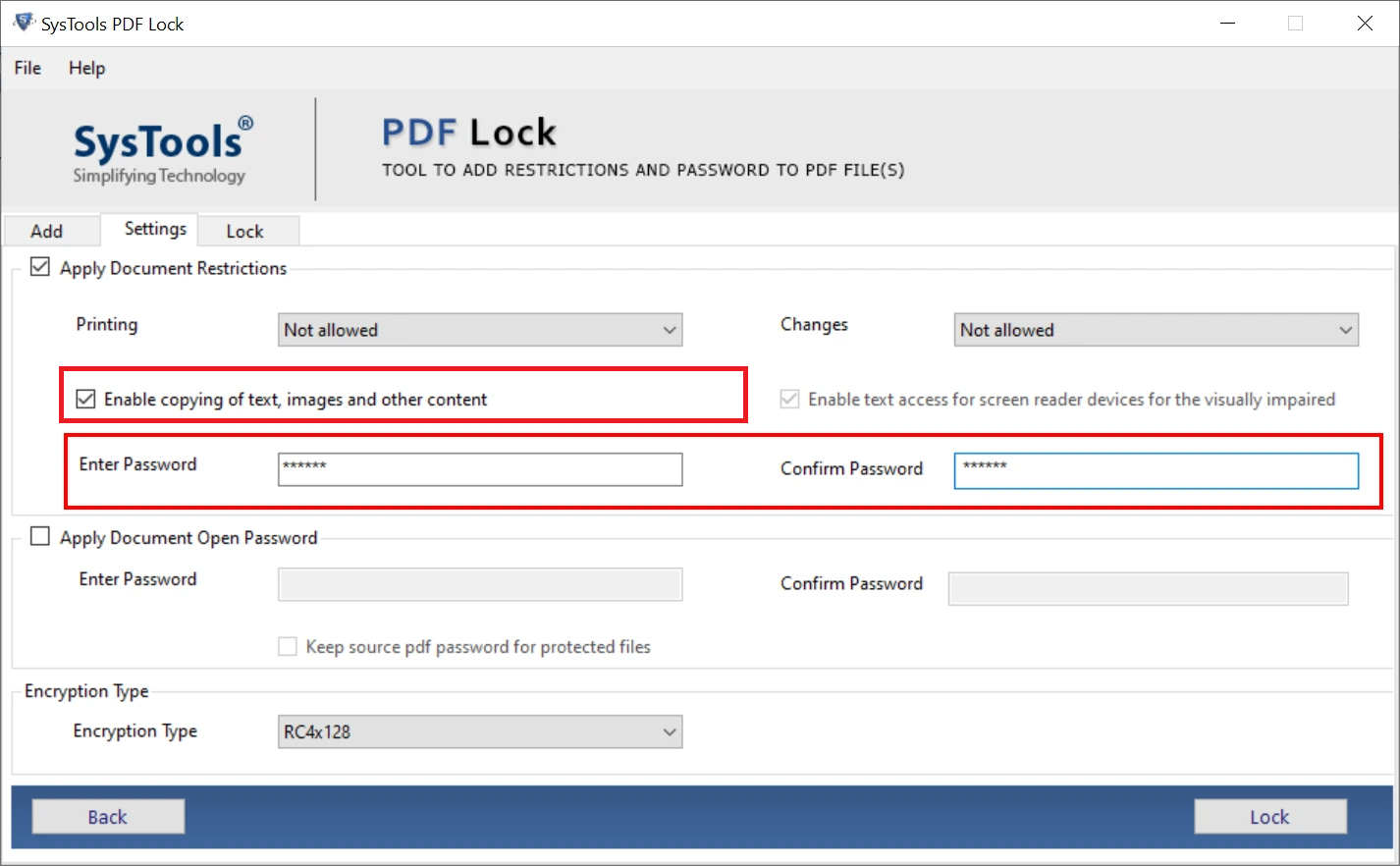
- Navigate to “Apply Document Open Password” > custom create password > re-enter.
- Finally, press the Lock button to protect PDF with password.
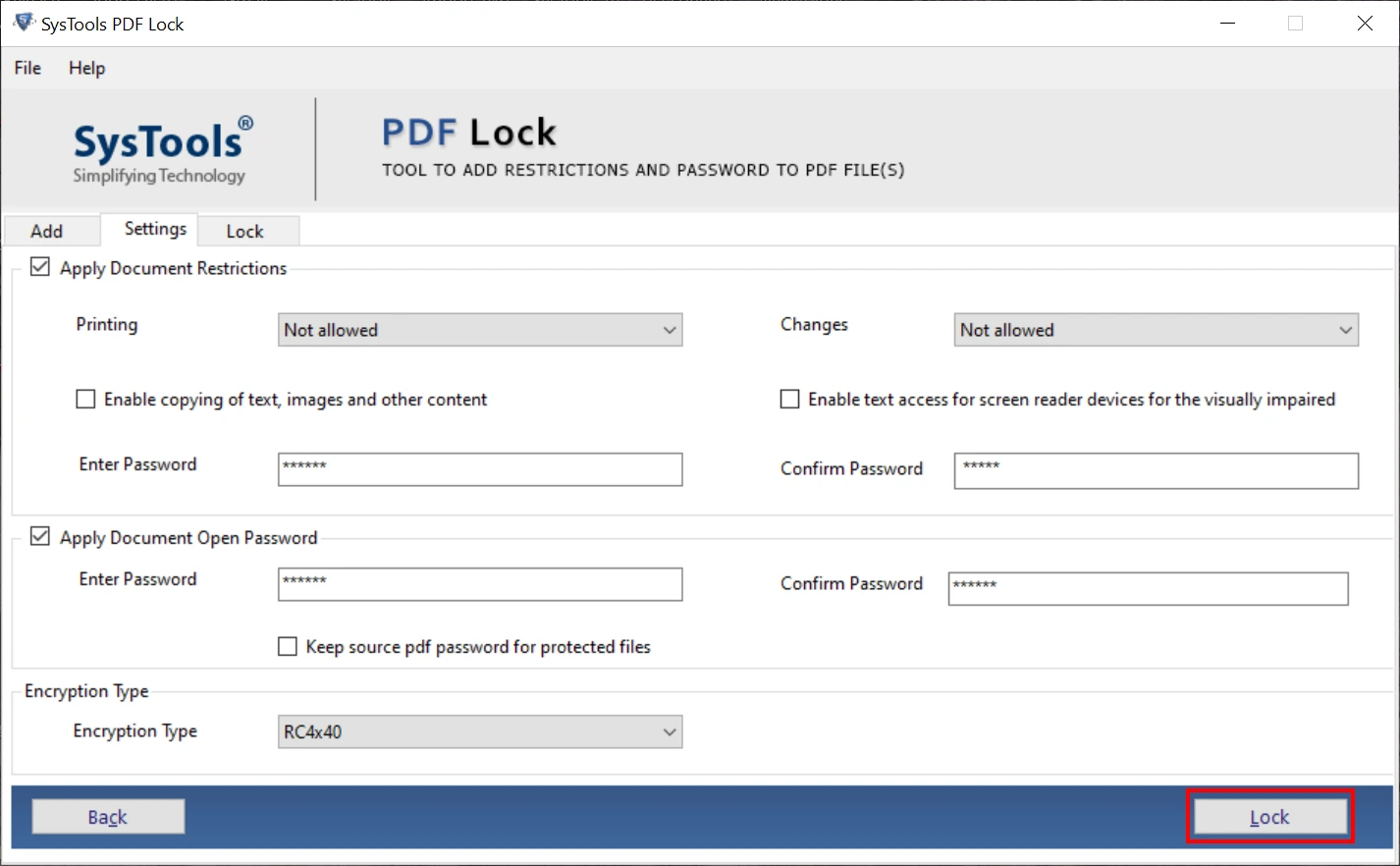
Tip to Remember: Whether you’re a student, researcher, professional, or business worker, the interface is simple to operate for locking PDFs in batch mode.
#2 How to Lock a PDF with a Password Free – Try Online Tools
If you’re looking for how to lock PDF with password online, consider free PDF tools. Many online platforms are available for protecting the PDF documents without installing any third-party tool or application. Moreover, it won’t ask for an extra fee or subscriptions for adding lock protection to a PDF document.
The other features of free online tools include fast processing, navigational interface, and support basic protection. Here are the quick steps to protect PDF files online using free websites:
- Start by visiting free online tools on any device or PC.
- Drag or drop the desired PDF document in dashboard.
- Set the password > press the Start/ Lock button instantly.
Limitations of Free Online Tools (Major Warning): Uploading the files to an online server offers a risk of leakage. Many websites may even keep your data without your consent. With the offline PDF Lock Software by FreeViewer, users can eliminate such danger. This is the best way to maintain privacy and protection.
#3 How to Protect PDF with Password Using Adobe Acrobat Pro
Adobe Acrobat Pro utility is another advanced or ethical way of locking PDF files. Using this comprehensive software, professionals can apply all the major types of password protection in a few clicks. It offers premium features, making it a costly tool for managing PDF files. During the process, it efficiently lock PDF with password and permissions. Now, follow the detailed steps to lock PDF using Adobe Acrobat Pro:
- Firstly, open the PDF with Acrobat Software on your PC.
- Navigate to Protect feature > Encrypt option.
- To set the security > pick Password Protect.
- Now, create a strong password > press Ok and save the secured PDF file.
Why Adobe Acrobat isn’t recommended for all:
Pricing is the real game-changer when looking for the best PDF Lock Tool. Adobe Acrobat is expensive, costing around $14.99 to $24.99 per month. Moreover, the year-based subscription plans are equally costly. Compared to the FreeViewer suggested software delivers all the features without asking for additional charges or a subscription. Hence, users can freely lock PDF files with ease.
#4 How to Lock PDF with Password on Mac – Try Mac Preview
If you’re a Mac user and want to lock a PDF file, the Preview is a free choice for all. This is a built-in application that allows professionals to secure the PDFs with basic protection. Remember, it is not a dedicated utility for locking the document. Here are the steps to lock PDF on Mac using Preview:
- Open the desired PDF with Mac Preview app.
- Navigate to File and then move to the Export feature.
- Under the Export > Tab Permissions > set the password.
- Go to Apply and then, Save the PDF document.
Limitations of Mac Preview: It is not ideal PDF Locking software. Moreover, it is useful for generic protection. Moreover, it won’t support batch processing, so look for an offline and advanced utility to protect PDF with a password.
FAQs on How to Lock a PDF with Password
Q. What does PDF Password Protector do?
PDF Password Protector is an advanced software for locking PDF files. The FreeViewer PDF Locker is the best solution to protect the document with a strong password. Moreover, the tool is available for Windows or macOS machines. So, download the utility for free.
Q. Can I lock PDF for free?
Yes, you can completely lock PDF files for free. The PDF Password Protector of FreeViewer offers a free download (demo version). With this, users can quickly protect all the PDF documents without paying extra money.
Q. Is it possible to protect multiple PDFs?
Yes, document creators can batch lock PDF files using the advanced PDF Locking tool. Moreover, the software supports a dual option for uploading the PDF files. This way, users can effortlessly protect confidential PDF with ease.
Concluding Words
In the above detailed guide, we have explained effective techniques on how to lock PDF with password. The process of locking the PDFs is simplified with the reliable PDF Lock Tool. Here, we have listed the 4 best PDF Password Protector software for professionals, individuals, students, legal advisors, or more.
Among all solutions, FreeViewer PDF Locker is the most recommended utility for locking PDFs for free. From pricing to premium features, the software covers everything for everyone. So, download the tool on your Windows or macOS to protect the PDF file ethically or quickly.