How to Protect PDF from Editing and Copying? Complete Guide


PDFs are commonly known as the simplest document format for storing or sharing a range of information. Many times, professionals seek ways on how to protect PDF from editing and copying. This situation mainly occurs when distributing sensitive information. To ensure secure data transmission, it is necessary to lock the PDF against modification, editing, or content copying. Luckily, this guide covers the understanding of PDF editing, copying, and ways to apply these protections. So, let’s dive in to discover the right approach.
Why PDF Document Protection Matters for Professionals or Businesses?
PDF protection is not limited to restricting the viewer’s actions. Today, securing sensitive data is becoming a major concern for business industries, organizations, and professionals. PDF documents are the most preferred choice for everyone due to their shareability and other benefits. Remember, storing or sharing the unprotected documents leads to bad consequences, including tampering or unwanted modifications.
Here, protecting PDF files from editing or copying ensures complete data security. Moreover, it offers an opportunity for document creators to share the files without fear of misuse or extraction of information. Below are the common reasons for applying PDF protection:
- In a legal firm, you need to share the contracts or signed documents in a courtroom. With file protection, law aspirants can limit accessibility and control changes or modifications.
- Many authors or researchers upload or share eBooks online. It requires a security layer to prevent text editing or copying within the PDF document. Moreover, it is another cause for adding file security.
- Sometimes professionals distribute the blueprint or draft of confidential information to the team. To control the action of modifying or repurposing the content, it is necessary to enable protection. This way, users can ensure data protection and safety.
These are the common examples where applying the PDF protection is a preventive measure. Now, let’s dive in to deeply understand the types of PDF security.
What is the Meaning of “Protect PDF from Editing and Copying”?
Editing or copying protection on a PDF document is a type of owner permission security. This restricts the action of text modification, extraction, repurposing, or copying & pasting. The purpose of applying these security is to stop misuse of confidential information. In other words, it is beneficial for document creators who aim to control the viewers’ activities.
The editing or copy protection restrictions:
- Modification or editing of content, links, or images
- Cannot make copy of content from PDF file
- Not able to extract or comment on text
- Prevent editing of the PDF form or filling fields
Overall, locking text copying and editing stops modification in important PDF files. Below are the common reasons on why protecting PDF files from editing or copying is essential.
Why Lock PDF from Editing and Copying?
Protecting the PDF for copying or editing is commonly popular as security layer when sharing secret information. Whether it’s financial reports, contract papers, payslips, eBooks, invoices, or more, it requires protection against direct access by viewers. Below are the detailed benefits of locking the PDF file from text editing and content copying:
- Stop Intentional or Unauthorized Changes: The primary reason for applying editing protection is to secure content from unwanted or fraudulent edits. With this, professionals can secure the content from leakage, keeping the information unchanged.
- Protect Confidential Content from Repurposing or Extraction: Publishers, researchers, or even authors need to share eBooks or online research papers. This often brings the issue of copyright and data theft. Here, protecting the PDF from copying ensures the safety of the content. Besides this, it maintains privacy and reduces chances of content plagiarism or reproducing.
- Meet Privacy & Compliance Standards of Data: Companies or industries need to follow the data protection laws or standards, like HIPAA, GDPR, or more, when distributing the information. Here, applying the editing or copying protection is helpful and adheres to these laws or privacy standards.
Overall, protecting the PDF from copying or editing supports the security and privacy of information from unwanted modification. Both editing and copy security are types of owner permissions that safeguard the secret data from direct access. Now, let’s break down the methods on lock PDF from editing and copying.
How to Protect PDF from Editing and Copying – 4 Effective Methods
If you’re looking for how to lock PDF from editing and copying content, here are the 4 practical solutions. It includes both free online and dedicated methods for securing the PDF from being copied or edited. With this, you can control the viewers’ activities and limit their usage. Here are ways to protect PDF document from editing & copying:
- Online PDF Platforms (Free Tools)
- Microsoft Print to PDF
- Adobe Acrobat Pro Utility
- Expert-Recommended Software (Official)
Now, let’s understand these techniques in a detailed manner.
How to Protect PDF from Editing and Copying Online – Free PDF Websites
To protect PDF document from editing, free online websites are among the best choices. For occasional, individual, or anyone seeking to lock PDF from copying, pasting, or editing, online websites offer all features. Without installing any offline tool or complicated sign-ups, these platforms allow users to secure PDFs with owner-level permissions like text modification or copying.
With just drag & drop options, you can enable the copy protection on PDF document. Below are the quick steps to how to secure PDF file from editing and copying online:
- Open free PDF platforms and upload the file.
- In the protection or password column, enter the password.
- Finally, hit the Start or Lock button to protect PDF from being copied or editing.
Limitations of Free Online Tools: These websites are simple to use, but have major consequences. Moreover, the online platforms aren’t reliable or recommended due to the risk of tampering or information leakage. Many online servers store your confidential files and even sell the data to gain profit. So, use offline tools for locking the PDF files from copying or editing.
How to Lock PDF from Copying & Editing – Try Print to PDF Method
It is another free and simple technique to try when seeking how to how to protect PDF from being copied or edited. This is a basic method that limits the action of editing or selecting content, including images. Now, follow the step-by-step guide to protect PDF document from editing and copying using Microsoft print to PDF option:
- Start by accessing the PDFs with a web browser (e.g., Chrome) or any Reader.
Press the keyboard keys of Ctrl + P (Win) and Command + P (Mac) > open Print option. - Under the Print feature, save the document as an image.
Remember: The print option only converts the file into a flattened image. Moreover, it is not an ideal way of protecting the PDF from editing or content copying. It just makes the document image-based, preventing the chances of content extraction and editing. Hence, look for the dedicated software to lock PDF with copying or text editing restrictions.
How to Protect PDF from Being Copied or Edited Using Adobe Acrobat Tool
If you’re looking for how to restrict editing or copying in PDF, consider Adobe Acrobat Pro solution.This is an all-in-one utility to manage the PDF document with security. Using the tool, you can add both editing and content copying protection without formatting or other errors. Most importantly, it is an offline and professional-grade utility to ensure the security of a PDF document. Now, follow the detailed steps on how to protect PDF document from editing and copying using Adobe:
- Start by downloading the advanced Adobe Acrobat utility.
- Look for Tools and then the Protect option.
- After this, Protect PDF > enable Editing or Copying protection.
- Finally, press the OK and save option to download the secured PDF.
Drawbacks of the Adobe Acrobat Tool: This is an advanced program with a premium cost. Due to high pricing, the tool won’t be reliable for individuals, professionals, or small enterprises.
How to Protect PDF from Copying and Editing – Try Professional Tool
To lock PDF from editing & copying, try FreeViewer PDF Locker. The secure and trustworthy utility for Windows or macOS. Using this dedicated tool, users can lock the file with owner permissions, such as text modification or copying. The other features of this tool include fast processing and batch protection of PDF files.
Most importantly, this is an independent utility that secures PDFs with owner-level permissions, preventing the chances of content copying or changing. During the process, the tool won’t alter the original formatting and other elements. Most importantly, this is an offline portable utility that mitigates the chances of data leakage. Now, let’s learn the stepwise guide.
Also, read ways to change security settings in PDF document.
Instant Guide to Lock PDF Being Copied or Edited
- Download the aforementioned utility on your desired operating system.
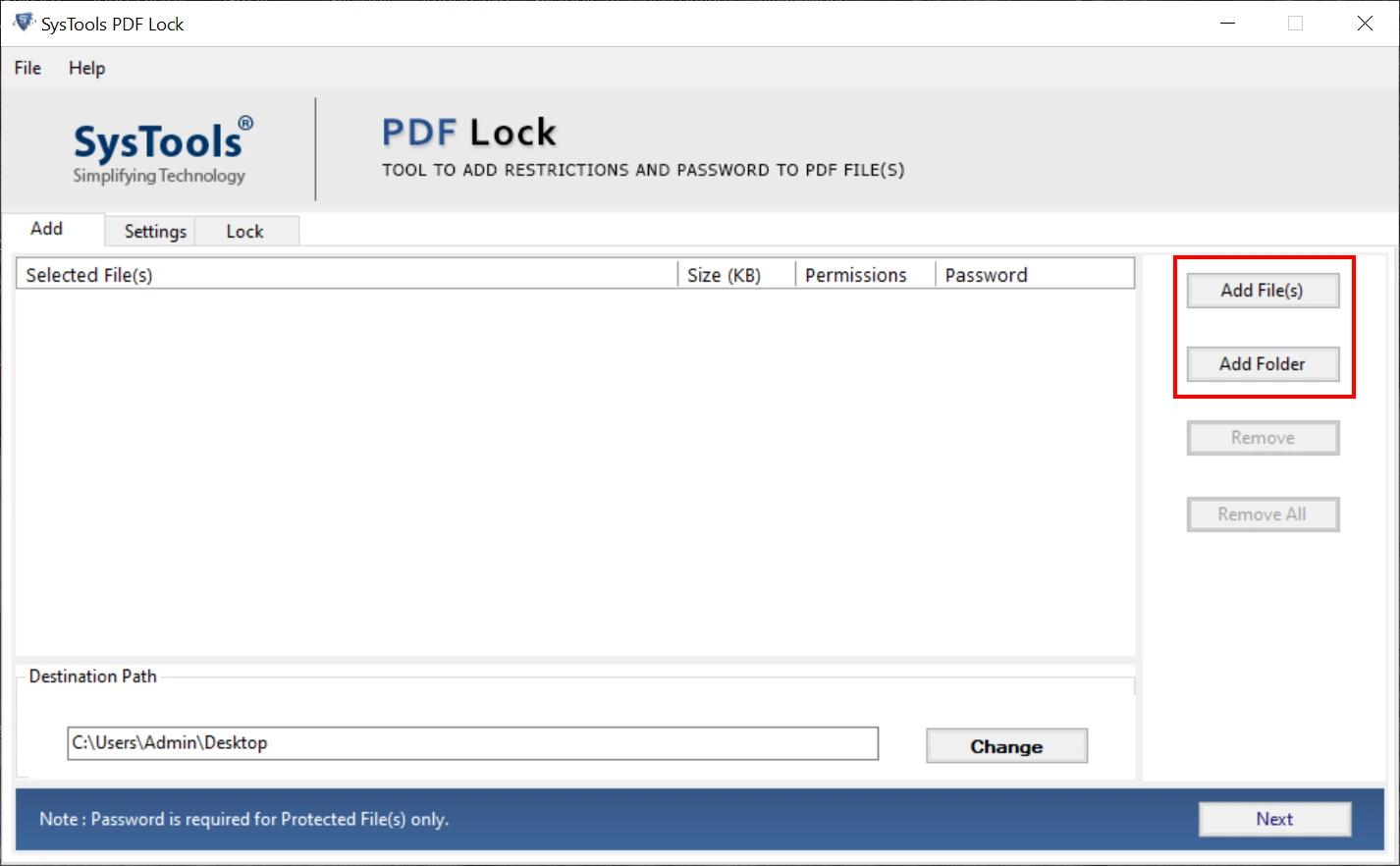
- Navigate to options: Add Files or Folders to upload PDF.
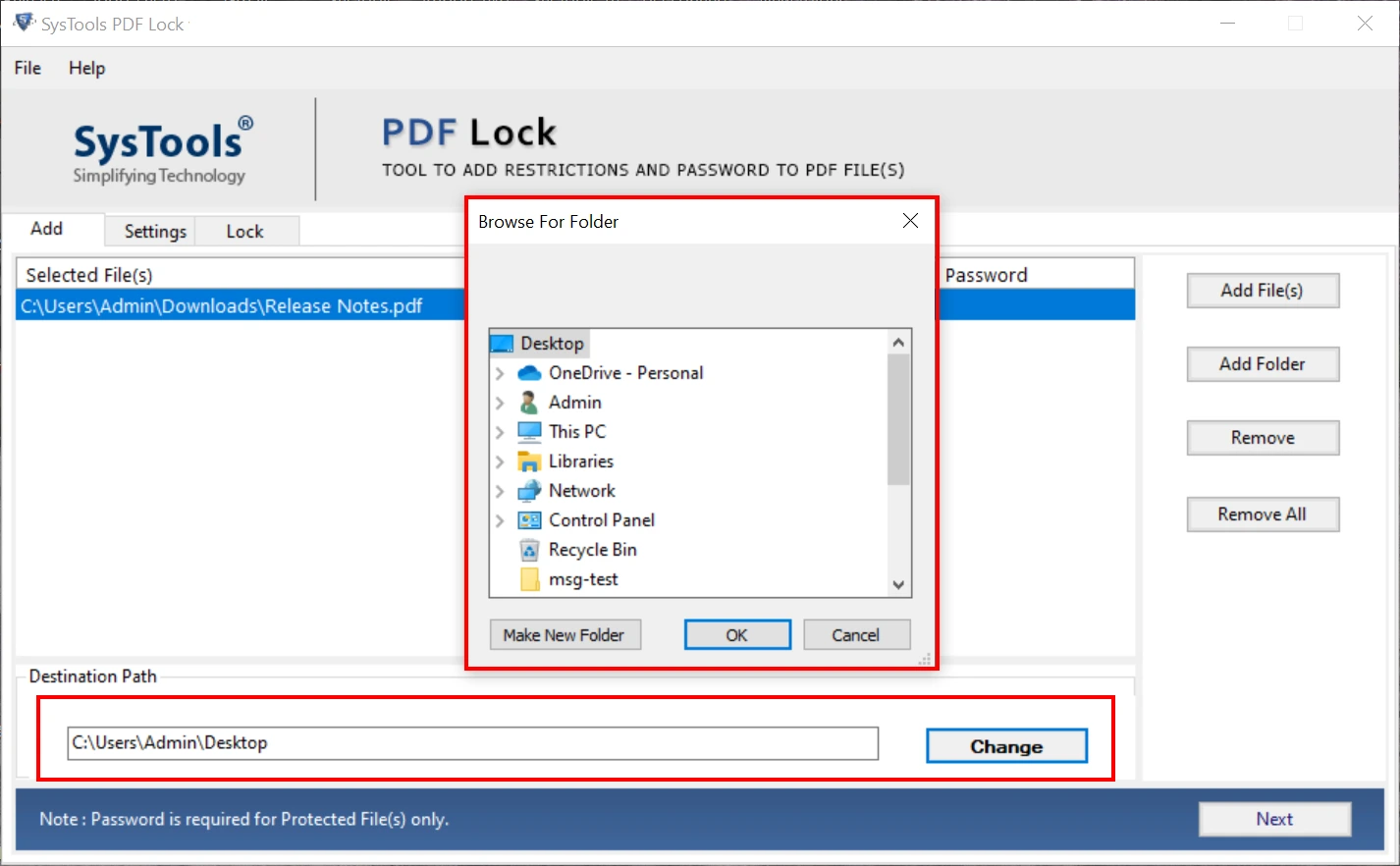
- Go to “Change” to provide a path for the resultant PDF > Next.
- In the “Apply Document Restrictions” > enable the copy & editing protection.
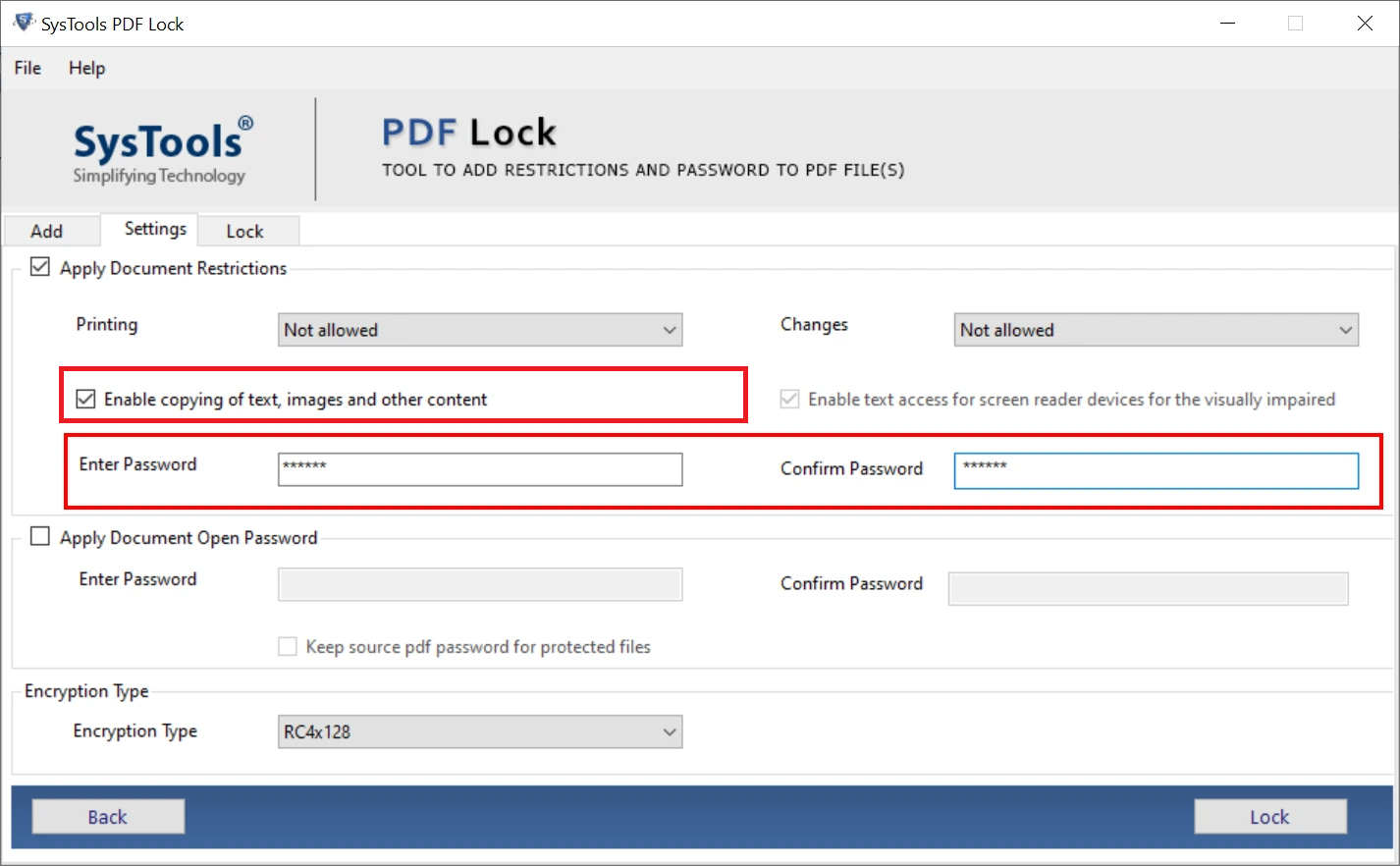
- Finally, hit the Lock button to secure the content from editing or copying.
Concluding Words
In the above guide on how to protect PDF from editing and copying, we have listed 4 ways to secure content. Based on requirements, professionals can use any solution to safeguard data from modifications or repurposing. Among all the techniques, the automated tool is reliable and useful for everyone. So, try the utility for locking the content from copying or text editing.