How to Find Folders in Outlook? (Outlook Classic, Outlook 365, and Outlook Web)


While using Microsoft Outlook, it is pretty common to lose track of folders. There’s nothing to panic about if you’re unable to find folders in Outlook.
This respective issue is an outcome of the hidden folder pane, nested folders, New Outlook bugs, etc.
So, check out this complete guide on how to find folders in Outlook, trusted by dozens. It will act as an Outlook folder GPS and help you find missing/disappeared folders.
Find Fast, Find Right!
FreeViewer Picks: How to Merge Multiple Outlook Contacts Folders Without Duplicates?
Why am I Not Seeing the Folder In Outlook? Explained!
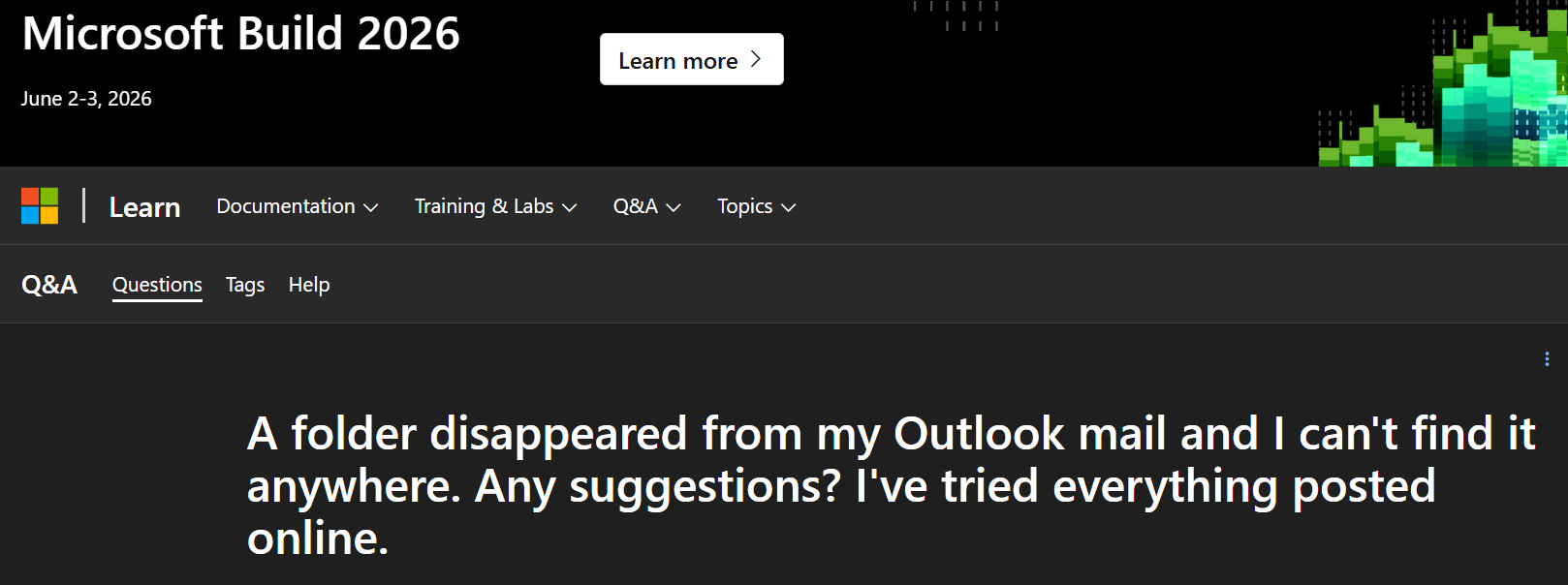
The reason why you are not seeing the folder in Outlook primarily depends on four factors:
- Hidden/minimized folder pane: Sometimes, the left sidebar gets hidden or minimized accidentally. It will then translate into missing Outlook folders.
- Nested folders: This situation refers to when folders are mistakenly dragged and dropped into another folder.
- Corrupted Outlook View: Incorrect or different Outlook view preferences can also filter out and disappear the folder you’re searching for!
- “New Outlook” bugs: Switching to the New Outlook from a Gmail account can cause some synchronization bugs. It also causes folder-missing problems.
Now that you have the answer to “ why I am not seeing folders in Outlook”, let’s move to “how to find folders in Outlook that disappeared”.
How to Find a Folder in Outlook that Disappeared? Easy Methods
To find a folder in Outlook, first, you have to determine your Outlook platform.
Then, as per your platform, apply the given methods and find specific folders in Outlook effortlessly.
Outlook Classic (Desktop App)
If you’re an Outlook Classic app user, you can use the hidden navigation tool. But how? You may ask!
Here’s how you can use the navigation tool to find folders in the Outlook Classic App:
Method 1: Type “Ctrl+Y”
- Open Outlook Classic on your desktop >> hit Ctrl+Y on your keyboard.
- In the pop-up window, type the first letter of the folder you’re looking for!
Method 2: Use ”In Folder” Column
- Go to Outlook Classic app >> click on the top search bar.
- Now, type a keyword from the email that was in the missing folder.
- Set the search scope to All Outlook Items in the top ribbon.
- Finally, look at the In Folder column in the search results. You will see the location (Folder Name) of your email.
Method 3: Advanced Find (Ctrl +Shift+F )
- On the Outlook Desktop app, open (double-click) any email for your search result.
- To launch Advanced Find, press Ctrl+Shift+F.
- Lastly, the “In:” will display the exact folder name that you required.
Pro-tip: You can click the Browse option if you wish to find the full folder path.
Outlook 365 (The “New Outlook” App)
Can’t see folders in Outlook 365? Worry not, as the new Outlook app offers a dedicated tool to its users to find any missing folders. So, let’s move ahead with the steps and see how you can see the folders in Outlook easily:
Method 1: Search Syntax Modifier
- Open Outlook >> Click the top search bar.
- Type folder: “Name” (for example: folder: “Inbox”).
- Lastly, hit Enter, and you will be able to see the Outlook folder that disappeared.
Method 2: Use Email Keyword
- Go to Outlook 365 >> Insert email keyword in the top search bar.
- In search results, you will see a label under the sender’s name or the date.
Note: The new Outlook 365 app shows a visual label for the exact folder. Inbox, Archive, or a custom name are some prime examples.
3. Simply, click on the label to open the folder.
And, these are the simple solutions to your query, “how to find folders in Outlook email”.
Must Check Out: How to Recover Lost Outlook PST Files? Updated 2026 Guide
Outlook Web (Browser Version)
Similar to the new Outlook 365 App, the web version also leverages the same folder targeting engine. It means you can locate any folder on the Outlook web with the snap of a finger.
Method 1: Filter the Folders
- Go to Outlook Web >> click on the top search bar.
- On the left side of the search bar, the All Folders dropdown menu.
- Lastly, filter out by selecting it or typing a certain folder name.
Method 2: Expand the Subfolders
- Open your browser and navigate to Outlook Web.
- Next, hit the > arrow next to your primary mailbox name. Click the following labels to expand the subfolders:
- Inbox
- Archive
Cheers! You have successfully found hidden folders in the Outlook Web.
Conclusion
Not being able to find folders in Outlook can be frustrating. It is a common issue that is a result of a minimized navigation pane, nested folders, New Outlook bugs, etc.
However, you can smoothly get rid of the respective issue in minutes by following the easy methods mentioned in this guide.
And, if you want to restore permanently deleted mailbox items, utilize the advanced capabilities of Outlook Recovery Tool.
FAQs (Frequently Asked Questions)
Q.1 How to find a folder in the Outlook inbox?
To find a folder in the Outlook inbox, simply go to Outlook >> add the folder name into the search bar >> hit Enter. Make sure that your folder pane on the left side is fully expanded.
Q.2 How to find a lost subfolder in Outlook?
To find a lost subfolder in Outlook, follow the given steps:
- Open the Outlook app >> double-click any email for your search result.
- Press Ctrl+Shift+F to open Advance find
- Lastly, the “In:” will show the exact folder name you need.
Q.3 Why can’t I see my folders in Outlook?
A hidden/minimized folder pane, Incorrect Outlook views, and nested folders are some prime factors why you’re unable to see folders in Outlook.
Q.4 How to find deleted folders in Outlook 365?
You can find Outlook 365 deleted folders in the Deleted Items or Trash folder.
If the folder isn’t there, you can use the Recover Deleted Items tool and retrieve it from the server.
Q.5 How to create a folder in Outlook?
Here’s how you can create/ add a folder in Outlook:
- Open Outlook >> right click on email account name or existing folder like inbox.
- Select New Folder option >> insert name >> hit Enter.