How to Delete Duplicate Notes in Outlook Using 3 Proven Methods


Is your Outlook storage full because of these duplicate notes, and looking to remove them? Then, this article will discover top 3 solutions to delete duplicate notes in Outlook using both manual and professional methods.
If you are regular user of Outlook, then you must know about these notes, which help to manage our daily reminders, ideas, and other essential information. However, when these repeated notes start occurring, it can make your notes folder into clutter. Also, they are so similar that they make users to detect original and duplicated one. Using repeated reminders over time results in slowdown in Outlook performance.
So, if you are facing this same error, then it becomes necessary to eliminate it. In this article, we will discuss how to remove duplicate notes in Outlook using some of best approaches. Additionally, preventive tips to save your future from these recurring errors and enhance overall productivity of Outlook.
Common Reasons for Duplicate Notes in Outlook
Before any user dives into proven solutions, it is important to know root causes for appearance of recurring notes in Outlook. Here are some of causes listed below:
- Due to syncing errors between several Outlook profiles configured on many devices.
- Importing and exporting same data files multiple times causes duplicated notes.
- Applying third party add-ins in Outlook settings leads to duplication of notes.
- If your internet connectivity is not stable or server glitches during sync process.
If someone is having these issues, then it should be removed. So, after deleting them, one can enjoy benefits of it. Let’s look at some of them.
Why Should Users Delete Duplicate Notes in Outlook?
Here are benefits mentioned below for eliminating repeated notes from Outlook.
- One can easily search and identify their important notes according to their need.
- Your Outlook will run faster than cluttered one, which results in an enhancement in productivity.
- It helps users to have more storage space.
- Additionally, avoiding dealing with duplicated Outlook notes helps one to not to get confused.
Therefore, it becomes essential to remove duplicate notes in Outlook. But how can one perform this task? Let’s jump into solutions.
How to Delete Duplicate Notes in Outlook Automatically
If someone is dealing with cluttered mailbox with duplicated Outlook notes, then we recommend using a professional approach, which is FreeViewer Outlook Duplicates Remover Software. It is capable of detecting and removing replicated notes from Outlook 100% accurately and securely. This dedicated solution offers exclusive filters like subject, date, attachments, etc.
Know more advantages of this trusted software.
- This advanced software can easily batch remove duplicate notes in Outlook.
- Preserves original notes integrity and structure.
- Saves both manual time and effort.
- Also, it works differently for notes and calendar events.
Quick Steps to Delete Duplicate Notes in Outlook
Follow these steps to easily get rid of repeated notes from Outlook.
- Install and launch the software mentioned above on your system.
- Tap on Add Files and Folder button to upload Outlook data files.
- This provides dual option for elimination, i.e., Within & Across Folders.
- Browse Location Path to save cleaned file.
- Choose Notes from Select Items types tab for deduplication.
- Click Specific Duplicate Criteria tab for particular elimination using advanced filters.
- Finally, press Ok button to remove duplicate notes in Outlook.


Read Also: How to Delete Duplicate Emails in Outlook
How to Delete Duplicate Notes in Outlook Manually
In the next section, we have listed 3 best ways to easily get rid of duplicate notes.
- Sort and Manually Remove
- Using Categories for Detection
- Export and Import Method
It is time to understand them one by one with an explanation.
Approach 1: Sort and Manually Remove
It is one of most easy and simple method, especially for smaller duplicated data.
Steps:
- Launch Outlook on your system and navigate to Notes tab.
- Press View and select List View option.
- Sort your notes on basis of filters like subject, created date, etc.
- Look for duplicate reminders.
- Choose unwanted repeated notes and click Delete button.
Approach 2: Using Categories for Detection
This solution helps you to detect duplicates easily by grouping similar notes.
Steps:
- Open your Notes folder in Outlook.
- Sort similar or duplicated notes according to categories.
- Group Outlook notes based on assigned category.
- Check these duplicates carefully and eliminate rest of them.
Approach 3: Export and Import Method
One can choose this method to remove duplicate notes in Outlook, if they are dealing with larger datasets.
Steps to follow:
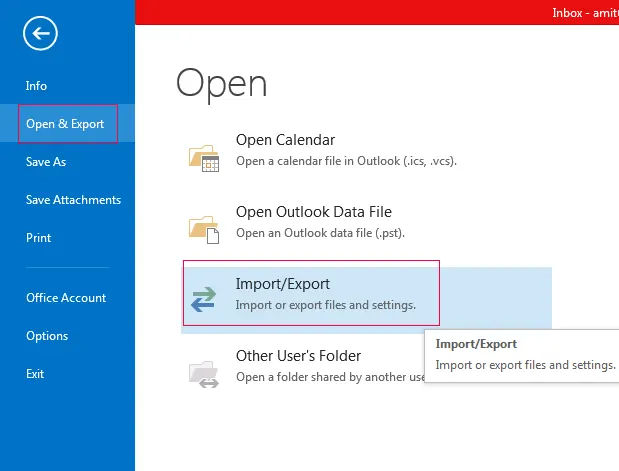
- Navigate to File, then click on Open and export feature, and lastly on Import or Export.
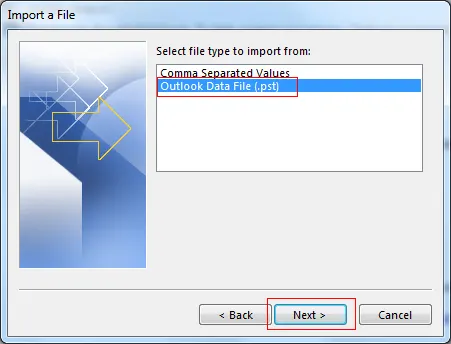
- Select Export to a File and choose Outlook Data File option.
- Now, users have to export only Outlook Notes folder.
- Manually delete duplicates from uploaded file.
- Finally, import cleaned data file again into Outlook.
Limitations of these Manual Methods
- These manual methods are highly prone to errors that might result in important data loss.
- It is very time taking as compared to professional approach.
- This does not allow users to remove duplicate notes in Outlook in batch mode.
- Do not maintain your original note folder structure intact after removal.
Note: It is suggested to use an advanced solution instead of choosing manual method. However, manual methods are ideal for small number of notes, but include some challenges. So, for reliable and secure results, use dedicated software.
Best Practices for Duplicate Notes in Outlook
After removal process, users should follow these advanced tips that can help them avoid recurring notes in future.
- Always clear and organize your Outlook mailbox.
- Disable use of unwanted add-ins for Outlook settings.
- Do not import same Outlook data file multiple times.
- Prevent syncing Outlook account among different devices.
Conclusion
These duplicate notes can disrupt your work and overall Outlook performance. In this article, we have listed all possible manual and automated solutions to delete duplicate notes in Outlook and manage its inbox. If anyone is working on small dataset, then manual methods are best for them, but for larger scale, expert recommended software is must. As a result, one can prevent these repeated reminders from coming again in future.
FAQs on How to Remove Duplicate Notes in Outlook
Q.1 Is There Any Automated Way to Delete Duplicate Notes in Outlook?
A. Yes, many tools can allow users to identify and eliminate these recurring reminders from mailbox. One of automated software is mentioned below.
Q.2 Why Do Duplicate Notes Appears in Outlook Mailbox?
A. These usually occur due to syncing errors, repeatedly importing and exporting, or using add-ins unnecessarily.