Outlook Archive Does Not Reduce Mailbox Size [Fix Error]


Are you also wondering why your Outlook archive does not reduce the mailbox size? If yes, then you are not alone. Many users think archiving or deleting emails is enough to reduce the mailbox size, but it’s not. This write-up is going to provide all the answers to your queries to fix the Outlook mailbox size not reducing after archive, and will explain how you can increase the mailbox size without deleting.
The mailbox size is full is a common issue with Outlook users. And most of the users think that archiving or deleting emails can reduce the size and provide more storage space. So before starting, let’s find the answer.
This blog is going to explain why it happens, and how you can make your mailbox size smaller without deleting data, with complete information one by one. Let’s start the topic with the accurate answer to fix the “Outlook archive does not reduce mailbox size”.
Why is My Outlook Still Full After Archiving or Deleting Everything?
Deleting your emails/items and archiving old ones is not enough to get more storage space. Because after normal deletion, your emails move into the Trash/Bin folder for the next 14 to 30 days, and even after being removed from the Trash. Still, Outlook reserves the used space inside the data file.
Archiving means moving your emails into a separate PST file to manage data and organize your mailbox. But the original Outlook data file doesn’t shrink even after archiving emails and data.
After knowing the exact answer, let’s understand the size limit, check the mailbox size, whether it is actually full, how it impacts your work, and ways to resolved “Outlook archive does not reduce mailbox size” issue.
What is the Outlook Mailbox Size Limit?
The size limitations of the PST file vary depending on the different versions of Outlook. Below is the PST file size limit mentioned. Understand how to fix the Outlook mailbox size not reducing after archive issue.
- In Outlook 2002 and earlier, you can only save data up to 2 GB.
- The maximum size for Outlook 2003 and 2007 is 20 GB.
- In Outlook 2010, 2013, 2016, 2019, and 2021, the file size is limited to 50 GB.
If this limit is exceeded, then your mailbox size becomes full. Now let’s see how it impacts your work and how to fix the “Outlook archive does not reduce mailbox size”.
Outlook Archive Not Reducing Mailbox Size – How It Impacts
When Outlook is archived but the mailbox is still full, then it becomes necessary to reduce the size of the file to maintain the performance and speed of Outlook. If the Outlook mailbox is still full after archiving and the PST file exceeds its size limitations, users face many problems, such as:
- Your Outlook becomes slow and freezes.
- Frequently, Outlook crashes while opening emails and data.
- You will not receive new emails and cannot send new messages.
- If your data file continue grows, then there are high chance of corruption.
- Functions like search, filters, etc., will not work properly.
How to Check Outlook Mailbox Size Limit?
After you know the size limit for Outlook PST files, let us know about the steps for checking the size limit of Outlook data files. Just follow these steps:
- In the “Mail View”, click your account.
- Click “Folder” >> “Folder Properties”.
- Click the “Folder Size” option.
- Now, you will see the size of the mailbox.
Ways to Fix the Outlook Archive Does Not Reduce Mailbox Size Error
You can reduce the size and solve the Outlook mailbox size not reducing after archive issue using built-in options like deleting large emails and attachments, using the mailbox cleanup tool, compressing Outlook PST files, and an automatic solution for large mailbox size.
Quick Suggestion to Handle Large Mailbox Data
If you are unable to open your data file in Outlook due to its large size, to reduce the size without deleting any data from the file, then splitting is the best option. Use Freeviewer PST Splitter, one of the best ways to manage large data file size and solve the “Outlook archive does not reduce mailbox size” issue. This software divides your large mailbox into small parts by size, year, date, category, folders, etc. This is the only tool that can resolve this issue without deleting any data. Download the free version.
Method 1: Delete Large Attachments and Emails
If your Outlook archive is not clearing the space of the mailbox, then try to reduce the size using this technique. You can delete large Outlook data files after the archive mailbox is full. Follow the steps below to do this: –
- In the folder list, click Search Folders.
- Open your MS Outlook.
- And head to the “Folder List view”.
- Scroll down and choose the “Search Folders.”
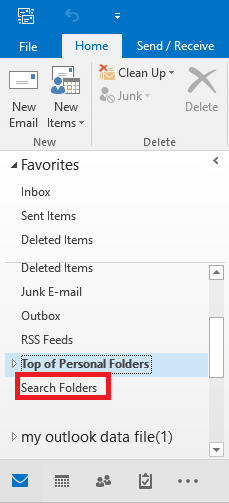
- Right-click on “Large Mail” under “Organizing Mail”.
- Choose the “Customize This Search Folder”.
- Select the “Choose” button.
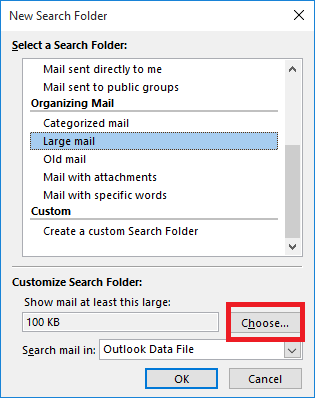
- In the Show mail greater than field, enter a size value such as 5000 KB or 6000 KB, then click OK.
- Finally, choose the “OK” icon to apply all settings.
- Now you will see a new folder named “Larger than 6000 KB” appear under “Search Folders”.
- Now open this folder, and analyze your emails, save your important attachments, and delete unnecessary emails and attachments.
- Last but important, head to the “Trash” folder and clean it to fix the Outlook archive so that it does not reduce the mailbox size.
Method 2: Use Mailbox Cleanup Tool
You can reduce PST file size with Mailbox Cleanup options to fix the Outlook archive not reducing mailbox size issue using these steps:
- Go to File Menu >> Info >> Cleanup Tools >> Mailbox Cleanup.
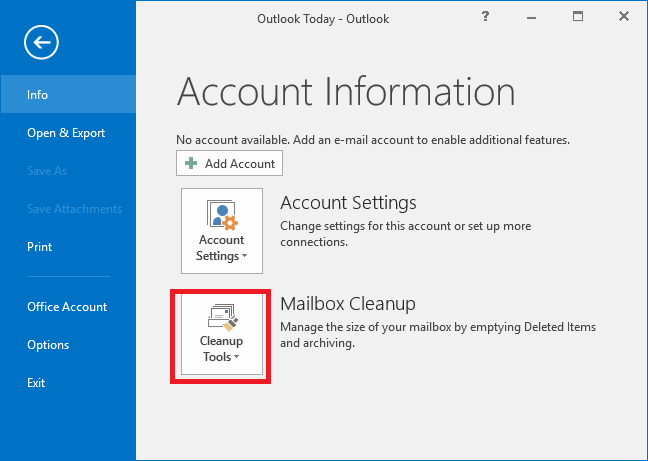
- Using this tool, you can View Mailbox Size and also find items older/larger than a specified limit.
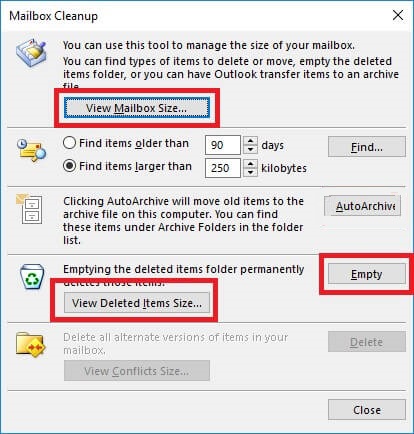
- The mailbox cleanup tool also offers an Empty option. Here, you can delete all items present in the Deleted Items folder permanently. You can view deleted item sizes before deleting them.
Method 3: Compress Data File
- Open your MS Outlook.
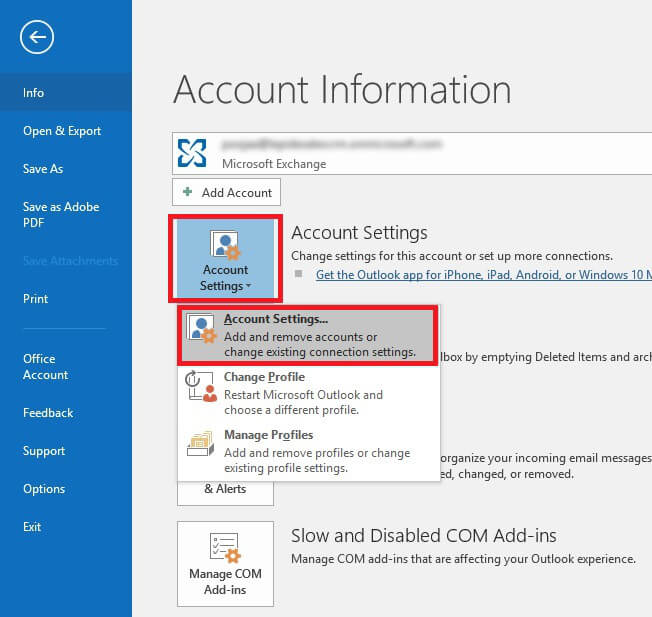
- Choose the “File” tab.
- Choose the “Account Settings” → “Account Settings”.
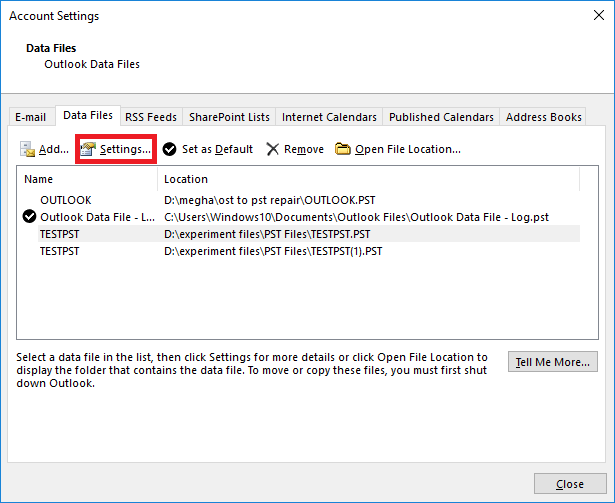
- Select the “Data Files” from the “Account Settings” window.
- Choose the PST file to compress and click on the “Settings”.
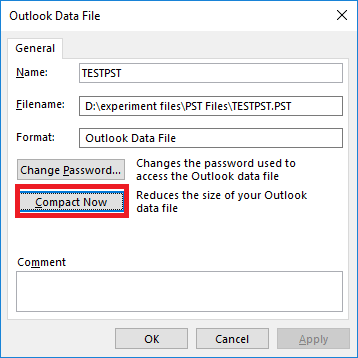
- Lastly, choose the “Advanced” and “Compact Now” options to fix the “Outlook archive does not reduce mailbox size” issue.
Drawbacks of All Manual Methods
- All methods required Outlook installation.
- Deleting emails and attachments contains risk of accidental deletion of important data.
- Technical knowledge about Outlook is required.
Method 4: Automatic Tool to Fix “Outlook Archive Does Not Reduce Mailbox Size”
Go for the mentioned solution to compress the size without deleting anything. It makes your file smaller in size, year, date, category, folders, email id etc., without losing data. There is no need to delete any data; unlike manual methods, it comes with different and advanced features that make it the first choice of users.
With this application, users can decrypt corrupted PST files with or without installing Microsoft Outlook. With this tool, you can split large PST files into smaller parts without any file size restrictions. It supports the PST of all versions of MS Outlook, such as Outlook 2021, 2016, 2013, 2010, 2007, etc.
How to Fix the “Outlook Mailbox Size Not Reducing After Archive”?
- Download and start the software after installation.

- Add your files and folders using the provided options like “Add Files/Folders” options.

- You can choose any location to save the output data file using the “Browse” button.

- Select any “Split Option” and other settings according to your choice.

- Choose the “Next” button to fix the “Outlook archive does not reduce mailbox size” issue.

Final Words
Large PST files create many problems, such as ‘Outlook archive not reducing mailbox size’. Thus, it is necessary to reduce the size of the Outlook mailbox to eliminate any errors. The Outlook archive does not reduce the mailbox size error, which is a common mistake due to the excessive size of the PST files. In this blog, we have described three manual tricks to reduce the size. If the manual process to smaller Outlook data does not meet your needs, we also mentioned the third-party tool, which makes this task very easy for all types of users, without any problem of data loss.