How to Delete Duplicate Contacts in Outlook Using 7 Best Ways


Are you facing difficulty in handling duplicate contacts in MS Outlook? If yes, then you’re on right track. In this article, we will discuss how to delete duplicate contacts in Outlook using 7 proven fixes, including both manual and automated software.
You might know that duplicate contacts not only clutter your address book list but also disrupt your work, which results in confusion or miscommunication. These duplicates could appear due to manual addition of contacts, some third-party add-ins, syncing of multiple profiles on different devices, etc. Therefore, it becomes essential to remove duplicates in Outlook contacts.
To prevent this frustrating error, it is important to permanently resolve this problem so that your contact list gets organized and cleared of duplicates.
Why Do Duplicate Contacts Appear in MS Outlook?
Before diving directly into fixes, it’s important to understand the common reason why it happens. Here are some listed below:
- Synchronization errors in multiple profiles configured on other devices.
- If one has imported same contact more than once.
- Usage of third-party add-ins or some apps.
- Incorrect import/export settings
- Manually added same contacts again.
And if you ignore duplicate contacts, then you might fall into these problems:
- Miscommunication
- Confusion while finding contacts in address book.
- Your mailbox is getting cluttered due to duplicates.
So, it becomes important to delete duplicate contacts in Outlook address book.
Instant Fixes You Do Before Delete Duplicate Contacts in Outlook
Here are some things that one can do before beginning:
- To save your data, first take an extra backup in other file formats like PST or CSV.
- Make sure that your MS Outlook is updated to its latest version.
- Check your address book contacts list to prevent the risk of data loss.
If your problem is still there, then opt for manual or professional methods mentioned below.
7 Proven Fixes to Remove Duplicates in Outlook Contacts
In the following section, we will explain some of the best ways to permanently resolve the problem.
- Using Built-in Feature
- Manually Deleting Duplicate Contacts
- Free Up Duplicates in OWA
- Try Excel to Export Contacts
- Merging Replicated Outlook Contacts
- Using Advanced Filters and Categories
- Try Advanced Software
Let’s understand all these ways with their explanation.
1) Using Outlook Built-in Option
MS Outlook provides a built-in feature to avoid duplicates while importing contacts.
Steps:
- Navigate to File, then click on Open & Export tab, and finally on Import/Export option.
- Select Import from Another Program or File option.
- Choose data file (PST or CSV).
- Tap on “Do Not Import Duplicate Items” feature.
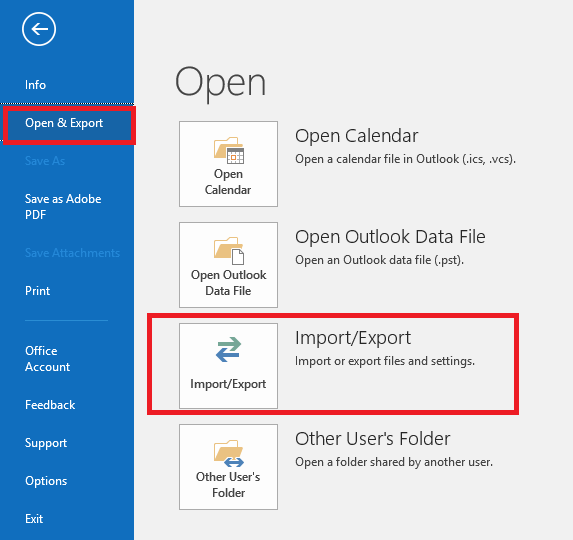
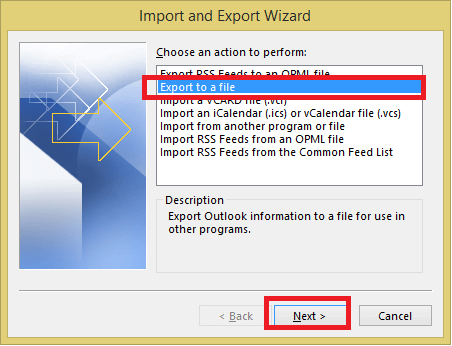
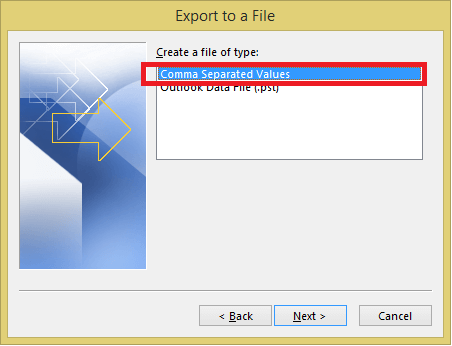
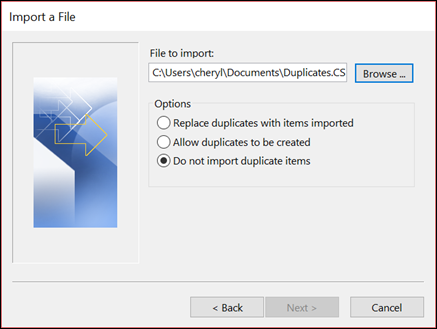
It will help you to prevent replicated entries during your importing process.
2) Manually Delete Duplicate Contacts in Outlook
This method is best for those who have a smaller contact list containing duplicates.
Steps:
- Go to People or Contacts tab.
- Then sort contacts using filters such as name, email ID, etc.
- Search for Duplicate Outlook entries.
- Choose them and remove duplicates in Outlook contacts.
3) Clean Up in OWA (Outlook Web App)
If someone is using OWA, then it becomes easy to handle duplicates.
Steps:
- Configure and log in to your OWA.
- Navigate to People tab and look for duplicate contacts.
- Select all replicated entries and delete them.
4) Try Excel to Export Contacts
This method is ideal for batch deletion of contacts.
Steps:
- Export Outlook contacts into a CSV file.
- Now, open that file in MS Excel.
- Try Remove Duplicates option for elimination of repeated entries.
- Finally, save the cleaned file and import it again.
5) Merging Replicated Outlook Contacts
If you don’t want to delete duplicate contacts in Outlook, then you can combine duplicates to keep all details with them.
Steps:
- Open your repeated Outlook contacts.
- Copy the missing information from one particular contact.
- And remove the duplicated entries.
Note: Instead of choosing manual method to merge, you can use an automated solution developed by FreeViewer.
6) Using Advanced Filters and Categories
One can use these filters to easily detect duplicate contacts.
- Sort it by name or email ID.
- Add similar entries in single group
- Finally, remove rest of the duplicated contacts from Outlook.
Note: The above-mentioned manual ways are a solution to this problem, but they’re not reliable. Also, some of these have limitations. So to avoid challenges in future, we recommend using an expert-picked tool, which can also help you to remove duplicate calendar entries along with contacts, emails, notes, etc.
How to Remove Duplicates in Outlook Contacts Automatically?
If you’re looking for advanced software that can quickly scan and delete duplicate contacts in Outlook, then in such cases, we would recommend using a FreeViewer Outlook Duplicate Remover Tool. This utility is capable of eliminating duplicates without losing data structure integrity of your Outlook contacts.
This professional software not only dedupe the contacts, but also helps to remove duplicate emails in Outlook and many more items in Outlook mailbox. It is widely compatible with all latest and previous editions of Outlook. Also, available for both Windows and macOS.
Quick Step Guide to Delete Duplicate Contacts in Outlook
Follow the steps listed below:
- Firstly, download and install the aforementioned software on your OS.
- Click on Add file & Folder button to browse the PST data file.
- Select Dual option (Within & Across folder) and tap Next button.
- Set Destination path by tapping on Browse option.
- Choose Contacts option in select duplicate criteria.
- In specific duplicate tab, select Advanced filters for more particular deduplication of contacts.
- Click on OK button to start elimination process.


Conclusion
In this article, we have discussed how to delete duplicate contacts in Outlook if your replicated contacts are disrupting and degrading workflow performance. To fix this error, we have mentioned the top seven ways to remove duplicates in Outlook, including both manual & automated software. If one has a small contact list, then they can manually eliminate duplicate Outlook contacts. Whereas, if they had a large number of duplicate contacts in list, then automated software would be recommended.
FAQs on How to Remove Duplicates in Outlook Contacts
Q.1 How Can I Do Both At Once – Merge and Remove Duplicates in Outlook Contacts?
A. If you are looking for a solution to do both, try PST Merge software. It has both options within its interface to do this without damaging any data. It can merge multiple archive PST files.
Q.2 How Do I Prevent Duplicate Contacts in Future?
A. To avoid duplicate contacts in future, follow the tips mentioned below:
- Avoid duplication by syncing your Outlook contacts on one device or platform at a time.
- When importing contacts, use Outlook’s “Do not import duplicates” option.
- Instead of creating new contacts, edit the old ones.
- One email account links and manages contacts across devices.
- Regularly check and delete duplicate contacts in Outlook.