Best Free Cloud Data Migration Tool: Free Migrations (Office 365, G Suite & More)


Looking for a free cloud migration tool? No matter whether your current platform is a cloud or an On-Premises environment. The cloud migration tool will assist you in easily migrating data to the new cloud platform without leaving any data.
Download the tool to get 2 FREE licenses for complete data migration of two user accounts without any limitation.
How to Choose the Right Free Cloud Migration Tool?
When evaluating free cloud migration tools, your approach should be less about finding the “best” software and more about choosing the right tool. Choose migration software such as the Freeviewer Office 365 Tenant Migration Tool that aligns with your specific workload and internal technical expertise to avoid mid-migration failure
So before committing to any no-cost cloud transfer software, use the given checklist to weigh out your options and select the one that aligns with your migration strategy.
- Authentication Security: Confirm the tool uses modern OAuth 2.0 or app-based permissions. Bypass any free cloud migration tools that require you to save admin passwords in cleartext or use legacy “App Passwords” when a modern alternative exists.
- Data Integrity Reporting: The cloud migration tool must provide post-migration logs to verify the items that failed to transfer. It should generate a detailed summary report.
- Throttling Management: The ability to handle the “throttling” limits of the destination provider is non-negotiable. Without this, your free migrations will repeatedly time out or fail at scale.
- Delta Sync Capability: The cloud-to-cloud data transfer tools must offer the “incremental” or “delta” sync feature to capture only newly made, changed, or arrived items without duplicating the existing data.
- Scope Compatibility: Verify the free migration software supports complex metadata, shared folder permissions, or Teams/SharePoint structures.
Pre-Migration Checklist
“On-premises to cloud migration” or “cloud to cloud migration” both require migration-ready source and target environments. This ensures that the data transfers securely and without any disruption. Especially when running a free or open-source cloud migration tool.
Otherwise, if your source environment or the target cloud remains misconfigured, the free cloud migration tools will surely fail, time out, or expose sensitive data. Hence, to prevent this, go through the critical preparation steps to ready both environments for a free cloud migration tool:
Source Environment Preparation
- Audit Inventory: Conduct a comprehensive inventory review to ensure the exact volume of the source data is migrating, and that the new cloud environment has sufficient storage capacity. Make sure to count every piece of hardware, software, database, and license currently active in your infrastructure.
- Review and Clean Up Data: Removing duplicates, standardizing data formats, and deleting unused test data reduces the overall database size. It also prevents schema mismatches and invalid data during cloud-to-cloud migration.
- Map Dependencies and Compatibility: For sequential migration of interconnected workloads, identifying interdependencies of free migration cloud tools is essential. Also, review historical performance data (like CPU, memory, and disk I/O) to ensure compatibility. It will directly help with your future cloud resources.
- Prepare Source Environment Access Credentials: Create dedicated, least-privilege service accounts or SSH keys only for the migration tool. Ensure to document current security configurations like firewall rules and access management to copy them to the new cloud environment.
- Install Discovery Agents (Optional): For automated metadata collection and mimicking the virtual data machine data disk, you may need to install a remote agent appliance in your source environment. However, it entirely depends on the free migration tool you’re using.
Target Environment Preparation
- Verify Target Admin Access: Ensure that you’re operating using active Global Administrator access to migrate source data into the target tenant.
- Prepare Target Architecture: Configure virtual networks, subnets, and storage buckets. Assess the instances based on the plans created during the source assessment. Confirm that the target databases involve schemas, tables, and indexes that correctly align with the source environment.
- Pre-Provision Identities: Create target user accounts or mailboxes manually or automatically to ensure seamless identity mapping.
- Map Identities: Make an identity map (typically via CSV) to connect the source email to the target email. It makes certain that the data lands in the correct account.
- Assign Licenses: Purchase and allocate the designated licenses to all the destination accounts. Executing this ensures that the users have the storage capacity and feature sets ready.
- Ensure Secure Cloud Connectivity: Setup a VPN tunnel, a secure direct interconnect, or configure specific firewall rules and API integrations to allow the migration tool to connect securely.
- Apply Identity and Access Management (IAM): Configure IAM policies and user groups to lock down the target environment with the zero-trust model. You can also create secure vaults to keep the credentials used for the migration.
- Check Data Integrity: Use automated tools to validate metadata, folder hierarchies, and file types to make certain that they remain in the original structure after the free cloud migration ends.
- DNS Planning: Update MX and Autodiscover records, such as lowering TTL several days in advance to point to the destination upon cutover.
- Conduct Pilot Migrations: Execute dry runs and testing using least-privilege workloads in target environments to test configurations, batch sizes, and data integrity.
- Communication Plan: Create a plan notifying end-users about the expected downtime. It should also include the instructions for re-configuring the local applications once the cutover is complete.
Supported Migrations
- G Suite to G Suite
- G Suite to Office 365
- Google Vault to Office 365
- Office 365 to G Suite
- Office 365 to Office 365
- Exchange to Office 365
- Lotus Notes to Office 365
Features Offered by Free Cloud Migration Tool
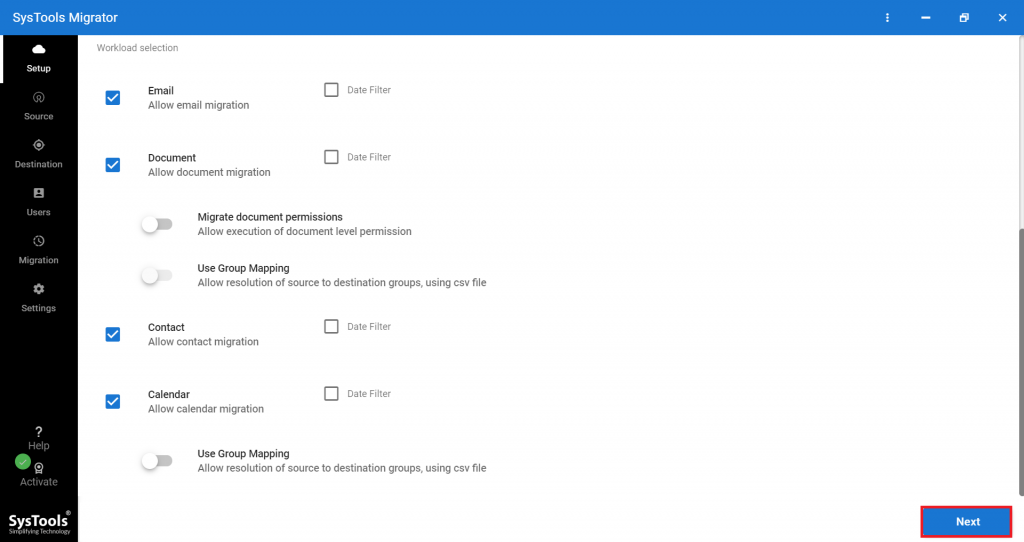
Selective Data Migrations: This tool offers a category selection option to migrate only select types of items (Emails, Contacts, Calendars, Documents (Drive), Attachments, Archive Folder, Appointments, and Shared Mailbox) from the source environment to the destination cloud platform. The categories are available for Emails, Contacts, Calendars, and Documents (Drive).
Date-Range Filters: The date-range filter allows you to migrate data of a particular date range only. You can select the Start and the End date; the tool will only migrate the data between that range. Date-Range filters are available for all categories.
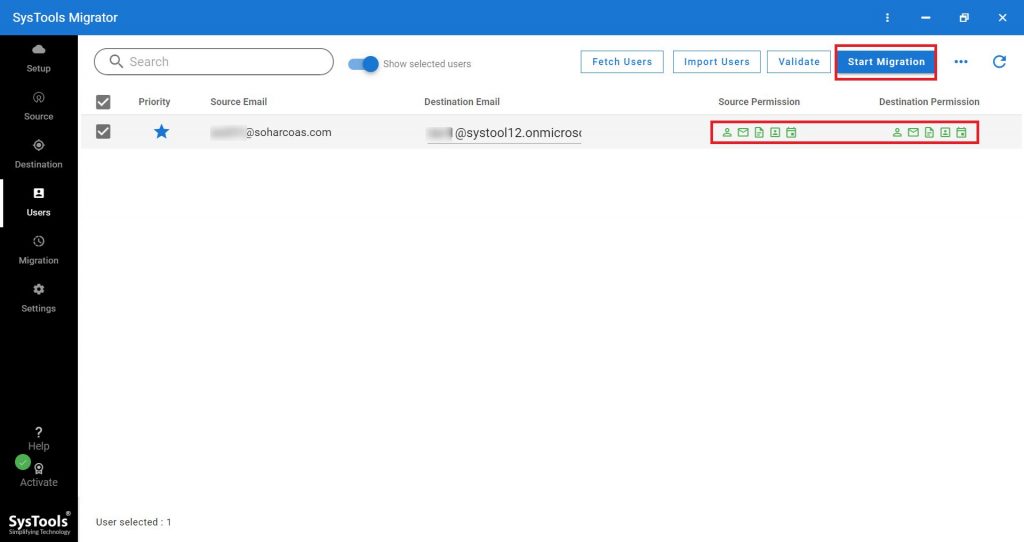
Concurrent Migration: This free cloud migration tool also offers concurrent migration features that migrate mailboxes in batches. A user can set the priority to select which mailboxes will be migrated first.
Migrate Permissions: Apart from categories and date filters, the workload section also allows migrating document permissions and user group mapping for documents and calendars.
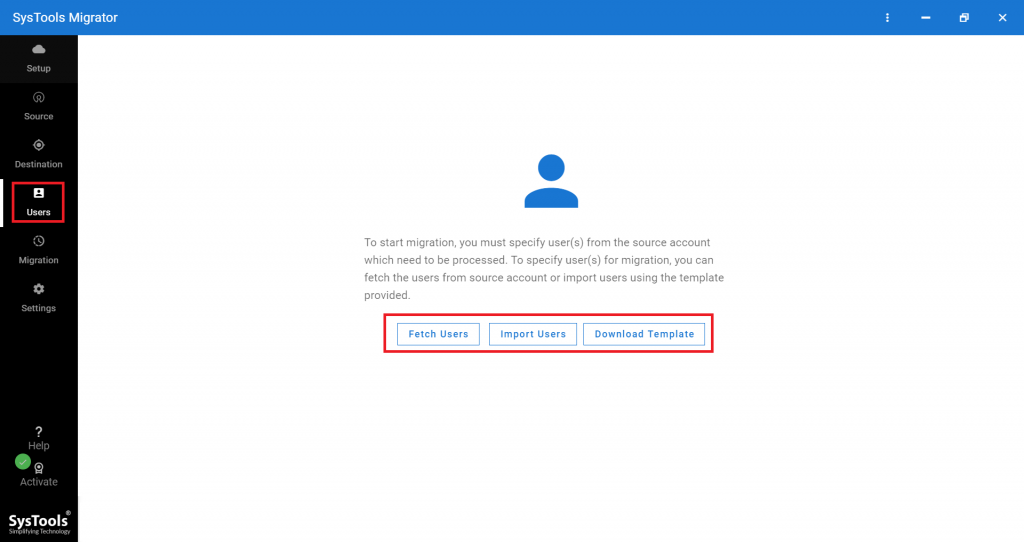
Multiple User Mapping Options: The tool offers two options for mapping source and destination user accounts for migration:
- Fetch Users: This option automatically fetches all the user accounts from the source domain and lists them in the tool window.
- Import Users: This option allows you to import a CSV file containing the mapped list of source and destination user account IDs. To get the sample CSV file, click on the Download CSV button.
Live Progress Report: During the cloud migration, the tool previews the live status of the migrating mailbox. The live report can be viewed in a list of tiles.
Maintains Data Integrity: While migrating data to the cloud, the cloud migration tool maintains the integrity and hierarchy of data the same as in the source platform.
Error Handlers: The tool offers two error handlers (Retry Failed and Re-Run Full) to handle failed and skipped items. Failed items can be checked using a Report an error handler can be used to migrate those items.
Unlimited Delta Passes: Once the migration is finished, the tool provides the Delta Migration option, which allows migrating newly arrived data received in the source account during migration.
Stop Migration: During the migration process, the Admin can stop the ongoing migration at any time.
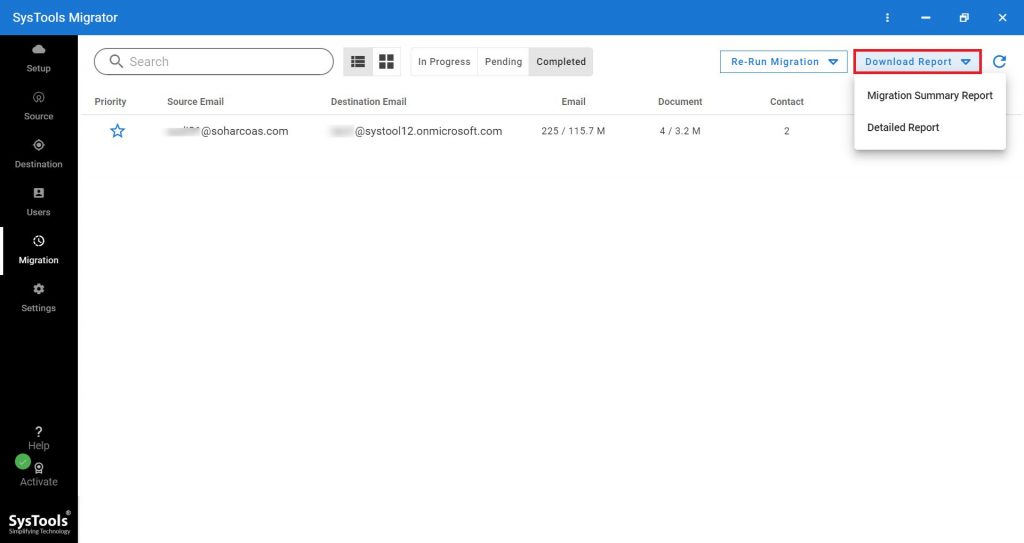
Download Report: After completion of the migration, the tool offers the facility to download the migration report into two formats:
- Summary Report – It is a single report containing a list of all users and the success + failure count of each category of items.
- Detailed Report – It contains a zip file containing a .csv file for each user that contains a list of migrated files and failed counts
Steps to Perform Cloud Migration Using the Free Cloud Migration Software
1. First Download the tool for Windows / Linux system and install it.
2. Go to the Activate tab for the activation of the FREE or PAID version of the tool.
3. From the Setup tab, choose the Source and Destination platforms.

4. In the workload section, you can select the category of items to migrate and set up date-filters for selective data migration.
5. In the Source tab, enter the details of the Source Admin and enter project details. Once done, click on the Validate button for the authentication of entered details.

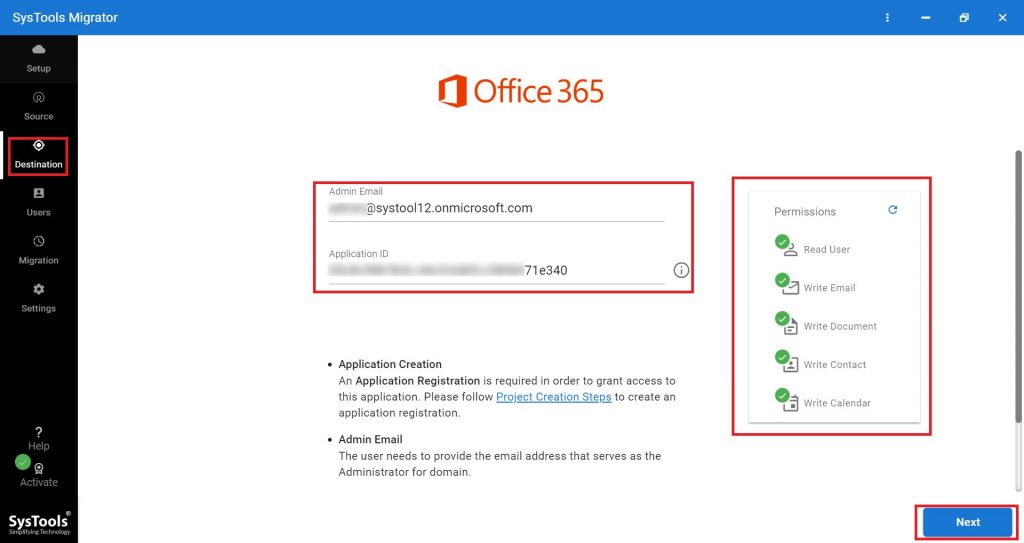
6. Similarly, in the Destination tab, provide the details of the Destination Admin and project details. Click Validate.
7. Go to the User tab to select the option for mapping source and destination user accounts.
8. Once the mapping is completed, click the Validate button for the authentication user accounts and permissions. Hit the Start Migration button to begin the data migration to the Cloud.
9. During the migration, you can preview the live status of the migration, and once finished, you can download the report and exit the tool.
Suggested Reads: Best Google Workspace Migration Tool for Secure Data Transfer
Post Migration Checklist
A successful cloud migration hinges on two key factors: Data integrity remains intact, and business continuity is maintained. So, once the cutover is completed, implement the given standardized checklist to stabilize your environment:
#1: Data Verification and Integrity:
- Verify a final incremental migration pass was executed to migrate any residual data or changes made during the cutover window.
- Authenticate that label-to-folder mappings are configured correctly (especially for Gmail labels to Outlook folders). Also, check whether the nested folders and shared drive hierarchies are intact.
- Validate mailbox integrity to confirm email, calendar entities, and contacts are rendered appropriately and functional for the correct users. To do so, execute spot-checks on random user mailboxes.
- Ensure shared resources (shared mailboxes, calendar permissions, and distribution groups) are correctly working and accessible by the designated users.
#2: Authentication and Identity:
- To use the new identity provider, such as Entra ID, immediately update third-party apps (CRMs, e-signatures, project tools) that previously required “Sign in with Google” or similar legacy SSO methods.
- Make sure all users are enrolled in Multi-Factor Authentication (MFA). Including the Conditional Access policies implemented.
- Verify and re-authorize essential OAuth tokens or service account permissions invalidated during the migration.
#3: DNS & Communication Flow
- Track MX record propagation to make certain that mail is routing securely to the new destination.
- Check that SPF, DKIM, and DMRAC records are correctly configured for the new platform. It will prevent authorized outbound emails from being tagged as spam.
- Try sending test emails to external recipients and determine whether they arrive without “Authentication Failed” or “Spam” warnings.
#4: User-Level Transition:
- Guide users through re-configuring their Outlook profiles. Including mobile mail apps (iOS/Android) and device management (Intune/MDM).
- Notify users to recreate email signatures and personal folder/inbox rules manually.
- Essential browser extensions and productivity plugins such as the Teams add-in require reinstallation and re-activation.
#5: Post-Migration Cleanup:
- Do not delete legacy accounts immediately after the cutover. Monitor the new cloud infrastructure for 30-60 days. It helps you confirm that no critical data or dependencies were missed. Only after the confirmation, proceed to suspend and eventually decommission the source environment.
- Keep IT teams on standby for 1-2 weeks to address post-migration hurdles and “missing items” tickets.
Final Words
In this article, we have provided a detailed overview of a free cloud migration tool that allows migrating data to the cloud from multiple environments. The demo version of the tool is completely free and provides a way of testing the features of the tool mentioned above. Feel free to download the tool and test it on dummy accounts before implementing it on the entire organization.