[Fixed] Why Teams Not Showing Up in Outlook: A Complete Troubleshooting Guide


Teams not showing up in Outlook is commonly caused by disabled COM Add-ins, incorrect software installation order, account authentication mismatches, or M365 Admin Center restrictions.
To quickly fix Teams not showing up in Outlook:
- Force-enable the disabled COM Add-in in Outlook.
- Run Outlook as Administrator
- Change the LoadBehaviour Value Data
- Fix the account authentication mismatch.
- Update the Teams and Outlook app to the latest build
- Correct the software installation order.
- Run a Microsoft Office Online Repair
- Review Teams Admin Center Policies
- Run the Microsoft Support and Recovery Assistant.
Discovering “Teams not showing up in Outlook” (such as a missing Microsoft New Teams Meeting button, broken calendar sync, or absent COM Add-in) can be a headache. Especially when you have to schedule a crucial video call. Fortunately, you can resolve these frustrating issues in a few minutes by applying the easy & effective methods shared in the troubleshooting guide.
It addresses why Teams is not showing up in Outlook and shares 9 robust methods to fix it — from simple one-click UI fixes to advanced Registry Editor modifications.
Also Explore: Microsoft Teams Tenant to Tenant Migration – Complete 2026 Walkthrough
Why Teams Not Showing Up in Outlook
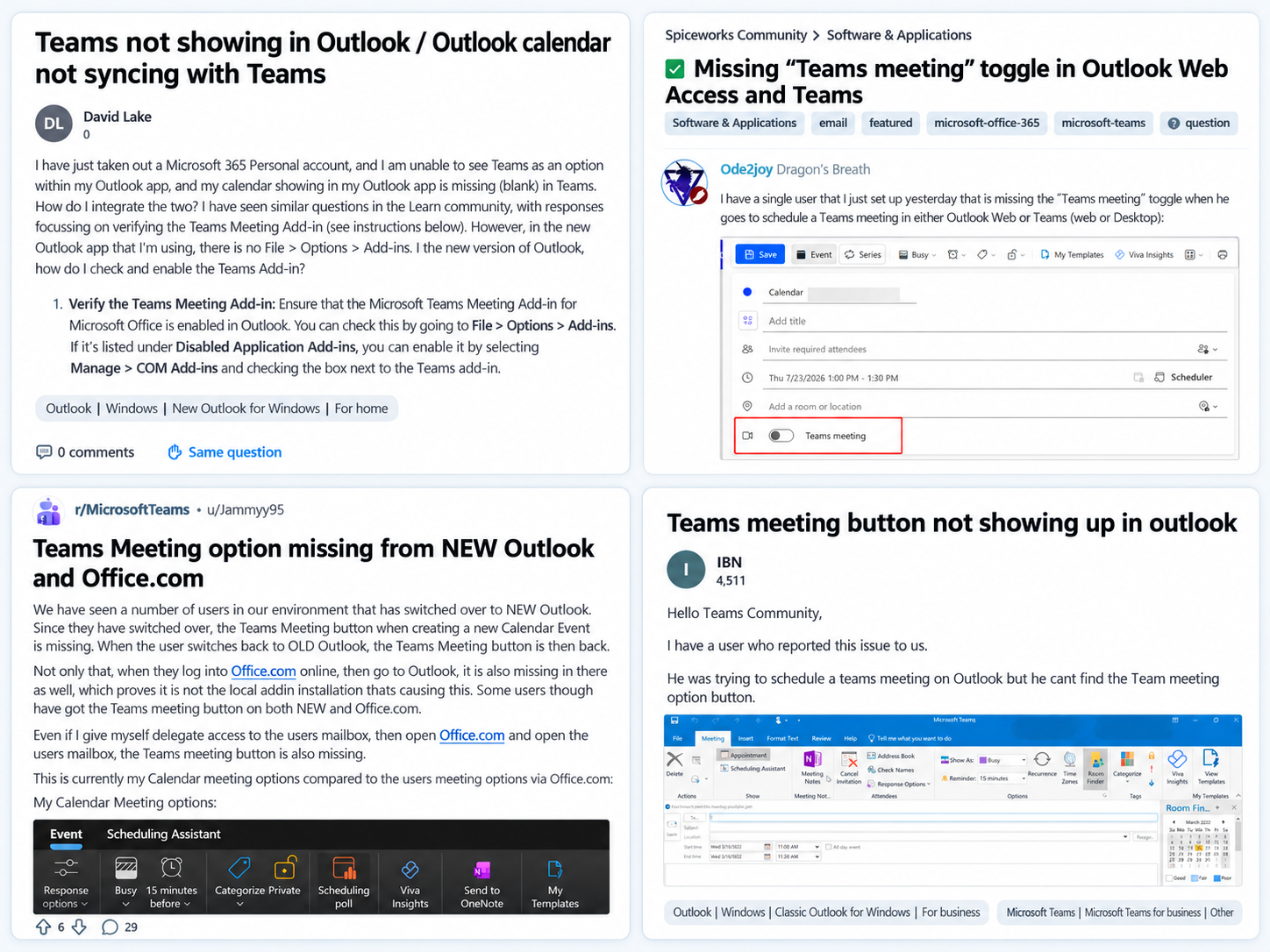
Here are the primary reasons why Teams not showing up in Outlook:
#1: Outlook Crash Protection (Disabled COM Add-ins): You may know that Outlook is engineered to automatically neutralize any third-party plugins that consume excess memory. Including freezing the desktop client. Hence, the Teams meeting add-in is often flagged as a performance drain. And moved to the “Disabled Items” list without notifying the user.
#2: Wrong Software Installation Order: Incorrect software installation order is the most common factor triggering issues like “why Teams not showing up in Outlook”. This is because the Teams add-in backend architecture needs Microsoft Office (Outlook) to be installed before the Microsoft Teams desktop app. So, if the Teams app is installed first, the integration files have no destination to inject. Resulting in the Teams button missing in Outlook.
#3: Corrupted Windows Registry Keys: Another key reason why you cannot schedule a Teams meeting in Outlook is corrupted Windows registry keys. Background Windows updates or aggressive antivirus scans can modify the “LoadBehaviour” registry key for the Teams add-in. If this key is switched from 3 (Load at Startup) to 2 (Disabled), the add-in will continually uncheck itself every time Outlook is restarted.
#4: The “New Outlook” Migration Issue: Since the New Outlook has completely dropped support for legacy COM Add-ins, switching between these two versions can significantly scramble local app caches and integration files. Leading to challenges like Teams not available from Outlook.
#5: Account Authentication Mismatches: Sometimes, users mistakenly log into the Teams desktop client with a personal Microsoft account, while their Outlook is authenticated with a corporate Exchange Online account. This cross-tenant mismatch will instantly restrict the integration, causing the “Teams not showing up in Outlook” error.
#6: Microsoft 365 Admin Center Restrictions: In corporate environments, Global Administrators provision Intune policies or Exchange restrictions to prevent data leakage. This restriction actively blocks third-party meeting providers and COM add-in usage. So, it is quite possible that Teams is not appearing in your Outlook because of Microsoft 365 Admin Center restrictions.
How to Fix Teams Not Showing Up in Outlook?
Here are the 9 effective & proven methods to fix the Teams button missing in Outlook:
Method #1: Force Enable the Disabled COM Add-in in Outlook
Force enabling the disabled COM Add-in in Outlook is the most direct approach to fix the Teams not showing up in Outlook issue.
This is because when the Outlook desktop client crashes, hangs, or encounters high memory consumption during startup, its built-in crash protection protocols automatically disable the third-party extensions. Microsoft Teams is often flagged as the culprit and deactivated.
So, here is how to force-enable the disabled COM Add-in in Outlook:
Step #1: Launch Outlook and Access Add-ins
- Open the Outlook desktop application.
- Go to the “File” tab (in the top-left ribbon).
- Click “Options” (at the bottom).
- Select “Add-ins” (from the left sidebar).
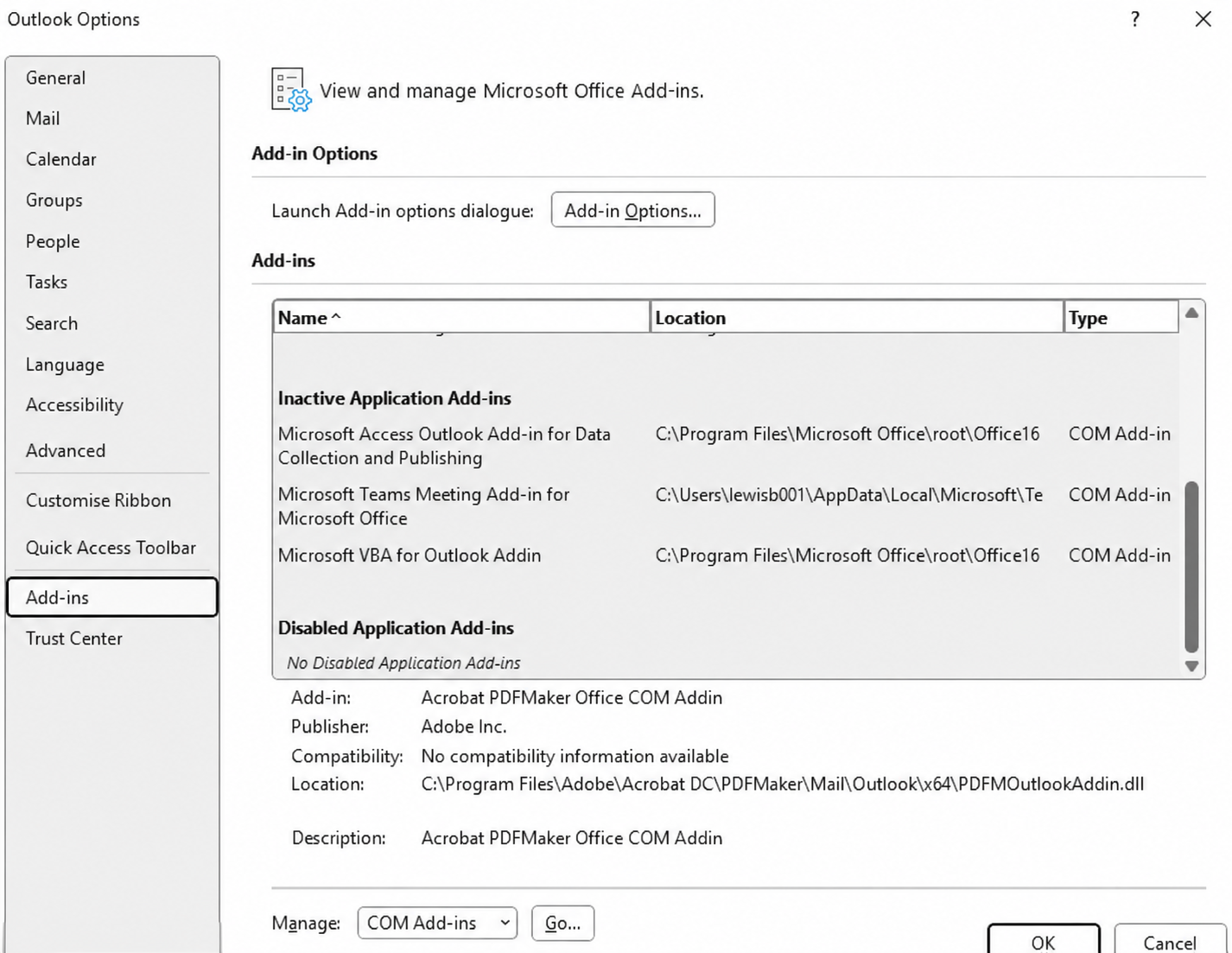
Step #2: Configure the Teams Add-In
- Check the “Disabled Application Add-ins” section. If the Teams add-ins are available there, switch the “Manage” dropdown to “Disabled Items” >> click “Go”.
- Select the “Teams Add-in” >> click “Enable”.
- Change the “Manage” dropdown back to “COM Add-ins” >> select “Go”.
- Check the box next to “Microsoft Teams Meeting Add-in for Microsoft Office” >> click “Ok”.

- Finally, restart the Outlook application to confirm whether the icon has returned or not.
Method #2: Run Outlook as Administrator
Sometimes, standard users lack the elevated “User Account Control” permission. This permission is required to register COM plugins in the Windows Registry when a standard application is launched. Therefore, running Outlook as Administrator forces the backend integration files to register properly.
- Shut down Outlook completely.
- In the “Windows Start Menu”, search for “Outlook”.
- Right-click the “Outlook” icon >> select “Run as Administrator”.
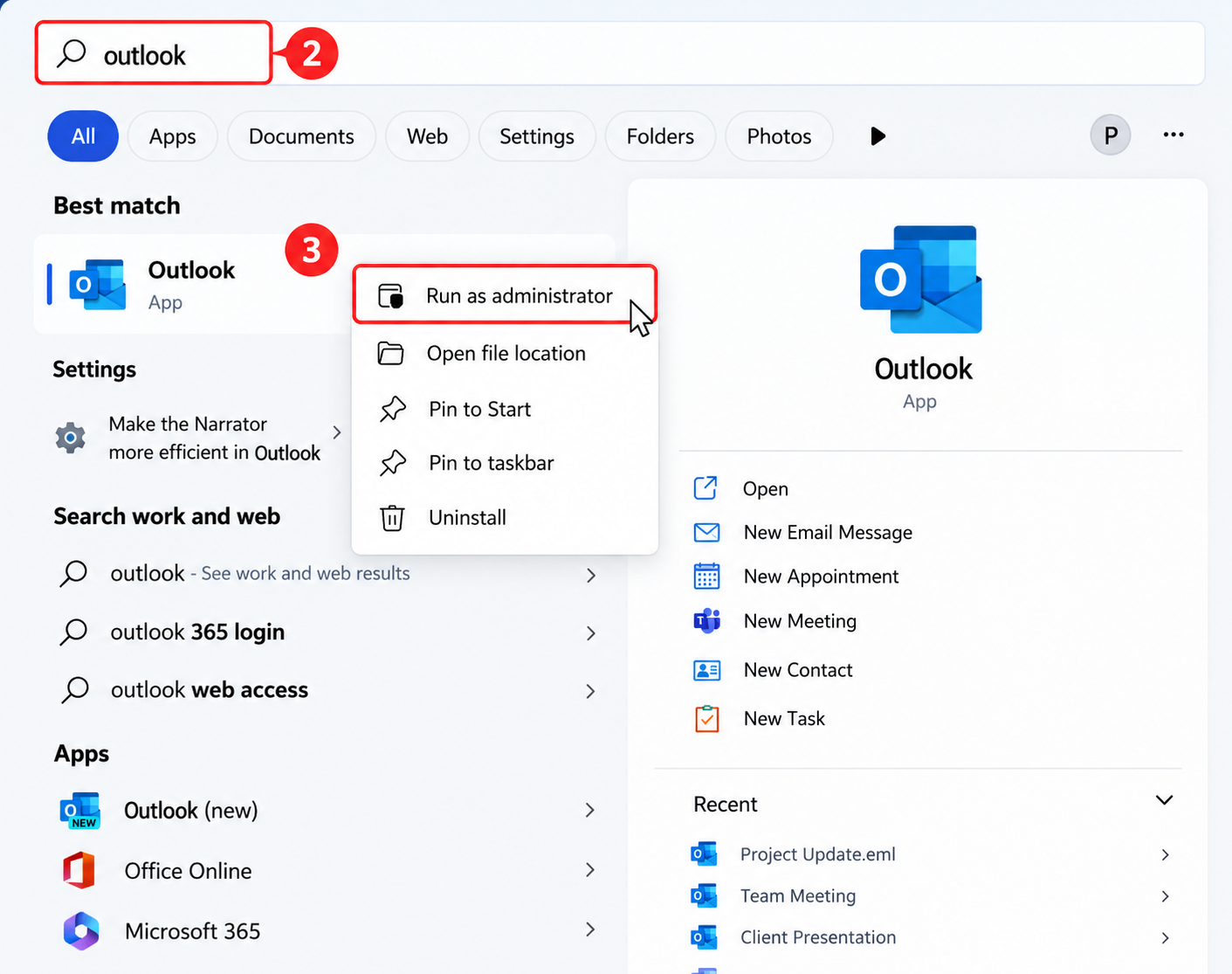
- Once open, go to the “COM Add-ins” menu.
- Check the “Microsoft Teams” box.
- Click “OK”.

Method #3: Change the LoadBehaviour Value Data (Add-In Keeps Disabling)
Sometimes, the Teams meeting add-in repeatedly unchecks itself after rebooting the PC. This happens when a corrupted Windows Registry key overrules the manual settings. The “LoadBehaviour” DWORD is configured incorrectly; the add-in is forced into a deactivated state (2) instead of launching at startup (3).
Hence, to ensure the Teams button remains accessible in Outlook, access the Registry Editor to change the value data of “LoadBehaviour”:
Step #1: Open the Run Dialog Box
- Close Outlook and Teams completely.
- Press Win + R >> Type “regedit >> click “OK”.

Step #2: Configure the LoadBehaviour
- Go to HKEY_CURRENT_USER\Software\Microsoft\Office\Outlook\Addins\TeamsAddin.FastConnect.
- In the right-hand pane, double-click the “LoadBehaviour” DWORD.
- Change the “Value data” from “2” to “3”.
- Click “OK”.

Step #3: Close the Registry Editor
- Safely close the “Registry Editor”.
- Finally, reboot the computer.
Method #4: Fix the Account Authentication Mismatch
Fixing the account authentication mismatch is another effective way to resolve “why Teams not showing up in Outlook”. This method ensures that the identity logged into the Teams desktop client matches the primary Exchange Online profile active in the Outlook app. This is because the cross-tenant mismatch immediately severs the connection.
Step #1: Open Teams and Verify the Email Address
- Launch Microsoft Teams.
- Click the profile picture or initials (in the top right corner).
- Make certain you’re logged in with the exact primary address encountering the issue.
Step #2: Launch Outlook and Access Account Settings
- Open Outlook.
- Go to “Info” >> select “Account Settings”.
- Click “Account Settings” again (from the dropdown menu).

Step #3: Get into the Email Tab and Verify Email ID
- In the “Email” tab, confirm that the exact same corporate Microsoft 365 email address is listed. And designated with the checkmark as the “Default” account.

- If you have multiple accounts configured, sign out of both applications entirely:
- Clear the Windows Credential Manager (if necessary).
- Log in to the Microsoft Teams desktop client first. Wait till it fully loads.
- Launch and sign in to Outlook to re-establish the right authentication.
Method #5: Update the Teams and Outlook App
Many users on various forums have claimed that updating the Teams and Outlook desktop application to the latest build version has fixed the Team button missing from Outlook error. This method appears promising because Exchange Online diligently enforces version compliance for the maintenance of the backend security.
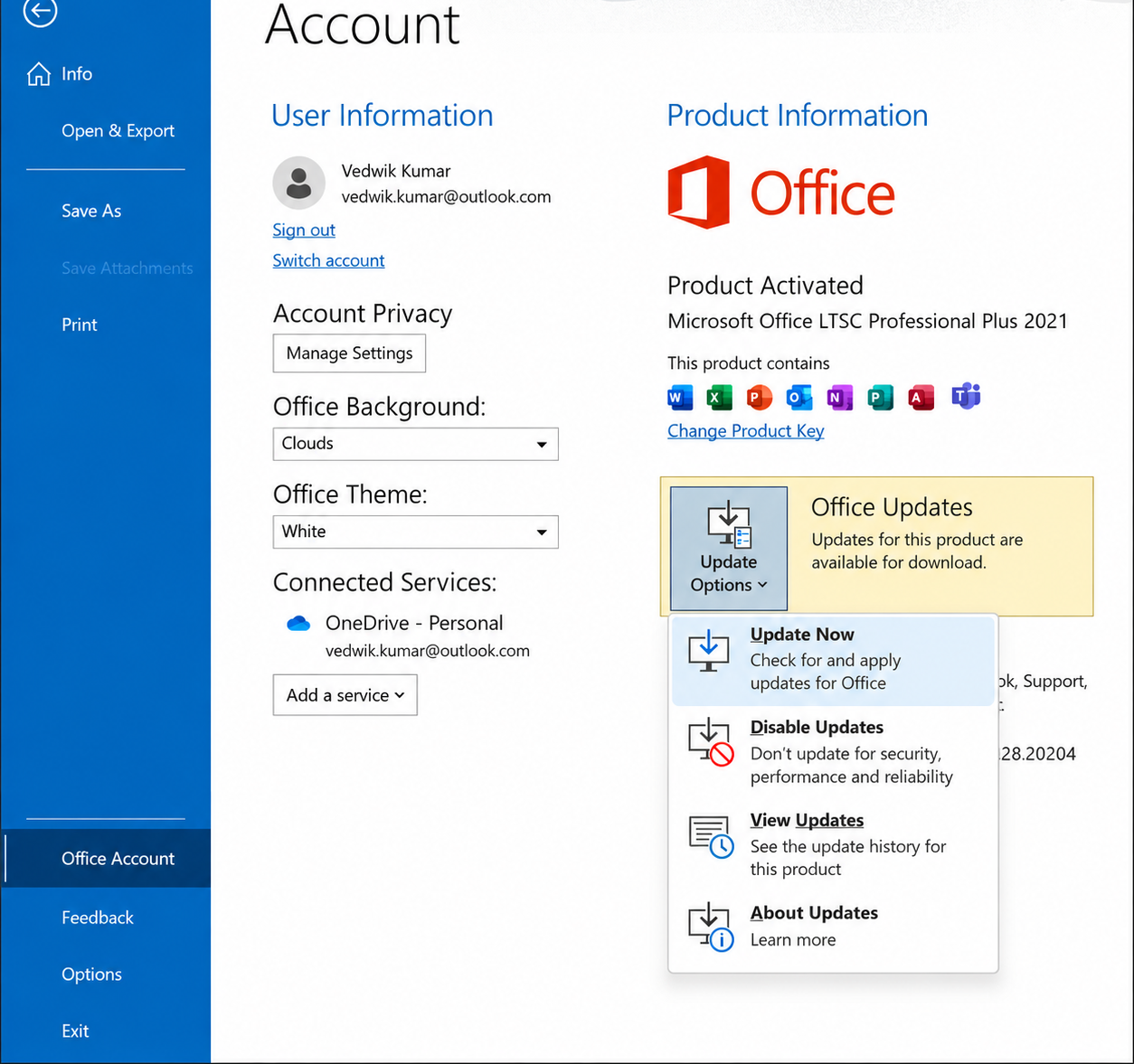
Step #1: Launch Outlook and Access Update Options
- Open the Outlook application.
- Go to “File”.
- Click “Office Account”.
- Under “Product Information”, click “Update Options”.
- Select “Update Now”. Allow Microsoft 365 to download and apply the pending patches.
Step #2: Navigate to Teams and “Check for Updates”
- In Microsoft Teams, click the “three horizontal dots” or (profile picture) in the top-right corner.
- Select “Check for Updates”. Teams will run silently in the background to install patches.

- Lastly, reboot the PC to synchronize both updated clients.
Method #6: Rectify the Software Installation Order (Reinstall Teams)
Correcting the software installation order is one of the easiest ways to resolve the Teams button missing in Outlook issue. Since the Teams meeting add-in only integrates into the Windows registry when it detects a pre-existing Outlook installation, here’s how to rectify the software installation order:
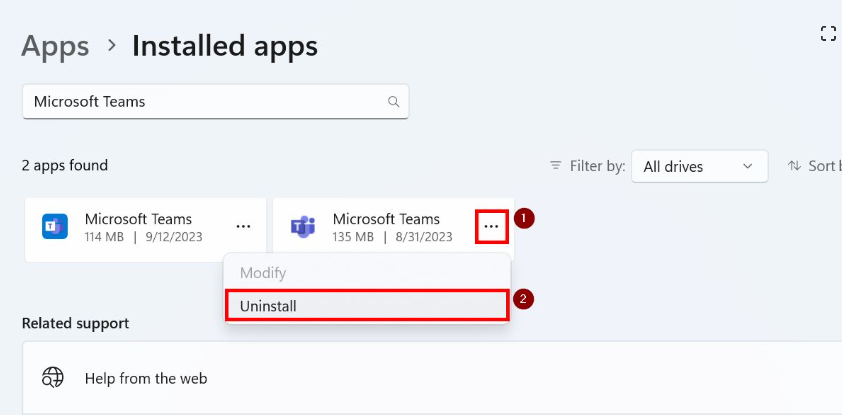
Step #1: Access Windows Settings and Uninstall Teams
- Open Windows Settings.
- Click “Apps” >> Locate “Microsoft Teams”.
- Click Uninstall.
- Restart the PC to flush the AppData cache.
Step #2: Download and Install Microsoft Teams
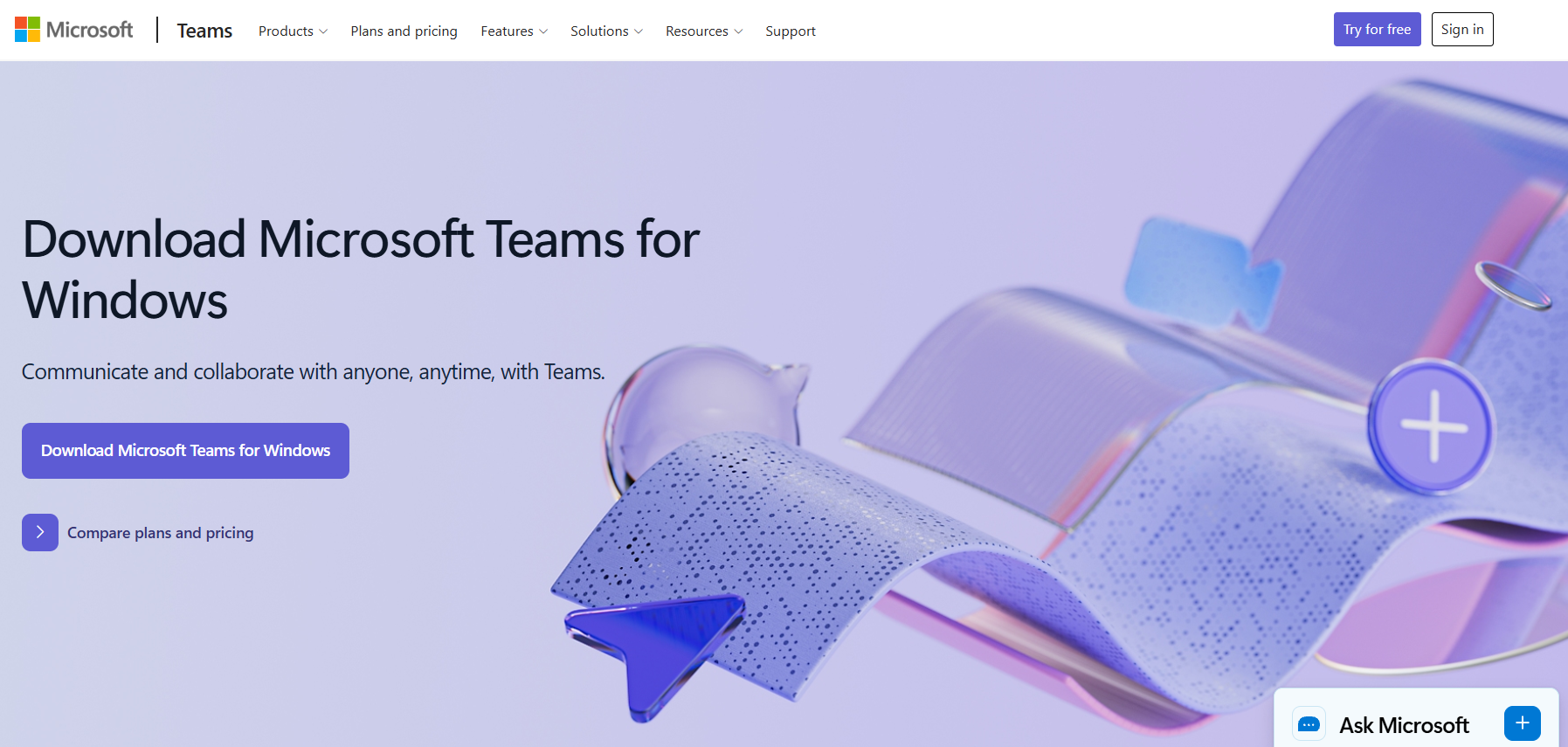
- Open the web browser.
- Go to the Microsoft 365 portal >> download the latest Microsoft Teams executable file.
- Lastly, Install Teams. Since Outlook is already installed on the PC, the fresh installation will now properly inject the missing COM add-in.
Method #7: Run a Microsoft Office Online Repair
Running a Microsoft Office Online Repair prompts Windows to ping Microsoft’s servers. Including verifying local files and replacing damaged connection libraries. Resulting in fixing “why Teams not showing up in Outlook” issue. Apply this troubleshooting method only when the Teams add-in is completely missing from the COM add-ins list.
- Open the Windows Control Panel.
- Go to “Programs and Features”.
- Locate the “Microsoft 365 Apps for enterprise” (or Office 2021/2019) installation.
- Right-click it >> select “Change”. This will trigger a dialog box.

- Select “Online Repair”. Note: Do not select “Quick Repair”; it will not re-download the missing add-in files.
- Click “Repair”. Executing a Microsoft Office Online repair may take 15-30 minutes.

- Once the process is completed, reboot the PC.
Method #8: Check Teams Admin Center Policies (For IT Admins)
In corporate networks, end-users cannot restore a missing add-in if the Global Administrator has restricted it at the tenant level. So, if multiple employees are suddenly raising tickets that they cannot schedule Teams meetings in Outlook, an administrator must review the global Meeting Policies. To do so:
- Log in to the Microsoft Teams admin center (admin.teams.microsoft.com) using Global Admin credentials.
- Expand “Meetings” (on the left-hand navigation pane).
- Click on “Meeting policies”.
- Select the policy assigned to the affected users (usually the Global (Org-wide default) policy).
- Scroll down to the “Audio & video” section.
- Make sure the “Allow the Outlook add-in” toggle is switched to “On”.

- Save the changes. Note: The Tenant-level policy changes can take up to 24 hours to sync to end-user desktop clients.
Method #9: Download the Microsoft Support and Recovery Assistant (SaRA)
When manual registry edits, clearing credentials, and COM add-in toggles fail to restore the Teams add-in, utilizing Microsoft’s official diagnostic utility becomes the last resort.
- Go to the official Microsoft download center.
- Download the “Microsoft Support and Recovery Assistant (SaRA)” installation file.
- Install and run the application.
- Choose “Outlook” from the visual list of Microsoft Office suite products.

- On the following screen, select the exact issue: “The Teams meeting option isn’t shown or the Teams Meeting add-in doesn’t load.”.
Backup Microsoft Teams Independently: A Critical Step for Enterprises
This simple “Teams not showing up in Outlook” issue highlights a noteworthy vulnerability of the Microsoft 365 ecosystem. It implies that the M365 ecosystem is inherently sensitive and prone to synchronisation errors.
Also, according to the Shared Responsibility Model, Microsoft does not hold any responsibility for your proprietary data against accidental deletion or malicious insider threats. Though Microsoft’s native retention policies provide recovery options, they offer a short recovery window.
Therefore, IT compliance experts champion a dedicated, corporate-grade Microsoft Teams backup utility for an independent backup. It truly secures the corporate collaboration environment.
So, once this issue is resolved successfully, secure an independent backup of your Team’s data against disastrous events.
Conclusion
“Teams not showing up in Outlook” or “Teams disappeared from Outlook” issue can cause several operational and workflow disadvantages such as:
- Disrupted scheduling workflows
- Confusion for clients
- Administrative and IT overhead
Hence, it becomes imperative to resolve this issue with utmost priority. Since resolving exactly “why Teams is missing in Outlook” requires a systematic approach, use the robust methods outlined in this comprehensive guide.
People Also Find Helpful:
- Move Channels in Teams – A Detailed Tutorial
- Merge Microsoft Teams: A Complete Guide
- Microsoft Teams Migration Tool to Migrate Data Securely without Any Data Loss
- MS Teams Migration Checklist & Project Plan – A Complete List of Best Practices to Follow
- How to Fix Outlook Manager Team Calendar Not Showing Issue? Full Guide
FAQs
Q.1: Why is the Teams add-in missing in the “New Outlook”?
Since the “New Outlook” connects directly to Exchange Online, it completely drops support for legacy COM add-ins. In the New Outlook, the Teams meeting toggle is integrated natively into the calendar event screen. If the toggle is missing or not showing up, your mailbox may be hosted on an On-Premises Exchange Server instead of Exchange Online, preventing the native API integration from loading.
Q.2: How can I force-enable the Teams Add-in via Group Policy (GPO)?
To force-enable the Teams Add-in via Group Policy:
- Open the Windows Registry.
- Add the Teams Add-in ProgID (TeamsAddin.FastConnect) to the Outlook Resiliency “DoNotDisableAddinList” key.
- Go to HKEY_CURRENT_USER\Software\Policies\Microsoft\Office\16.0\Outlook\Resiliency\DoNotDisableAddinList.
- Create a new String Value (REG_SZ) named TeamsAddin.FastConnect.
- Configure its value to 1.
Q.3: Why can’t I schedule a Teams meeting as a Delegate (Executive Assistant)?
If you’re encountering an error stating “You cannot schedule a Teams meeting on behalf of…”, your Exchange permissions are mismatched. It is mandatory for both the Delegate and Delegator to have their mailboxes hosted in Exchange Online (not hybrid/on-prem). Also the Executive Assistant must be granted explicit “Editor” or “Full Access” permissions to the executive’s calendar.
Q.4: Does the Teams meeting add-in work in Outlook for Mac?
Yes, but Mac does not utilize COM add-ins. On macOS, the Teams integration is native. If the Teams button is missing on the Mac, it typically happens when the email profile was added to Outlook as a standard “IMAP/POP” account instead of a “Microsoft 365 account. Just delete the email profile in Outlook for Mac. And re-authenticate it using the Microsoft 365 Exchange sign-in option.
Q.5: Why isn’t my Outlook showing Team status /Why is my Outlook status not matching with my Team’s status?
The color presence dot (Available, Busy, Away) doesn’t sync between Teams and Outlook mainly due to a missing setting within the Teams application. Teams must be prompted to sync its status to Office. To do so,
- Open the Microsoft Teams desktop app.
- Click the profile picture (or the menu).
- Select “Settings”.
- Under the “General” tab, check the “Register Teams as the chat app for Office (requires restarting Office applications” box.
- Lastly, completely close and restart both Teams and Outlook to force the sync.
Q.6: How do I enable Teams on my Outlook?
Here’s how to enable Microsoft Teams in classic Outlook:
- Open Outlook.
- Go to “File” >> click “Options” >> select “Add-ins”.
- Click “Go” (next to “Manage: COM Add-ins”) at the bottom of the window.
- Check the box next to “Microsoft Teams Meeting Add-in for Microsoft Office”.
- Finally, click “OK”.
Q.7: Why isn’t the Teams link appearing in Outlook?
“Teams link isn’t appearing in Outlook” or “why don’t I see the Teams icon in Outlook” happens even if the Teams add-in is enabled due to viewing the wrong pane in Outlook. Also, the “New Teams Meeting” icon does not appear in the standard Mail view ribbon. To do so, click on the “Calendar” icon in the bottom-left corner of Outlook. Once the Calendar view is opened, the Teams meeting icon will appear in the top ribbon.
Q.8: Can I schedule a Teams meeting from a Shared Mailbox?
Yes. To schedule Teams meetings on behalf of a Shared Mailbox, the Shared Mailbox needs to be added as a secondary Exchange account using a dedicated profile. Also, the user must be granted explicit “Full Access” delegation rights.