Outlook is Not Responding? Fix It Fast with Proven Solutions


This write-up explains how to fix Microsoft Outlook not responding issues. Our several working methods will help users resolve all Outlook issues, like hanging and freezing and bring your Microsoft Outlook back to life. The solutions work for Outlook 365, 2021, 2019, 2016, 2013 and all versions below.
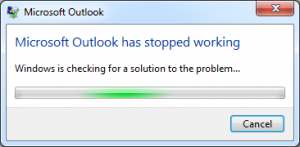
Nowadays, many users are using Microsoft Outlook in corporate world to access all email messages. While using Outlook, users have faced an error message showing that Outlook is not responding. In addition, this error occurs when Outlook has stopped working, hangs, or freezes when the user tries to open or send an email message. Moreover, there are plenty of reasons why this Outlook error occurs. In the next section, we will discuss all possible reasons and solutions to fix the Outlook error.
Common Reasons behind Outlook Account Not Responding?
There are multiple possible causes for Outlook to behave this way. A few of them are listed below.
- Users can not have installed the latest updates.
- There could be multiple Outlook processes running in the background.
- It loads some external content, like photos, in an email message.
- A pre-installed add-in is interfering with Outlook.
- Because of the increment in the Outlook mailbox size.
- There is a chance that your AppData folder is forwarded to a network path.
- MS Outlook not responding due to the corruption of the Office program.
- The probabilities of antivirus program installation are outdated.
- Outlook not opening or processing because of user account corruption.
- Sometimes, another program conflicts with Outlook.
How to Fix Outlook is Not Responding Error?
Go through following steps to resolve Microsoft Outlook is not responding error:
First, Open MS Outlook in Safe Mode. Then, you have to start MS Outlook mail client in safe mode to resolve the problem. Let us discuss the following steps as given below:
- First, Close Outlook application
- After that, Launch MS Outlook in safe mode by selecting one of the following options.
- In Windows 10, choose the Start button, type Outlook.exe /safe, and then press Enter.
- In Windows 7, go to Start, type Outlook /safe under the Search programs and files text box, and click on Enter.
- In Windows 8, from Apps menu, select Run, and type Outlook/safe in text box. Then, choose OK button.
- Now, close MS Outlook, and then, again open it normally.
If Microsoft Outlook has stopped working and has not been resolved, then continue to next workaround.
Manual Workarounds to Fix Outlook Not Responding Properly
- Check if a dialog box is open or not
- Be sure Outlook is not working on large scale
- Install the latest version of Windows OS
- Repairing your office programs
- Recover your Outlook data items
- Create a new profile/ account
Now, let us describe each workaround in detail so you can pick whichever one seems the best fit according to your requirements.
#1 Workaround: To Check If Dialog Box is Open or Not
Let us suppose, first, you try to Dismiss All within the list of reminders, MS Outlook will ask if you are sure what to do. If you do not select any option from the dialogue box, Outlook will not allow you to do anything else. Now, check for opening the dialogue boxes. Then, hit Alt+Tab key, which will help to move from one Windows OS to another, and you can view what dialog boxes may be stopping from responding in Outlook.
If you cannot find a dialogue box open, switch to next step.
#2 Workaround: Be Sure Outlook is Not Working on Large Scale
If you want to delete or transfer many emails at once, MS Outlook hangs and gets stuck, but it will work behind the scenes. Check status at bottom of screen. If MS Outlook is performing a few operations on thousands of emails at a time, it may get stuck. Give some time to the Outlook application to complete the entire process, and it will start to work again.
If Outlook cannot work on a large process, move on to the next step.
#3 Workaround: Install Latest Version of Windows OS
After installing the latest versions of Outlook, it works well. We recommend the Windows Update Settings option to automatically download and install all the recommended updates. Bug fixing, new attractive features, and its performance are released regularly.
Now, you must install the latest updates for Windows and MS Office, as above listed procedure can not resolve this issue. Move to next step.
#4 Workaround: Repairing Your Office Programs
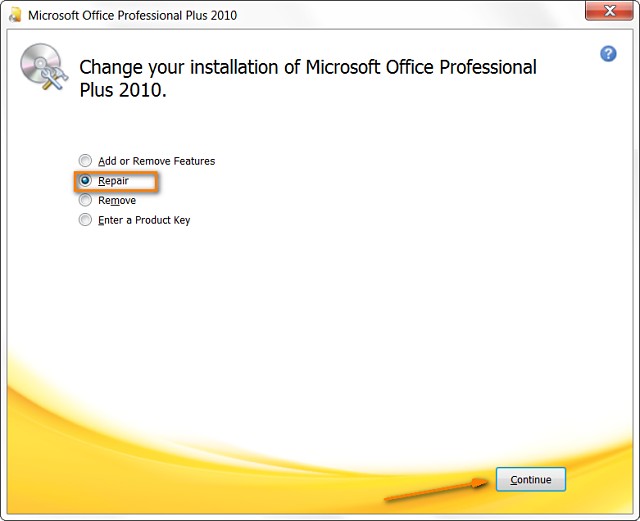
Restoring your MS Office applications may resolve this issue if Outlook is not working, hanging, or freezing. Various errors in MS Office have been repaired automatically.
- Quit Microsoft Office programs that are running on local machine.
- Under Control Panel, select Programs & Features.
- From list of installed applications, right-click on MS Office 2016 or MS Office 2013, and then click on Change button.
If repairing your MS Office programs can not fix your issue, move on to next step.
#5 Workaround: To Eliminate Redundant Items
If your Outlook is stuck due to large size of its mailbox, then it’s because of duplicates. These repeated items can clutter your mailbox, which leads to freeing your Outlook and lessening performance. So, it’s essential to eliminate these items. There are multiple manual methods which can fix this, but they are not reliable and secure. We suggest using a trusted utility, i.e, FreeViewer Outlook Duplicates Remover Tool. This software effectively and accurately removes multiple replicated items from your mailbox.
You can also delete duplicate emails in Outlook, along with attachments.
#6 Workaround: Recover Your Outlook Data Items
During installation of Office program, your Inbox Repair Tool or ScanPST.exe is already installed on your desktop. This software can resolve these issues by scanning all Outlook data files and also repairing multiple errors.
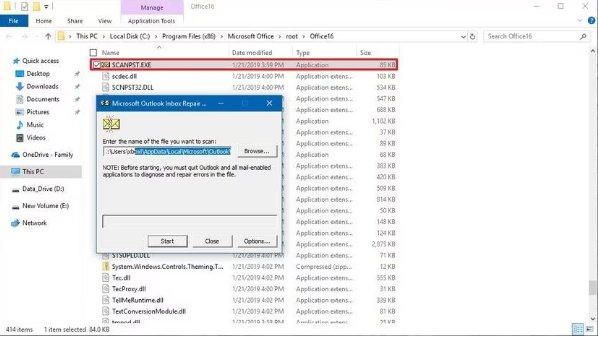
For using Inbox Repair software:
- First of all, Exit Microsoft Outlook
- Go to Repair Outlook Data Files, i.e. .pst and .ost.
- Then, follow Inbox repair tool working steps carefully
If this repairing Outlook data files process can not resolve the issue, move on to the next step.
#7 Workaround: Create a New Profile/ Account
There are the following points for creating a new profile and afterwards, adding the mail accounts to a new profile.
- Close Outlook application.
- Then, select one of following steps according to your desire:
- In Windows 10 OS, go to Start button. Enter Control Panel and press Enter key. Now, choose User Accounts, select Mail option and click the Show Profiles.
- For Windows 8 users, open Apps menu, click Control Panel and select Mail option. Press Show Profiles.
- For Windows 7, choose Start button, go to Control Panel >> Mail >> Show Profiles.
- Choose Add option, and type the profile name within profile name box.
- Enter email address and the password for a primary mail account that has been used in Outlook, and then go through the steps for creating the profile.
- After creating the account, from the Show Profiles dialog box, choose Prompt for a profile to be used.
- Start Microsoft Outlook and then select a new profile.
If above-mentioned procedure works great and also resolves issue, return to the Show Profiles dialog box and delete the older profile as well.
Fix PST File Corruption Using Professional Solution
Due to severe corruption in PST file, a user is not able to access Outlook application. To fix PST file errors, a user must download this free Outlook PST Repair Tool. This application first repairs corrupted Outlook PST files and then saves them in a healthy format. After the successful recovery of the PST file, a user can import it into any Microsoft Outlook version, including 2021, 2019, 2016, 2013, 2010, or 2007.
Conclusion
MS Outlook is the most commonly used mail client among many professional users. Moreover, while accessing this email application, users face various problems such as Outlook hanging, freezing or stopping working are mentioned in this blog. Due to such reasons, Outlook is not responding error has been received while opening the desired file. The causes of this error and relevant solutions to fix Outlook errors are also discussed.