How to Make PDF Read Only Using 5 Easy Methods?


Once you share the PDF document, anyone can modify or tamper the information. To safeguard the content, you might be wondering how to make PDF read only for better security and prevent changes within the document. In the following guide, we will share the effective and reliable techniques to protect PDF from sharing, making it a read-only file. So, let’s move to learn basic to advanced approaches.
Quick Answer: How to Create Read Only PDF File
- To make a read-only PDF, download Free PDF Locker by FreeViewer.
- To import the PDF, use the Add Files or Folders function.
- Look for the Change option to find the destination folder > hit Next.
- Navigate to “Apply Document Restrictions” > apply necessary permissions.
- Now, click the Lock button and download the read only & non-editable PDF document.
What is the Meaning of “Read Only PDF” File?
A read only PDF is a type of document that allows viewers to read and analyze the information without making changes. The purpose of applying read-only protection is to prevent intentional or accidental changes to the document. To apply the read only PDF protection, document creators can use password security, restrictions, and even PDF encryption.
Using these protections, you can enable read-only status on PDF files, preventing content modification, copying, page printing, and more in a single operation. Below is how read only PDF protection works:
- Read-only PDF protection allows reading or viewing the information.
- Block the users actions, such as copying, page printing, editing, and more.
- Useful for safeguarding the content and formatting against misuse and compromise.
Overall, read only status is a type of security that makes a document useful for reading and viewing. Moreover, it allows owners to control content usage while applying intelligent document security. Now, let’s learn more about this protection.
Why Create a Read-Only Document?
There are several benefits of applying the read only status on PDF document. With this, owners can control viewer actions and limit accidental changes within the PDF document. Here are the other benefits of making PDF read only:
- Block Accidental Changes: The unsecured PDF lets viewers to make unwanted changes. After applying read-only protection, you can block users from making accidental or intentional edits within the document.
- Secure Sensitive Content from Repurposing or Printing: Confidential documents, such as contract papers, legal files, audit reports, etc., can be repurposed by unauthorized viewers. With read only protection, owners can protect PDF from editing and page printing with ease.
- Meet Security Compliance: Industrial or officials need to share documents while meeting security standards or compliance requirements. Here, it becomes necessary to use read-only protection to block the document engagement when sharing.
In summary, making the read only PDF offers benefits like document protection while controlling the usage. Now, let’s learn the methods for creating a read only PDF file.
How to Make PDF Read Only – 5 Effective Methods
In the following section, we will discover the basic to reliable techniques to create secured document in batch mode. With this, you can secure the content while blocking the viewer’s actions. Here are the potential ways for making read only or non-editable PDF document:
- Windows File Property
- Online PDF Websites
- Mac Preview (only macOS uses)
- Adobe Acrobat Software
- Dedicated Offline Tool
Now, let’s understand these methods in detail manner.
#1 How to Create Read Only PDF Using Windows File Property
Windows provides the basic built-in option to make PDF read only without formatting issues. It won’t require software installation and subscription cost. Hence, it is a free yet basic way of creating the read only file. Below are the instant steps to try:
- Firstly, locate your desired PDF in File Explorer.
- Perform, right-click and look for the Properties option.
- Navigate to the General section and then, check for Read Only option.
- Finally, use the Apply button and hit OK.
- Now, you have a PDF with the desired protection.
Limitations of Above Method:
- This is a simple technique; unable to secure file with a strong password.
- Viewers can even uncheck the read-only status without owner’s permissions.
- It won’t block actions, such as copying, sharing, and more.
#2 How to Make PDF Read Only Online – Free Online Website
If you’re wondering how to create a read only PDF file online, use free online websites. These are web-based solutions; no requirement of software installation. Using the free solution, you can apply owner and password security to restrict document usage. This way, creators can share non-editable files with ease. Now, follow the quick steps guide:
- Visit any free online PDF tool.
- Import all the PDF files using the drag & drop feature.
- Enable necessary protection > download the PDF.
Drawbacks of Free Online PDF websites:
- Uploading PDFs on untrusted external server may cause data compromise.
- Free tools have usage limitations when using large or multiple PDFs. It requires a plan upgrade.
- Many times, the online websites cause formatting issues when applying read only status.
#3 How to Create Read Only Document- Mac Preview
For Mac users, Preview is the free built-in application to make non-editable file. Moreover, it allows users to apply basic protection, preventing document modification. Here are the detailed steps to make the document read-only on Mac:
- Access PDF with Mac Preview.
- Use the File option and then, Export.
- Look for the Encrypt feature and set the protection.
- Finally, download the file.
Limitations of the Preview Method:
- This is not a dedicated solution; no feature to set advanced protection.
- Unable to block viewer engagement, such as content copying, printing, etc.
- No feature for batch processing when handling large volume of file.
#4 How to Create a Read Only PDF File – Adobe Acrobat
To make read only or non-editable PDF, use the Adobe Acrobat software solution. It is an all-in-one way of applying modes of protection to a PDF document. Using the software, you can safeguard the PDF file with a custom password and owner-level permissions. During the process, the tool ensures file integrity and protection. Here are the quick steps using Adobe:
- If you have the licensed Adobe Acrobat, open it.
- Click File and then, Tools > look for Protect PDF.
- Now, add the necessary permissions and create password.
- After this, use the OK button to document the file having protection.
Drawbacks of the Above Method:
- This is a subscription-based software; the cost isn’t flexible for individuals or small businesses.
- There is no option for batch processing, so look for the other alternative.
#5 How to Make PDF Read Only without Password – Try Professional Software
To create a read only file, use automated software. This is an offline utility designed for Windows and macOS. Using the tool, you can apply modes of PDF protection in a single attempt. Moreover, it allows document creators to enable user and owner protection without affecting the formatting. Besides this, it offers batch processing, with no need to leave the interface. Most importantly, this is a cost-saving tool; no requirement for Adobe and subscription. So, download the offline solution and make read only file in seconds.
Instant Guide on How to Make a PDF Read Only with Adobe Acrobat
- Download the automated software on your desired OS.
- Use the ” Add Files or Folders” function to upload the necessary file.
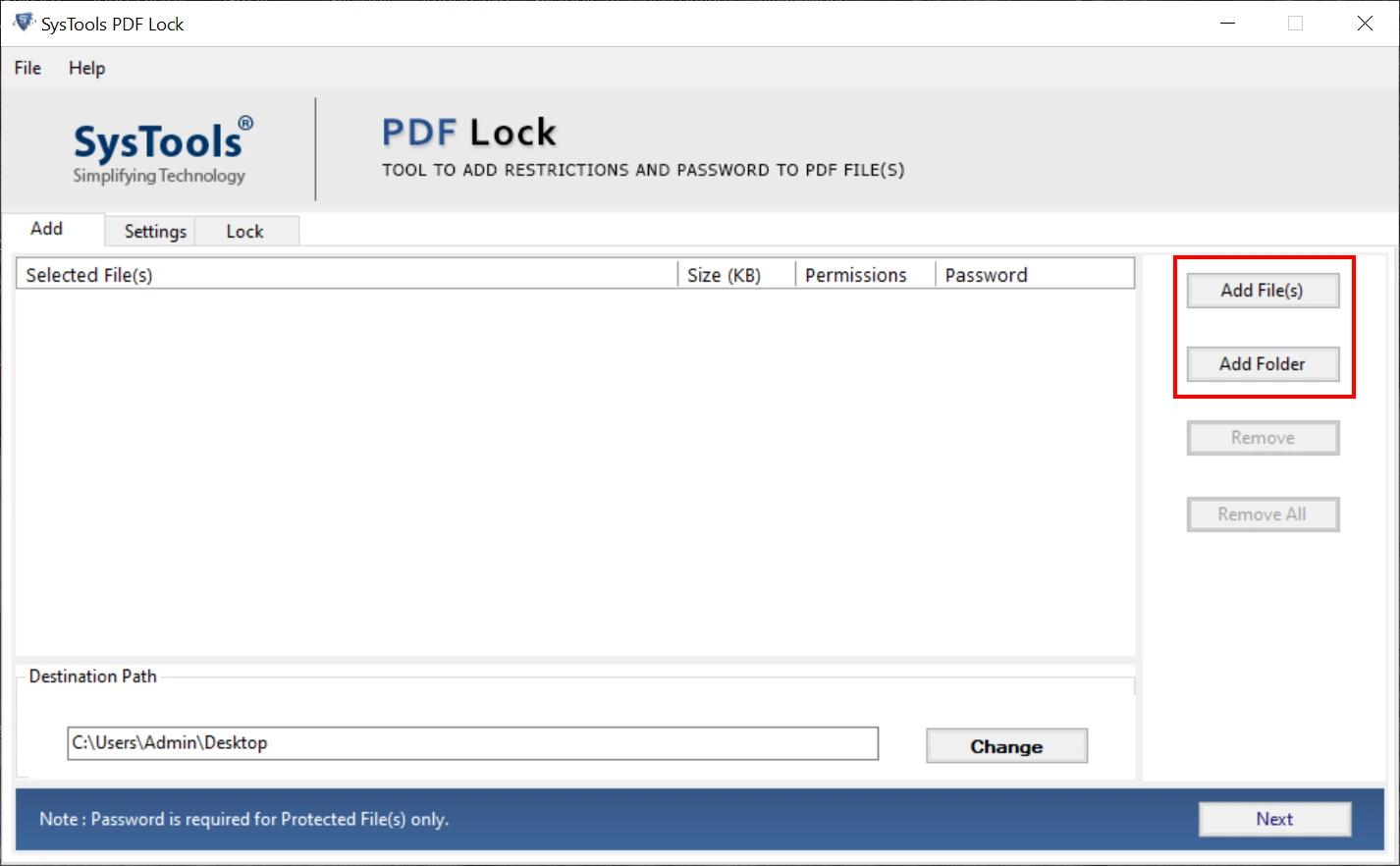
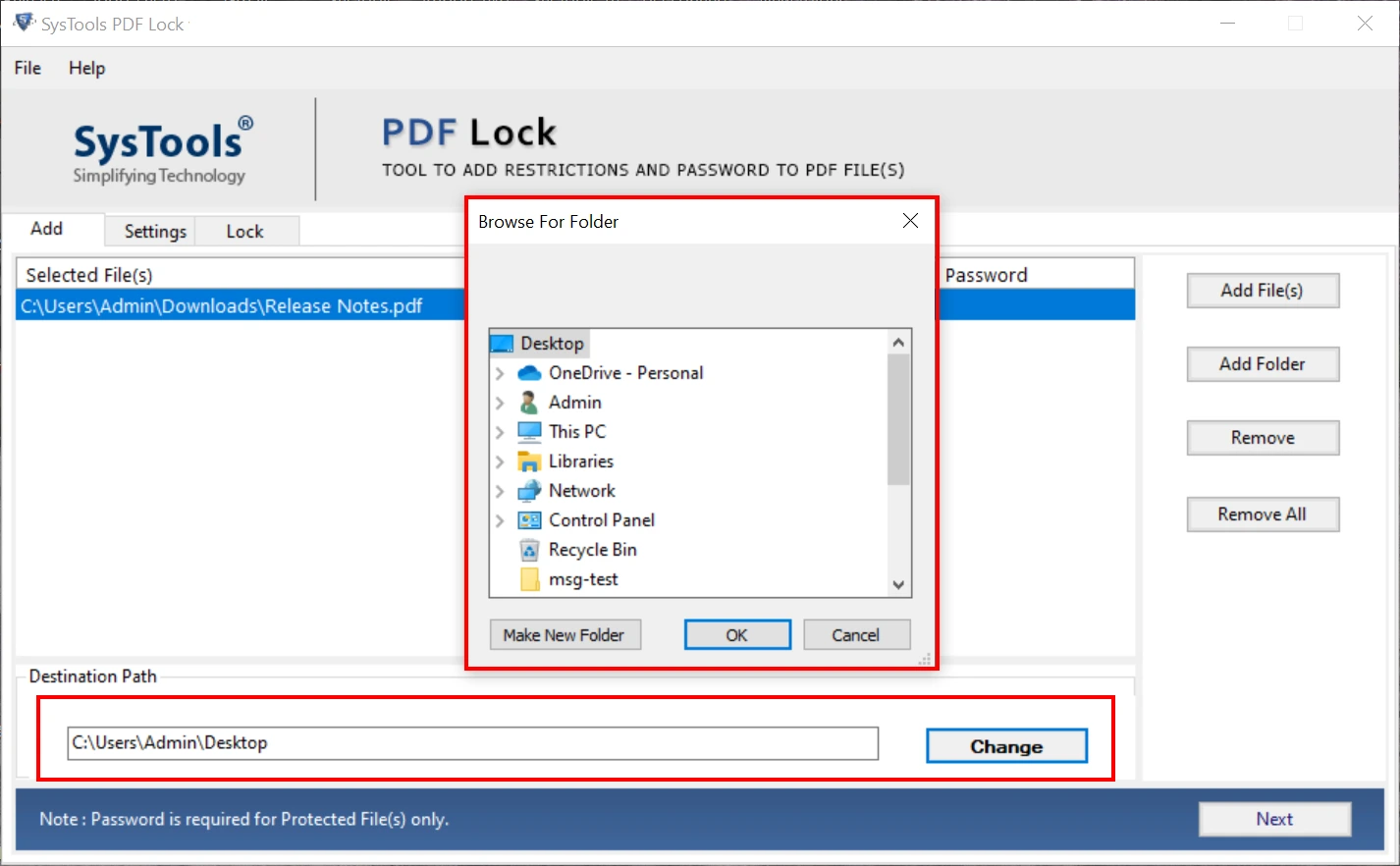
- Look for the Change feature and set destination > click Next.
- Go to “Apply Document Restrictions” function > set the required permissions.
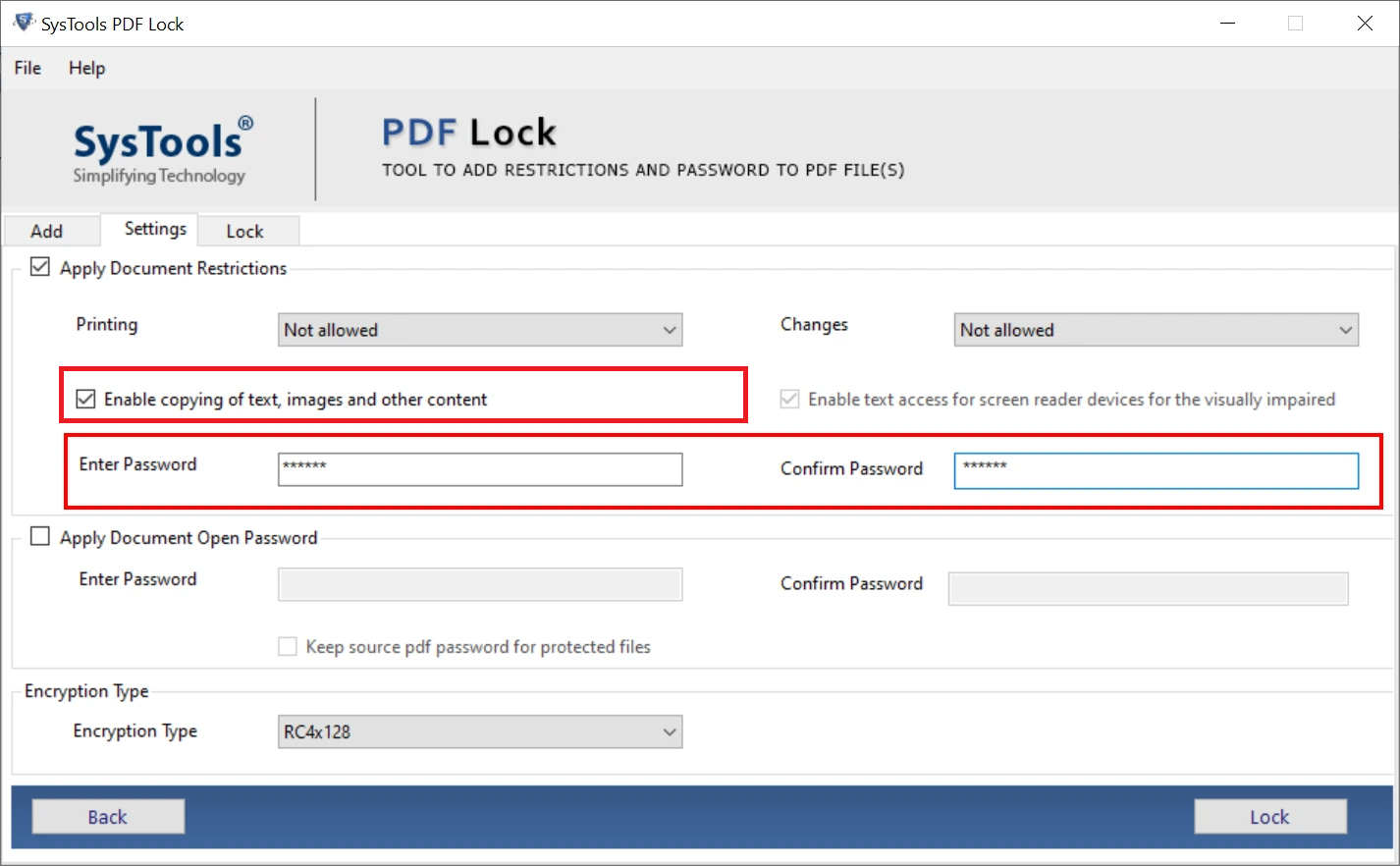
- Finally, hit the Lock button to create read-only files.
Conclusion
In the above guide, we have listed 5 ways on how to make PDF read only. Choosing any of these methods ensures a secure file. Among all the techniques, the automated solution is reliable and offline. Using the utility, you can create read-only files in batch mode without data tampering.