Easy Successful Steps to Import MSG to Google Workspace


Import MSG to Google Workspace is common essential for people who are moving emails from Microsoft Outlook to Google’s cloud-based email platform. MSG file is individual email file, which is created by Microsoft Outlook. It store complete email information, like email message, attachments, sender & receiver details, subject, date & other properties. MSG files are useful for saving or sharing particular emails. However, MSG files are useful for backing up or sharing emails, Google Workspace does not support importing MSG files directly. Because of this limitation, user who want to import MSG files to Google Workspace need alternative method to migrate MSG to Google Workspace without losing crucial data.
Today, many businesses & individuals are choosing Google Workspace because it provides cloud storage, easy collaboration & access to emails from any device. It is essential to choose best method for preserving email formatting, attachments, metadata & folder structure while importing emails.
In this guide, you will understand both manual & automated methods to import MSG to Google Workspace. We will also explain the advantages & limitations of each method, helping you to choose most reliable way to migrate MSG to Google Workspace while maintaining data integrity & email accuracy.
Can I Import MSG file to Google Workspace?
Yes, you can Import MSG to Google Workspace, but there is no direct way to import MSG files in Google Workspace. To import MSG files you must first convert or migrate MSG files into supported format, then you can import them using manual method or a professional method.
MSG vs Google Workspace: Complete Introduction
What is an MSG file?
MSG file is an email file, which is designed by Microsoft Outlook. It stores single items like emails, calendar appointments, contacts or tasks. It is perform like digital envelop. MSG files are commonly used to save or share individual Outlook emails.
What is Google Workspace?
Google Workspace is cloud-based productivity & collaboration platform from Google. It includes famous apps like Gmail for email, Google Drive for file storage, Google Calendar for scheduling & Google Docs for creating & editing documents. Since it is cloud-based. You can access your emails & files from any device with internet connection.
Top Reasons to Import MSG to Google Workspace
Importing MSG file to Google Workspace allow you to store your all Outlook emails in one secure cloud location. Rather than storing emails only on your computer, you can use them from anywhere with Google Workspace account. It also makes it easier to search, organize & share your emails while keeping your data safe.
Here are the main reasons to migrate MSG to Google Workspace:
- Accessibility from Everywhere: You can open your emails from any computer & device with internet connection. You don’t need to install Microsoft Outlook.
- Keep All Emails in One Place: User can store all their MSG files in single Google Workspace account rather than keeping all of them on different devices.
- Get Emails Faster: Gmail have powerful search, which is helps you quickly find emails, attachments or specific words without checking each file manually.
- Easy Team Collaboration: You can share forward & manage imported emails with your team members whenever needed.
- Better Security: Your email data is protected with encryption automatic backups & built-in security with Google Workspace features. It help you to keep your information safe.
Can Google Workspace Directly Import MSG Files?
No, Google Workspace cannot directly import MSG files because MSG (.msg) is proprietary Microsoft Outlook format & Gmail does not support MSG (.msg) file format.
Manual Methods to Import MSG to Google Workspace
As you can read above there is no direct way to migrate MSG to Google Workspace nor Google Workspace support MSG (.msg) file. That’s why we need to use manual methods to import MSG files.
Migrate MSG to Google Workspace Using Outlook
- At first, open Microsoft Outlook on your computer.
- Secondly, create new folder.
- Third, open folder where MSG files are stored.
- Now, drag & drop MSG files into Outlook folder.
- Then, open Outlook & click File > Open & Export > Import/Export.
- Select Export to a file & click Next.
- Choose Outlook Data file (.pst).
- Afterwards, select folder containing your imported MSG files.
- Then, save PST file on your device.
- Now, convert PST to MBOX by installing Mozilla Thunderbird.
- Install ImportExportTools NG add-on.
- Import PST file in Thunderbird.
- Right-click on folder & select Export as MBOX.
- Now, sign-in to Google Admin Console at admin .google.com.
- Go to Data Migration > Email.
- Then, select MBOX as migration source.
- Upload your MBOX file.
- Map source email to the correct Google Workspace user.
- Set date range for emails to migrate.
- Click Start Migration.
- Monitor migration progress from Admin Console.
Why You Should Avoid Manual Method to Import MSG to Google Workspace
Google Workspace does not support MSG (.msg) files directly. You have to first convert them into other formats like PST & MBOX. As you saw above, it is long process because it involves many steps to do. It makes the steps slow & also confusing. Because of lengthy steps, it makes consume lot of time. You need Microsoft Outlook, Mozilla Thunderbird & ImportExportTools NG add-on to complete the migration. By using manual method, some email formatting, attachments, metadata or folder structure may not transfer correctly. Users need to have technical knowledge to understand Outlook, Thunderbird & Google Admin Console. It can be challenging for beginners.
Professional Method to Import MSG to Google Workspace
You can choose manual method as we have mentioned above. However, manual method is very lengthy & it need technical knowledge to migrate MSG files. That’s why we are introducing MSG to Google Workspace Migration Tool. This migration software has been thoroughly tested & certified by IT technicians to ensure reliable performance. It supports concurrent user migrations for faster processing.
How to Migrate MSG to Google Workspace Easily? (Step-by-Step)
Here are easy step-by-step guide to import MSG to Google Workspace/ G Suite:
- Install & run MSG to Google Workspace Converter Tool.
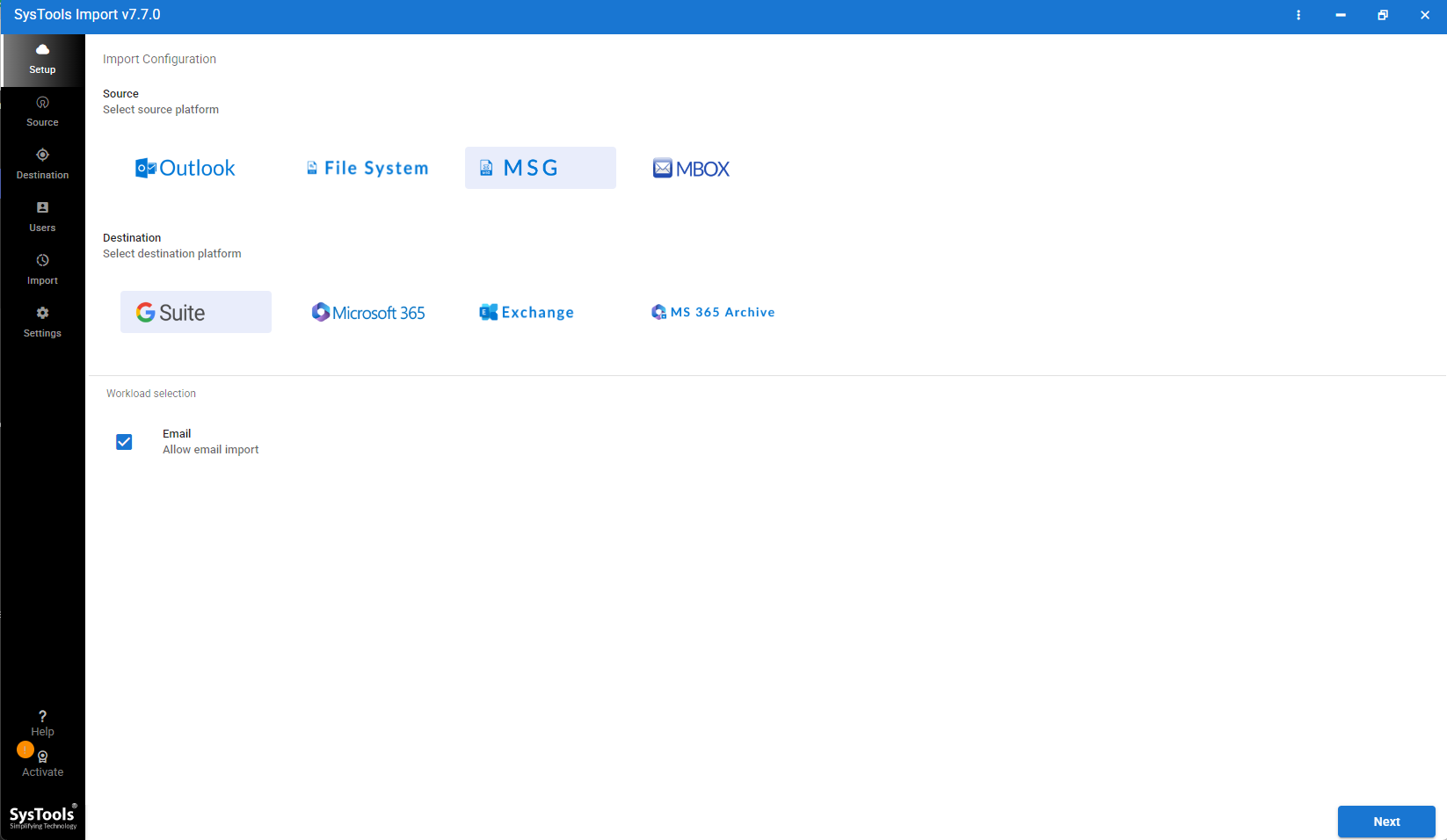
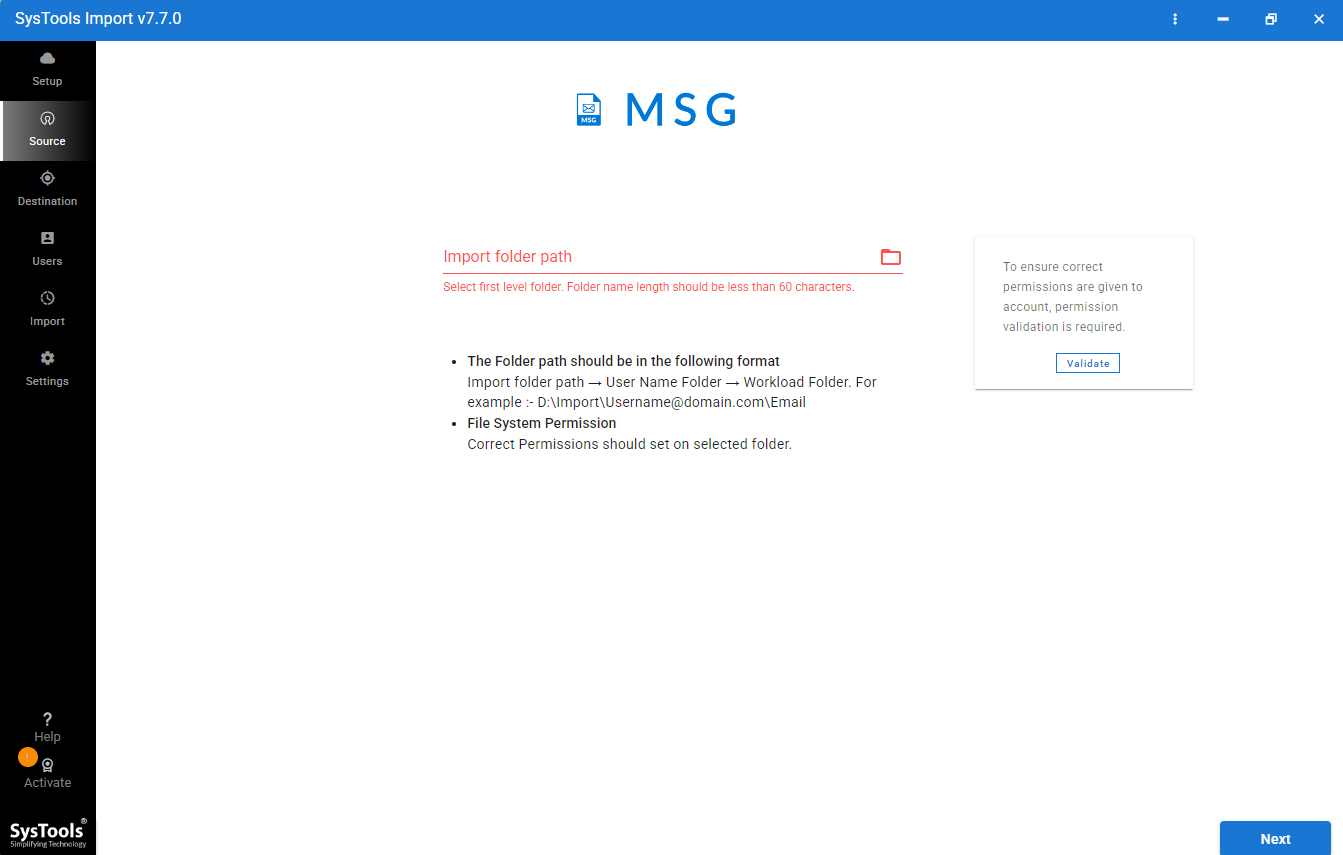
- Click MSG from source platform options & select MSG file and validate it.
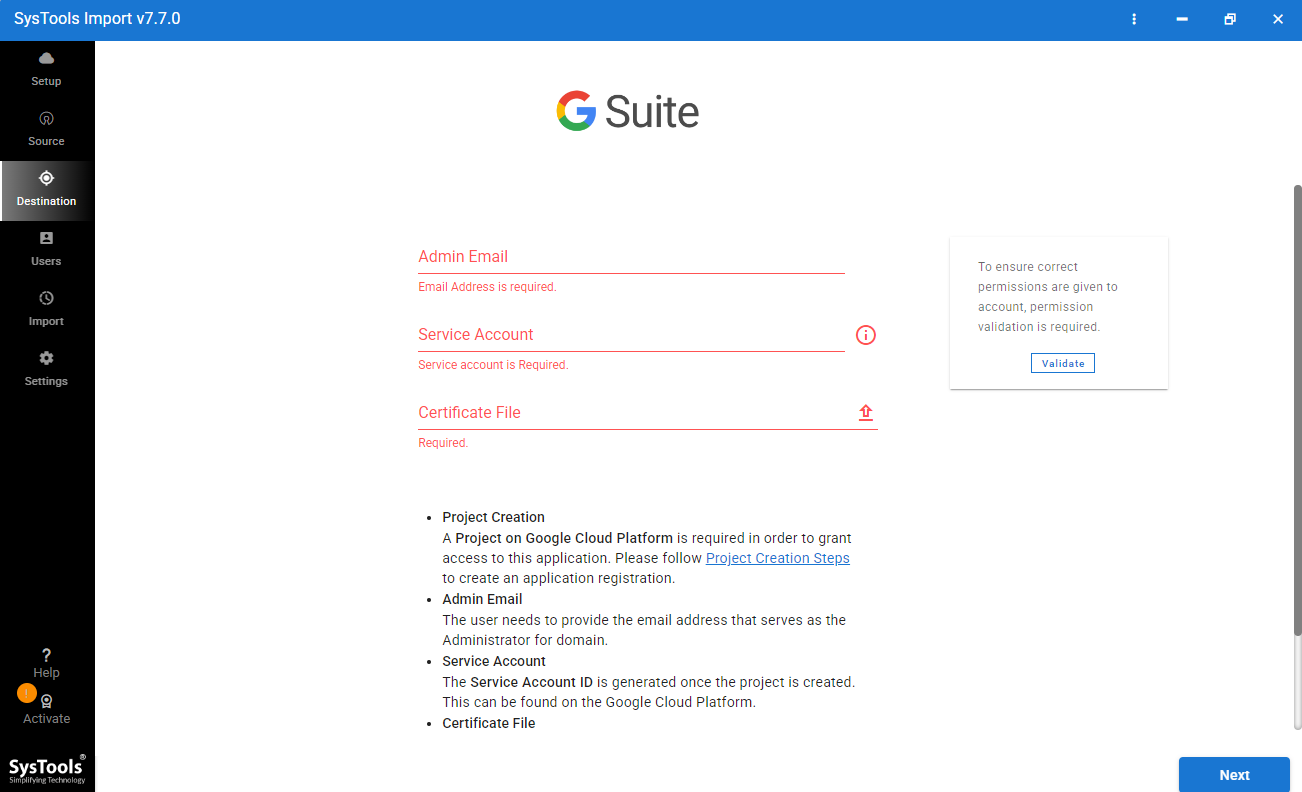
- Enter Google Workspace credentials & validate them.
- Click import button to start migration process.
Exclusive Features of Professional Migration Tool
Here are the best main features of above-suggested migration tool:
- Support Batch Conversion: You can import many MSG files are once instead of adding file one by one. It saves your time & effort.
- Direct Migration: Users can move emails directly to correct Google Workspace user account without any extra conversion steps.
- Numerous Mailbox Migration: It can migrate various user mailboxes at same time instead of waiting for one migration to complete.
- Advance Date Range Option: User can select date range to migrate only emails they require instead of transferring the whole mailbox.
- Support Bulk Import: Software allows you to import emails from multiple user mailboxes in single operation, reducing overall migration time.
Conclusion
If you have only few MSG files, then you can use manual method. It can get the job done. However, when dealing with large number of files, it will take a lot of time & it also requires extra effort. A professional tool makes the process much easier by preserving emails, attachments, metadata & folder structure during file migration process. Whether you are individual user or have a business. It offers faster & more reliable way to migrate your data. If you want to import MSG to Gmail without worrying about data loss using a trustworthy professional migration tool is the best choice.