How to Import EML to Google Workspace with no Data Loss?


If you have a collection of EML files and are looking for a safe solution to import EML to Google Workspace. Then you are at the right place. In this comprehensive guide we will explain a free manual method, limitations and a professional EML to G Suite Import tool to securely transfer emails without losing attachments, metadata and original folder structure.
Since Google Workspace itself does not support EML files, it takes many users to struggle for a reliable solution. To overcome this, simply follow the article till the end and explore expert-tested methods with proper step instructions. This will help you choose the best one as per your needs.
Why Import EML to Google Workspace?
Google Workspace (G Suite) is a secure cloud-based platform that helps to manage business emails from every device and from anywhere. So importing EML to G Suite allows users to manage archived emails and access them directly without requiring any other desktop client.
We have listed some of the common reasons below:
- It simplifies the email management by storing all messages at one place in a single mailbox.
- Allow users to improve collaboration by making business emails available across all connected devices (with that particular email account).
- This import helps to easily search, organize and manage emails using Gmail’s advanced search and label features.
- Offer users to integrate with Google apps and secure email data with built-in security algorithms.
- EML to Google Workspace migration removes the dependency of installing any EML-supported desktop email application.
Can I Import EML files Directly to Google Workspace?
No, you cannot. Google Workspace does not provide any built-in option to import EML files directly through the Gmail interface. That is why you need to choose an alternate method to perform the EML to G Suite import process. In the following section, we’ll explain both the methods step-by-step. Continue reading.
Points to Remember Before Importing EML Files
There are some points that need to be kept in mind and checked to ensure a smooth, error-free EML to Google Workspace Migration.
- First backup EML files before importing to avoid accidental deletion or data loss scenarios.
- Must have stable connectivity.
- Verify Google Workspace enough storage to perform the import process.
- Review EML files and remove duplicates and unnecessary emails for better management.
- The latest version of Thunderbird should be installed.
Manual Method to Import EML to Google Workspace
Before proceeding with this free manual approach, make sure you have Thunderbird installed on your computer as this method uses Thunderbird as a mediator to import EML files to G Suite account.
Stage1- Configure Google Workspace to Thunderbird
- Open Thunderbird. Go to Menu > New Account > Email.
- Enter your Google Workspace username and email address.
- Choose IMAP and click on Continue.
- Now, verify your Google Workspace account with OAuth Authentication.
- Once done, simply wait for Thunderbird to sync your mailbox.
Stage2- EML to Google Workspace Import
- Navigate to the location where EML files are saved.
- Select all and drag-and-drop them in your G Suite account folder.
- That’s it, you are done.
Limitations of the Manual Method
- This is a time-consuming process when you have a large collection of EML files.
- Thunderbird may crash while dragging-and-dropping huge amounts of files at once.
- Any interruption in network connection can lead to incomplete or pause in the process.
- Folder hierarchy may not be maintained in the same way using this manual approach.
- Installation of Thunderbird is required, without it you cannot import EML to Google Workspace.
- This method does not support any filters for selective transfer of EML files.
Direct and Safe Method to Migrate EML to Google Workspace
The EML to Google Workspace Importer is a reliable solution to import all EML files to Google Workspace directly without performing any lengthy manual steps and while preserving the original email properties, attachments, metadata and folder hierarchy. Whether you have large EML files or a few, the tool simplifies the EML to Google Workspace migration with its simple-to-operate interface and advanced features.
It supports bulk importing EML files in a single cycle, helping users save their variable time and effort. Moreover, the tool is compatible with all types of EML files created by any email platform such as Windows Live Mail, Thunderbird, Apple Mail etc., So, download it now from the below button and test its free demo version available.
How to Perform EML to Google Workspace Migration? Tool Steps
- Download and launch the above suggested software on your system.
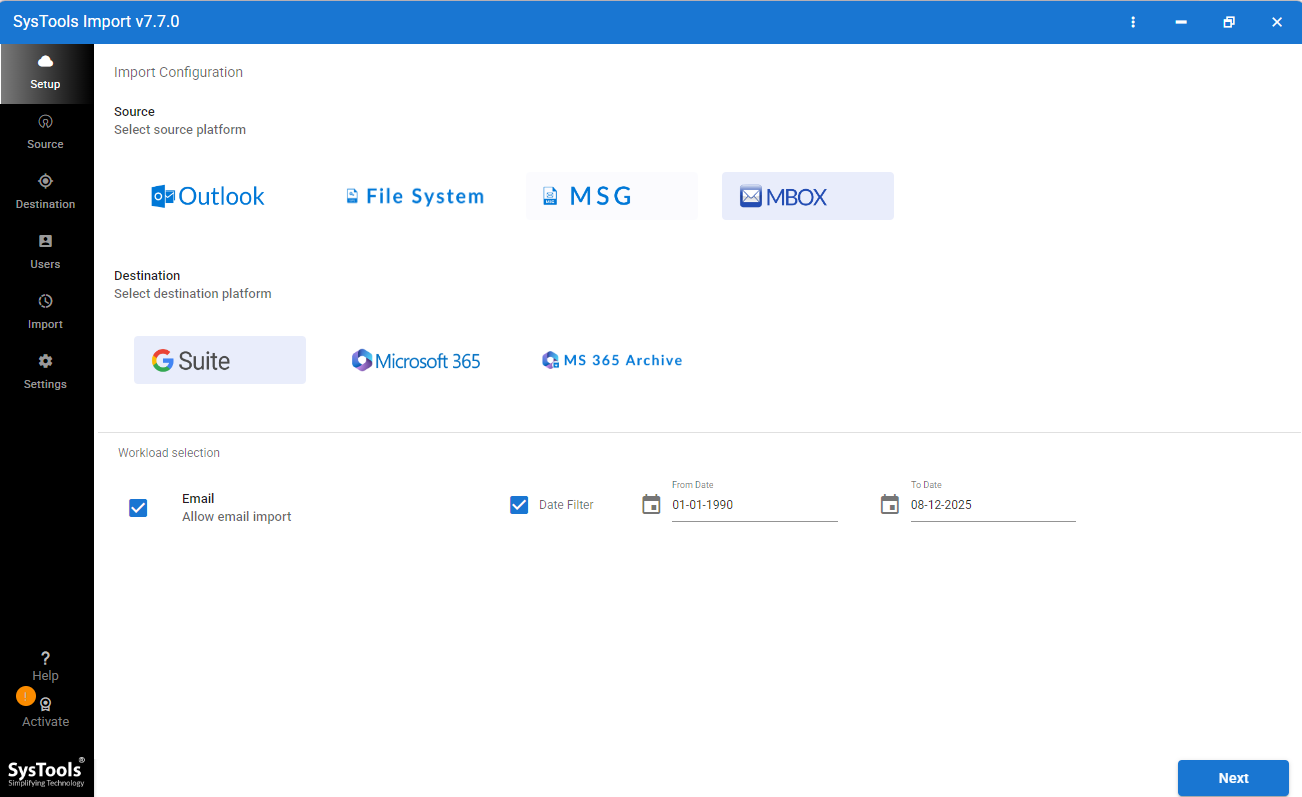
- Choose File System as Email Source and G Suite from the Destination options. Simply click Next.
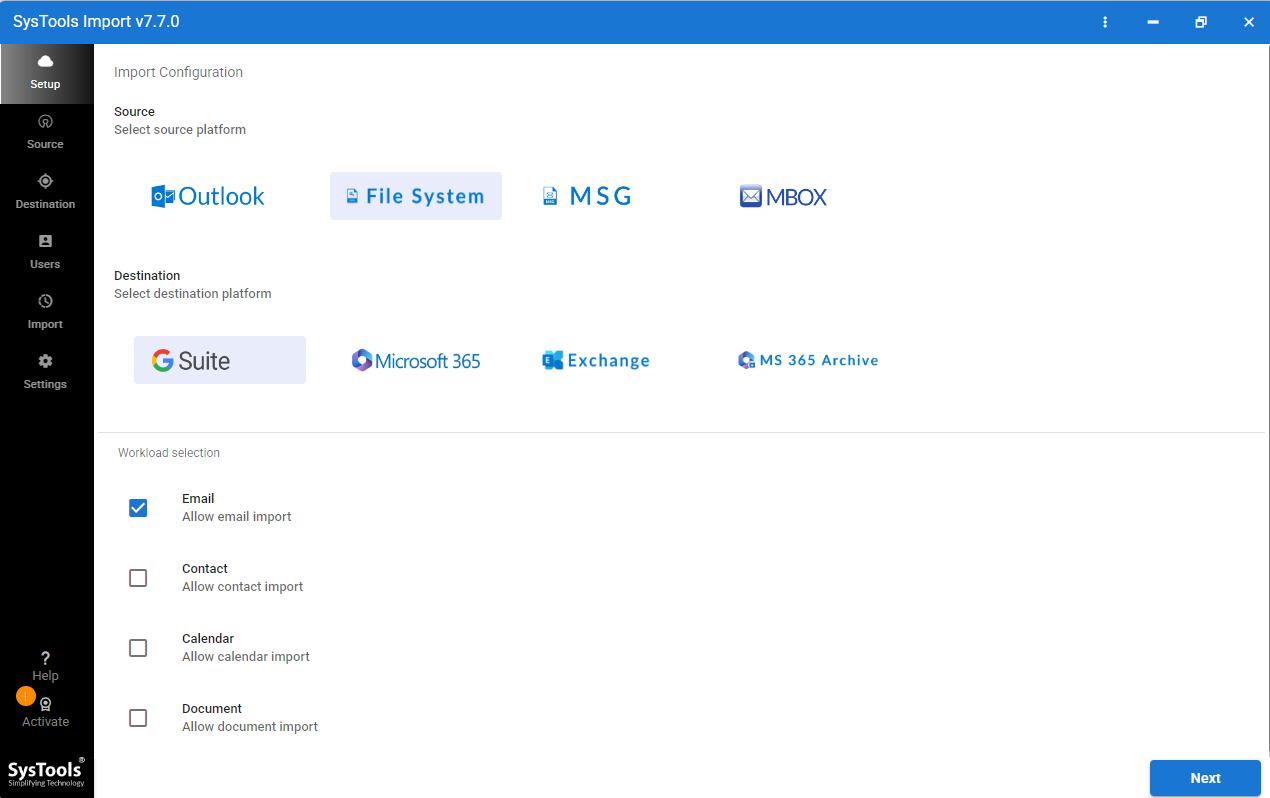
- After that, browse the EML folders and hit the Validate button. Once done, click Next.
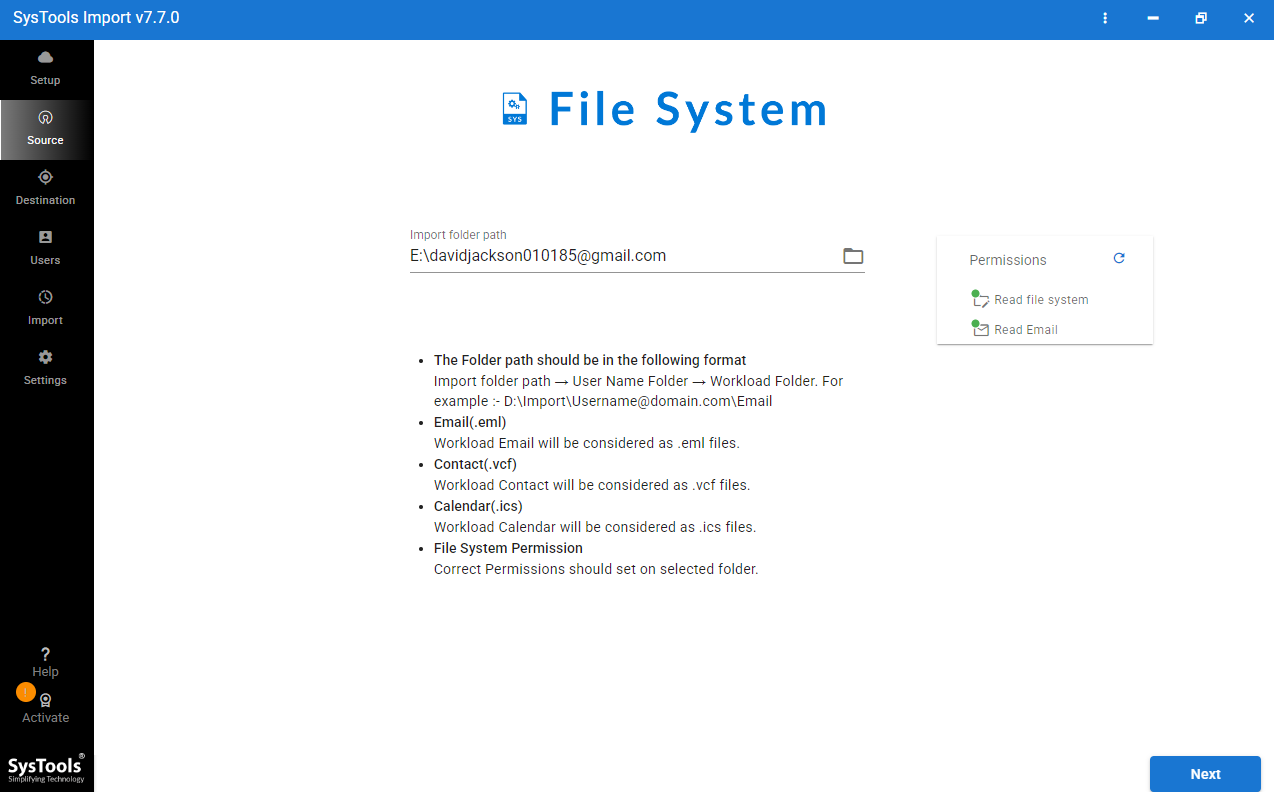
- Now enter your Google Workspace email address, Service Account and Certificate file as asked. Click on Validate and then Next.
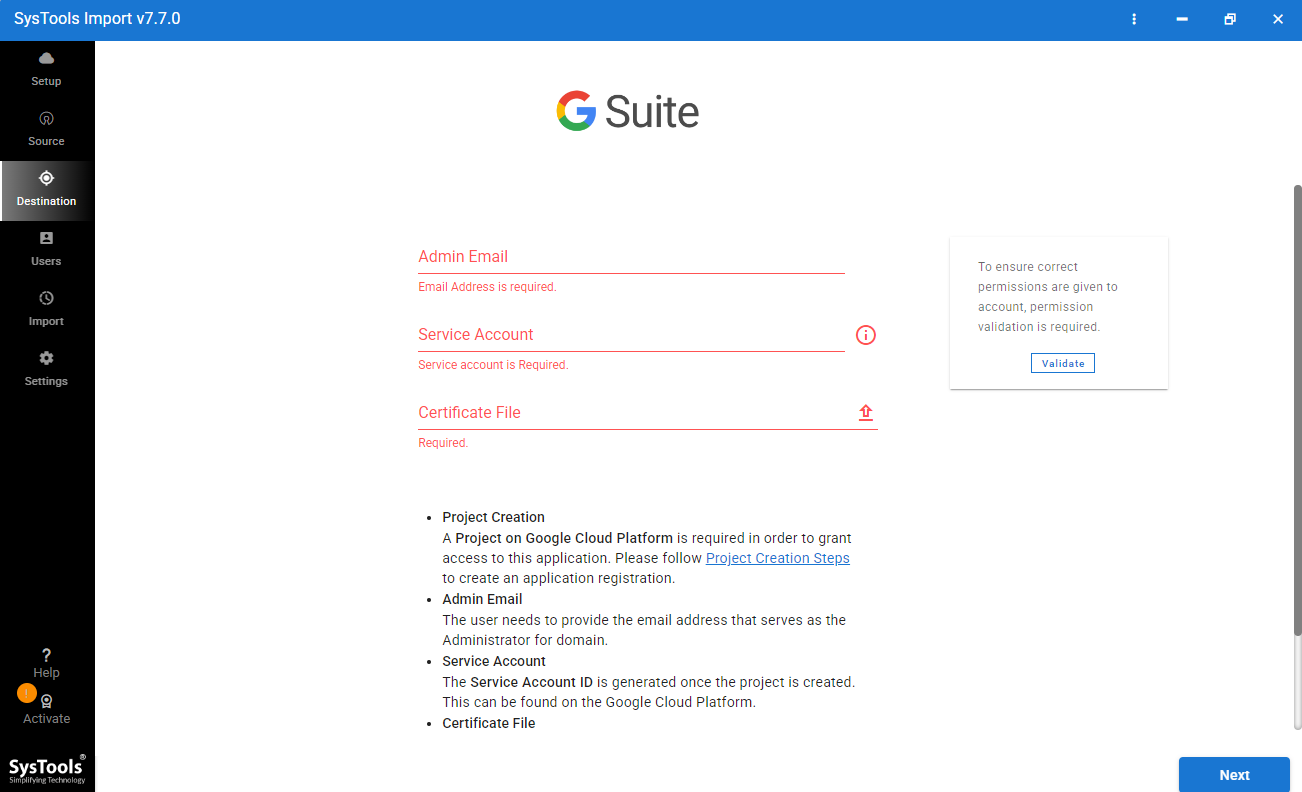
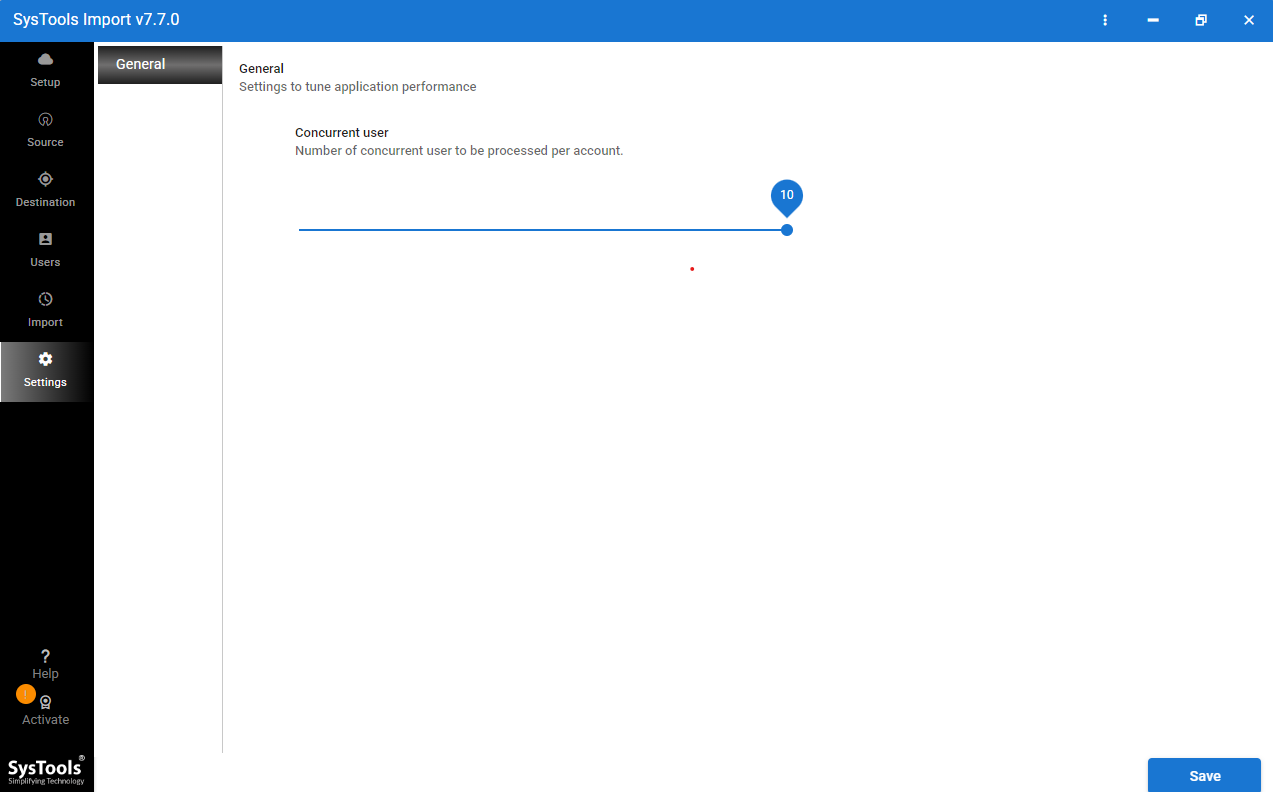
- Select Concurrent settings and finally press Import to begin the process.
Major Highlights of the Certified EML to G Suite Import Tool
- The software is 100% safe and tested by many experts worldwide.
- It allows batch import EML to G Suite whether individual files or entire folders, in a single go without any restrictions.
- Maintains the folder hierarchy intact throughout the import process.
- This tool has the ability to preserve all email attributes, attachments, images, hyperlinks, headers and other important information without any loss.
- Ensures complete data safety and data integrity even after the migration.
- Allow users to import large EML files easily without affecting the system performance and speed.
- Compatible with all versions of Windows and Mac operating systems.
- Suitable for both technical and non-technical users regardless of the technical expertise they hold.
- Guarantees accurate and perfect results in no time within just a few clicks.
FAQs: EML to Google Workspace
Q1. Does Google Workspace support EML file attachments?
Yes, Google Workspace supports email attachments attached to the EML files after successfully importing it. During the process, attachments such as documents, images, PDFs and other file types remain safe with their respective emails.
Q2. How do I import multiple EML files into Google Workspace?
You can migrate EML to Google Workspace using Thunderbird, by configuring your G Suite account through IMAP and dragging-dropping the mailbox. Alternative method is using a professional solution that allows you to bulk import all EML files to Google Workspace at once while preserving the data security and integrity.
Q3. Which method is best for importing EML to Google Workspace?
The best method to transfer EML to Google Workspace depends upon your migration requirements. If you only have a few EML files, then the manual method is sufficient. Whereas, if you have bulk or large files then an automated tool is perfect and best. It will offer a fast migration while maintaining the email properties.
Q4. Will the original folder hierarchy remain intact after importing EML files?
The manual method may not always preserve the original folder hierarchy especially when a user has a large number of files. Whereas the professional EML to G Suite Import Tool works smoothly even with large EML files and maintaining complete folder structure.
Conclusion
Now you are aware of the complete manual and professional methods to import EML to Google Workspace. If you only have a few emails, then you can try the manual approach but if you have a large collection of EML files then experts always recommend choosing the professional software. This will help you get your work done in just a few minutes without putting much manual effort. So, choose wisely that best suits your requirements and perform the EML to Google Workspace migration with ease.