How to Import ICS to Google Workspace without Data Loss?


Import ICS to Google Workspace & store all your crucial meetings, appointments & reminders in one secure place. If you’ve switched from another calendar application or received an ICS file from someone, you may be wondering how to add those events to your Google Workspace account. An ICS file stores calendar information like event dates, times, location & reminders but it won’t appear in Google Calendar until you import it. While Google Workspace gives a manual method to import ICS files it may not be the best choice for large & multiple calendar files.
In this blog, you’ll understand the easiest techniques to migrate ICS to Google Workspace. Compare manual & professional methods, understand their limitations & choose the solution that best suits your work needs.
Before You Import: Know ICS & Google Workspace
Before importing an ICS file to Workspace you should know about them.
ICS: It is a calendar file which uses the .ics extension. It is used to save & share calendar events such as meetings, appointments, birthdays & reminders. This file contains important details like event title, date, time, location & notes. Because it is a universal calendar format, it works with many calendar applications, including Google Calendar, Microsoft Outlook & Apple Calendar. This makes it easy to share or move anywhere between various platforms.
Google Workspace: It is a cloud-based productivity platform. It helps users to manage emails, calendars, files, documents & meetings in one place. It includes apps like Gmail Calendar, Google Drive, Google Docs & Google Meet. It makes work easy and collaborates from any system.
Why Do Users Need to Migrate ICS to Google Workspace?
Importing an ICS file into Google Workspace helps you to keep all your calendar events in one place. Rather of checking different calendar apps, you can manage everything from your Google Calendar. It also makes your schedule easier to access & organize.
Below are some main reasons to import ICS to Google Workspace:
- All in One Place: Importing an ICS file brings all your meetings, appointments & reminders into one Google Calendar. Users don’t have to switch between different calendar apps.
- Never Miss Important Events: When all your events are stored in one calendar, it’s easier to remember meetings, deadlines, birthdays & appointments.
- Access from Anywhere: Users can view their calendar from their phone, tablet or computer by signing in to your Google account.
- Up to Date: Any changes users make to their Google Calendar are automatically updated on all their connected systems.
- Safe & Secure: Google Workspace saves users’ calendars in the cloud. Even if you lose or replace the system, your events remain safe & can be accessed by signing in to your account.
Manual Ways to Import ICS to Google Workspace
Here are some of easy and simple manual ways to Migrate ICS to Google Workspace:
1: Using Google Calendar
It is the easiest & most common used method to import ICS files:
- First, sign in to your Google Workspace account.
- Secondly, open Google Calendar.
- Now, on the left side, click the settings icon & choose Settings.
- Then, in the left panel, click Import & Export.
- Under Import, click Select file from your computer.
- Browse & choose the .ics file you need to import.
- Afterwards, select Google Calendar where you want to add events.
- Now, click the Import button.
- Wait a few seconds. Google Calendar will show a message when import is complete.
2: Using Email or Computer
If someone sends you an ICS file by email, you can quickly add it to Google Calendar.
- Install ICS file from email on your computer.
- Sign in to your Google Workspace account.
- Now, open Google Calendar.
- Go to Settings > Import & Export.
- Click Select file from your computer & choose downloaded ICS file.
- Choose the calendar where you want to save events.
- At the end, click Import.
Limitations of Using Manual Methods to Import ICS to Google Workspace
Although manual methods are free, they have numerous limitations, especially for business users. Here are some limitations:
- No Batch Import: Users can import only one ICS file at a time.
- Time-Consuming: You can import one ICS file at a time & it takes a lot of time.
- No Multiple User Migration: Users cannot import ICS files directly into multiple Google Workspace accounts at once.
- Repetitive Process: Users need to repeat the same steps for every ICS file. It gets kind of boring after some time.
- Not-Ideal for Business: Large organizations with many calendars may find processes difficult to manage.
Automated Solution to Migrate ICS to Google Workspace
If users face multiple limitations, then try ICS to Google Workspace Migration Tool. This tool helps users to import bulk of ICS files into G Suite accounts without any data loss. Users can download this application on any Windows OS edition. This tool didn’t require additional software installation to migrate from ICS to Google Workspace. Try a free version today to import the first few ICS files into your Google Workspace account.
Below are the simple and easy steps to follow to import ICS to Google Workspace:
- First, Download ICS to Google Workspace Converter Tool.
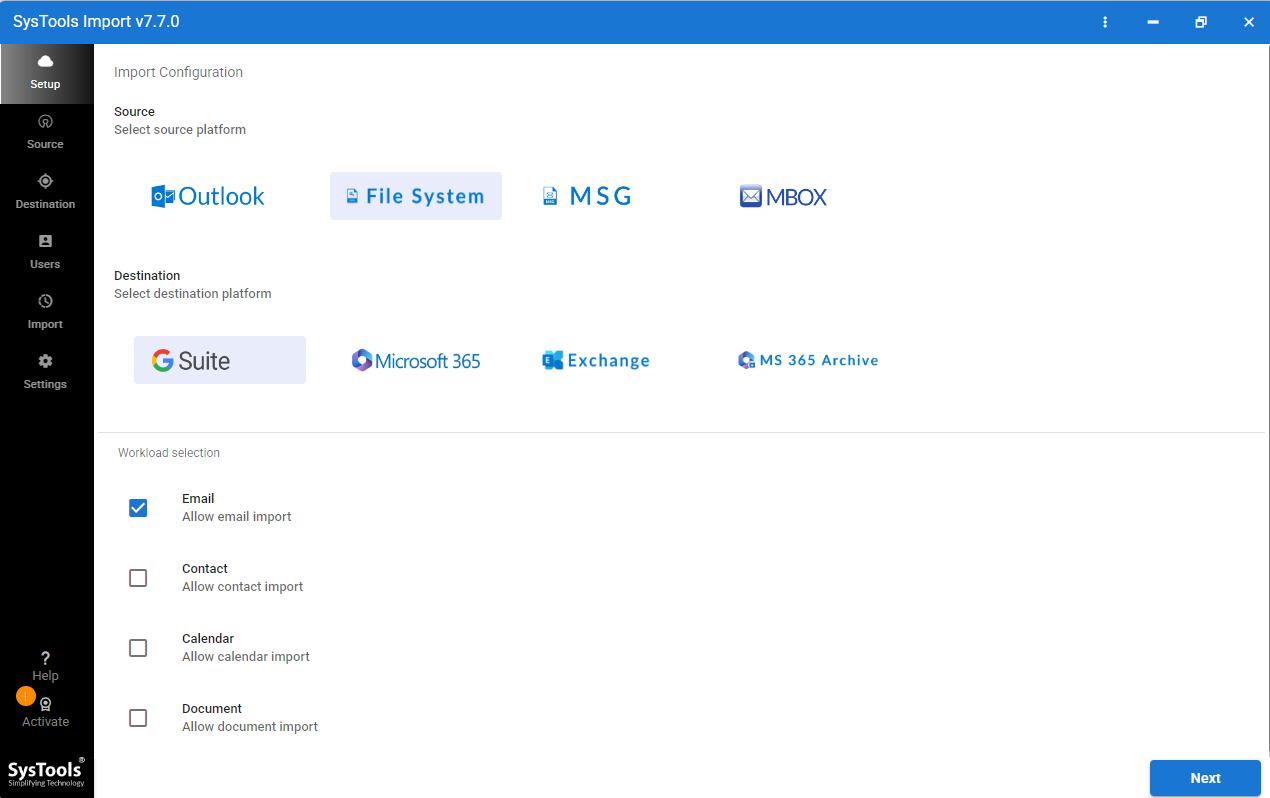
- Now, click File System from source platform options and click ICS.
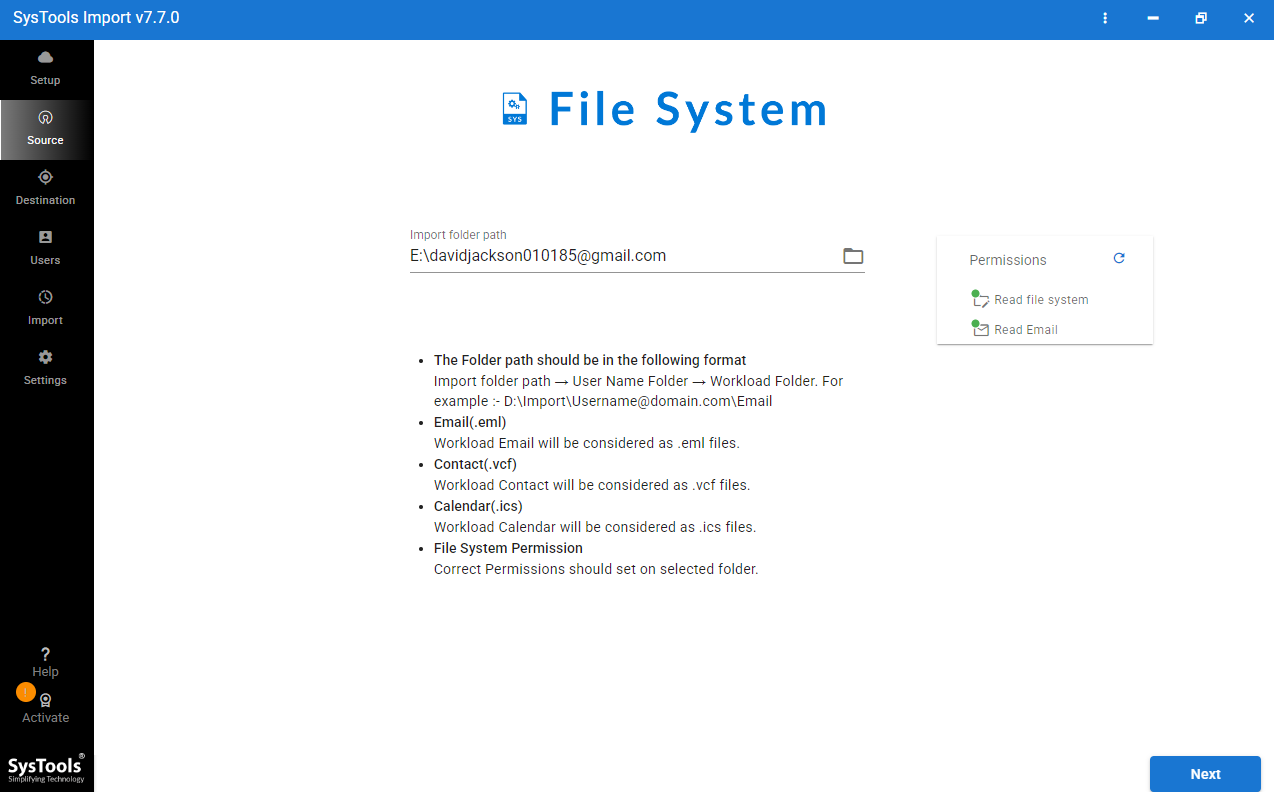
- Then, choose ICS file as you want to migrate.
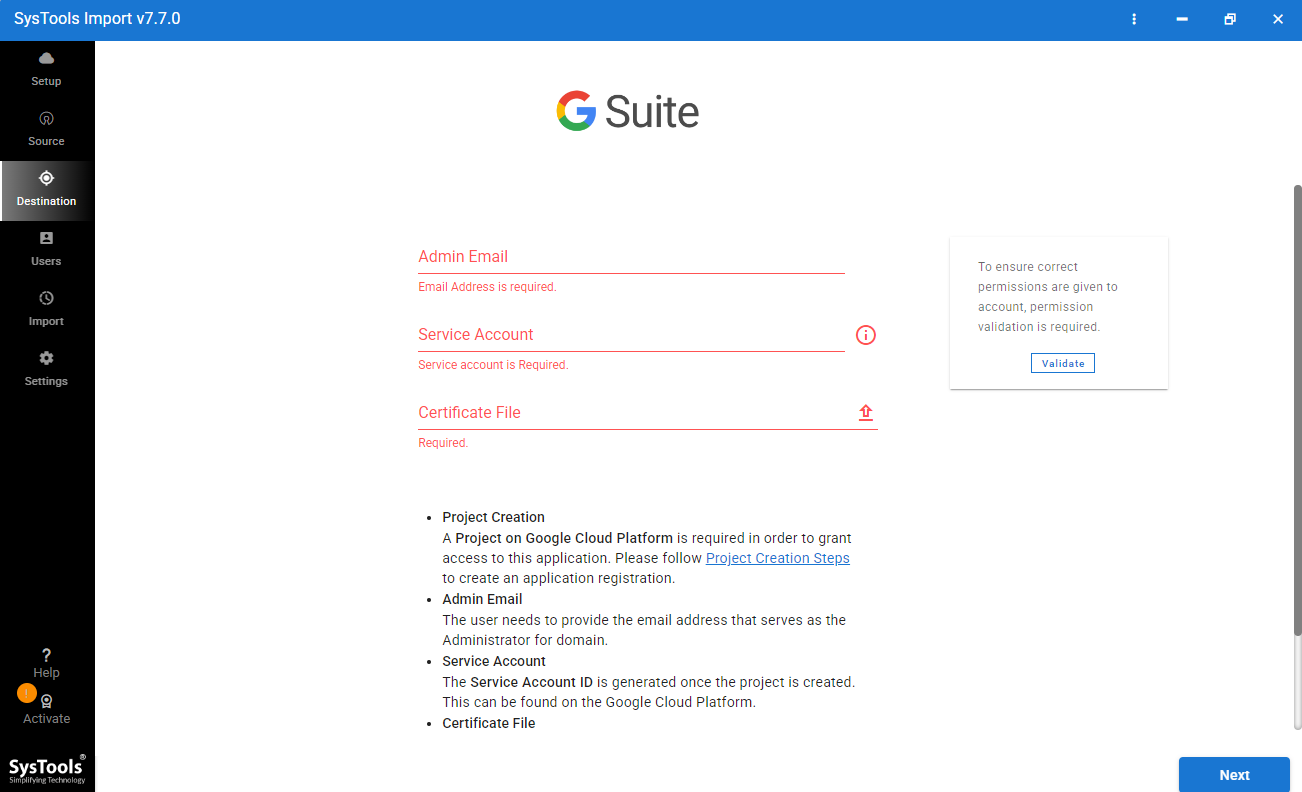
- Login with Google Workspace credentials.
- At the end, start the migration process.
Core Features of Automated Software
Here are the core features of automated software:
- Bulk Migration Support: Users can import many ICS files at the same time instead of importing them one by one. It saves a lot of time.
- Easy-to-Use: This software is simple to use. Users don’t need to have any technical knowledge to migrate ICS to Google Workspace.
- Quick GUI: It has a clean screen, which makes it easy to find options & complete the import process quickly.
- Maintain Data Integrity: Migration tool keeps all your calendar information safe & accurate. Event details like title, date, time, location, reminders & recurring events remain unchanged during the ICS import process.
Conclusion
Importing an ICS file to Google Workspace helps you to keep all your meetings, appointments & reminders in one managed calendar. If you only have a few ICS files then manual methods are free & easy to use. However, they can be time-consuming & are not suitable for bulk or business migrations. To import ICS to Google Workspace or migrate calendars without repeating the same steps again & again. The professional migration tool is a faster & more reliable solution. Choose the method that best suits your requirements & migrate your calendar data with ease.