How to Import MBOX to Google Workspace? Quick Guide


In this guide, you will learn approaches to easily import MBOX to Google Workspace using up-to-date and working methods. We will show you a free step-by-step method using Thunderbird and secure OAuth 2.0 authentication, explain why direct uploads aren’t possible, and show you an MBOX to Google Workspace Migration Tool for faster and large-scale migration. Whether restoring a Google Takeout backup or moving emails from other clients, this guide shows you a clear path to get your data into your Google Workspace account.
You may have an MBOX file received from colleagues, clients, or exported from Apple Mail, Thunderbird, or Google Takeout. You may be looking for a reliable way to import it into Google Workspace, but when you open Google Workspace, you realize that direct import is not possible.
You may find lots of approaches over the internet, but most are outdated and suggest generating app passwords which are no longer available in Google accounts. You follow the wrong steps and can affect your data and also cause a stuck process during migration.
Table of Content
- Why is Importing MBOX to Google Workspace So Difficult?
- Method 1. Migrate MBOX to Google Workspace Using Thunderbird
- Method 2. Upload MBOX to Google Workspace Using Apple Mail
- Challenges of Manual Method
- Method 3. How to Migrate MBOX to Google Workspace Using Automated Tool?
- Steps to Migrate MBOX to Google Workspace
- Key features of MBOX to Google Workspace Migration Tool
- Key features of MBOX to Google Workspace Migration Tool
- People Also Ask
- Conclusion
Why is Importing MBOX to Google Workspace So Difficult?
- MBOX file is a mailbox file that contains emails in a simple structure while Google Workspace is a cloud-based and organized mailbox with labels. Because of this mismatch, you can’t import directly into Google Workspace.
- Google Workspace is a cloud-based and organized mailbox in labels. Because of this mismatch, you can’t import directly into Google Workspace.
- Google Workspace doesn’t offer any inbuilt feature to handle or import MBOX files so users cannot simply open MBOX files in Google Workspace.
- Google Data Migration Service only supports server-based migrations like IMAP or Exchange and does not handle locally stored MBOX files.
Method 1. Migrate MBOX to Google Workspace Using Thunderbird
If you have installed Thunderbird, then configure your Google Workspace account in it and follow the approach as explained below:
- Start by downloading Thunderbird and configure your Google Workspace Account in it.
- After entering credentials verify with OAuth Authentication.
- Go to Thunderbird Menu and click on Add-ons and Themes.
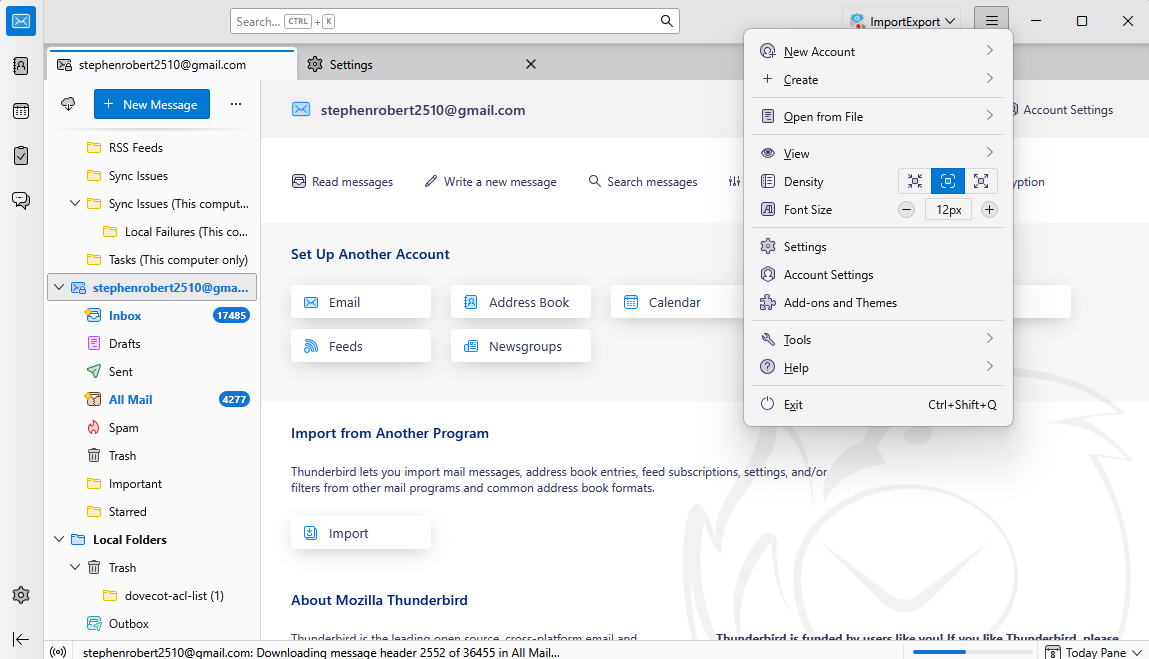
- Search ImportExportTools NG and press on Add to Thunderbird.
- Create a new folder under the local folder location.
- Right-click on it and choose Import MBOX files and select All MBOX files directly (with sbd structure).
- Select MBOX file and press select folder to start import.
- Drag and drop imported folder in main mailbox to verify.
Method 2. Upload MBOX to Google Workspace Using Apple Mail
- Open Apple Mail on your Mac and click on Mail.
- Select Add Account and other Mail accounts.
- Enter email address and password then press login.
- Click on file and choose Import mailboxes and select files in MBOX format.
- Now, select the MBOX file and press the import button.
- After importing, it will appear under On My Mac and now you can drag and drop imported data on specific folders based on your needs.
Challenges of Manual Method
- Manual migration using Thunderbird or Apple Mail is not reliable for large scale. Importing large MBOX files will consume a lot of time in syncing depending on file size and internet speed.
- Google Workspace follows throttling limits to upload data over server. Large migrations get stuck, slow down or fail mid-way especially when importing thousands of emails.
- During drag and drop emails partial data may not transfer. This can result in data loss, broken hierarchy or incomplete data transfer after migration.
- There is no dashboard or progress tracking in manual methods. Users cannot verify emails which have been migrated successfully and which are pending or failed.
- Manual steps like folder selection, dragging emails or selecting the correct MBOX files increase the chances of mistakes and especially for beginners or professional users.
Method 3. How to Migrate MBOX to Google Workspace Using Automated Tool?
If you want to migrate MBOX files in batch or require maintained accuracy, we recommend choosing MBOX to Google Workspace Migration Tool. This software is fully reliable for enterprise as well as home users and also allows migrating into a specific user account inside an admin account.
Steps to Migrate MBOX to Google Workspace
- Download and run MBOX to Google Workspace Migration Tool.
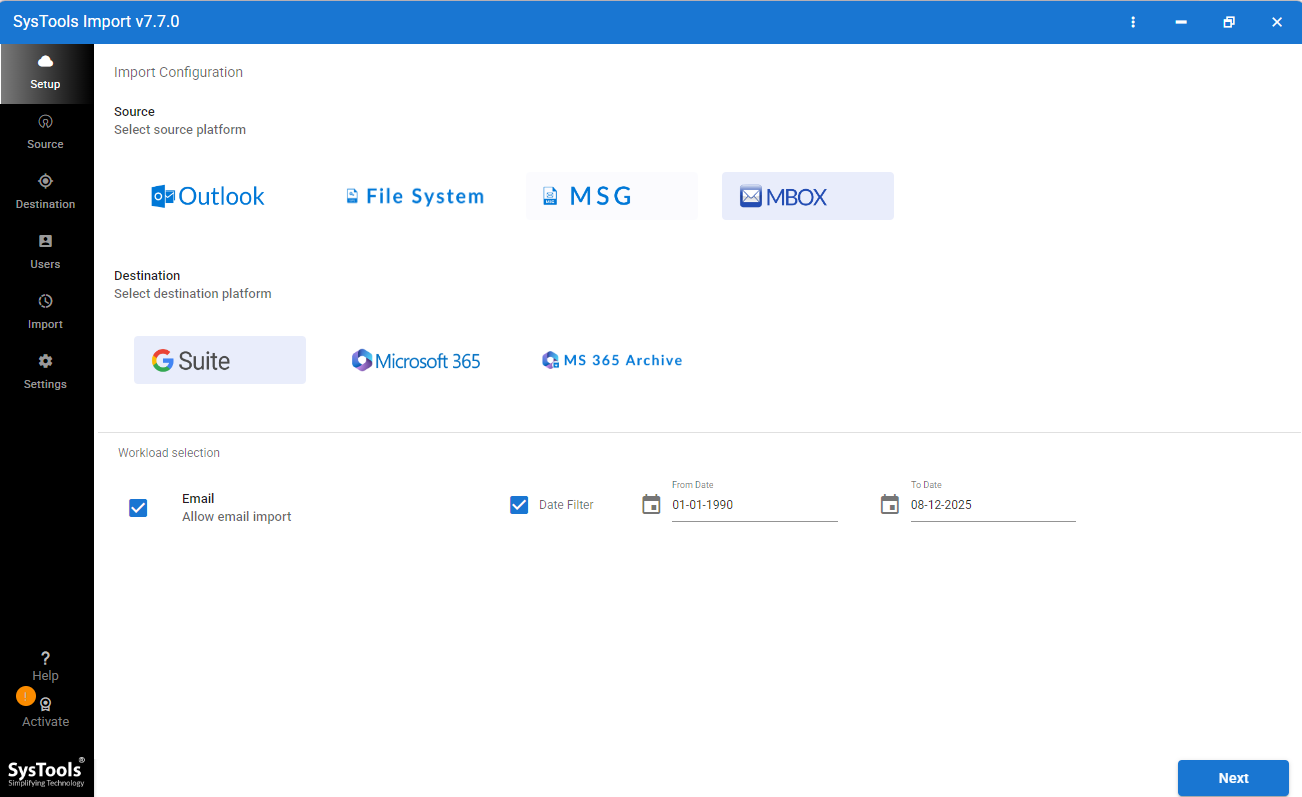
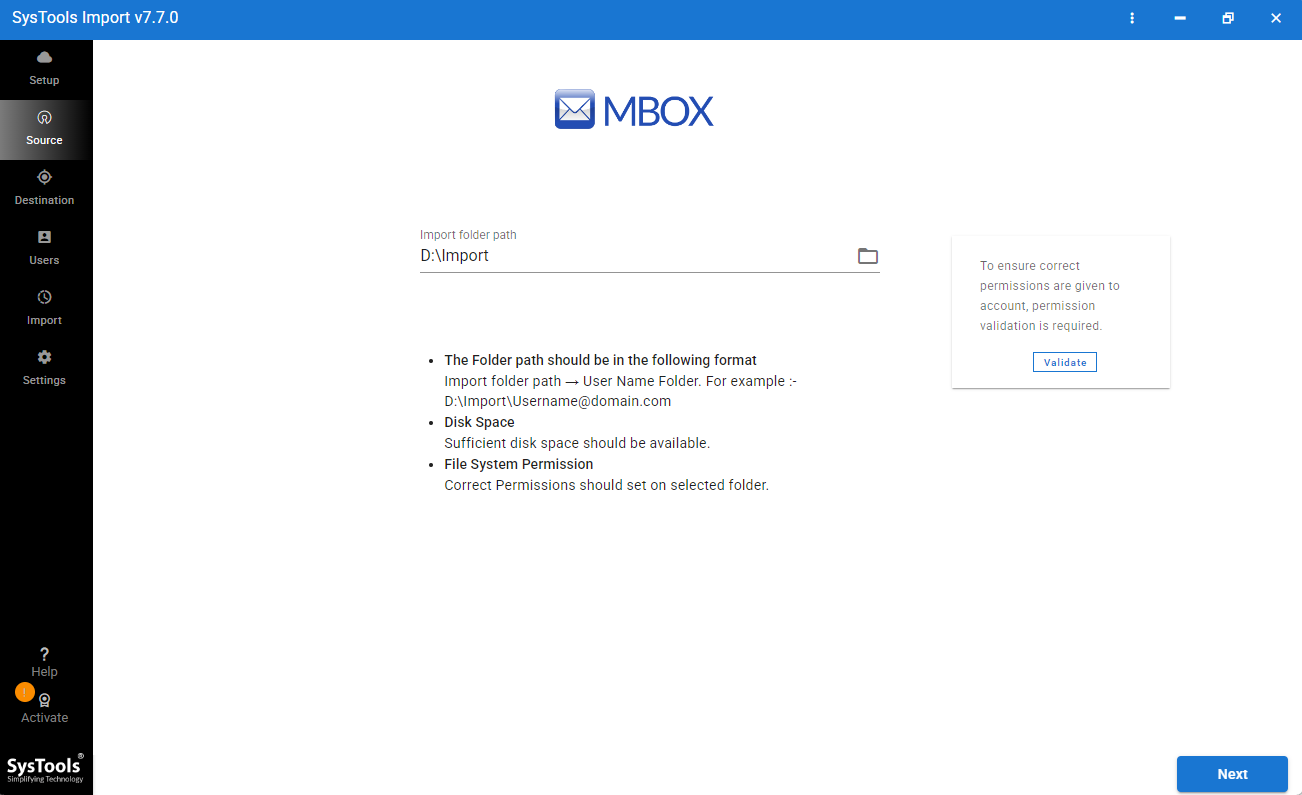
- Click on the MBOX option and select the MBOX file and validate it.
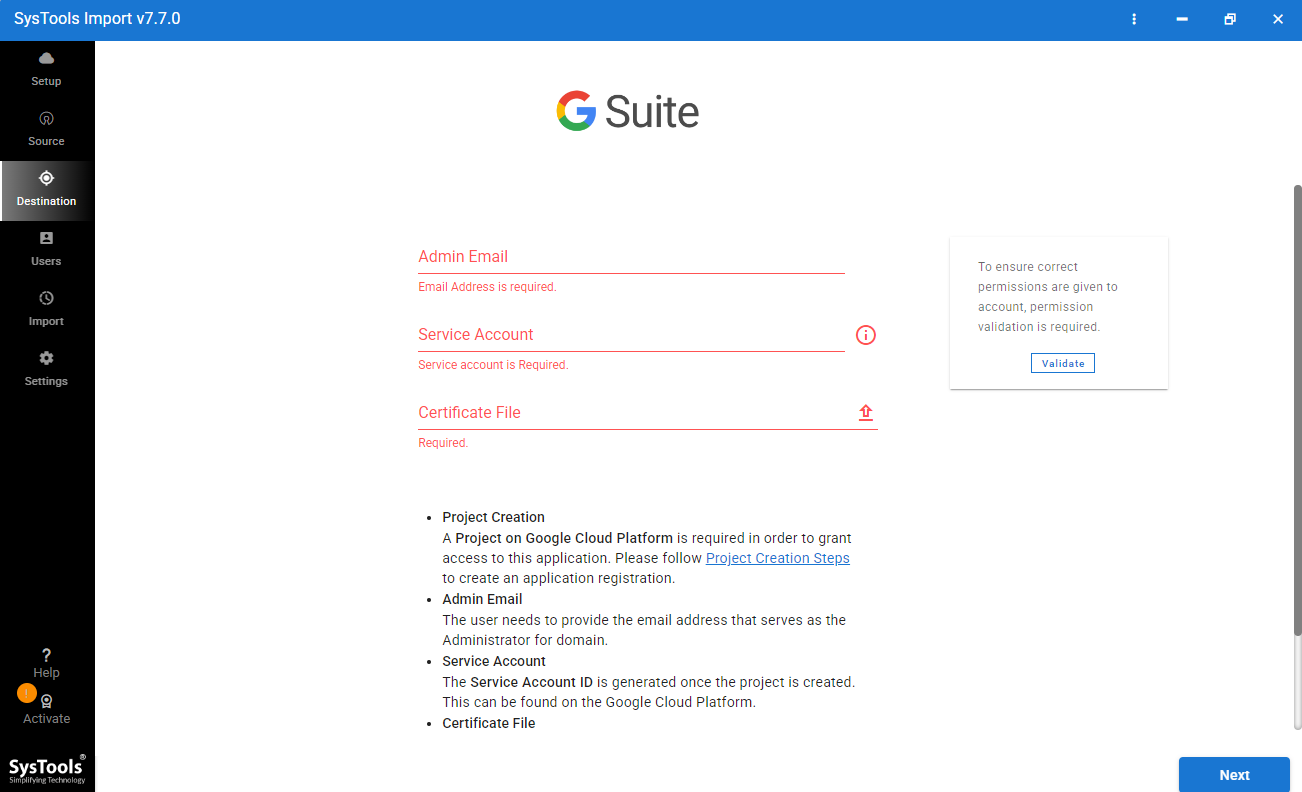
- Now, enter Google Workspace credentials and validate it.
- Click on fetch user or upload user CSV file.
- Select date filter and check on emails.?
- Now, select the targeted user mailbox and select the concurrent user.
- Press on Start Import to easily migrate MBOX to Google Workspace.
Key features of MBOX to Google Workspace Migration Tool
- Easily import batch number of MBOX files at once and its fully reliable for large-scale or enterprise level migrations without repeating the process for each file.
- Allows you to migrate emails directly into specific Google Workspace user accounts, including mapping multiple users from a single admin panel.
- Support concurrent users to perform batch migrations.
- Use date filters to migrate specific data instead of a complete mailbox.
- Supports migrating multiple user mailboxes to reduce total time of migration.
People Also Ask
Can Google Data Migration Service (DMS) import MBOX?
No, Google Data Migration Service doesn’t support importing MBOX files. It only works with live email servers including Exchange or IMAP. To import MBOX, you first need to load emails into an email client and sync via IMAP.
Can I upload a MBOX file to Google Drive to read my emails?
No, Google Drive considers MBOX as a regular file and does not allow you to open emails. You must use an email client like Mozilla Thunderbird to access it directly then migrate the data into Google Workspace.
Why is Google Takeout giving me an MBOX file if I can’t upload it back?
Google Takeout provides MBOX files because it is a universal archive format and supported by email clients like Mozilla Thunderbird or Apple Mail. It’s meant for backup or transfer but doesn’t support re-upload into Google Workspace.
How long does it take to upload a 10GB MBOX file via IMAP?
It can take several days, Google IMAP limits often 500MB/Day, slow large uploads and sync speeds also depend on connectivity and system performance. Split MBOX files into smaller parts to increase the performance of migration.
Conclusion
Now, we hope you got the accurate solution as expected from this guide for importing MBOX files to Google Workspace is not possible directly due to compatibility issues. You can perform migration manually using Mozilla Thunderbird or Apple Mail for manual migration, but they are slow or not reliable for large mailbox data. For faster and bulk migration, we recommend you to choose MBOX to Google Workspace Migration Tool as it bypasses the throttling limits and can migrate all your data in one go.