How to Remove Duplicate Emails from Shared Mailbox Using Proven Solutions


This blog will discover all possible reasons and top solutions to remove duplicate emails from shared mailbox. When a user manages their shared mailboxes, whether in Outlook or Office 365, and gets frustrated, it’s because of duplicated emails. This problem happens when many users are running same mailbox simultaneously or due to synchronization errors. As a result, it can lessen your mailbox performance. In such cases, deleting replicate emails in shared inbox becomes very important.
So, if you are looking for solution to how to delete duplicate emails from shared mailboxes, we will fix your error permanently using search filters, sorting and deleting manually, import/export way, built-in clean up tool and professional method. So quickly know about an easy solution to fix this recurring error.
Direct Answer to Remove Duplicate Emails from Shared Mailbox
Follow these instant steps to delete duplicate emails from shared inbox:
- Run the FreeViewer Outlook Duplicate Remover Software.
- Click Add File or Folder option to add shared mailbox folder.
- Change Location Path to store resultant file.
- Select Emails option from items type tab.
- Tap Ok button to complete deduplication process.
Now, let’s go through the article by understanding common reasons for this issue.
Why Does Duplicate Emails Appear in Shared Mailbox?
Knowing core cause is most essential step before you jump into solutions. Let’s know:
- At same time, many users are working on same shared mailbox.
- Wrongly configured email filters or rules.
- Some syncing error with your Outlook & Exchange server.
- Bugs or glitches with server end.
The above reasons lead to same message getting downloaded multiple times and many more. Let’s quickly know challenges caused by these repeated emails.
Other Problems Caused By Duplicate Emails
If users do not remove duplicate emails from shared mailbox, then one has to face these challenges. Here are some of them listed below:
- Your mailbox size gets increased, resulting in spacing issue.
- High risk of data loss, especially for important messages.
- Slowdown of Outlook productivity
- Increase in complexity while migrating or taking a backup.
- Major confusion due to cluttered emails
Therefore, it becomes important to remove duplicate emails from shared mailbox. So, to fix that, let’s check out some easy and simple manual methods.
How to Delete Duplicate Emails From Shared Mailbox Manually?
In the following section, we will be talking about best manual ways to deduplicate repeated messages.
- Using Search and Filters
- Sort & Remove Method
- Import or Export Way
- Try Outlook Clean Up Tool
Quickly understand them along with explanation.
Step 1: Using Search & Filters
- One can apply search parameters, such as subject, date, sender, etc.
- Then, filter your duplicated emails.
- Finally, choose all and batch remove them.
- Helps to easily identify repeated emails
- Can effectively perform bulk removal
- Time taking process for bigger shared mailboxes
- Not fully accurate and reliable
Step 2: Sort & Remove Method
- Run Outlook and open your shared mailbox.
- Sort duplicated emails using date, sender, or subject.
- Detect and identify other repeated items.
- And, delete other files manually.
- Easy and simple to operate
- No extra tech knowledge required
- High risk of data loss due to human error
- Not ideal for large or multiple shared mailboxes
Step 3: Export or Import Approach
- User can export their Outlook mailbox data into new data file.
- Then, import your file again after filtering out duplicates.
- Useful in some complex or advanced situations
- Can effectively work in offline mode
- Time taking process for larger folders
- Not for beginners or casual users
Step 4: Try Outlook Clean Up Tool
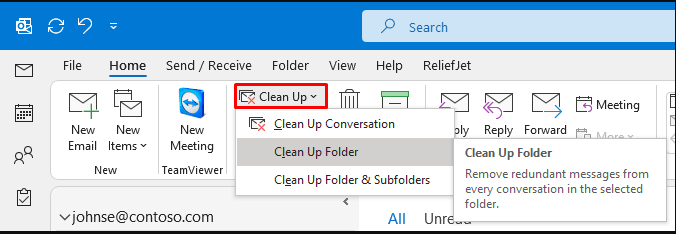
Outlook does provide a built-in feature, which is Clean Up tool. This allows users to remove duplicate emails from shared mailbox instantly.
Steps:
- Go to Home, then tap Clean Up option.
- Expand this option and select Clean Up Conversation option.
- It can delete redundant emails from a conversation thread.
- Instant and secure way to use
- No installation required for this tool
- Cannot fully remove repeated emails among different folders
- Only reliable for small conversions
Pro Tip: In the above section, we have mentioned all manual approaches that can easily delete duplicate emails from shared mailbox. But some of them do have limitations which can create various challenges for user to overcome. In such cases, we recommended using a professional utility that can help users to fix the issues seamlessly. Let’s know more about this dedicated software.
Expert Solution to Remove Duplicate Emails From Shared Mailbox
If a user fails to resolve error manually, then use this trusted tool developed by FreeViewer. It can mass delete duplicate emails in Outlook, along with contacts, notes, journal, tasks, calendar, and attachments. This advanced utility offers easy to operate interface for both beginners and experts. Also, it can eliminate duplicates from a passcode-encrypted file without risking data integrity. If you’re facing this issue on Mac operating system, then no problem, it supports both Windows and macOS.
Now, look at its working.
How to Delete Duplicate Emails From Shared Mailbox – Step Guide
Follow the steps:
- Install and launch the above-mentioned tool on your local system.
- Click Add Files and Folder option to upload shared mailbox folder.
- It provides Within & Across Folder for deleting duplicates.
- Choose Location Path to store the output cleaned folder.
- Select Item Types as emails for deduplication.
- Apply some filters for more particular deletion and tap Save button.
- Lastly, click Ok button to remove duplicate emails in shared mailbox.


Read More: How to Delete Duplicate Contacts in Outlook
Tips to Avoid Repeated Messages in Shared Mailbox
After removing all duplicate emails from shared mailbox, one should follow these best practices to prevent same in future.
- Try not to access same mailbox folder, as it can prevent syncing errors.
- Reduce number of unwanted exports or imports.
- Always free up your mailbox space.
- Use rules and filters correctly to avoid confusion.
- Always use trusted, secure, and reliable solutions for easy management.
Conclusion
In this blog, we discussed how to delete duplicate emails from shared mailbox using some effective methods. Whether a person is using manual methods like sorting, cleanup tool, or filtering for removal process, it’s ideal for smaller shared mailbox. But if someone had larger mailboxes, then we have also listed a professional suggested software that can allow one to remove duplicate emails from shared mailbox and have clean mailbox management.