How to Extract Data From MDF File in SQL Server Database? – Manual Tips


As the MDF is the primary database file of SQL Server, it is important to keep its data safe & secure in case of disaster. MDF file can be inaccessible if the associated .ldf file is missing or lost for any reason. However, sometimes users want to extract data from MDF file.
Therefore, in today’s blog, we will discuss the best working solutions to extract records from MDF files in SQL Server Database. The methods are T-SQL, SSMS & MDF file extractor, or an automated solution. Here, we will also learn how to extract data from SQL Server after corruption using a professional solution that helps recover SQL database MDF files with all elements.
Table of Content
Introduction to SQL Database Files
Before we cover how to extract data from SQL Server, let’s first understand SQL database files. SQL Server is a well-known relational database management system that supports three types of database files, i.e., MDF, NDF, and LDF. MDF is the primary database file, used to store information like tables, views, stored procedures, and other database objects. The LDF file stores transaction records of the associated MDF file. NDF, the secondary database file, is an optional database file that is used to store data physically.
Read More: How to Recover Deleted Data From Table in SQL Server Database
Solution to Extract Data From MDF File in SQL Server Database
Evidently, there are two methods that are useful for learning how to extract MDF file data from the SQL Primary database file. First, with SQL Server Management Studio & second, with T-SQL. Therefore, the next section introduces both methods. Moreover, it can help users to choose one of them.
Method 1: Using Transact-SQL to Extract Data from SQL Server
Run this command to retrieve data from MDF file:
CREATE DATABASE ‘DatabaseName’ ON
(FILENAME=N'C:\ProgramFiles\MicrosoftSQLServer\MSSQL12.MSSQLSERVER\MSSQL\DATA\DatabaseName.mdf')
FOR ATTACH_REBUILD_LOG
GO
This command attaches the database to SQL Server even if the .ldf file is missing from the associated MDF file. The ATTACH_REBUILD_LOG command creates a new transaction log file and a new database to help with extract data from MDF file process.
Method 2: Using SQL Server Management Studio
Step 1. Open SQL Server Management Studio and connect to the SQL Server instance of Database Engine
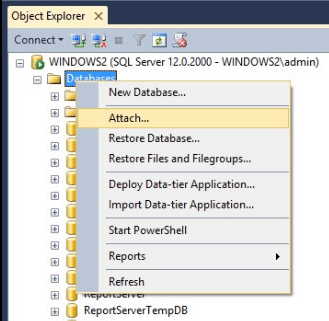
Step 2. In Object Explorer, select Databases and right-click on Attach for extract data from SQL Server process.
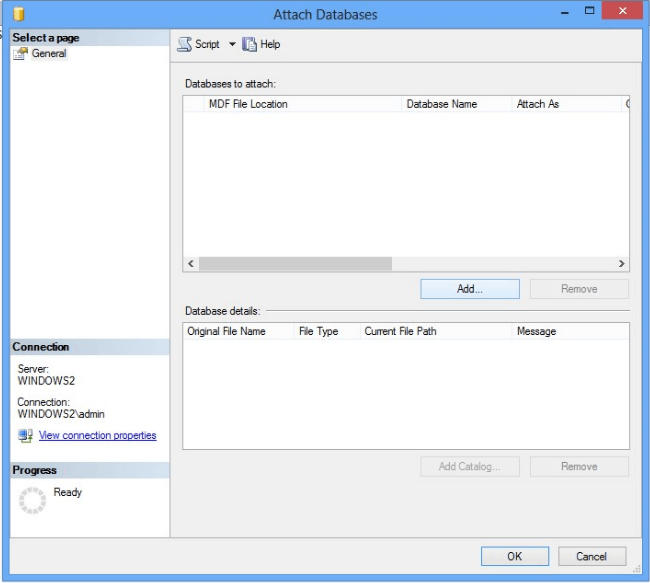
Step 3. In the Attach Databases wizard, click the Add button to locate .mdf file you want to attach.
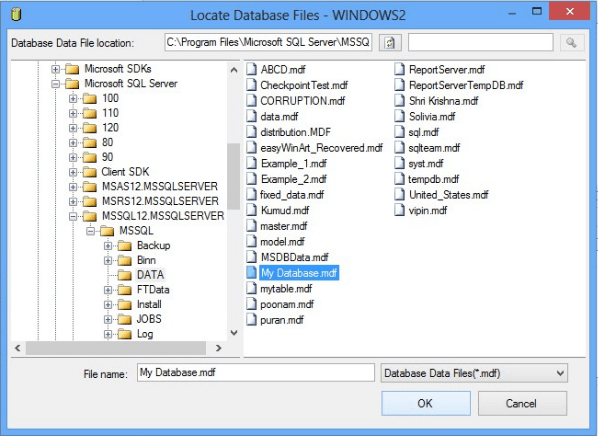
Step 4. Next, go to the directory where you saved the .mdf file and select the .mdf file. Click OK to extract data from MDF file.
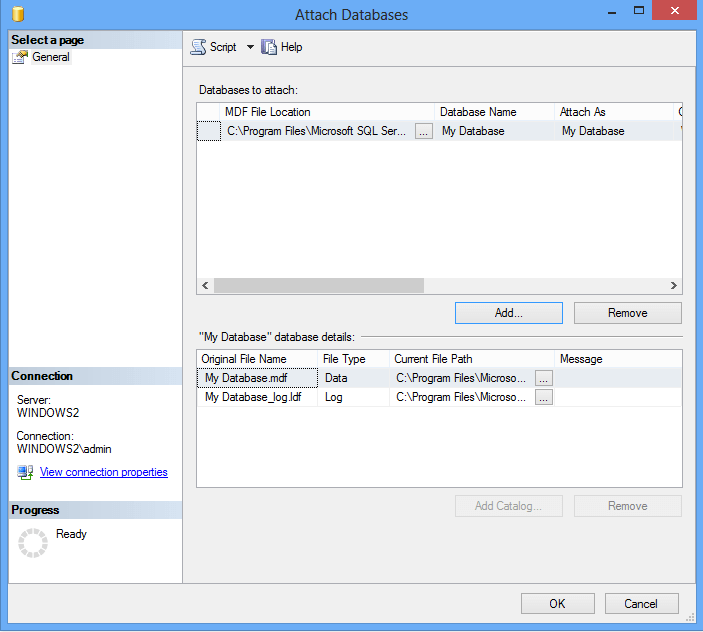
Step 5. Now, again click the OK button in the Attach Databases window.
Points to Remember to Extract Data from MDF File
- Make sure the database file is not read-only. For this, you can go to the location of the .mdf file, right-click the .mdf file, click Properties, and verify the attribute.
- Verify that the database file is a higher version and try to attach it in the lower version.
- Finally, the MDF file that you want to attach has full authority or full access control.
Also Read: Export ACCDB to SQL Server Using Automated Tool
How to Extract the Data From A Corrupt MDF File?
You can retrieve data from the MDF file if it is in a healthy state. However, the method above does not work to extract data from SQL Server from damaged MDF files. This is where database administrators recommend using a dedicated solution like FreeViewer SQL Data Extraction Tool. This utility is capable of extracting data even from a corrupt or damaged database file. Another notable feature of this utility is that it supports all SQL Server versions from SQL Server 2025, 2022, 2019, to the legacy versions as well.
This application offers the feature to scan and preview all database objects. All the deleted records in the database are displayed in RED color. With this tool, one can easily repair and extract data from MDF file. Moreover, it provides an option to restore MDF files to a new database or an existing database without loss of data. In addition to this, users can also export the recovered data to a live SQL Server environment, SQL Server-compatible SQL Scripts, or CSV File Format.
Also Read: SQL Server 2012 to 2016 Upgrade Operation KeyPoints
Step-by-Step Process to Extract Data from Corrupt MDF File
Step 1. To extract data from MDF file, install and run the advanced software. Click Open to browse the .mdf file.
Step 2. Choose the Quick or Advance Scan Mode and select the version of the SQL .mdf file. Users can also mark the Recover Deleted Objects option to extract data from SQL Server after deletion.
Step 3. The scanning process will start. After scanning, you can see the preview of recovered data stored in the MDF file. (All the deleted data are shown in red color).
Step 4. Extract data from MDF file to SQL Server Database, SQL Compatible Scripts, CSV File Format according to your needs.
Step 5. At last, click the Export button to finalize the process.
Also Read: How to Fix SQL Server Header Error 5172 Issue Like Experts?
Final Words
Finally, we learned the whole process of how to extract data from MDF file in SQL Server Database using MDF file extractor, T-SQL, and SQL Management Studio. Sometimes, the MDF file is corrupted, and retrieving data is very tough. Evidently, we discussed the automated solution that allows you to extract data from a corrupt MDF file with all objects.