Ways to Extract Attachments from OST File – Complete Tutorial


Summary: Do you know how to extract attachments from OST file? If not, then don’t worry! Just stay connected with our blog till the end to uncover all the sections and ensure a smooth email extraction process.
OST files are created by itself in Outlook unlike PST. Whenever, you try to connect with an account like Exchange, IMAP, or Microsoft 365. It is done to read all your emails even if there’s no internet connection. If you made any changes, later on it will sync with the mail server.
However, users may find difficulty in managing attachments present inside an OST file.
- When your mailbox size increases
- Tends to save important files
- Your email account is deleted
- OST file becomes orphaned
There is one disadvantage which comes while dealing with emails. Users face problems in saving attachments separately. In this guide, we’re going to explain you the following headings:
- Why to save attachments?
- Extract attachments manually
- The limitations with manual methods
- Precaution Tips
- Professional Solution
- Answers to common questions
Also Read: Extract Attachments from PST File
Reasons to Export Attachments From OST
Here, are factors by which an user tries to extract attachments from OST files. Let’s recall all those:
- Attachments usually take a sufficient amount of space in your mailbox
- By extracting, you can keep your mailbox size small to improve Outlook speed
- Before you extract them, you can take a backup of your important files to keep it with you
- All official work flows in the form of emails, so export important attachments in regular time
- Some of the organizations demand to keep attachments in other list for compliance needs
- By saving it, you can quickly send a particular attachment rather than the entire email
Important Tips to Check:
- Remember, you can extract attachments manually only if your OST file is connected with your active Outlook profile
- Ensure that you have downloaded all your emails & attachments from the mail server
- Outlook can sometimes download only the email preview section rather than the entire attachment
- Make sure all emails with attachments are in the right place before you start the manual steps
Extract Attachments from OST File Using Manual Methods
You will get to see some of the free methods to export your Outlook attachments. But, take a note that it comes with limitations too.
Method 1. Save One Attachment in Single Attempt
Just follow these quick steps to follow this particular method.
- Firstly, open Outlook and ensure your account is in sync with your OST file
- Navigate to the folder where all your emails are stored
- If you are not getting your emails, then use the search bar to easily do so
- Next, open up the email by double clicking on it
- Then, look for the attachment
- Right-click on it, and select Save as
- Choose the location where you want to see your extracted attachments
- Just press Save button to proceed ahead
Method 2. Download All Attachments from One Email
Using these steps, you can extract attachments from OST file. Like, you can save it but only from a single email.
1. Open Outlook and go to the folder where you have your emails
2. View the email which has several attachments in it
3. To open the email, double-click on it
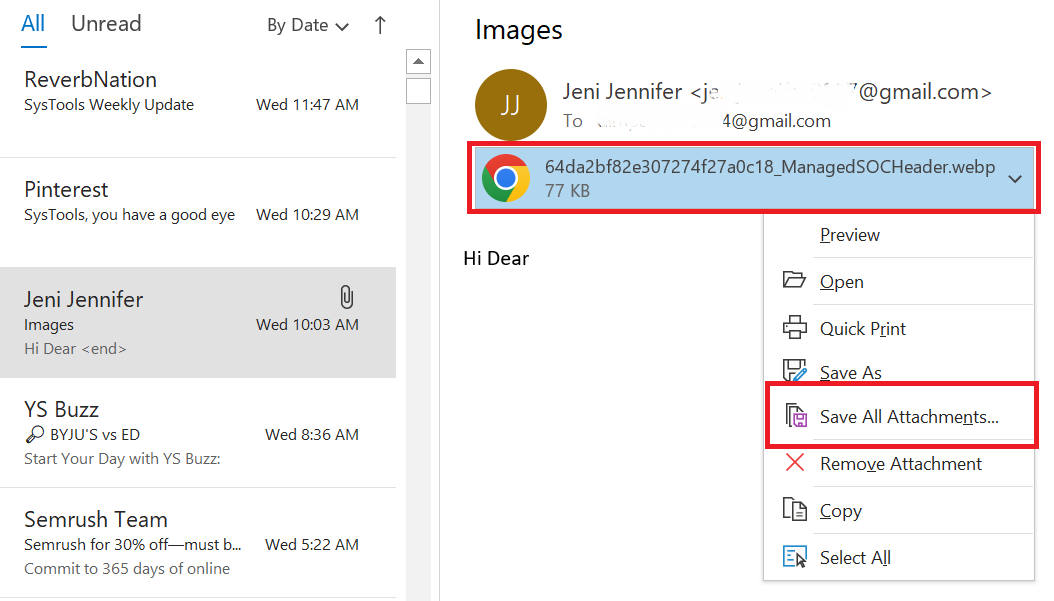
4. Then, you can click on any attachment of your choice
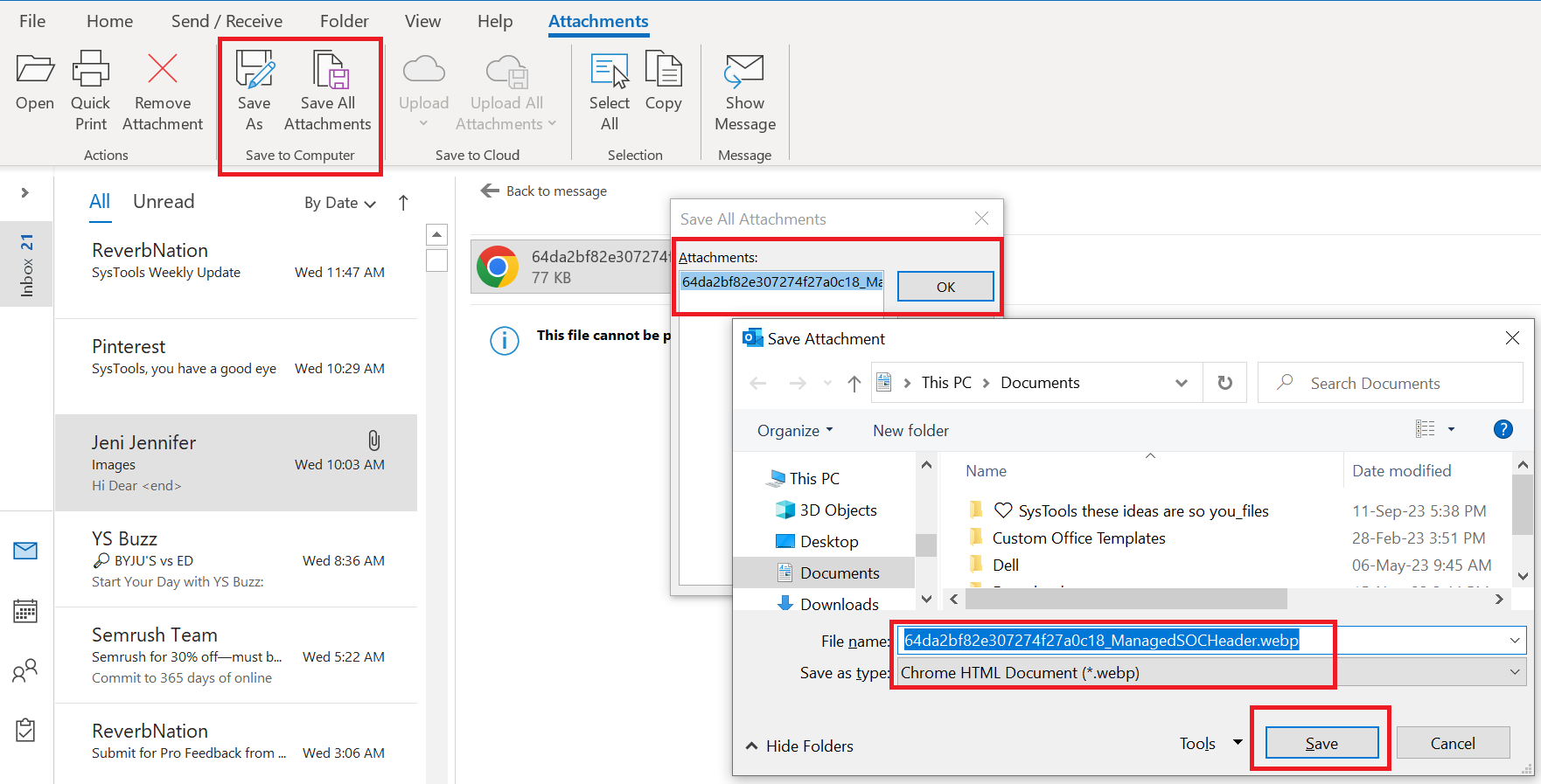
5. Select Save All Attachments option
6. Proceed only one step at a time
7. Choose a folder location on your PC to save them
Problems with Manual Methods
Manual solutions are sometimes good, that too when you have a very few set of emails. What you cannot do:
- You cannot extract attachments from OST files in batch mode
- Very slow while working with large emails
- You may miss important attachments
- Do not work for corrupt or orphaned OST files
- Not preferable option for organization work
It is better to use our professional tool described just below to ensure the work to its best.
Extract Attachments from OST Files – Professional Way
Saving attachments one by one can be a time consuming process especially if you have multiple OST files in queue. To save time and extract multiple Outlook attachments, use our dedicated tool like FreeViewer Outlook Attachment Extractor. Using this software, you can safely save your attachments without the need of Outlook.
Main Features:
- Download attachments from multiple emails in one go
- Work smoothly with large OST files
- Tool provides a separate folder to save your attachments
- Maintain the original email structure
- Gives you various filter options
- Supports all major Windows versions
Conclusion
You may need to extract attachments from OST file for various purposes like backup, making space or migrating your emails to another email client. So, firstly, we have discussed manual methods which are effective for small OST files, but not for a large mailbox or any orphaned file. However, we have provided you a professional tool that makes the process simple and reliable. It saves your time and makes your data organized.
FAQs – User Related Queries
Here are some common questions which are answered to solve user problems which they go with the process to extract attachments from OST file.
Q1. Is it possible to extract the attachment from a single folder?
Ans. It is impossible to save attachments from a folder using Outlook. You will need to open each email and save attachments individually.
Q2. Does Outlook automatically remove the save attachments?
Ans. No, Outlook only copies the attachment when it is saved. If you would need to reduce the mailbox size, you have to delete the attachment from the mail manually
Q3. Are inline images stored the same way as the attachments?
Ans. Not always. If images are placed inside the email body such as logos or signatures. Then, they will not be saved using manual methods. For that, use our professional one to do so.
Q4. Can I extract attachments from encrypted emails?
Ans. Yes, but only if you have enabled the permission to open the email in Outlook. Without that, you can’t extract the attachments.