How to Delete Duplicate Emails in Outlook to Free Up Space


If someone is looking for a reliable and safe solution to declutter their Outlook duplicate emails, in such cases, one can check their account settings, try import or export feature, set up correct rules properly, use a clean-up tool, and an advanced method to free up duplicates from mailbox. Moreover, this article will explain all these top methods to delete duplicate emails in Outlook, which can enhance Outlook productivity.
We all know that these duplicate emails can make your inbox clutter, increase mailbox size, which results in a slowdown in Outlook performance. Many users have reported this frustrating problem where they are struggling from the replicated messages in their mailbox. So, it is very important to deal with these duplicates.
In this blog, we’ll go through the proven solutions to remove duplicate emails in Outlook to clean up mailbox space and increase overall performance. Let’s get started by understanding the root cause of originating duplicate emails.
Quick Answer to Delete Duplicate Emails in Outlook in 5 Steps
If you’re facing duplicates in large mailboxes, then we recommend using professional software. Follow the steps to resolve the error:
- Install and launch the FreeViewer Outlook Duplicate Remover Tool.
- Tap on Add files and Add Folder options to upload the Outlook data files.
- Choose Emails from Select Items Type tab.
- Browse Destination Path to save the resultant cleaned PST file.
- Press Ok Button to start duplicate removal process.
This way, one can instantly remove duplicate emails in Outlook mailbox to clean up space.
Why Do Duplicate Messages Appear in Outlook?
Before one starts jumping into the solutions, it becomes very important to know the actual cause for their appearance. Here are some of the reasons listed below:
- Wrong Rules Configured: Sometimes improper or misconfigured rules also lead to occurrence of duplicate emails in inbox.
- Import/Export Issues: Multiple times of adding same Outlook data file leads to repeated messages.
- Third-Party Add-ins Errors: Using some suspicious add-ons or rules may also interfere with Outlook functioning.
- Multiple Syncing Profiles: If there are several Outlook accounts configured, then the emails may sync together, causing duplication multiple times.
- Outlook Server Conflict: Sometimes the issue is not with user end, but from mail client server, which can download your messages again and again.
Knowing the main reason helps users to avoid the duplication problem after freeing up space in future. So, choose a well-suited solution for facing problem. Below are the mentioned solutions with an explanation.
See Quick Video on Outlook Remove Duplicate Emails
Best Solutions to Delete Duplicate Emails in Outlook
In the following section, we are going to explain the top and advanced methods to easily remove duplicate emails in Outlook mailboxes. Here are some ways listed down:
- Check Account Settings
- Try Import/Export Feature
- Sort & Delete Duplicates Manually
- Using Outlook Built-in Tool
- Setting Up Rules Properly
- Disable Antivirus Applications
- Use Expert-Certified Software
Let’s walk through their explanation.
Method 1: Check Account Settings
Sometimes an Outlook profile is configured several times, which causes repeated emails multiple times. But the issue is with configured settings of the account. So, by removing profiles, one can effectively duplicate emails in Outlook.
Follow the steps:
- Firstly, run MS Outlook and navigate to File tab.
- Go to Info, then tap on Account Settings and again on Account Settings.
- In Email tab, look for the configured email accounts.
- Review all accounts and see if same profile is added multiple times.
- If there are duplicate accounts, then start removing other accounts and keep one as active account.
- Tap Close button to save the changes made.
Method 2: Try Import/Export Feature
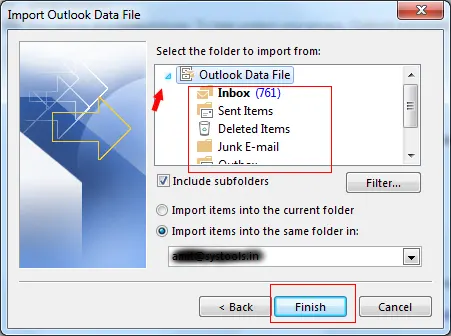
This import/export option is to prevent duplicate messages in Outlook when uploading a data file into Outlook. But the limitation of this method is that it does not remove already existing duplicates.
Steps to follow:
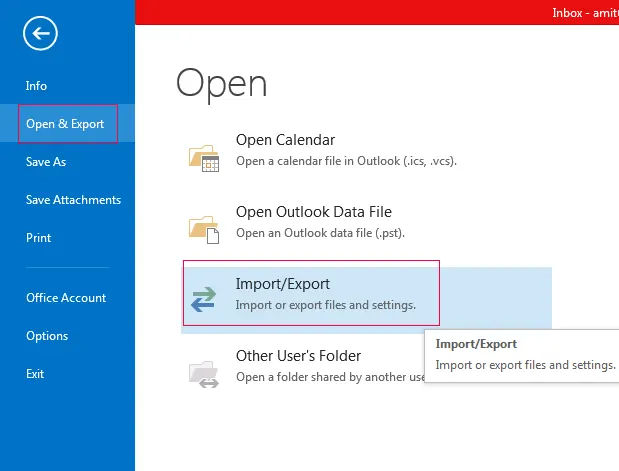
- Initially, open Outlook and go to File, then press Open & Export and finally Import/Export.
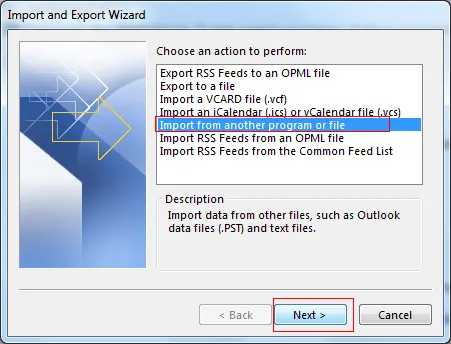
- In Import/Export Tab, select Import From Another Program or File, then click Next.
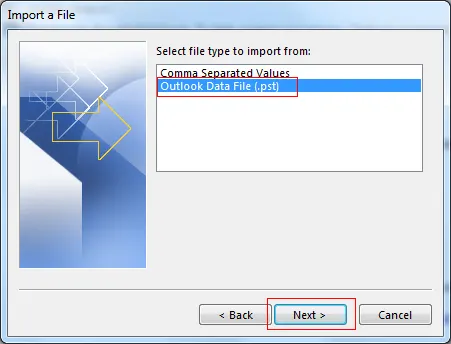
- Now, choose Outlook PST File and press Next Button.
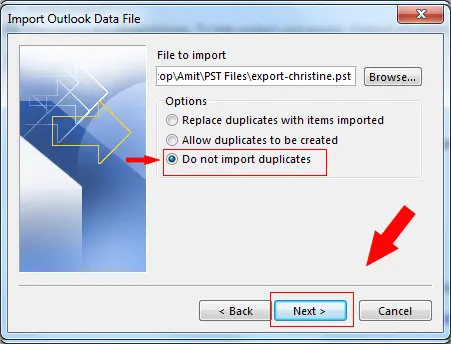
- Browse PST and select “Do Not Import Duplicate” option.
- After all changes are made, tap Next to finish the process.
Method 3: Sort & Manually Delete Duplicate Emails in Outlook
If you’re dealing with small number of duplicates in your mailbox, then you can use this simple way to manage multiple mailboxes in Outlook. But the problem is it’s a very time taking process if working on large mailbox.
Steps:
- To begin, open Outlook and go to Inbox.
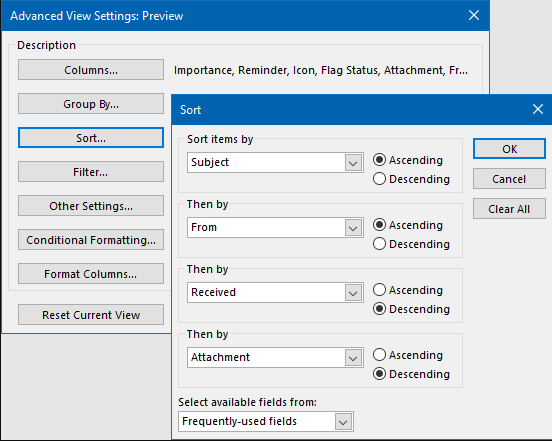
- Preview your emails by tapping on View option and Arrange them.
- Sort your messages by parameters such as Subject, Sender, Date, etc.
- Search or check for replicated emails.
- Choose all and manually remove them.
Method 4: Using Outlook Clean Up Tool
This Outlook offers users a built-in option to delete repeated emails, resulting in lessen Outlook mailbox size. One can use these mentioned steps below to remove:
Follow the steps:
- Firstly, Open Outlook on your system.
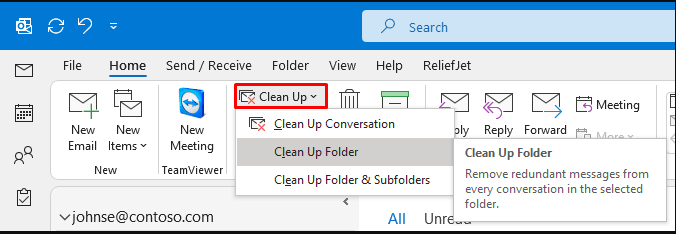
- Click on Clean Up tool located on the top ribbon bar.
- Expand the option, and you will be displayed as:
- Clean Up Conversation
- Clean Up Folders
- Clean Up Folders & Subfolders
- Now, a dialog box will pop up and ask you to tap on Clean Up Folder.
- After pressing, click Settings and Browse PST file on same.
- Select Deleted Items folder when Select Folders dialog appears in front of you.
- Lastly, use Clean Up Folder feature to remove duplicate emails in Outlook inbox.
Method 5: Set Up Rules Properly
This solution is to check whether your Outlook rules are configured or organised correctly or not. If not, it will clutter your email folders. So setting up rules is very important part.
Method 6: Turn Off Your Anti-Virus Applications
If there are many duplicate files, then it might be due to a loss of mailing server connectivity and antivirus settings. If server connection isn’t shut down properly, your emails that are not marked as received will make duplicate entries. To delete duplicate emails in Outlook can only happen when one disables the email protection or antivirus settings.
How to Mass Delete Duplicate Emails in Outlook Professionally?
For reliable and accurate results, one should use an expert-recommended and trusted solution that is developed by FreeViewer. This tool permits users to mass remove duplicate emails in Outlook files such as PST, OST, and BAK. Moreover, it’s capable to delete duplicate contacts in Outlook and many more items.
This dedicated software provides an easy and simple UI that is easily operated by both casual and professional users. Also, it can remove duplicates from password-protected data files without losing any data structure and integrity. This professional tool compatible with both Windows and macOS machines. Let’s look at its steps.
Step Guide to Mass Remove Duplicate Emails in Outlook
- Download and run the aforementioned software on your system.
- Tap on Add Files & Folders option to browse data files.
- This offers dual mode for removing duplicates, i.e, Within & Across Folder.
- Click on Change to set Destination Path to save cleaned file.
- In select item types, choose Emails for deleting duplicates.
- Press Specify Duplicate Criteria to add advanced filters and Save applied settings.
- Choose Removal Action like Delete Permanently, Move to Folder, mark as expired, and Put flag, while keeping single copy with them.
- Finally, tap on Next button to start deduplication process and Ok on completion of removal process.


Conclusion
In this article, we’ve discovered how to delete duplicate emails in Outlook using top 7 proven ways, including both manual and automated solutions. We all know that duplicate emails can reduce your email efficiency, but there are many ways to fix the problem. If you’ve a smaller number of duplicates, then manual sorting and cleanup tool helps you a lot. Whereas, large duplicates are only handled and removed using dedicated software mentioned above.