How to Decode Access Database Password? 2 Effective Methods


Nowadays, several working professionals need to decode Access database password for editing, security restrictions, and data extraction, etc. In some cases, users have credentials for MDB and ACCDB databases, but what will happen if they lose or forget the password? In this situation, they start searching for reliable solutions. In this article, we’ll explain both manual and automated methods to decode password of Access databases in a hassle-free way.
MS Access is a database management system that manages large amounts of information using features such as forms, reports, queries, and other components. Regarding database security, many users encrypt Access databases using a passkey. But sometimes, they forget the current password, which hampers their workflow. The following query highlights the problem of users when they can’t remember the credentials for their database files. So, let’s begin.
User Scenario: “I have my official data in ACCDB and MDB Access database files. I need to decrypt MS Access database urgently for both formats since I need to use data and have forgotten the password. Any kind of help is greatly appreciated.”
How to Decrypt Access Database? Instant Solution
- Install and run Freeviewer MDB Password Recovery Tool on PC.
- Browse and upload MDB or ACCDB database files.
- Click on Recover button to complete the process.
- A pop-up will appear, click on the OK icon.
- Lastly, select Copy Password to decode MS Access database.
Reasons to Decode Access Database (MDB & ACCDB ) Password
Many users who work with MS Access need security for their database files by applying strong passwords. But, manytimes, forgetting the passkey disturbs their workflow and locks their essential data. Here are some common reasons to unlock Access database password:
- Data Recovery: Since users can’t open their Access file(s) with the applied password, recovering the data becomes the primary reason to decode Access database. Since every Access user compiles crucial business data in Access, recovering it becomes critical since any mishappening, like accidental file deletion or computer corruption, can lead to data loss
- Database Migration: Another reason to decrypt Access database passwordsis to migrate the data from the existing database to another. You may migrate your data from one database to another to create a backup, send it to your teammates without any additional information, and migrate the database data to CSV format for easy access.
- Legal Compliance: Another reason is compliance with court orders or law enforcement enquiries. There may be days when your company gets an order to maintain data records. Hence, decrypting the Access database file becomes necessary.
These are the main reasons that shows importance of decrypting the protected A.mdb and .accdb database files. We will now discuss the best solutions to regain access efficiently. So, let’s move down and understand each method quickly.
How to Decrypt Access Database Protection? 2 Quick Solutions
Protecting MDB and ACCDB access files with password is a smart way to secure important data. However, there are many situations arises where you need to decode Access database password to remove security restrictions, modify protection settings, perform data transfer, or regain access after forgetting the credentials. If you are dealing with locked database files, then in this section, we’ll explore both manual and automated approaches to decode passwords seamlessly. Now, let’s dive into it.
Method 1: Decode MS Access Database Password Manually
This is a free and simple solution that can be used if the user knows the existing password of Access database provides an in-built feature that allows you to decode access database easily. It is mainly suitable for beginning users. Follow the steps:
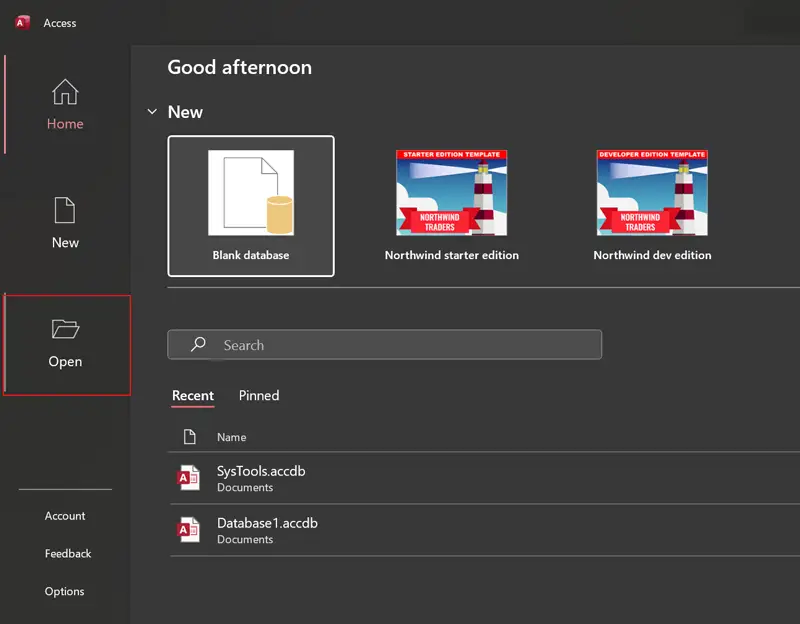
- Open the MS Access app, select Open from the left-side menu.
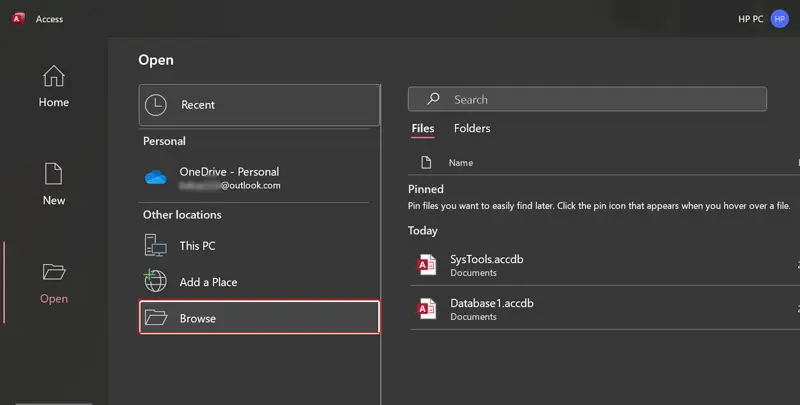
- After that, click the Browse option to choose Access database.
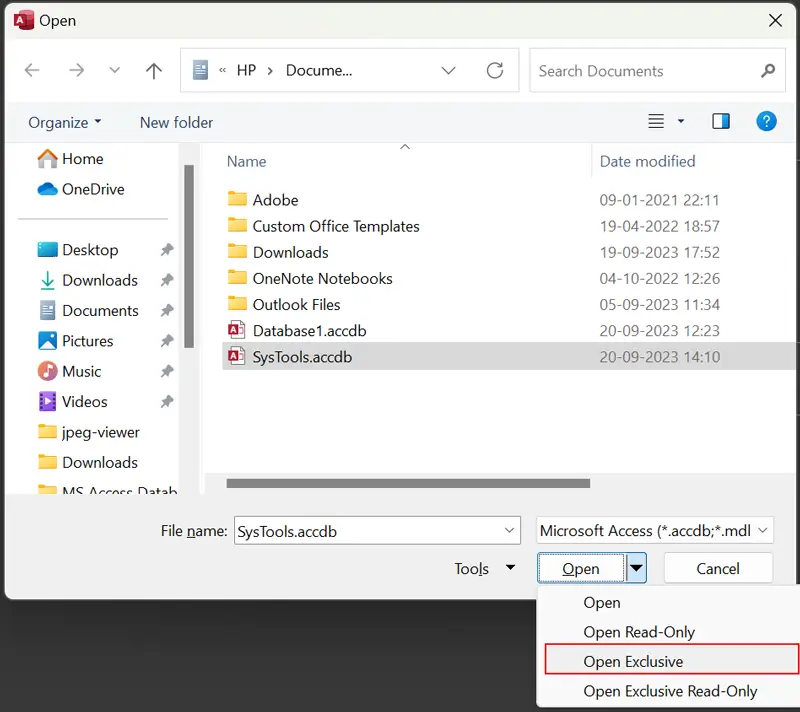
- Click the Open dropdown menu and open it in Exclusive mode.
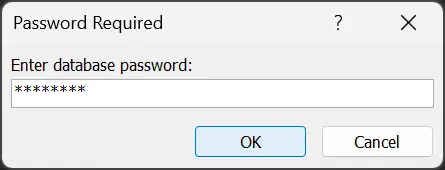
- Enter the database password and click the OK button to open the file.
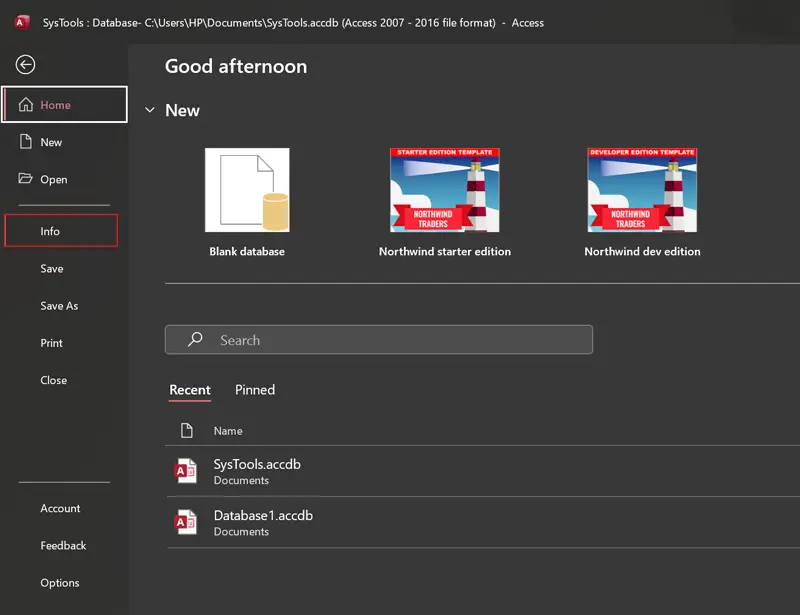
- Thereafter, choose File >> Info option to continue.
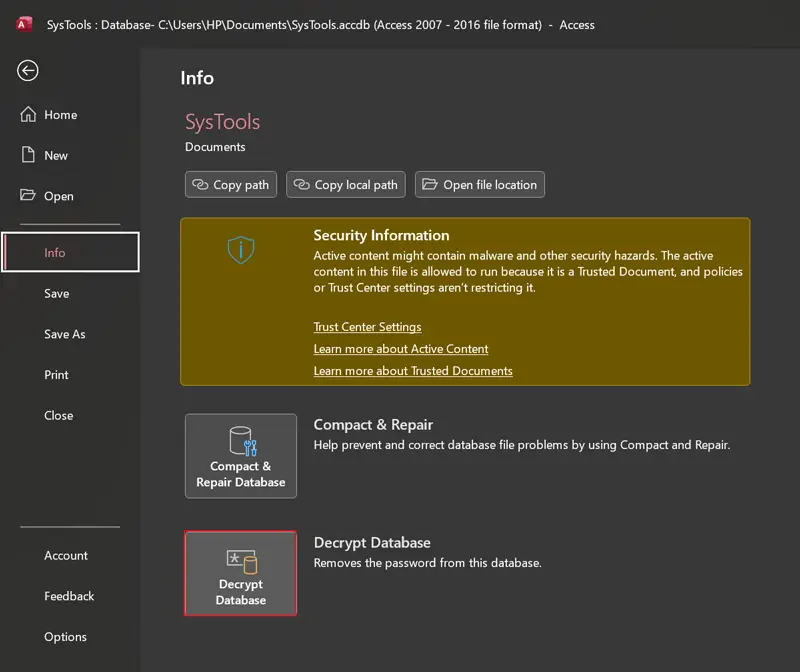
- Click the Decrypt Database option as shown in screenshot.
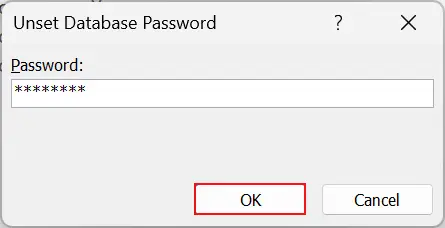
- Enter the database password and click OK to decrypt MS Access password forever.
Drawbacks of Using Manual Method
- Users must remember the original file password to decode Access database.
- This solution cannot recover or reset forgotten database passwords.
- This process is time-consuming and contains multiple steps.
- Only decrypt one database file, which requires manual efforts.
- Lack of support for ACCDB File and increase chances of file corruption.
Method 2: Professional Software to Decrypt Access Database
In many situations, users lost or forgot the Access database passwords and started looking for a powerful solution to recover credentials. Using a professional tool of Freeviwer can help them to recover and reset Access database password of both MDB and ACCDB files without knowing the correct credentials.
This advanced software makes the recovery process effortless and provide simple interface for quick operation. The robust tool can decode Access database without password with just a few clicks. This eliminates the risk of data loss and provides a password without modifying the original database structure.
Guide to Decrypt Access (MDB & ACCDB) Database
- Download and run the software on your system.

- Add database file using the Add File & Folder option.
.webp)
- Click on the Recover button to decode Access database
.webp)
- See the decrypt process completed successfully and click OK.
.webp)
- Lastly, tap on Copy Password button to complete the process.
.webp)
Key Features of Using Automated Solution
- Supports both MDB and ACCDB database formats.
- Quickly recover complex, numeric, alphanumeric, and special character passwords.
- Provides security to users’ sensitive data and reduces the chance of data loss.
- It is suitable for both technical and non-technical users due to its intuitive interface.
- This helps to regain access to the database file with full control
Final Thoughts!
This blog explored the reasons and solutions to decode Access database password. Manual methods work best with MDB files, but needs current password for decoding and also come with some limitations. In such cases, advanced tools provides faster and more reliable solution to decrypt Access database without risking data accuracy. Choosing the right approach ensures a smooth workflow.