Thunderbird Search Not Working on Large MBOX? Here’s the Fix


If you are facing a Thunderbird search not working problem on a big MBOX file well I know how annoying it feels. You type a name or a subject and you have to wait for a while and Thunderbird shows nothing or the search bar is greyed out or in many cases it finds only a few emails when you know there are hundreds of emails.
I have helped many people with this same issue and most of them had one thing in common that they had a very large mailbox file and even they were unable to Open MBOX File. In this article I will sit with you and guide you properly and go step by step to let you know everything that is important to solve this issue. First we will find the exact problem. Then we will move forward to fix it with simple settings. And if the file is just too big in your case for Thunderbird then I will show you an easier way to search it.
How Search Works in Thunderbird
Before we start fixing anything on this issue “Thunderbird Search Not Working” it is very important for you to know that Thunderbird has three main search types. Each one works in a different way which you can see in the table below for detailed information.
| Search type | Shortcut | Where it looks | What it depends on |
|---|---|---|---|
| Global Search | Ctrl + K | All accounts and folders | Global index file |
| Quick Filter | Ctrl + Shift + K | Only folder you are in | Folder’s own index (.msf file) |
| Advanced Search | Ctrl + Shift + F | Folders you choose | Content of folder directly |
You can simply think of it like a library. Here a Global Search is a master catalog for the whole library where the Quick Filter is a list that is kept on a shelf and on the other hand Advanced Search is just like walking along the shelf and examining every single book.
When your mailbox is small then all three work fine for you but when one MBOX file becomes large then the catalogue gets very slow and sometimes it breaks.
Why Thunderbird Search Not Working with Large MBOX Files
This issue is common with large MBOX files so there is not a single but there are multiple reasons and here is what I usually see when someone sends me this problem.
- Index is not finished: Thunderbird builds a search index in the background. So with a large MBOX file it can simply take hours to finish and search shows partial results until it ends.
- When index file is damaged: If Thunderbird closes suddenly then there is a global index file that can get corrupted.
- Folder index (.msf) is out of date: In this case the folder looks fine but Thunderbird has a wrong map of it.
- When MBOX file is too large: Thunderbird stores each folder as one file. When that file grows very big then things get slow and unstable. Now many users report trouble when a single folder reaches a few GB.
- If Setting is Turned Off: Sometimes global search is simply disabled so you need to review this.
You do not need to worry at all about remembering this list as in the next step you will learn easy methods to Troubleshoot Thunderbird Search Not Working with the correct approach according to your search problem so I will suggest you to confirm first what exactly your search problem is and accordingly you can choose the suggested solution step.
Check First Which Thunderbird Search Not Working to Move To Fix Exact Problem
You need to check the table below which gives you a clear picture to locate your exact search problem and accordingly you can directly move to that method to fix the issue without wasting any additional time by skipping all other unnecessary steps which are not applicable in your case.
| What you see | Your stage | Go to |
|---|---|---|
| Search bar is greyed out | Global search is off | Method – 1 |
| Search working but showing few emails Only | Index is incomplete | Method – 2 |
| Search finds nothing at | Folder index is broken | Method – 3 |
| Global search gives wrong or old results | Index file is corrupt | Method – 4 |
| Search worked before but it stopped after installing something | Add-on problem | Method – 5 |
| Everything is slow Thunderbird freezes | File size problem | Large MBOX File |
How to Fix Thunderbird Search Not Working – Follow These Steps
Simply follow these suggested steps to fix this problem when Thunderbird search is not working. The above table gives you ideas about your problem. Now in this section you will get the solutions in detail about how and what to do when you have this problem.
Method 1: Turn Global Search On When Search Bar Is Greyed Out
This is the easiest fix you can start with so always start here. If Thunderbird search bar is greyed out it simply means that indexing is generally switched off. So you can find below the working steps that can allow you to fix this problem.
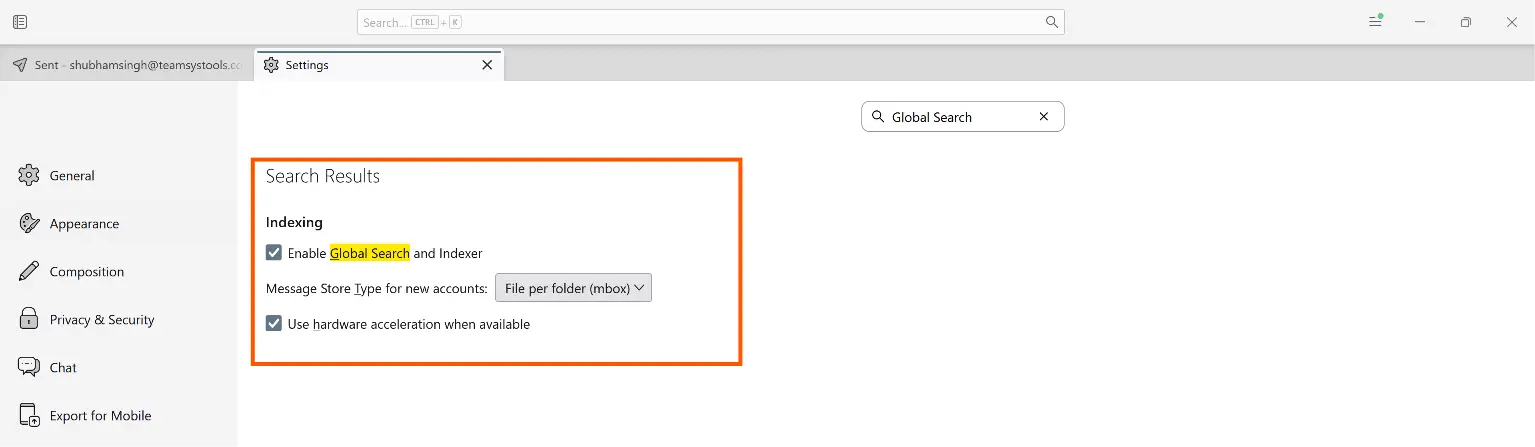
- Open Thunderbird.
- Now click the menu icon (three lines) and open Settings.
- In the box named Find in Settings and type index.
- Make sure Enable Global Search and Indexer is ticked.
- Now It’s time to restart Thunderbird.
Note:- If it was already on then you can move to the next fix that you will find in method two.
Method 2: Let the Indexer Finish – Do Not Skip This
Most people skip this but you must understand that it solves many cases. Here in the case of large MBOX Thunderbird is still in the process of indexing and that is why Thunderbird is not finding emails that you know exist.
Here is how you can check it easily:
- Go to Tools and open Activity Manager (If you cannot see the menu then you can simply press the Alt key once.)
- Now look for a line like “Indexing messages” or a progress bar.
- If it is running then leave Thunderbird open. Do not force close it.
So if you have a large MBOX file then it can take a longer time. I once left Thunderbird running overnight with a very bulky profile and by morning the search was complete. Now if you close Thunderbird again and again then the indexer starts from a messy point each time.
Method 3: Repair Folder When Quick Filter Finds Nothing
When search does not work and fails in a specific folder well the index for that folder is likely corrupted. You can use the repair option here that will rebuild it again.
- In the folder pane you need to right click the affected folder
- Find Properties and click.
- Now click Repair Folder.
- Wait a few minutes for it to finish. A large folder can take several minutes.
This step basically helps you to rebuild Thunderbird index for that single folder and also it is safe so your emails are not deleted.
Method 4: Rebuild the Global Database
If Thunderbird global search is not working and method 3 did not help you out now this is very sure that the global index file is corrupt. We will make Thunderbird build it again from zero.
Important: This is the only fix where you remove a file so I must consider you to take a quick backup first and then proceed to the step that is a habit I always follow to keep a backup of file.
- Open Thunderbird and go to Menu > Help > Troubleshooting Information.
- Under Profile Folder you need to click Open Folder.
- Now close Thunderbird completely.
- Copy your whole profile folder to another place as a backup.
- Find the file named global-messages-db.sqlite.
- Now you need to delete that file.
- And start Thunderbird again.
Once you finish this now Thunderbird will re-index everything.
What if When Manual Methods Are Not Enough
Here is a common situation I see. Someone has a huge export from Gmail now they only want to find a few emails inside it maybe an invoice from 2019 or all mails from one client.
So importing that one big file into Thunderbird is not a good idea and also waiting for indexing and fixing errors again and again is a lot of work for a small task. In this case one can use a dedicated solution to quickly open and search MBOX file without Thunderbird so there is no index to break.
Automated Solution to Search Inside MBOX File
When I need to search a large MBOX quickly I generally prefer FreeViewer MBOX Viewer Pro. The software is reliable and it can easily read content of MBOX files directly so you do not depend on the Thunderbird index at all. You can download the software in your Windows PC and search exactly what you want from your large MBOX file.
Simple Steps How You Can Work When Thunderbird Search Not Working on Large MBOX
- Add your MBOX file: You need to choose a file or folder using this software and allow software to load and scan it.

- Preview your emails: Once the scan process is done now you can click any email in the list to read it in the preview pane.
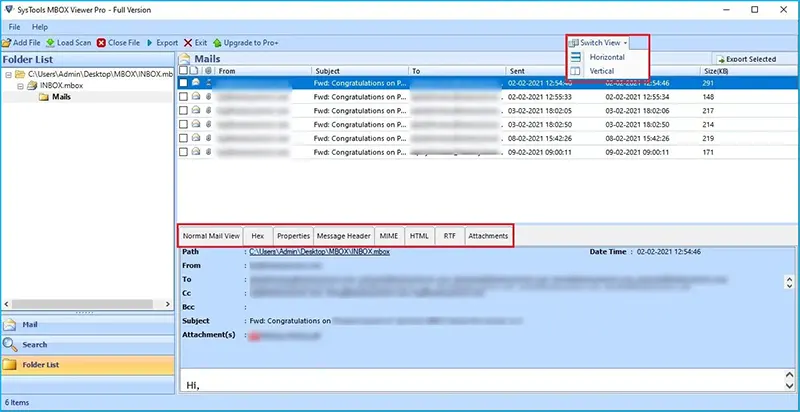
- Use Advanced Search: You can go to advanced search function and there you can use filters to search by keyword, date, name, time, subject, To, CC or BCC and simply apply them together to narrow down the result.

Note: Software also allows you to Print MBOX File to PDF so if you need you can print selected emails also for further use.
Tips to Avoid Thunderbird Search Problems in Future
If you want to avoid this Thunderbird Search Not Working problem in the future then you can follow the simple and proven tips provided below.
- Keep the size of each folder reasonable.
- Allow indexing to complete before closing the app.
- Compact your folders every few weeks.
- You Must keep Thunderbird updated.
- Install those add-ons only that you really need.
- Must back up your profile before making any changes.
FAQs on Thunderbird Search Not Working
Q1. Why is Thunderbird search not working only for old emails?
The reason for this could be that the index is still incomplete or simply the folder was not included in global search. You need to check here Activity Manager and also the folder properties.
Q2. Is it safe to delete global-messages-db.sqlite?
Yes. it is very safe to delete as it is a search index file and Thunderbird creates it again. But I would still advise you to take a backup of your profile before doing it.
Q3. Can I search the content of MBOX file without opening Thunderbird?
Yes. You can use a dedicated solution as suggested above and by using it you can easily open the file directly and then search it by using its search filter.
Conclusion
If Thunderbird Search Not Working is still a problem for you then you should try enabling global search, repairing the folder or rebuilding the search index as these will help you to fix this issue. If none of these solutions work then you can use a practical and proven solution as suggested in this article to easily find your emails without wasting any time.