SSD Showing 0 Bytes in DiskPart? Here’s How to Fix It Safely


If your SSD Showing 0 Bytes in DiskPart has suddenly become unreadable well it’s not the time to panic but act smartly. This issue simply means Windows can detect SSD but cannot determine its actual storage capacity. As a result your drive may appear as 0 bytes, 0 MB or 0 B in DiskPart, File Explorer or in Disk Management. In some cases your SSD may still contain your files but the partition table, file system or SSD firmware may be damaged.
The good news is that SSD Showing 0 Bytes in DiskPart does not always mean your SSD has permanently failed but exact cause can range from corrupted partition information and outdated storage drivers to firmware issues or hardware problems. So before you think about formatting your drive or running repair instructions it is very important for you to know what is causing the problem. Making a mistake early on can make recovering data more difficult.
In this guide you will find the exact reasons why SSD Showing 0 Bytes in DiskPart, how you can easily diagnose the problem and also the safest methods you can use to fix it without risking your important data.
What Does “SSD Showing 0 Bytes in DiskPart” Mean?
When you open DiskPart and start running a list disk command then Windows will display you every connected storage device along with its total size and available space which you can easily check in the given example below.
DISKPART> list disk

Disk 0    Online    931 GB
Disk 1    Online    476 GB
However if your SSD has a problem then in this case you may see something like:
DISKPART> list disk

Disk 1    Online    0 B

or

Disk Size : 0 Bytes
This simply means Windows is able to communicate with storage devices but it cannot read its capacity correctly. It is different from an SSD that is completely missing from DiskPart or BIOS.
Before You Fix Anything – Check If SSD Is Detected
One of the biggest mistakes users make is they are trying random fixes without understanding where the SSD is actually detected or not. So you must spend two minutes checking the SSD in the following locations first.
| SSD Status | What It Means | Recommended Action |
|---|---|---|
| Visible in BIOS and DiskPart (0 Bytes) | Hardware is detected but unable to read storage information. | Continue with the fixes below. |
| Visible in BIOS only | Windows cannot communicate with SSD correctly. | You should update drivers and check controller settings. |
| Visible in Device Manager but not Disk Management | There is a driver or partition issue. | Check Disk Management and Storage Controllers. |
| Shows as RAW or Unallocated | Partition or file system corruption. | Recover your important data before making any changes. |
| Not detected anywhere | It is possible cable, controller or SSD hardware failure. | Check connections or test SSD on another computer. |
The above simple check will help you avoid unnecessary troubleshooting and points you toward the correct solution faster.
Why Is Your SSD Showing 0 Bytes in DiskPart?
There are several issues that can cause SSD Showing 0 Bytes in DiskPart error. Some of them are software related and it can be fixed at home while others may indicate a failing SSD. You can check below some of the most common causes:
- Corrupted Partition Table: If the partition table becomes damaged then Windows cannot identify storage structure correctly. As a result SSD may appear with 0 bytes.
- File System Corruption: Issues like unexpected shutdown, malware infection, interrupted file transfer or improper drive removal can corrupt a file system and Windows may then display your SSD capacity as 0 bytes or show the drive as RAW.
- Outdated/Corrupted Storage Drivers: Storage controller drivers help Windows to communicate with your SSD. If these drivers become outdated or corrupted well then DiskPart may fail to retrieve the SSD’s capacity correctly.
- SSD Firmware Problems: Like any hardware device SSDs also rely on firmware and a firmware bug or failed firmware update may prevent controllers from reporting correct drive size.
- Loose SATA or NVMe Connection: If there is a loose SATA cable, faulty USB adapter, damaged enclosure or improperly installed NVMe SSD can interrupt communication between Windows and the drive.
- SSD Controller Failure: The SSD controller manages all read and write operations and If it starts failing the drive may Show 0 bytes, It becomes read only, Fail to initialize or it becomes inaccessible.
Recover Important Data Before Trying Repairs
This is one of the most important steps in the entire process so if your SSD previously contained important documents, photos, videos, business files or any project related data then you should not immediately format it or repartition your drive.
Some commands like Clean, Create Partition or formatting your SSD will overwrite your important storage information and it will reduce the chances of successful recovery.
Instead of all these you must first try to recover all your accessible files first.
If Windows still detects SSD even if it reports 0 bytes or it appears as RAW then you must use Professional Data Recovery Software to recover your data.
Pro Tip: If you notice anything like an SSD is making unusual noises (it is rare but possible with external enclosures), disconnects repeatedly or disappears from BIOS now you must stop using it immediately.
How to Fix SSD Showing 0 Bytes in DiskPart
Now that you know why SSD Showing 0 Bytes in DiskPart happens and it is time to identify and fix the actual cause. You can start with the simplest checks first and then move to the advanced solutions only if your issue still remains.
Fix 1: Check Whether the SSD Appears in Disk Management
The first thing you need to do is to check if Windows detects the SSD outside of DiskPart or not and for this you can follow the given steps.
- Press Windows + X and choose Disk Management.
- Wait a few seconds for Windows to scan all connected drives.
- And now locate your SSD for detail.
Fix 2: Reconnect the SSD and Check the Hardware
Sometimes the problem has nothing to do with Windows and a loose connection also cause the SSD detected but 0 bytes issue.
You need to check the following:
- Disconnect and reconnect SSD.
- You should try another SATA cable.
- You can connect SSD to another SATA port.
- If it is an external SSD then you must use another USB cable.
- You should avoid USB hubs during testing.
- Test SSD on another computer if possible.
Many users find that the issue is simply a faulty cable or enclosure rather than a failed SSD.
Fix 3: Update Storage Controller Drivers
Do you know that outdated storage drivers can prevent Windows from reading the SSD correctly.
Steps
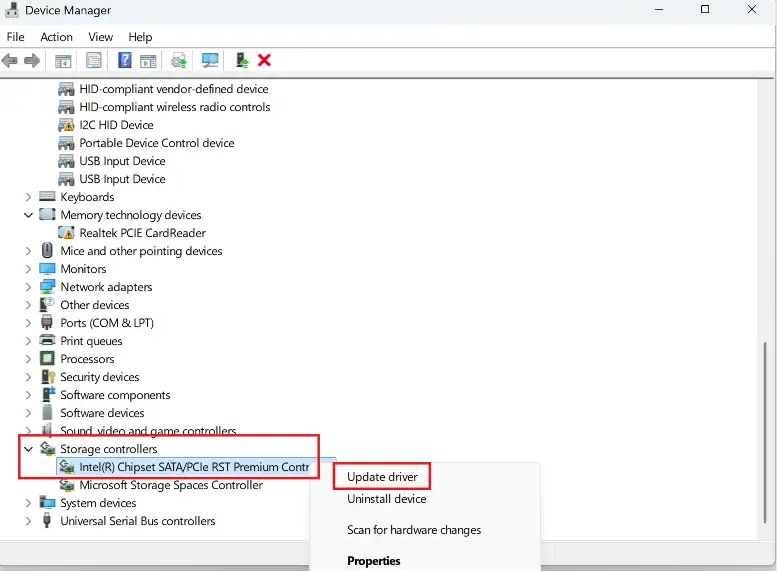
- Press Windows + X.
- Open Device Manager.
- Expand Storage Controllers.
- Right click your controller.
- Select Update Driver.
- Choose Search automatically for drivers.
- And restart your computer.
You also need to update the drivers under:
- IDE ATA/ATAPI Controllers
- Disk Drives (if updates are available)
This will sometimes resolve situations where SSD capacity shows 0 bytes after a Windows update.
Fix 4: Check the SSD in BIOS
If your SSD appears in BIOS well the hardware is at least being detected you should then restart your computer and enter the BIOS or UEFI setup.
Check whether:
- The SSD model is listed.
- Correct storage mode (AHCI or NVMe) is enabled.
- The SSD is connected to the correct port.
- BIOS recognizes drive with correct capacity.
If BIOS also reports 0 B or it fails to identify the SSD properly then the issue is more likely related to firmware or hardware than Windows.
Fix 5: Assign a Drive Letter (If Applicable)
Sometimes the SSD is healthy but it simply lacks a drive letter.
Steps
- Open Disk Management.
- Right click the SSD partition.
- Select Change Drive Letter and Paths.
- Click Add or Change.
- Choose an available drive letter.
- And Click OK.
If the partition is visible and healthy then it should now appear in File Explorer.
Fix 6: Use DiskPart Commands Carefully
There are many online guides that you find they recommend running commands such as:
- diskpart
- list disk
- select disk
- clean
- create partition primary
- format fs=ntfs
You must be careful as these commands can rebuild the partition table but they also erase the existing partition information.
I would advice you not to run these commands unless:
- You already recovered your important files.
- If your SSD is completely empty.
- Or you no longer need the existing data.
Using the ‘clean’ command on the wrong disk will permanently result in the loss of access to your files.
When Manual Fixes Don’t Work
If you have tried all above solutions and your SSD Showing 0 Bytes in DiskPart issue still persists then the problem may involve the following issues:
- A failing SSD controller
- Firmware corruption
- NAND memory issues
- Severe partition damage
- And hardware failure
Before considering replacement or reinitializing the drive you can make sure any recoverable data has been copied to a safe location. If the SSD is still detected by Windows then this is your best opportunity to recover important files before attempting repairs.
Also Read:- What to Do If The New SSD Not Showing Up in Disk Management
Recover Data from an SSD Showing 0 Bytes
If your SSD contains important files then only the best and foremost priority is to recover these important files before attempting repairs. Our dedicated recovery solution FreeViewer SSD Recovery Software can quickly scan your SSD, detect all recoverable files and allow you preview them before saving. This is very useful if your drive appears as RAW, Unallocated or shows 0 bytes due to partition or file system corruption.
Find Below The Simple Steps to Recover Your Data
- Download and install our recovery software.
- You need to connect the affected SSD to your computer.
- Now select the SSD from the list of detected drives.
- Choose Scan or Formatted Scan as per your need and drive’s condition.
- You can preview all recovered files and verify the results.
- Lastly you need to save the recovered data to a different drive.
Important: Always save your recovered files to another storage device as saving them back to the same SSD may overwrite all your recoverable data.
Conclusion
If SSD Showing 0 Bytes in DiskPart then this can be very alarming for you but you also have to understand that it does not always mean that your drive has failed permanently. However in many cases this problem is caused by partition corruption, driver problems or due to incorrect storage settings which can be resolved with the proper troubleshooting procedures as described in this article.
If your SSD contains important data then you should recover your files first before doing anything else. If you follow a careful approach then it will help you protect your data and also increase the chances of restoring your SSD successfully. If manual methods fail to solve your problem you must go with a reliable recovery approach to recover your important files safely.