NVMe SSD Disappeared in Windows? Troubleshooting and Recovery Tips


Quick Reaction: If your NVMe SSD disappeared don’t get panic in this situation. Also do not initialize or take any further action to format it and you should also avoid reinstalling Windows. However you should first check if your drive appears in BIOS or Disk Management. If it keeps disappearing then you must stop using it and protect your data first.
This problem NVMe SSD Disappeared can leave your files inaccessible or it simply prevents Windows from starting. You will witness that your drive will suddenly vanish from File Explorer, Disk Management or even from BIOS. This can happen due to a connection issue, Windows configuration problem, if there is an outdated firmware or a failing SSD.
Now the appropriate fix depends on where your drive disappears. So before we start trying the repair process there is a very important task that is to protect your valuable data first. You should avoid formatting, initializing or repeatedly restarting a drive which contains important files.
Why Did NVMe SSD Disappear?
This NVMe SSD Disappeared issue happens due to several causes and identifying these causes are important which helps you to understand the root issues and further plan right fixes. So we have found some of the most common causes behind this problem:
- Happens due to loose or improperly seated M.2 SSD.
- Due to outdated BIOS or SSD firmware.
- A storage driver or Windows detection issue.
- If there is a missing drive letter or damaged partition.
- Power saving settings cause intermittent detection.
- One reason also is SSD controller or hardware failure.
A drive that does not appear in File Explorer this may still be detected by Windows. So if it is missing from BIOS then the problem may be related to the hardware, firmware or the connection.
Beyond NVMe SSD Disappeared issue there are some users who have SSD Showing 0 Bytes in DiskPart and want a solution – Here’s How they can fix it safely.
First, Check Where the SSD Is Missing
The most important step for a user is to first find out where the SSD is missing from. Checking this before making any changes is essential as it helps in identifying the actual problem. There are three locations you need to check so review the details below one by one.
- File Explorer
For this you just need to open File Explorer and select This PC. If SSD is missing here then it may not have a drive letter or Windows may not be mounting its volume.
- Disk Management
To check disk management just press Windows + X and select Disk Management option. Now look for the SSD and check its status.
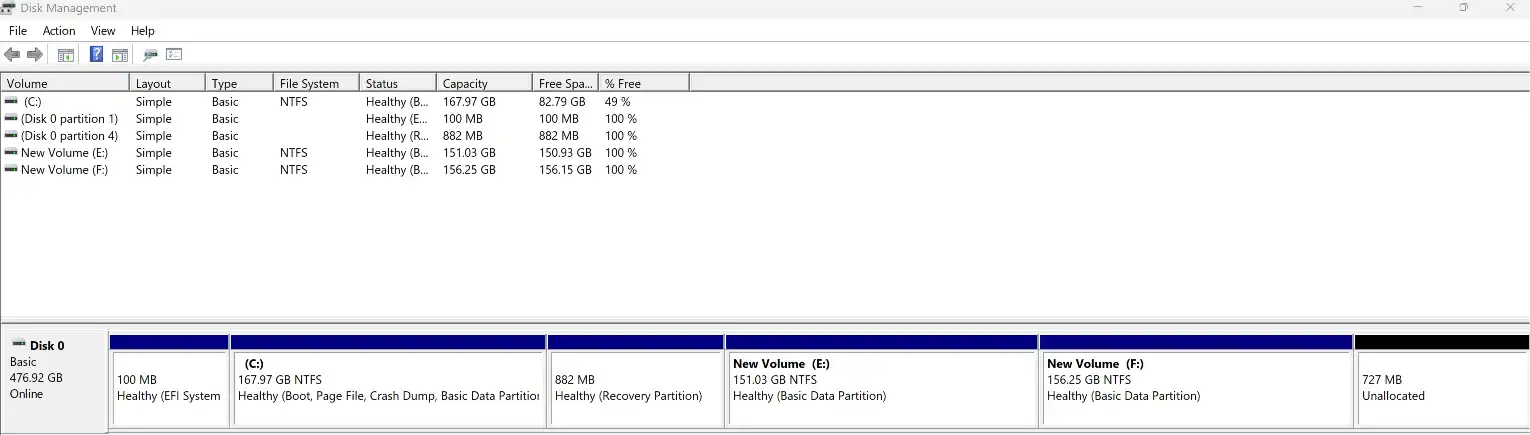
- Healthy: Means partition may need a drive letter.
- RAW: File system may be damaged.
- Unallocated: Partition information may be missing.
- Offline: Windows has detected the disk but it is not using it.
Things to remember in order to find why NVMe SSD Disappeared during this step If your drive contains any important files then do not initialize or format it.
- BIOS or UEFI
Restart your computer and then enter BIOS/UEFI by using the key shown during startup. This is mostly F2, Delete or Esc. You need to look under Storage, NVMe Configuration or System Information. If your drive is not listed then Windows troubleshooting alone will not solve the problem.
How to Fix NVMe SSD Disappeared in Windows 11
Try these steps in order to fix this NVMe SSD Not Showing Up problem. You must stop!! if your drive contains any important files or data as it becomes unstable. You can also read this article if you want to know how to Recover Deleted Files from SSD using safe tips.
1. Restart and Check the SSD Connection
You might think this step won’t work but let me tell you that sometimes performing a full shutdown can resolve temporary issues related to detection.
- Shut down your computer in order to fix NVMe SSD Disappeared issue.
- Disconnect power if you are using a desktop.
- If you are comfortable then open the computer and check if the M.2 SSD is placed correctly.
- Reinstall it according to your device manufacturer’s guidelines.
If you have a laptop then check the manufacturer’s service guide before opening its case. If the SSD is under warranty then you can contact support before removing it.
Learn What to Do If SSD Not Detected After Power Outage. Follow given steps to get out of this situation safely.
2. Check Disk Management
If Windows 11 users find that an NVMe drive disappeared only from File Explorer well then checking in Disk Management can be a useful step.
If your drive appears and it is showing Healthy but it has no drive letter then you need to right click its volume and there select Change Drive Letter and Paths. Assign an available letter. But if it appears as RAW or Unallocated in this case do not create new volume or format it if you need the existing data.
3. Rescan Disks
Go to Disk Management there you can select Action > Rescan Disks.
This will ask Windows to detect connected disks again. This can be useful when a drive is connected but it has not appeared in the disk list.
4. Check Device Manager
Again you need to open Device Manager then expand Disk drives and Storage controllers.
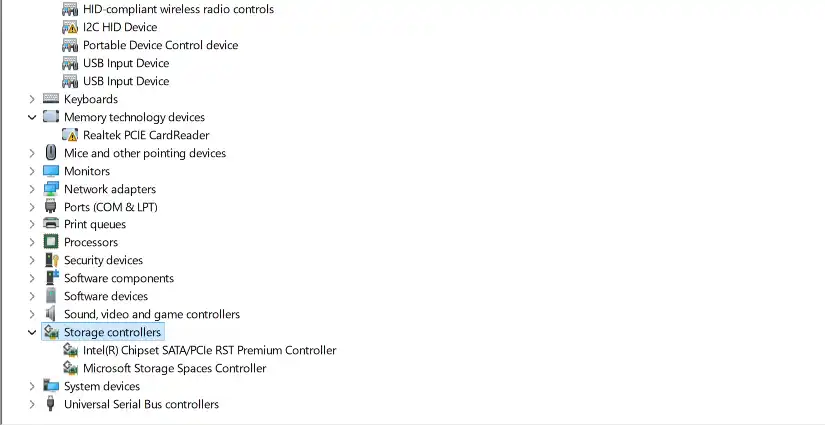
NVMe SSD Disappeared
If NVMe drive is listed there then Windows can detect at least some of its hardware information. You need to check for warning symbols and review the device status.
You can check for driver updates through Windows Update or your computer manufacturer’s support page. You must avoid installing drivers from any unknown websites.
5. Check BIOS Settings Carefully
If you notice that your drive is not appearing in the BIOS then you should carefully check all the instructions provided by the manufacturer as this will help you to find which M.2 slots are supported and what NVMe compatibility requirements are there.
If you are thinking about how to enable NVMe in BIOS then keep in mind that the process varies by motherboard. Some systems automatically detect NVMe drives whereas others have specific options for storage configuration.
Important: You should not randomly change RAID, AHCI, Intel VMD or boot settings. Changing storage mode can prevent Windows from booting or trigger a BitLocker recovery prompt.
What If NVMe Disappeared from BIOS?
If NVMe disappeared from bios and it does not appear in Windows either now the issue is likely related to SSD, its connection, firmware or motherboard.
If you are a desktop user you can simply check the motherboard manual to confirm that the M.2 slot supports NVMe also it is not disabled by another installed device. If the m 2 ssd disappeared from bios then consider these four safe checks:
- Confirm if the SSD is compatible with the M.2 slot.
- Check manufacturer’s instructions for installation.
- If possible you should test your drive in a compatible system.
- When the SSD repeatedly disconnects here you must stop using it.
NVMe SSD Not Showing in Boot Menu
If your SSD appears in BIOS but Windows does not start it then the problem may involve the boot configuration rather than the drive itself.
Check whether Windows Boot Manager appears in the boot menu or not. If it does you need to select it as the first boot option.
If the NVMe SSD not showing in boot menu issue begins after a BIOS update or settings change then once review manufacturer’s recommended boot configuration. Remember do not reinstall Windows or delete partitions.
What to Do When NVMe Drive Keeps Disappearing?
If the NVMe drive keeps disappearing particularly when it is in use then treat it as a warning sign. Remember repeated disconnections may be caused by unstable hardware or due to overheating or power related problems. If your drive becomes accessible again just do these 4 important things first:
- Back up your important files immediately.
- Check the SSD manufacturer’s diagnostic tool for warnings.
- Review computer manufacturer’s support information.
- And avoid firmware updates when the drive is unstable.
Recover File from a Disappeared NVMe SSD
When NVMe SSD disappeared but later it becomes visible in Windows then the recovery of your data is possible. Use FreeViewer Data Recovery Software for Windows to get your file back easily. Download and install software in your Windows system and start the recovery process.
Conclusion
This NVMe SSD disappeared issue does not always mean that your drive has failed. If you ever get stuck in this situation I will suggest you to start by checking File Explorer, Disk Management and BIOS as suggested above in this article which will help you to quickly identify where detection stops. You should also try safe troubleshooting steps but must avoid formatting it or initializing a drive if it contains any important files.
If your SSD becomes visible again but the data is missing from it then recover it by using Recovery Software that will help you to get your file back. If it remains undetected or keeps disconnecting then stop using it and find professional recovery advice.