How to Recover Database from Suspect Mode in SQL Server? – Secure Guide


Nowadays, while trying to connect to an SQL Server database, users often encounter errors or SQL states. A similar state is SQL database marked as SUSPECT. This is why, with this blog, we are going to discuss how to recover database from Suspect mode safely. Along with the manual and professional solutions to fix the Suspect mode, we will also understand the common causes for the issue and how it affects database administrators.
Table of Content
Learning More About Suspect Database in SQL Server
When we talk about this SQL state, the database goes into Suspect mode primarily when the recovery process cannot be completed successfully. Corrupt or lost data are some of the major causes for this state to occur. When in Suspect mode, the SQL database becomes inaccessible to the database administrator and results in delays in critical situations. There are other possible causes that can lead to this state. We will take a look at those and further find effective ways to repair the state.
Common Causes for SQL Database in Suspect Mode
If you see a message indicating that the database is in Suspect mode when you connect to the SQL Server database, it means that the server suspects the database’s primary filegroup is corrupted.
In such a situation, you can not connect to the database, nor can you restore it during server startup. There can be multiple reasons behind this error that users need to know to resolve the error.
- SQL Database Operation is not completed
- System or hardware failure
- Log file got corrupted
- Sudden system shutdown
- SQL Server Crashed
- Low Disk Space
- Attacks from a malicious virus
Apart from these, there can be several other reasons as well. The reasons can vary from user to user based on various factors like server health, load, speed, etc. Users must know how to fix SQL Server metadata corruption to handle these situations.
Steps to Recover Database from Suspect Mode in SQL Server
Follow the mentioned step-by-step process to fix SQL database from suspect mode:
Step 1. Run SQL Server Management Studio. Connect to the SQL Server instance.
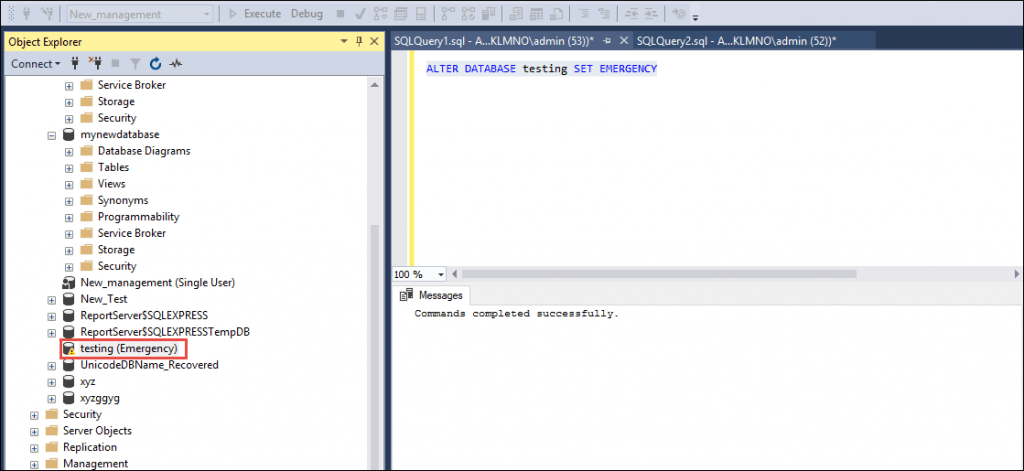
Step 2. Select New Query. Afterward, turn off the suspect flag on the database and set it to EMERGENCY with the following query:
EXEC sp_resetstatus ‘db_name’;
ALTER DATABASE database_name SET EMERGENCY
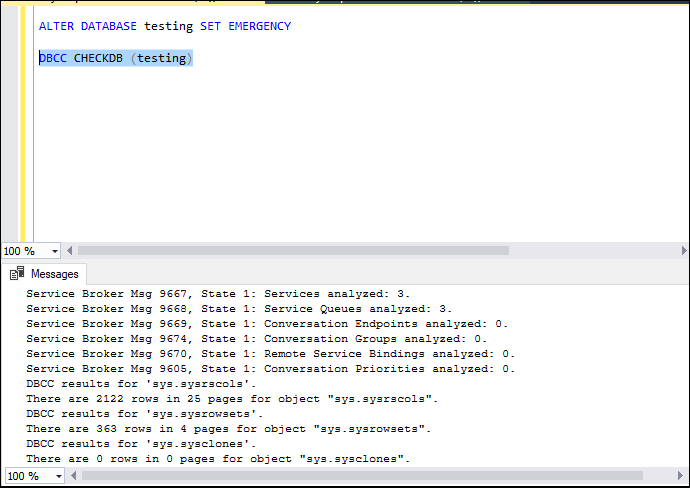
Step 3. Execute a consistency check for the master file.
DBCC CHECKDB ('Database_Name')
Step 4. Put the database in Single User Mode and roll back the previous transactions.
ALTER DATABASE database_name SINGLE_USER WITH ROLLBACK IMMEDIATE
Take a complete backup of the SQL Server Database.
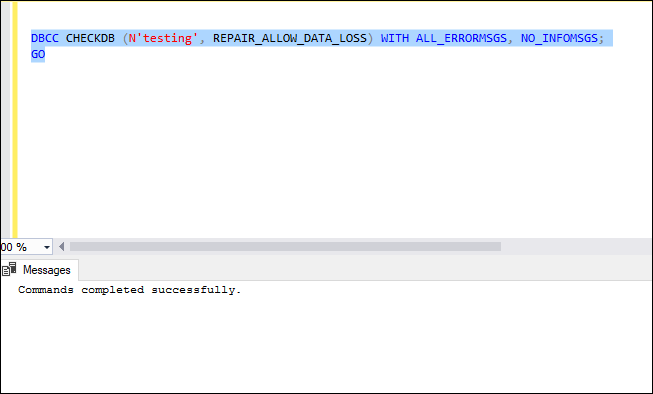
Step 5. Run the Repair command to recover the database from suspect mode in SQL Server.
DBCC CHECKDB (N’database_name’, REPAIR_ALLOW_DATA_LOSS) WITH ALL_ERRORMSGS, NO_INFOMSGS;
GO
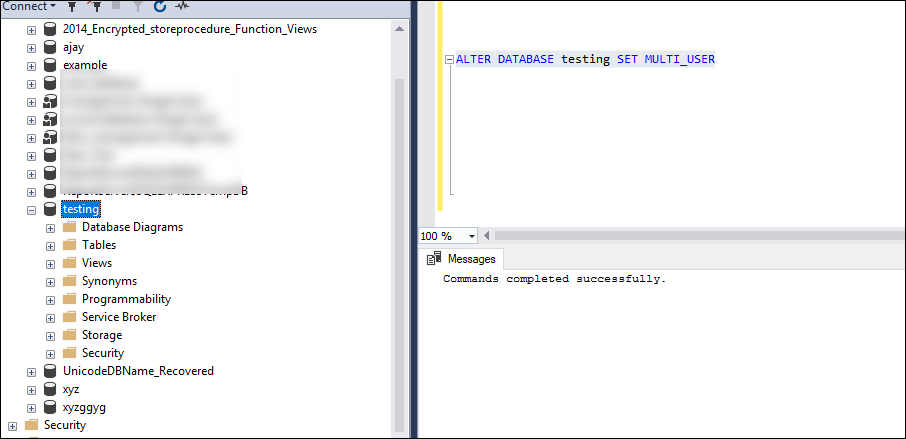
Step 6. Bring the database into multi-user mode.
ALTER DATABASE database_name SET MULTI_USER
Step-7. Put DB in the Online State.
Finally, users need to bring their database back to an Online state to execute normal functions. The command can help users put their database in Online mode.
ALTER DATABASE database_name SET ONLINE
After this, users can run SQL Server just like before. There will be no more issues like Suspect mode, log file corruption, etc.
Now, refresh the database server and verify the connectivity of the database. SQL database suspect mode might be solved after this. However, there is no surety in the manual method.
What If Manual Solution Fails to Remove Suspect Database in SQL Server?
If the SQL Server database is damaged or corrupted, the mentioned solution may fail to recover SQL database from suspect mode. To resolve this error, you can opt for the SQL Recovery tool. This software helps you learn how to recover suspect database in SQL Server without losing data.
Automated Solution to Recover Database from Suspect Mode in SQL Server
Using a dedicated SQL MDF Recovery Tool is a secure and quick way to fix SQL database suspect mode. With the help of this utility, database administrators can easily recover and restore the data from Suspect mode and proceed with their day-to-day tasks.
This advanced utility allows the user to recover corrupt MDF and NDF files. It can recover and preview deleted SQL database components like tables, rules, triggers, functions, etc. Using this software, you can recover SQL database from suspect mode in 2025, 2022, 2019, 2017, and other versions. It is able to recover deleted records from table in SQL Server without any problem.
Step- by-Step Process for SQL Database Suspect Mode Recovery
Step 1: Download and launch the software to recover database from suspect mode in SQL Server. Click Open to load .mdf file.
Step 2: Select the Scanning Mode option from Quick and Advanced Scan. Choose the SQL Server version also.
Step 3: Preview the recovered SQL database objects like tables, views, etc. Click the Export button to learn how to recover suspect database in SQL Server further.

Step 4: Select the Export option: SQL Server Database, Compatible SQL Script, or CSV File Format. Enter the required authentication details. 
Step 5: Export the database With Only Schema or With Schema & Data to learn & execute how to remove suspect database in SQL Server.
Step 6: Click on the Export button to restore the database from Suspect mode. 
The Final Words
The SQL Database in Suspect Mode can be challenging for database administrators. Through the technical write-up, we have described the step-by-step solution to recover SQL database from suspect mode. If the manual solution does not work, you can simply go with the alternate solution. This will help to successfully recover the database from suspect mode in SQL Server without losing a single type of data.
Hope that after reading this blog, all questions will be answered, like how to remove SQL database from suspect mode and what are the reasons behind SQL database suspect mode. Moreover, this tool even fix recovery pending state in SQL Server database with ease.
Frequently Asked Questions
Ans: Commands to recover SQL database from Suspect Mode are as follows:
1. ALTER DATABASE dbName SET EMERGENCY.
2. DBCC CHECKDB(‘dbName’)
3. ALTER DATABASE dbName SET SINGLE_USER WITH ROLLBACK IMMEDIATE
4. DBCC CHECKDB (dbName, REPAIR_ALLOW_DATA_LOSS)
5. ALTER DATABASE dbName SET MULTI_USER
Ans: You must perform a database backup to remove the database from suspect mode. After that, you can run the DBCC CHECKDB with the repair option to fix it.
Q-3. Is there any risk of data loss during Suspect Mode repair in SQL Server?
Ans. As we are aware that Suspect Mode arises due to corruption in the database, it is important to take a proper backup of the database and use a dedicated solution to retrieve the data carefully.