Fix Outlook Clean Up Not Removing Duplicates Instantly


If your Outlook storage full and performance is reduced because of these duplicate emails, then many users use built-in feature offered by Outlook, i.e., Clean Up tool. But sometimes, they end up facing Outlook Clean Up not removing duplicates error. If you are also dealing with same problem, don’t worry. In this guide, we will discuss all approaches you need to resolve your Outlook cleanup tool not working. Let’s begin with the article by knowing quick solution.
Direct Solution to Resolve Outlook Cleanup Tool Not Working Error
To fix Outlook clean up not removing duplicates, turn on conversation view, along with running clean up folder and subfolder, which saves time and effort for cleaning single conversation simultaneously. However, it does not work, then in that case, use an automated software that delete duplicate emails in Outlook in bulk from your mailbox.
Now, let’s understand what clean up tool is and how it works.
What is Outlook Clean Up Tool and How This Works?
If you are a regular user of Outlook, then you might know this Cleanup tool is built-in feature offered by them. This Clean Up option is developed in such a way that it can remove repeated messages from conversations. It performs its task by keeping latest mail and deletes older ones, including all replies. But, it is important to know more about this:
- It only eliminates conversations (Threads)
- Not all duplicated emails are removed.
- Also, cannot identify replicates across multiple folders.
Therefore, multiple users face this error. But, this is not only reason, but there are also more common reasons where this might not work. Let’s walk through these causes.
Why Outlook Clean Up Not Removing Duplicates?
Here are some of possible reasons why Outlook cleanup tool not working listed below:
- Your Outlook data file or folder gets corrupted.
- Incorrectly configured settings for Clean Up.
- Also, some of emails are not part of same thread or lie in different folders.
- There is minor difference between duplicate emails, which can be based on subject, attachments, date, etc.
All common reasons are discussed, and it is time to resolve the problem.
Fix Outlook Clean Up Not Removing Duplicates Using 7 Easy Methods
In the following section, we are going to explore instant solutions that can help users to fix challenges. Here are methods mentioned below:
- Apply Clean Up Settings Correctly
- Turn On Conversation View
- Try Clean Up Folder & Subfolders
- Sort and Delete Manually
- Make Rules and Filters
- Recover PST/OST Data Files
- Using an Advanced Software
Let’s understand them one by one.
Method 1: Apply Clean Up Settings Correctly
It is not always problem from user end, but sometimes error is with configured settings.
Steps to correct:
- Navigate to File, then click Options, and finally Mail.
- Go to Conversation Clean Up tab.
- Apply features like Moving Cleaned Items to Deleted Folder.
Note: One has to ensure that before launching tool, everything is correct.
Method 2: Turn On Conversation View
This feature performs its tasks when emails are grouped.
Steps to follow:
- Navigate to View tab.
- Enable Show as Conversation feature.
- Finally, Choose All Mailboxes.
Now, run this feature again and check if it is removing repeated messages or not.
Method 3: Try Clean Up Folder & Subfolders
If you are cleaning a single thread, instead of doing this, you can try this method.
Steps:
- Make your right click on folder.
- Choose Clean Up Folder feature, or else Clean Up Folder and Subfolders option.
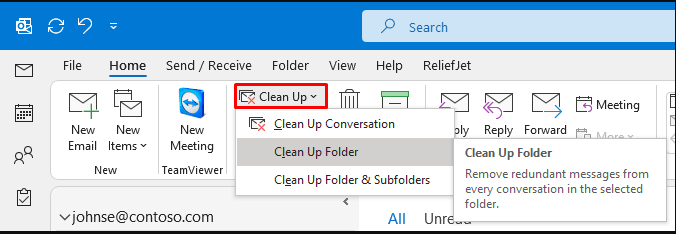
This approach helps to delete multiple similar messages across different threads.
Method 4: Sort and Delete Manually
If your Outlook cleanup tool not working, then manually sorting and removing them can surely help a lot. Follow steps listed below:
- Firstly, sort your messages on basis of subject, date, sender, etc.
- Then, detect and identify duplicate emails.
- Press Delete option, or else you can move them.
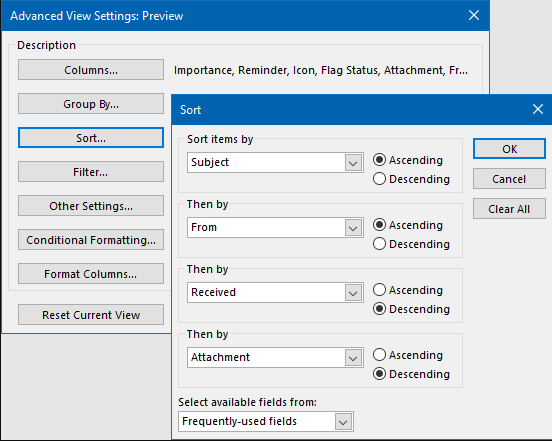
Pro Tip: It is suggested to use this search filter, which can help you identify emails easily.
Method 5: Make Rules and Filters
One can make their own rules, which can automatically manage these duplicates. See how it can be made:
- Go to Rules, then click on Manage Rules and Alerts.
- Make a rule on basis of subject, date, or sender.
- Transfer replicates to different folder.
It helps to avoid these duplicates from piling up in future.
Method 6: Recover PST/OST Data Files
If you are working on a corrupted or damaged data file, then cleanup tool will not work. So, to make it respond, follow these steps:
- Quit your Outlook.
- Run ScanPST.exe, also known as Inbox Repair Tool.
- Recover your file and launch Outlook again to run Clean Up feature.
Tip: Instead of working manually, you can try FreeViewer PST Repair Tool, which instantly makes your file accessible without any data loss.
How to Fix Outlook Cleanup Tool Not Working?
If you have used all above solutions for resolving Outlook Clean Up not removing duplicates, but none of them worked properly. In such cases, we would like to suggest using an expert-recommended utility that is FreeViewer Outlook Duplicates Remover Tool.
Know more features given below:
- This removes bulk duplicated items like emails, contacts, calendar, notes, tasks, etc.
- Offers dual mode to deduplicate from within and across folders.
- Also, eliminate replicates from passcode set files.
- Preserves original data structure intact.
- This trusted software supports both Windows and macOS.
Step Guide to Fix Outlook Clean Up Not Removing Duplicates
- Install and run aforementioned software on your system.
- Tap Add files and folders button to add data files.
- Choose dual option for depth removal, i.e, Within & Across Folder.
- Change location path to store output data file.
- Select Emails from Item Types feature.
- Click Ok button to complete deletion process.


Conclusion
In this article, we discovered 7 proven approaches to resolve Outlook clean up not removing duplicates, that includes both manual and automated solutions. If you are Outlook user and trying to fix and prevent your Outlook cleanup tool not working, then we have best ways mentioned above. Always keep your outlook clean so that you can avoid these problems in future.