Here’s How to Solve the “Outlook Archive PST Cannot be Found” Error


When MS Outlook is unable to locate the archive data file due to incorrect path mapping, profile misconfiguration, file deletion, or corruption, users face the “Archive .pst cannot be found” error. This guide will help you tackle this issue using both manual and automated ways. Along with that, we will learn why the Outlook archive.pst goes missing and where it is stored. So, read the entire article and find out the best solution for you.
Microsoft Outlook is very popular and widely accepted for business as well as for personal purposes, however, it has some issues that are faced by most users. This email client stores all the data information in .pst file format such as calendar, contacts, server messages, tasks, journals, etc. Therefore, PST file is very important while working with Outlook applications.
We refer to the PST file as an archive when the file is not associated with any mail account like POP3 or IMAP. Thus, when we get the message “archive .pst cannot be found” then, this leads to multiple circumstances. That we will discuss in the upcoming section. But before that, take a look at this user query.
Users Query
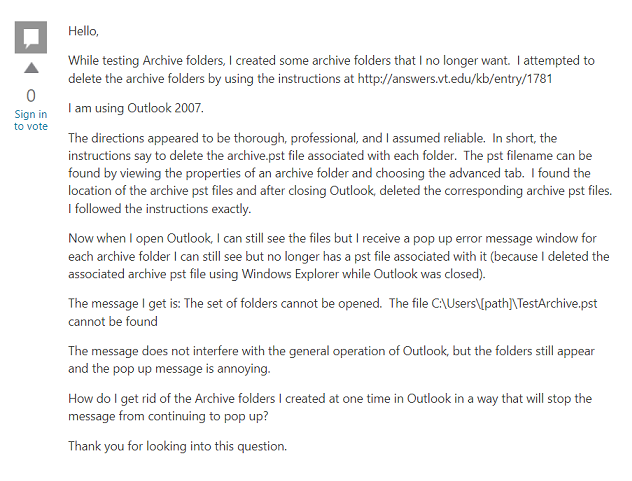
If you are also facing a similar situation, worry not. This guide has numerous solutions for you. But before jumping straight to the solutions, see where to find the archive.pst file in Outlook and then, have a look at the most common reasons why Outlook PST file could not be found.
Where to Locate Archive.pst File in MS Outlook?
Most commonly the location of the archive PST file is:
C:\Documents and Settings\username\LocalSettings\Application Data\Microsoft\Outlook\archive.pst
Reasons Why Outlook Archive .pst Cannot be Found/ Opened
In this section, we will provide you with the reasons behind the issue. Let us have a look:
- Corrupted or damaged Outlook data file.
- The system is infected by the virus or malware.
- Presence of bad sectors in hard drive.
- Improper Termination of Outlook.
- Due to an oversized email message in the mailbox.
- In these cases, the error will be shown to the users on the screen that Outlook is unable to open this set of folders.
- If there are minor issues with the file then you can use the Inbox Repair Tool or Scanpst.exe to repair issues in the Outlook data file.
Manually Solve Error “Outlook Archive .pst Cannot be Found” Using Outlook Application
- Firstly, launch the Microsoft Outlook application.
- Now, hit File tab >> Account Settings
- Choose the email option and then select an email account that has an error. Then, press on Change Folder
- Next, tap on the option New Outlook data file to create a temporary Outlook data file
- Here you have to assign a name to a newly created Outlook data file
- Choose the Inbox folder OK
- Now, again go to Account Settings and choose the Change Folder option
- After that, pick the correct Outlook file/folder >> OK
- Following that, move to the data files and delete the temporary Outlook PST file from the folder
- Finally, exit from the Account settings dialog window >> Send/Receive alternative from the Outlook ribbon
Professional Solution to Resolve the “Archive.pst Cannot Be Opened in Outlook” Error
There is major corruption in the Outlook data file then use Advanced PST Repair Tool. The utility is very effective and solves the error within a few clicks. It can easily repair the major corruption and fully damaged files. The software resolves the error archive .pst cannot be found/opened. Moreover, it can correct the error without any data alteration. There are many other functionalities that are also very useful.
- While working with the tool the corrupted PST files & deleted data can be easily restored in various file formats like PST, EML, MSG, PDF, and HTML.
- The tool maintains the folder hierarchy structure by keeping its meta-data properties intact.
- It supports Outlook BAK file items recovery.
- The utility provides a Split PST file feature to break large PST into smaller parts.
- It also performs decryption of the password-protected and encrypted PST file.
- The software instantly restores multiple PST files in batch.
Know More: Get Solution to the Error Outlook Out of Memory or System Resources
Working Steps Explanation of the Software
To start fixing the error “archive.pst cannot be found” the first thing to do is to download and install the advanced tool on your local system.
- When the software is successfully installed, add the PST file by clicking on the Add File icon. Although the tool provides you two options Select File or Search File. Users can choose any of the options as per the requirements.
- After adding the Outlook data file, here you will see the two scanning modes: Quick Scan and Advanced Scan as per your needs. But if there are major issues such as the file is corrupted, fully damaged and if you want to recover the deleted items then, go for the Advanced Scan.

- Now, when the scanning procedure is accomplished you can preview the data items in various preview modes.

- Choose PST in the Export option and tap the Export button to finish the task.

Conclusion
In this article, we introduced you to the two approaches to solve the error “archive .pst cannot be found”. Both professional, as well as Manual methods, are explained. If the Outlook data file has some minor issues then use the manual method but if there are major issues then you must choose an automated approach it will give you safe and efficient results. And also it has additional amazing features that will definitely help you.