Extract Attachments from PST File – Simple & Fast Methods


Overview: In this tutorial, you will get to know about different ways to extract attachments from PST using manual steps & automated solutions. Further, we will cover the area on how to extract attachments from multiple PST files, saving only specific file types, and keep the original folder structure during your entire process.
Moving on, many users usually have years of emails along with important attachments stored in their PST files. With time, your size of PST increases, and people start facing the problem of finding and saving these attachments manually. As it takes lots of your time.
For that, users can export all attachments from PST in order to reduce file size, organize documents, create multiple backups, or you can save it to different locations as per your need to access faster. What actually happens is that it helps you to manage Outlook data more efficiently and saves valuable time of yours.
First of all, let’s know about PST to let user know what actually the file is all about and what can be done in terms of work.
PST Files – Short Overview
PST files store your Outlook emails, its attachments, contacts, and other mailbox data stored inside. In most cases, attachments are in large numbers and it takes an ample amount of space and increases the PST file size. By extracting all attachments from Outlook PST files, you can easily reduce mailbox size, and manage your data more efficiently.
After knowing about Outlook PST, let us move ahead with the reasons section.
Why Export All Attachments from PST? Points to Note
There are many important reasons to extract attachments from PST. So let’s go down and read those:
- To reduce mailbox size by removing large PST attachments
- It helps you to download your invoices, contracts, reports, in offline without opening Outlook
- Keep all your important attachments in a separate folder to safely keep it with you
- Also, fulfill the activities like audits, compliance, or reviewing business company’s
- Find and access the attachments in seconds without searching manually, when you need the most
Read More: View Multiple Attachments in Outlook
User’s Benefits:
- You can delete all your attachments in one go rather than saving attachments one by one
- Save your attachments by its file type, or it’s name to avoid confusion
- Select only the files that you need, such as PDFs, images, or documents
- By this, you can handle large PST files present in your mailbox efficiently
- Opt our professional solution to reduce the chances of missing any email and extract PST attachments in bulk
Important Tips to Note:
- Firstly, make a backup of your original PST file
- Look for emails which has attachments to it to make the most of the below methods
- Having large attachments will take long time to process your email
- Find the search feature in Outlook to locate emails with attachments & save them first
Extract Attachments from PST File – Manual Methods
If you want to export all attachments from PST manually, then follow the steps given below. But, remember it may have some type of limitations.
#1. Save All Attachments from Outlook
Well, check out the steps and try them first.
1. First of all open “Outlook” on your system to extract PST attachments of your choice
2. After that, select the “Email” which has attachment inside it
3. Then, click on the attachment part and just “Right-Click”. 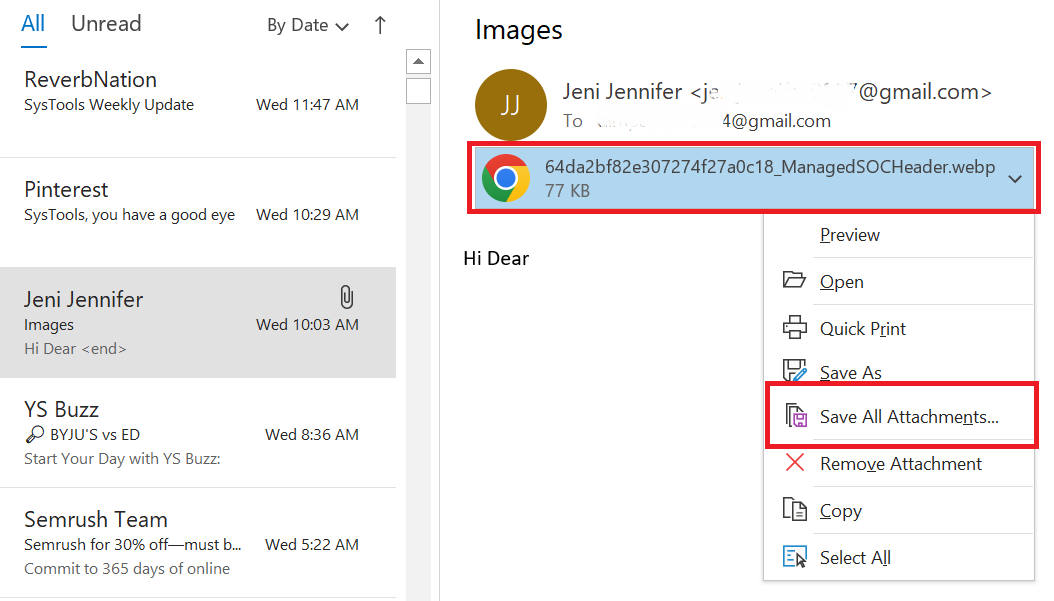
4. After that, you will see the option of “Save All Attachments” in the menu, click on it.
5. Finally, press the “OK”, select the preferred “Location” and hit the “Save” button. 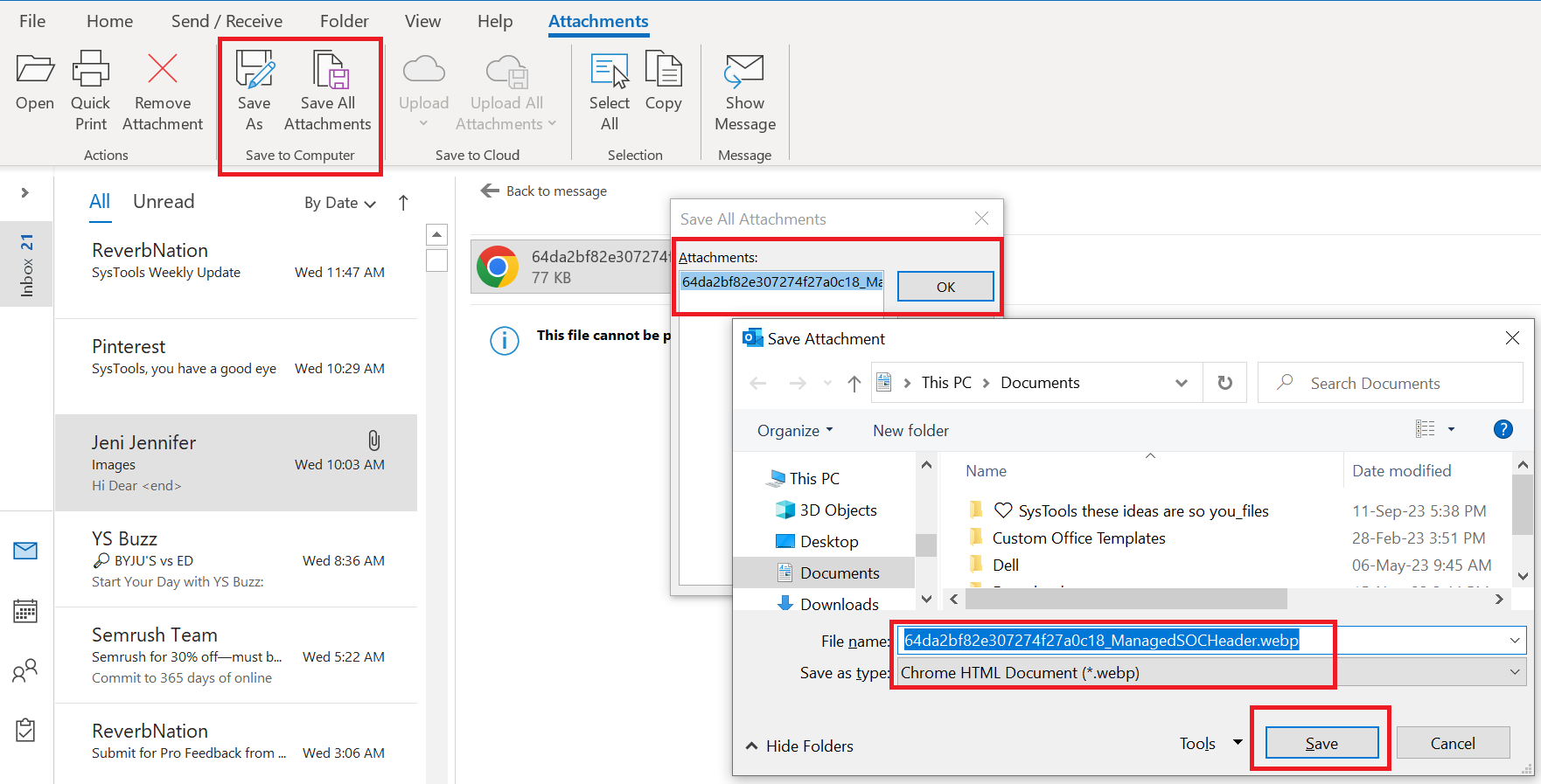
#2. Extract Attachments from PST Using Outlook VBA
Outlook VBA is your visual basic applications which can help Rather than opening every email manually, you can run a macro code to save all your attachments from multiple email messages in a PST file or folder.
1. At first, open Microsoft Outlook
2. Press Alt + F11 shortcut key to open the VBA Editor
3. Next, choose Insert > Module
4. Here, paste a VBA macro code which will automatically save your Outlook attachments
Sub ExtractAttachmentsFromPST()
Dim objNamespace As Outlook.Namespace
Dim objFolder As Outlook.MAPIFolder
Dim objItem As Object
Dim objMail As Outlook.MailItem
Dim objAttachment As Outlook.Attachment
Dim SaveFolder As String‘Change this path to your preferred folder
SaveFolder = “C:\PST_Attachments\”Set objNamespace = Application.GetNamespace(“MAPI”)
‘Select the PST folder
Set objFolder = objNamespace.PickFolderIf objFolder Is Nothing Then
MsgBox “No folder selected.”
Exit Sub
End IfFor Each objItem In objFolder.Items
If TypeName(objItem) = “MailItem” Then
Set objMail = objItem
If objMail.Attachments.Count > 0 Then
For Each objAttachment In objMail.Attachments
objAttachment.SaveAsFile SaveFolder & _
Format(objMail.ReceivedTime, “yyyymmdd_hhnnss_”) & _
objAttachment.FileNameNext objAttachment
End If
End If
Next objItem
MsgBox “Attachments extracted successfully!”
End Sub
5. Just change the final folder path in the script to save attachments in your desired folder
6. Don’t forget to save the VBA project locally
7. Press F5 or run the macro from the Developer mode in Outlook
8. It will scan your selected mailbox or PST folder and saves it to your location
Why to Use:
- It is suitable for automatic extraction of your Outlook attachments
- Saves time when you are scanning multiple emails
- It works well for constantly repeated task related to extraction
Before you run a macro, read these following points:
- The first thing is to ensure that Outlook is installed in your system to open the PST file
- Check the security settings, as in some cases VBA macros get’s disabled
- Always verify the code before actually applying, especially when you have taken from internet
- Take it from the trusted source for smooth process
Sure-Shot Limitations of the Manual Methods
- You can only export all the attachments of a single email in one go
- Additionally, you need to have Outlook installed in your system to follow the manual steps
- The folder structure of email attachments will change after you save them
- You need to have some sort of technical ideas
- If you even misses a single step, the chances are very high of losing data.
- Apart from this, it is a very time-consuming process. There are many other such flaws
Challenges While Extracting PST Manually
It is hard to extract all attachments from PST file. Below are the problems which comes across:
- When you need to extract attachments from large Outlook PST files like 20 GB or more
- Having multiple PST files to process
- You have the requirement to extract only specific file types, such as PDFs, images, or in document form
- When keeping the original folder structure is a key aspects
- Microsoft Outlook is not installed or not supporting your device
- Get to know that your PST files are damaged or corrupted
The steps of this method end here. If you do not want to face any kind of problem in downloading all attachments from Outlook, then you should follow the professional and expert solution given below to extract all attachments from PST file.
More Read: Open Blocked Attachments in Outlook
Professional Way to Extract Attachments from PST File without Outlook
If the manual technique appears to be too difficult to mass save attachments in Outlook 2021, 2019, 2016, 2013, or earlier versions. Then, use the Outlook Attachment Extractor Tool. It is one of the best programs for simultaneously saving attachments from many emails in Outlook 2013 and previous versions.
The software has exceptional features that allow you to save attachments not only from PST files but also from OST, BAK, MSG, OLK, and OLM files. This tool is also capable of opening blocked Attachments in Outlook. You will find customize options such as selective folder attachments, date & size filtering, and many more. To extract Outlook file attachments, one can choose any of these to extract attachments from such as emails, contacts, tasks, and so on. The software also lets you include or remove attachment from the list after adding it. It is capable enough to extract images from Outlook Email.
Now, let us move on to the below section to learn about the application’s steps:
Detailed Steps to Export Attachments from PST
1. First, download and install the software on any version of Windows.
2. Then, Select the “PST/OST Radio” button and press the Next button.

3. After that, To add the Outlook data files, select “Add File(s) or Add Folder” to extract attachments from the PST file.
4. Then, select the appropriate “Mailbox Data” item from the Filter dialog box.

5. After you’ve applied all of your personalized settings, finally, click the “Extract” button.

Salient Features of this Software:
- Tool can extract all Outlook attachments in bulk mode at a time
- Choose and save attachments on their file types such as PDF, DOCX, XLSX, ZIP, or JPG. Get the way you want, simple!
- Keeps the original Outlook folder structure. It retains all the email properties and no changes will be made to the original format or content of your PST files
- Process large PST files smoothly without slowing down your system performance
- No need to install a supporting application. Users can extract attachments from a PST file without installing Outlook.
Manual vs Automated Method – When to use?
Go through these points to know which methods is best to go with when you have several PST attachments to extract:
- Use the manual method only if you have a few emails with attachments
- If you have a large PST folders or having files of different type, it is better to choose expert tool
- An automated tool is much more convenient to extract attachments in bulk
- Even provides date filter option to access old emails quickly
- You can manually save each email and it may not download every embedded file
Helpful Tips to Save Time
- If you don’t see Save All Attachments option, just go to filter settings and ensure this particular box is ticked
- Your Outlook is not working properly with a large PST file, then turn off extra add-ins which is of no use
- Make sure to enable Preserve Folders in order to keep the structure as it was
- I’m sure you are also getting emails with large attachments. Before you save them, check whether you have enough space or not
- Close all other program in the background before extracting for free flowing of system
- If a saved attachment doesn’t open, Outlook may have blocked the attachment for being unsafe
- Keeping Outlook up to date will make your process faster
Conclusion
This article describes reasons, along with two different methods which is manual and other professional one. If you want to extract attachments from PST in bulk, go with our expert solution. You can save attachments from any of these Outlook versions like 2021, 2019, 2016, 2013, 2010, and so on. To preserve Outlook attachments from many emails, users can now choose any option based on their technicalities, current needs, and preferences to download attachments from Outlook emails.
Frequently Asked Questions
Q. Is it possible to save multiple embedded photos from existing emails?
A. Yes, you can save numerous embedded photos in Outlook by using the Save All Attachments option or going with our professional solutionQ. How can I save all of the Outlook attachments I received today?
A. If you get several emails suddenly, then open each mail manually and save it. Otherwise, use the described solution to bulk extract attachments from PST.Q. Is it possible to save deleted Outlook emails without Outlook?
A. Yes. The automated approach described in this article will allow you to find and save deleted Outlook emails and attachments even if you do not have Outlook installed. No Worries!