Can’t Upload PDF to Claude? Reasons & Instant Fixes to Try


Claude AI is among the most popular and advanced LLMs and AI assistants for reasoning, coding, problem-solving, writing, and more. This makes Claude—the beloved AI ecosystem among professionals, businesses, developers, and more — for generating faster, cleaner code or projects. Now, imagine you want to analyze your research or PDF document, and unfortunately, it hits the error of “can’t upload PDF to Claude AI”. The message may affect your workflow and result in frustration.
Follow this comprehensive guide to discover the potential reasons, like file size issues, number of pages, and other unknown causes. Also, learn the fastest troubleshooting fixes to resolve the “cannot upload PDF to Claude” error.
⚠️”Unable to Upload PDF to Claude”: Instant Fixes
- Generate a new chat or refresh the webpage, then upload the PDF file.
- Remove permissions password from PDF document for quick analysis.
- Optimize PDF file size and don’t upload hefty documents.
- Use a desktop-friendly and trusted PDF Splitter by FreeViewer to reduce the size and make PDF AI-friendly in seconds.
Why Can’t Upload PDF to Claude? Common Reasons
There are several reasons behind failed to upload PDF to Claude. It mainly includes large size and overlay text or font, which trigger the issue. Below is a detailed breakdown of why Claude cannot upload PDF files:
- PDF File Exceeded the Limit: Claude sets the limit per chat; if it exceeds, this may show an error and be unable to upload the document. Remember, the Claude AI limits the PDF limit up to 30 MB per file and analyzes 100 pages (both text and visual). Hence, large PDF documents with high-resolution graphics, images, and more aren’t supported by Claude. This may result in Claude unable to upload PDF files.
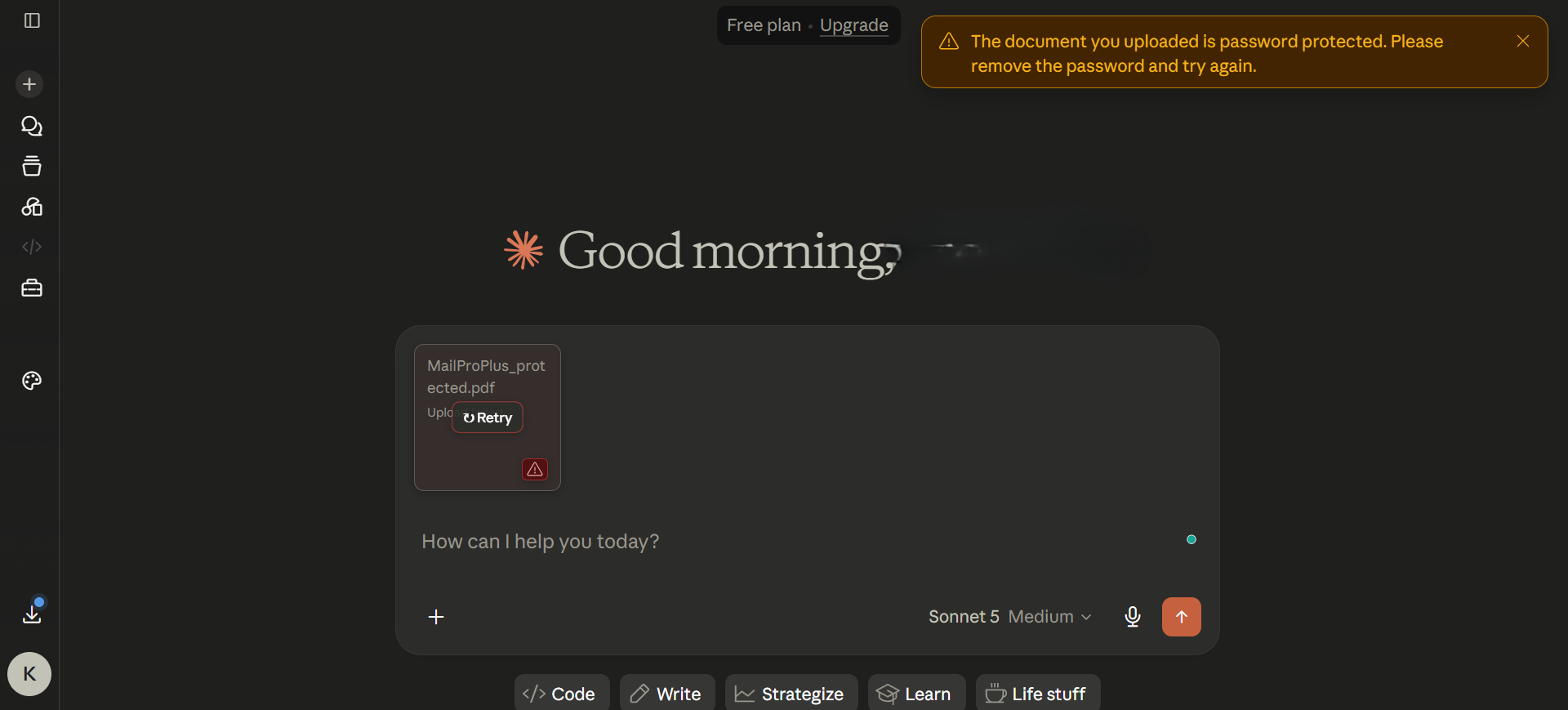
- Protected PDF Document: Another reason includes password security. If the PDF files are protected with a strong password or permissions. This may cause file error and automatically shows “retry or failed to upload PDF on Claude AI”. Therefore, you need to bypass the protection and then upload the necessary PDF document on Claude AI or Pro account.
- Exceeded PDF Page Count: It is suggested to keep the full PDF file under 100 pages. If the PDF file exceeded the page count, this may eat up the tokens for each chat. Moreover, it becomes difficult for Claude AI to analyze or read the visual or text. Also, the page count varies between free and pro accounts. This is another cause for encountering the issue of Claude not uploading PDF file.
- Check Browser or Network Connectivity: Beyond the file issues, often browser or network connectivity is the primary reason when failing to upload a PDF on Claude AI. Sometimes, the culprit is browser cache or cookies, VPNs, or poor networks that cause the problem. Hence, it is suggested to use a stable network and remove all the cache data when facing the error.
- Temporary Claude Outage: The issue of “Claude not letting me upload PDF” may occur during a Claude outage. Hence, it is recommended to double-check the server status when addressing this problem multiple times.
Overall, these are the causes for cannot upload PDF to Claude AI. Now, you must be wondering about the troubleshooting fixes. Follow the guide below and learn the best approaches to fix the error.
Unable to Upload PDF to Claude AI – 9 Quick Fixes
If you’re constantly addressing the issue of “can’t upload PDF to Claude AI”, below are the basic to advanced fixes to try. Whether your Claude account is free or subscription-based, you can follow these effective troubleshooting steps to resolve the issue. Here’s how to can I fix “failed to upload PDF to Claude”:
- Check the PDF Size & Claude Limits
- Break PDF Pages
- Remove Document Protection
- Clear All Browser Cache Data
- Disable Problematic Browser Extensions
- Fix File Corruption
- Refresh Claude Page
- Switch to Different Browser
- Check Stable Network Connection
Now, let’s understand these one after another.
#1 Check the PDF Size & Claude Limits
If you’re continuously facing the issue of can’t upload PDF to Claude AI, first check the PDF size and verify the Claude limits. Moreover, the Claude account defines the chat and file size limits. Once it exceeds, you may encounter the problem of being unable to upload a PDF to a Claude or a Pro account. Now, double-check the size and Claude limits mentioned below:
| Context | Per-File limit | Page Limit |
| Claude.ai chat (basic) | Limit under 30 MB | 100 page count |
| Claude Projects (Pro/Team) (paid) |
up to 30 MB | Support under 100 pages with flexibility |
| Claude File API | up to 500 MB | Under 100 pages count for visual analysis |
Based on the page count and size limit, you can optimize the PDF size and make it ready for Claude AI. After this, you can easily analyze or extract information from your PDF document.
#2 Break the PDF File
Due to the PDF size, you may address the issue of failed to upload PDF to Claude. To resolve the error, you need to break the document to reduce its size. Here, you can use advanced and reliable software, like FreeViewer PDF Splitter. It is a trustworthy offline utility that eliminates the risks of free online platforms or tools. Using the software, you can break the large or hefty PDF document into parts.
Since Claude accepts 100 PDF pages per chat. With this tool, you can use 6+ options to break the pages. In other words, it allows users to split the document by pages, even or odd pages, size, range, and more. This way, you can optimize the overall PDF size, making it Claude-friendly. The tool is suitable for everyone. So, use this offline solution on Windows or macOS. Now, follow the quick working steps:
- To begin the process, start downloading the software on your system.

- Use the Add Files or Folders to browse the large PDF file.

- Move down and pick the “Split” option and hit the Next button.

- Navigate to Split functions and choose any property for PDF.

- Click Change to define the output PDF path and finally, hit the Split button.
- After this, you can upload the chunks of PDFs to Claude chat for research and analysis.
#3 Remove Document Protection
Document security is another reason for Claude not uploading PDF file. Due to the protection, you may address the error as follows:
To open, view, and review the PDF on Claude, you need to change security settings in PDF. Try the PDF Unlocker Tool by FreeViewer. It is an offline and independent utility for Windows or macOS. Using this software, you can easily bypass the protection and access the passwordless PDF file.
In other words, the tool is capable of unprotecting passwords and permissions in a single attempt. During the process, the software protects the file formatting and other elements. After bypassing the security, you can effortlessly upload PDF to Claude AI with ease.
#4 Clear All Browser Cache Data
If browsing the PDF on Claude gets stuck, hangs, or fails, it often occurs due to corrupted browser cache data. To fix the error, you need to clear the browser cache history and then upload the necessary PDF to the Claude account. This is among the simple yet effective fixes to try when facing the problem with Claude.
#5 Disable Problematic Browser Extensions
After deleting the browser cache, if the error “Claude cannot upload PDF” persists, then turn off all the browser extensions. Sometimes, problematic browser add-ons may cause issues with file uploads when using LLM platforms. After removing or disabling the browser extensions, you can easily access or upload the PDF to Claude.
#6 Fix File Corruption
The PDF file corruption is the primary reason for Claude not uploading PDF. Instead of searching online tools, use PDF Recovery Software by FreeViewer. Use this reliable utility for fixing file corruption in seconds. In other words, it provides a healthy PDF document without altering the original formatting. So, download the software on your Windows or macOS machine. This way, you can upload the new PDF document to Claude AI for researching, analyzing, and more.
#7 Refresh Claude Page
This is a simple approach to fix “can’t upload PDF to Claude”. By refreshing the chat or Claude page, you can eliminate the temporary bugs or glitches. If the issue remains, you can follow the fixes below:
- Reload the chat
- Log out and sign in to Claude again
- Start a new session and upload PDF
#8 Switch to Different Browser
After clearing the browser cache data, the error may occur. Here, you can switch to a different web browser to resolve cannot upload PDF to Claude. For example, if you’re using Chrome, then switch to Safari, Edge, and other web browsers. After this, log in to your Claude account and browse the PDF file with ease.
#9 Check Stable Network Connection
If the issue of “can’t upload PDF to Claude” still occurs, it may happen due to an unstable network connection. Many of you might ignore the internet bandwidth. But, sometimes it becomes the primary reason for not uploading or opening the PDF on Claude. So, check the connectivity and use a stable connection.
Overall, these are the top fixes to try when unable to upload PDF to Claude AI. Ensure uploading the optimized document to mitigate all the issues.
Final Words
In the above guide, we have listed 9 approaches to resolve “can’t upload PDF to Claude” error. With these free-to-advanced fixes, you can easily upload and analyze the file with Claude AI. Also, it is recommended to use the FreeViewer software mentioned to optimize the PDF size and bypass the protection.