How to Migrate Emails to Office 365? 2026 Updated Guide


Microsoft 365 helps to ease collaboration internally and externally as well as adding enterprise-grade security and reliability to business communications․ Migration of emails to Microsoft 365 is considered a high-risk project by IT teams and business owners alike due to the chance of missing a step causing synchronization problems or mailbox corruption due to an incorrectly configured mail exchange (MX) record․ If DNS propagation is not accounted for‚ users may be without email service for several hours․
The truth is that email migration is not just an IT project – it’s your business continuity event‚ and you need to treat it as such․ The risks of migrating a mailbox or a full email environment are very high․ Larger mailboxes‚ legacy folder hierarchies‚ throttling limits‚ compliance rules and coexistence issues often create infrastructure problems․
This guide explains the different ways to migrate email into an Office 365 account with the least downtime possible․ From pre-migration discovery and DNS preparation to batch migration and post-migration validation, this guide helps execute smooth, secure, and scalable email to Office 365 migration.
Table of Content
Pre-Migration Discovery & Health Check
Before migrating email to Office 365, it’s crucial to complete discovery and health check of the existing email platform. This helps organizations to prevent failures, synchronization issues, mailbox corruption and unexpected downtime during the migration.
- Inventory All Mailboxes: Create a complete backup of user mailboxes, shared mailboxes, archive mailboxes and distribution groups. Check mailbox size, inactive accounts and duplicate data before migrating email to Office 365.
- Review DNS Configuration: Verify MX, SPF, DKIM, DMARC, and Autodiscover records before migration.
- Audit Third-Party Applications: Review all third-party applications connected with your current email platforms such as CRM tools, backup software, SMTP service and helpdesk systems.
- Identify Large Attachments: Large attachments and oversized mailboxes can slow down the migration and cause synchronization issues. Check for attachments sizes more than 25 MB, corrupted files and unnecessary archive data.
- Check Network Readiness: Verify internet bandwidth, firewall settings and connectivity to prevent migration issues.
How to Migrate Email to Office 365?
FreeViewer Email Importer allows users to import MBOX, EML, PST, and MSG directly into Office 365 user accounts. The software supports batch migration and maintains email formatting, attachments and folder hierarchy during the migration process.
Steps to Import Emails to Office 365
- Download and run Freeviewer Email Importer on your machine.
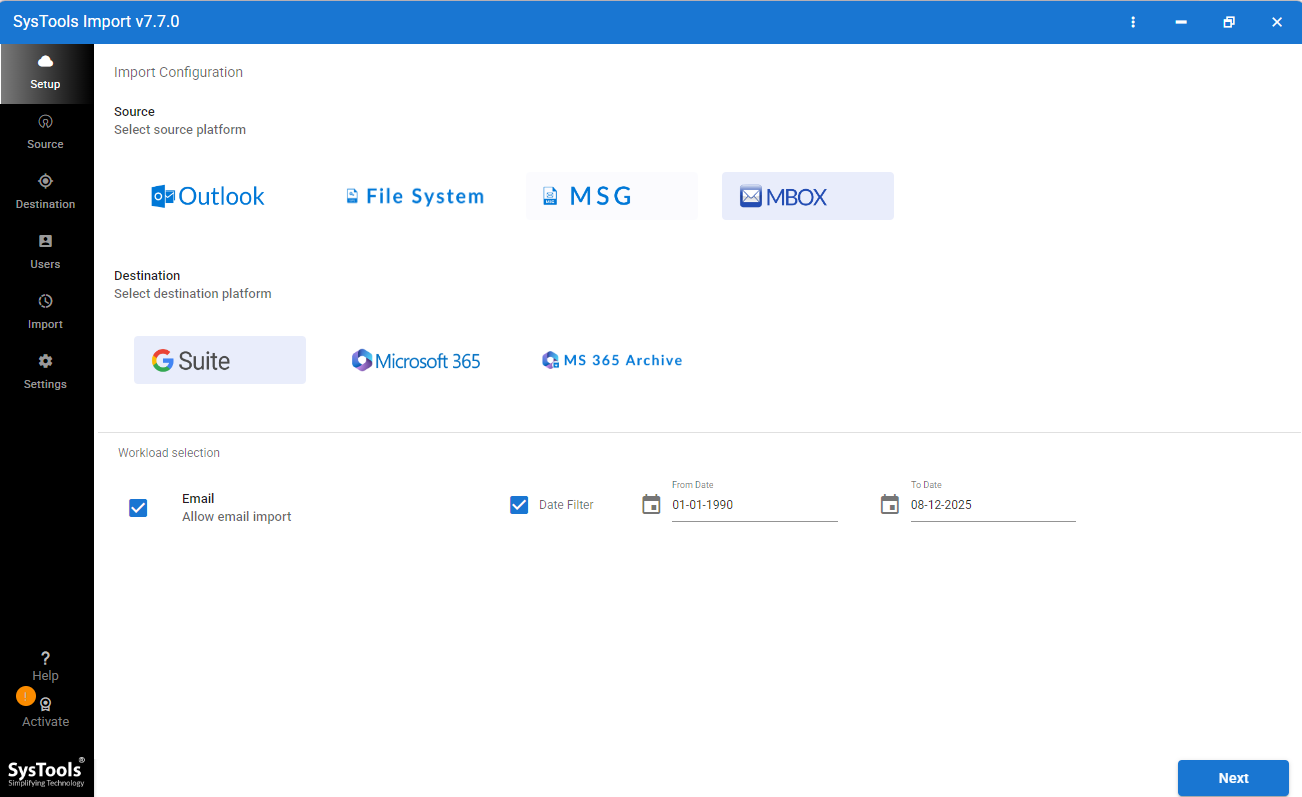
- Click on the option based on your email file type.
- Select Office 365 as the destination and choose the date filter as required.
- Browse Email files and validate them.
- Enter Office 365 Server details and select your targeted mailbox.
- Choose concurrent users as needed and press on Start Import.
Why Choose FreeViewer Email Importer?
- Allows users to import MBOX, EML, MSG, and PST emails into Office 365.
- Directly import emails into targeted Office 365 accounts.
- Preserves email formatting, attachments, folder hierarchy and mailbox properties.
- Apply date filter for selective email migration.
- Select concurrent users for faster email import.
- Performs secure and accurate email migration to Office 365.
- Simple and user-friendly interface for all types of users.
Post Migration & Real World Challenges
After the cutover to Office 365 migration is completed‚ the administrator must update MX records to mail․protection․outlook․com and verify Autodiscover‚ SPF and DKIM settings‚ in order to resume mail flow․ Lowering the DNS TTL values before the migration reduces the DNS propagation delay after the migration is completed and the final cutover occurs․
During Office 365 migrations‚ organizations may encounter throttling limits‚ PST file corruption‚ syncing issues‚ duplicate emails‚ and missing folder hierarchy․ If migrating to Office 365 via IMAP‚ migration may fail for folders with unsupported names․ In hybrid scenarios‚ large migrations may encounter bandwidth throttling and Azure Active Directory synchronization delay․ Successful Office 365 email migration requires proper planning‚ mailbox validation and testing after migrating email to Office 365․
Common Questions
How long does it take to migrate 100GB of email?
The migration time depends on internet bandwidth, mailbox size, server performance, and migration method.
Will users lose their old folder structures?
No, professional Office 365 migration tools preserve the original folder hierarchy and mailbox structure during the migration process. Emails, folders, attachments, and mailbox properties remain unchanged.
Conclusion
In this guide, we have explained trusted and professionally recommended solutions to migrate email to Office 365. If you have any queries or facing any issues during migration then you can connect with our Support Team via email or live chat.