How to Import VCF Contacts to Google Workspace Securely?


In this guide, we will explain to you how to import VCF to Google Workspace in a simple and systematic way. Whether you are switching accounts or want to move contacts as a backup, this is an important step to keep all the communications organized under one mailbox. Since every user has different needs, this article covers both manual and a more reliable approach to perform vCard to Google Workspace migration easily. So, let’s get started.
What is a VCF File?
VCF is also known as vCard file, is a standard digital format that is used to store contact information in a structured and ordered way. It includes details like a person’s name, phone number, email address, company name and other related fields. This helps to maintain a complete record of all the contacts at one place in a single file.
VCF files are widely used to transfer contacts between devices, email services and applications without losing any important information. This is the reason it is universally compatible.
Reasons to Import VCF to Google Workspace
Before understanding the methods, let’s first have a look why importing vCard contacts to Google Workspace accounts is useful and how it benefits users.
- It helps to keep all contacts on one Google account so that users can access them anytime without searching through multiple accounts.
- Google Workspace automatically syncs and updates its contacts on all the devices it is connected to.
- This import process helps businesses to maintain a clean and structured contact list for easy communication flow.
- Plus, importing VCF contacts to G Suite account allows users to quickly search and retrieve contacts during daily tasks. This saves time.
- Ensures that contacts are available on all the devices, this eliminates the dependency of having a computer handy all the time.
How to Import VCF Contacts to Google Workspace Manually?
If you have a small number of contacts then you can rely on this method and directly use Google Contacts.
- Login Google Contacts with your Google Workspace email account.
- Click on Import displayed on the left panel.
- Press Select File option and load your VCF/vCard files.
- Lastly, click on Import.
Now your contacts will appear in your Google Workspace account.
Drawbacks of the Manual Approach
- This method can process files slowly depending upon their size.
- To process multiple files from this method, then you have to repeat each step.
- Some contact fields or details may not transfer properly.
- Repeating the import process can lead to creation of duplicate entries in the Google Contacts.
- It is not an ideal way for business users who handle a large number of contacts.
Professional Solution to Import VCF to Google Workspace in Batch Directly
Managing a large contact list manually is a frustrating process especially when accuracy and speed both matter. To avoid this situation and repetitive steps, experts prefer to use an automated approach that gives accurate results in less time and in an organized manner while saving effort and time.
The certified VCF to Google Workspace Migration Tool provides a direct and safe way to import all VCF contacts to G Suite accounts in bulk without depending upon Google Contacts or any other manual method. It ensures data integrity and allows users to upload batch VCF folders at once without any restrictions, this makes this tool suitable for both personal and business-level contact migration uses. Download it now!
How to Migrate VCF to Google Workspace? Easy Steps
- Download and install the above software on your PC.
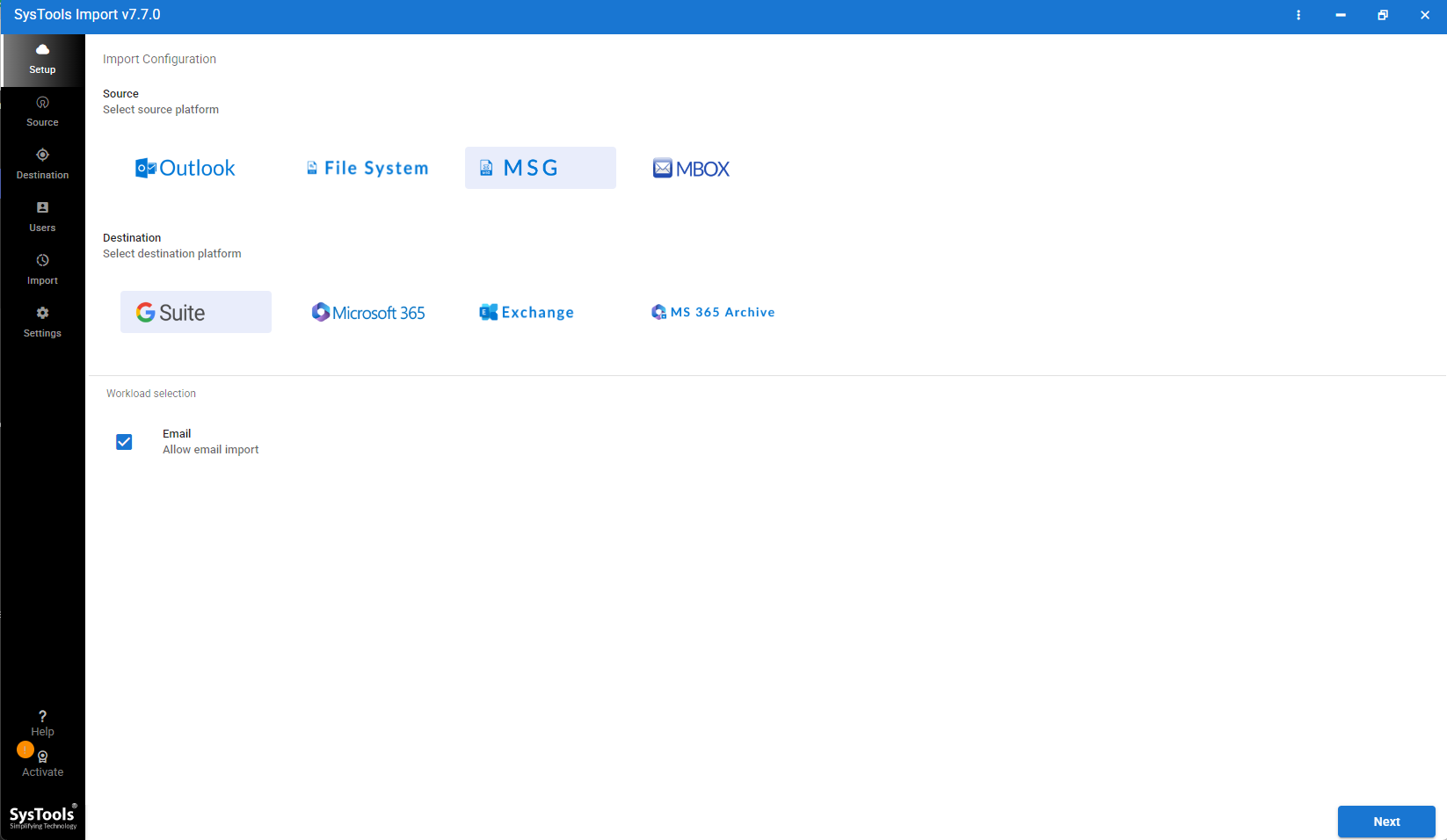
- Select File System from Source and G Suite from the Destination options.
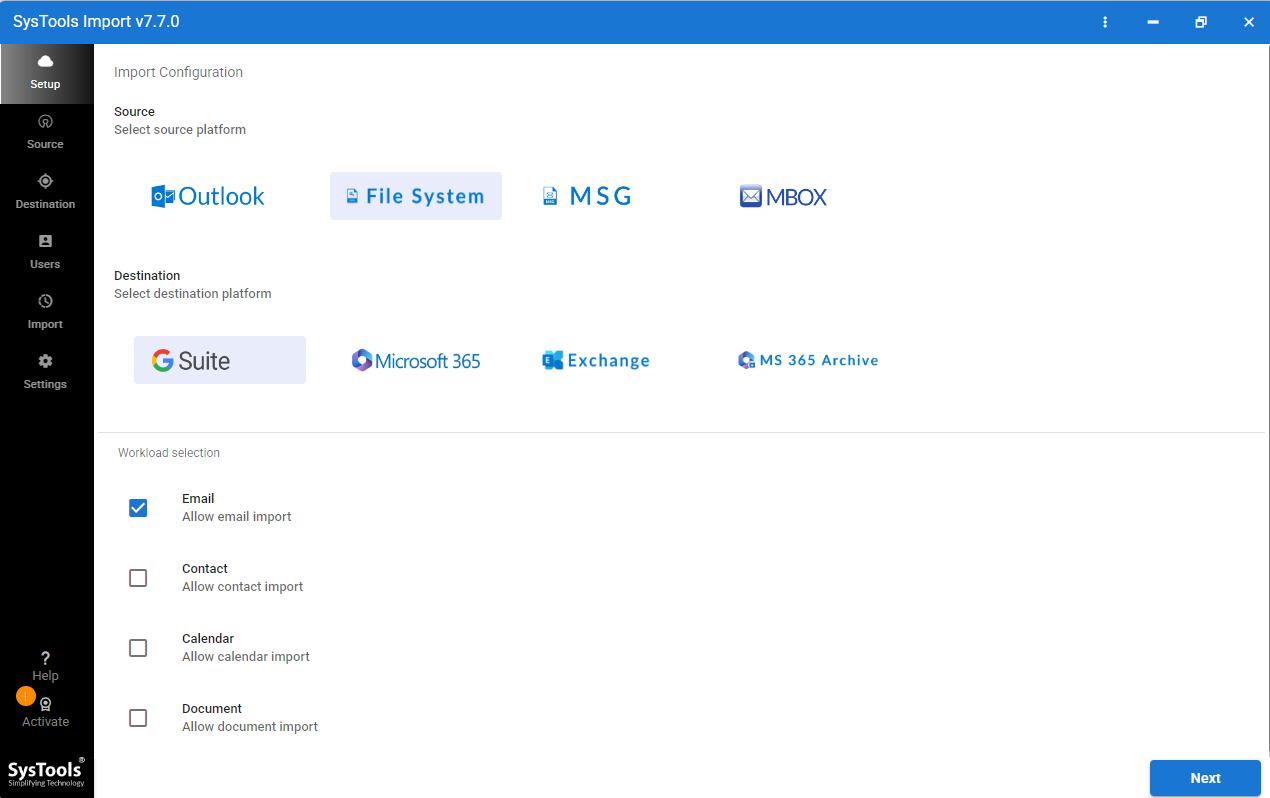
- After that, choose Contact listed under the Workload Selection options.
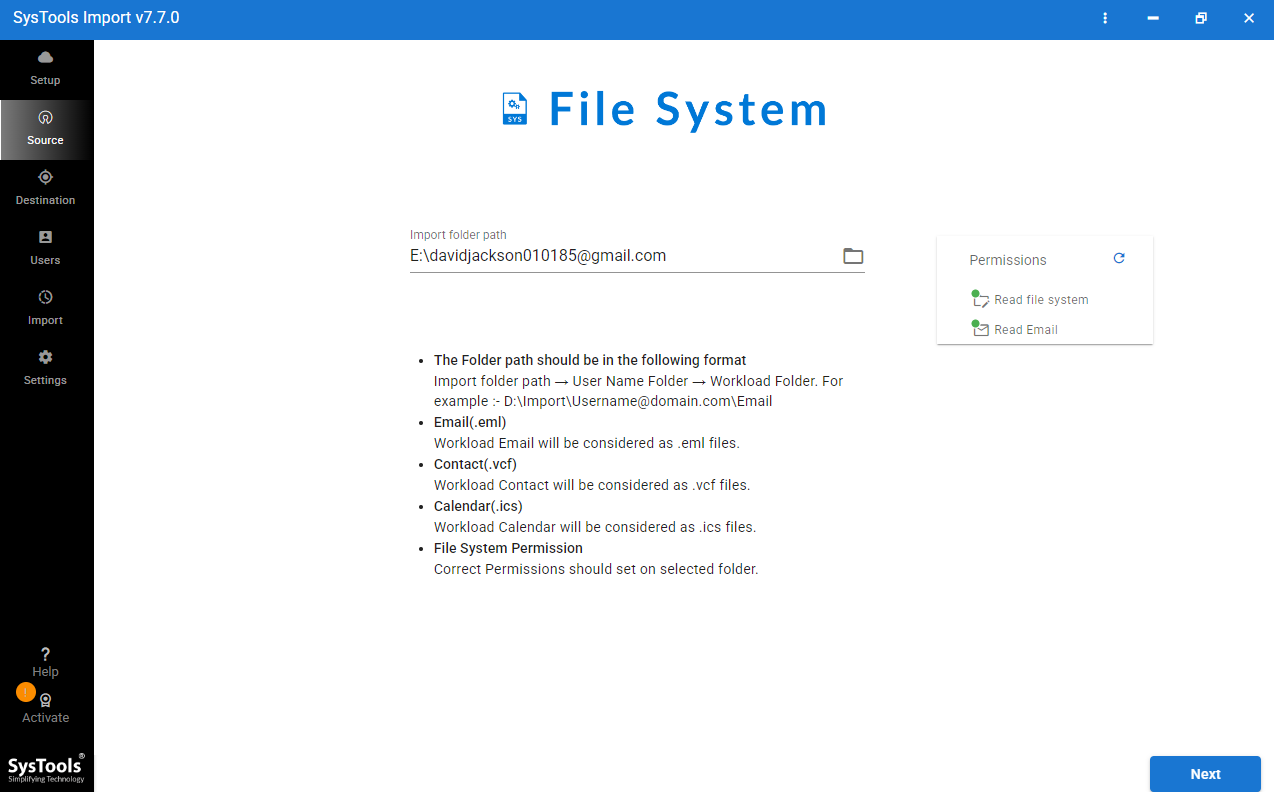
- Once done, simply click on the folder icon and browse your VCF folders. Hit Validate > Next.
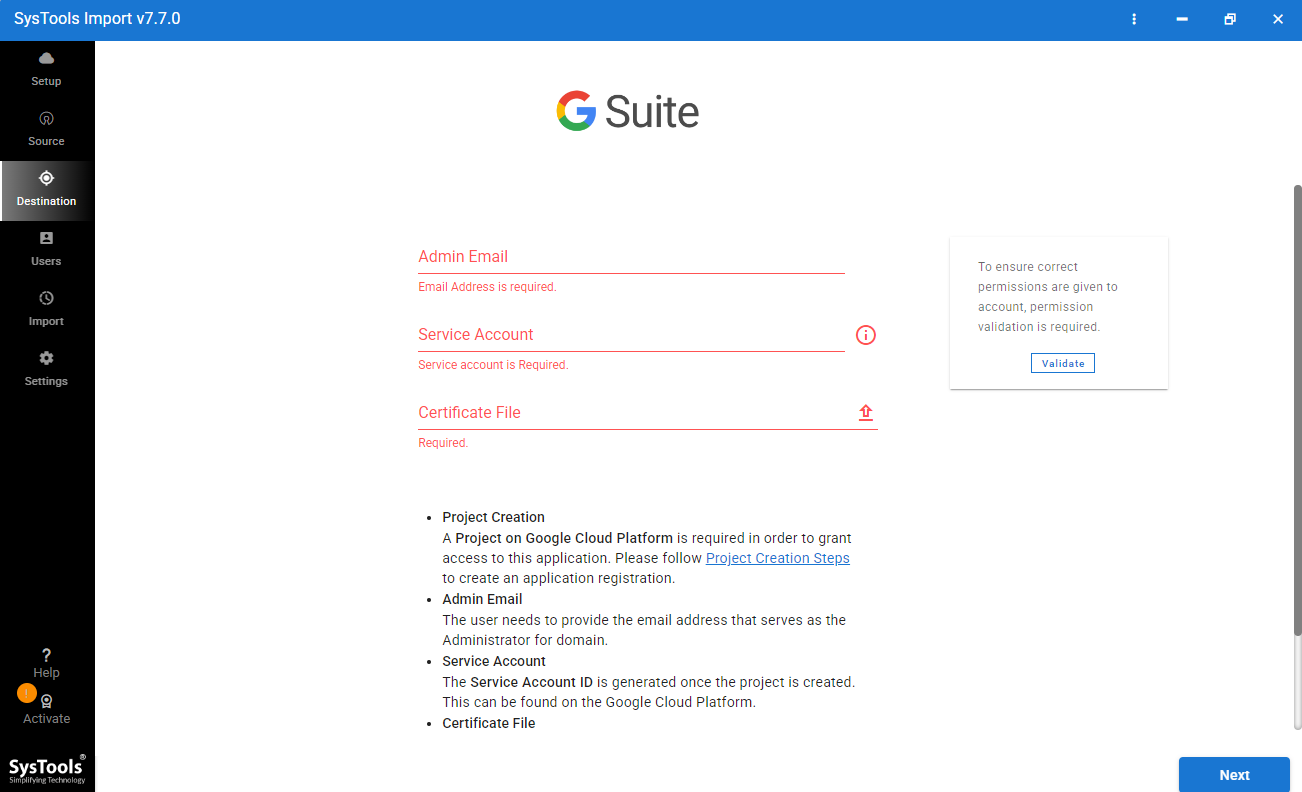
- Enter your Google Workspace email address, service account and certificate file in the respective fields.
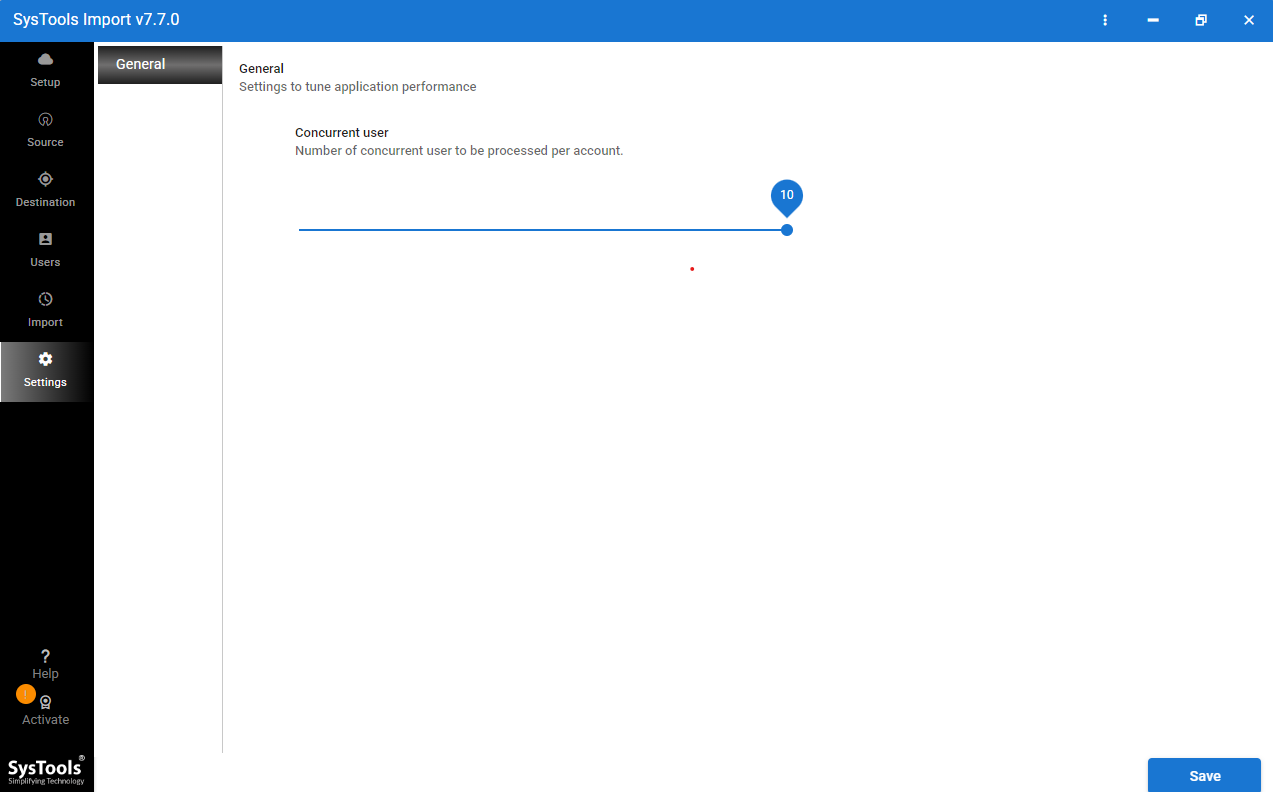
- Now, set concurrent settings and click on Import to start VCF to Google Workspace migration.
Core Features of the vCard to G Suite Importer
- It ensures a safe and error-free migration without modifying the original data.
- Allow users to bulk import VCF files to Google Workspace account in a single process.
- This software offers multi-user import support to handle multiple Google Workspace accounts.
- It supports a user-friendly interface which makes it an ideal solution for home and tech users.
- Maintains complete contact details including names, emails, phone numbers, and custom fields throughout the process.
- Performs the entire process on the user system without uploading any data on an external server.
- Compatible with all latest and older versions of Windows and macOS.
- Offers a free demo version to allow users evaluate tool working and features.
- Moreover, users can track their process as it generates a detailed migration report.
Final Words
At last, I would only suggest you choose the method that best suits your requirements and based on the data you are handling. Importing VCF to Google Workspace is an easy process whether you perform it manually or professionally. The difference is the manual method is for a few contacts and requires time for bulk data and the automated solution is made for batch migrations without affecting the accuracy and speed. It will offer you multiple benefits as well. So always make a wise, practical and reliable choice that safeguards your data as its priority.