How to Easily Import MSG to Office 365? Expert Guide


Overview: If you have access to your own MSG files, then you probably know that transferring this data from one platform to another is not a simple task. MSG files cannot be directly uploaded to Office 365: there is no simple built-in solution available. If you have been collecting a number of MSG files from your local computer, chances are that you are currently stuck trying to upload these files to your new Microsoft Exchange-hosted Office 365 account.
What exactly is MSG Office 365 Migration?
While it may seem that your cloud account is simply a storage place for your email account and contains all of the email messages that you had previously created, it is important to note that since the cloud-based Office 365 environment does not support the same file structure as desktop Outlook, the cloud does not “import” individual email message items.
Consequently, there will likely be instances of lost attachments and email messages, a lack of folder hierarchies, or having to drag and drop thousands of items at once, resulting in data corruption and possibly hundreds of hours wasted in the process of moving your files from your local computer.
Migrating MSG to Office 365: Essential Checklist
Prior to beginning the technical procedures, you will want to consider how you can “set up” your environment. Taking these actions ahead of time can help you avoid common errors throughout the process:
- Check Your Access to Microsoft 365: Make sure you have working credentials that are up to date for your user account(s).
- Back-Up Your Data: Before you attempt a migration, make a copy of your existing files on an external hard drive (most people use a USB external hard drive or some other portable drive) and/or a suitable, secure cloud folder (e.g., OneDrive for Business, Google Drive, etc.) as a backup of the files you will be migrating.
- Check Internet Connectivity: When migrating the data, you will be uploading it to the cloud and you will need an adequate internet connection speed in order to avoid timing out while uploading.
- Clean-Up: Remove any duplicate or worthless files from your folder so that you do not import any excess or redundant data into your new clean mailbox.
How to Migrate MSG to Office 365 Manually? Step-by-Step
When transferring smaller amounts of email, you can use the built in capabilities of your desktop email client to do them manually.
For example, if you are using Microsoft’s desktop version of Outlook as your email client and have already configured your Office 365 account in Outlook, you would follow these steps to manually transfer emails:
- Open both the folder containing the emails being sent, along with the Outlook application.
- Select (highlight) each email you want to transfer.
- Drag and drop selected emails directly from the folder they were in, directly into the appropriate location within your account (such as your Inbox, or a subfolder).
- Wait for the sync icon to complete. Once your emails are synced to your Office 365 account, they will be available via your web browser.
Manual Methods are Not Ideal for Professional Users
The manual drag and drop option is free to use, however, there are some reasons why this method is not appropriate for business or large (over 1000+) accounts:
- Freezing Issues: The manual drag and drop method has a history of freezing or hanging.
- Email Metadata and/or Rich Text Formatting: In some cases, the manual methods may result in the loss of the original email metadata (e.g., Subject, To:, From:, Date Sent, etc.) or rich-text formatting (e.g., font types or sizes).
- Time and Effort: Lastly, the manual drag and drop methods are time-consuming if you are transferring large numbers of emails (e.g., thousands of emails).
How to Migrate Thunderbird to Office 365 using Automated Tool?
The FreeViewer MSG to Office 365 Migration Tool is a professional-quality application that makes it easy to move all of your individual email messages into a central, secure, cloud-based address. This tool automates the migration process, moving your entire archive (including attachments, metadata and nested folders) with 100% accuracy and no data loss.
Follow These Steps to Use the Tool
- Download and install the MSG to Office 365 application.
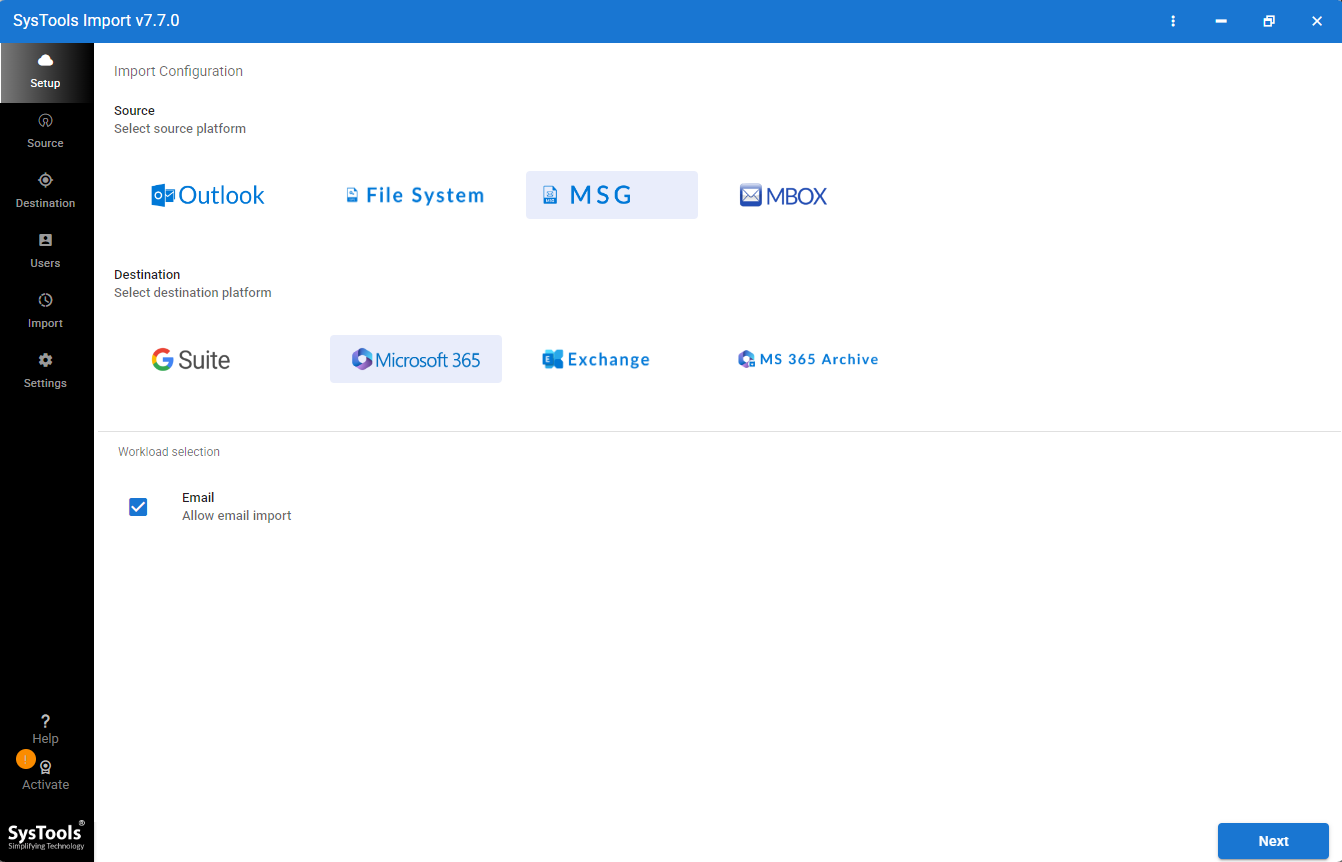
- Select MSG as the source and Office 365 as the destination.
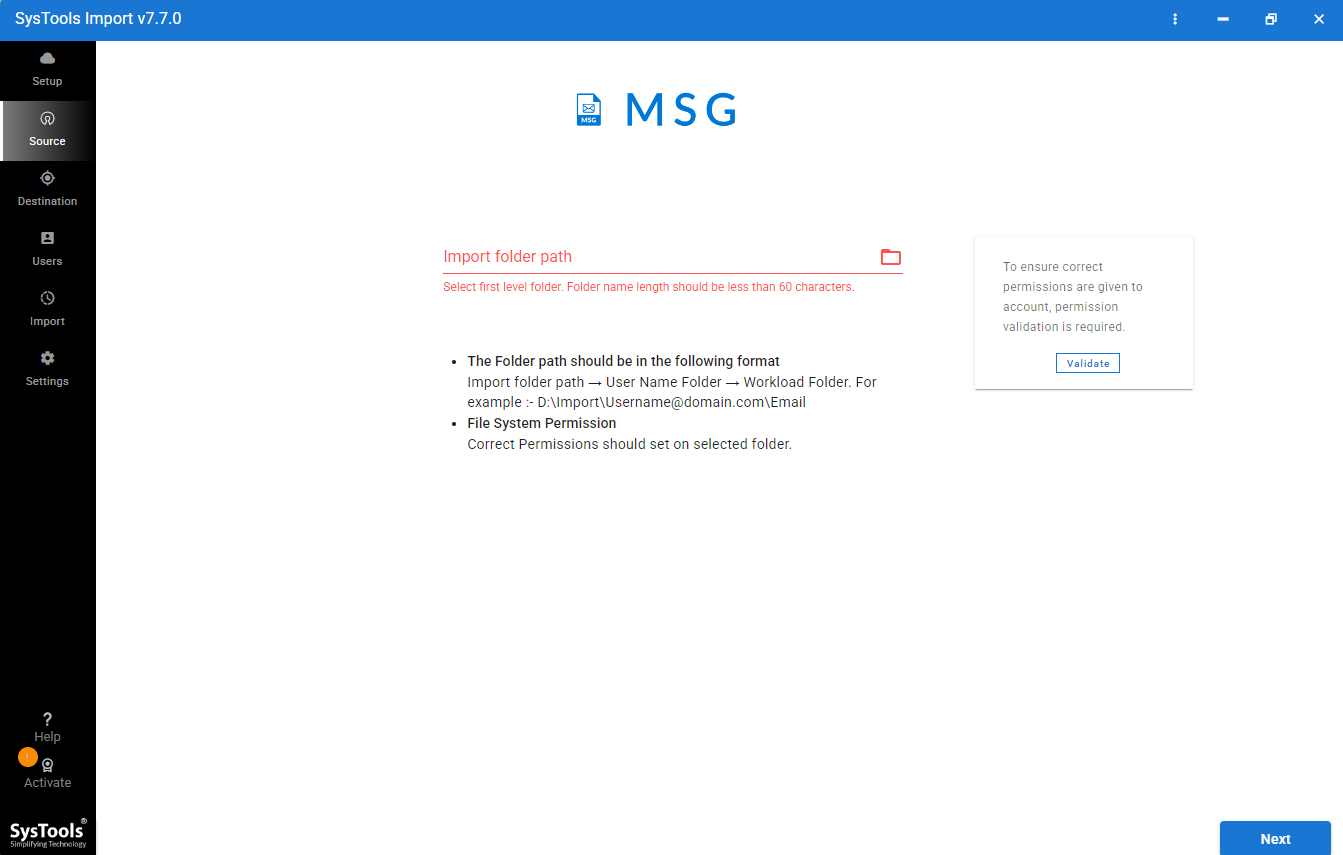
- Type in your Office 365 login credentials (username and password).

- Click the Import button to start importing your MSG files to Office 365.

- While the file is being transferred from the tool to your Office 365 account, you will be able to view a real-time status of your file being imported.
- After all of your files have been imported to your Office 365, you can then check your imported data by logging into your Office 365 account.
High-level Features Available In This Tool
- Import multiple MSG files at once.
- Keep the original folder hierarchy.
- Preserve metadata (to, cc, BCC, sent date, etc.) of each imported email.
- Import all versions of Microsoft Outlook MSG files into Office 365.
- Maintain the HTML and RTF formatting of all emails.
- Admin impersonation for multiple mailboxes.
- Clean, user friendly interface.
- Can re-run any imports if they are interrupted.
Commonly Asked Questions
Q: Can I upload directly to the cloud without using a program?
No, there is no Microsoft 365 web portal ‘import’ button or option to import independently, for example if you have individual messages that you would like to import to Microsoft 365.
Q: Will what has been uploaded lose its original hierarchy?
The manual drag and drop method may change the hierarchy of files, however, migration tools are better at preserving your original folder tree than manual file transfer.
Q: Is it safe to export files when they are being transferred in bulk?
Yes, as long as you use reputable migration software with proven security features (such as secure information transfer using encryption), then exporting files in bulk is safe.
Q: Will any attachments come through with migrated emails?
Yes, if the email is migrated using either manual or automated methods it should include any attachments as long as the files have migrated without error.
Final Thoughts
Migrating your previously archived email to one accessible cloud mailbox will be a good choice for future work and security success. Although the manual method of transferring casual emails may work initially, investing time in using an appropriate migration strategy will save headaches now and prevent loss of important data (email) in the future.
No matter which method of migrating (manual or automated), be sure to have backup of all original files prior to starting. Once migrated to one single location in the cloud, your entire digital archive will be easier to access.