How to Delete Duplicate Tasks in Outlook with 4 Best Solutions


Are you also facing this frustrating Outlook to do list duplicates error and looking for solution for how to delete duplicate tasks in Outlook? If yes, then you are standing on right guide. One can easily remove these repeated tasks from Outlook mailbox by using manual methods, such as using list view feature, sorting and manually deleting, export and import cleaned file again, and grouping tasks by filters.
Pro Tip: For better and 100% accurate results, use automated solution developed by FreeViewer Outlook Task Duplication Remover Tool.
These tasks need to be managed for better productivity of Outlook, but multiple users are facing this issue, and that needs to be eliminated. As these duplicates can easily clutter your already managed to do lists, leading to confusion. Therefore, it is important to deduplicate these replicate tasks.
In this blog, we will discuss how users can effectively eliminate and avoid these Outlook to do list duplicates. So, let’s walk through this helpful guide.
Why Do Duplicate Tasks Occur in Outlook Mailbox?
Before users dive into solutions, it is very important to know main reason for occurrence of these repeated tasks in Outlook. Here are multiple reasons mentioned below:
- Syncing issues with different devices where same Outlook profile is configured.
- Incorrect rules or wrongly applied third party add-ins.
- Importing same Outlook data files multiple times.
- Sometimes, users accidentally make replicate task and forget that it already exists.
4 Proven Fixes to Delete Duplicate Tasks in Outlook
In the following section, we are going to share some of best ways through which a user can easily resolve Outlook to do list duplicates error. Here are methods listed below:
- Using List View
- Manually Sort and Delete
- Export and Import Again
- Grouping Task by Filters
Let’s understand above approaches with expansion one by one.
Method 1: By Using List View
This list view feature shows to do lists in tabular format that helps to detect all repeated tasks easily.
Steps:
- Open Outlook, and navigate to Task tab.
- Press View tab.
- Choose Change View option to List view.
- Find similar and duplicated tasks in list.
- Select Duplicate tasks and Tap Delete option.
Note: All tasks will not appear in list view format.
Method 2: Manually Sort and Delete
One can easily sort tasks on basis of particular parameters, so replicates occur together, which makes it easy to delete duplicate tasks in Outlook.
Steps to do:
- Go to Task, hit View option, and finally, on View Settings.
- Select filters such as due date, subject, start date, etc.
- Tap Ok button and detect repeated tasks filtered together.
- Choose and Remove all unwanted to do list.
Method 3: Export and Import Again
It can help to clean replicates in batch mode by exporting tasks, cleaning duplicates, and lastly importing file again.
Steps:
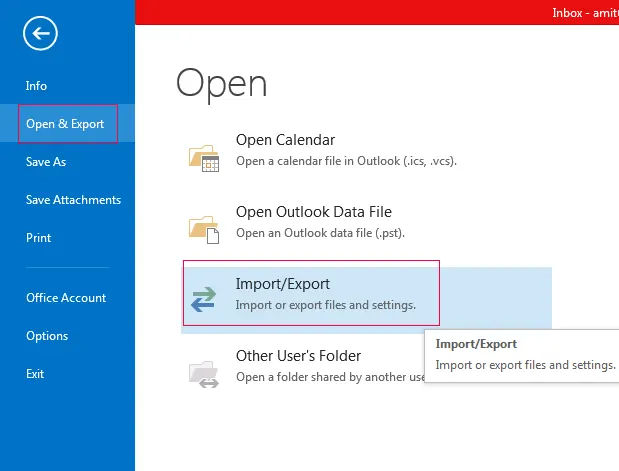
- Go to File, then Open and Export, and finally Import or Export.
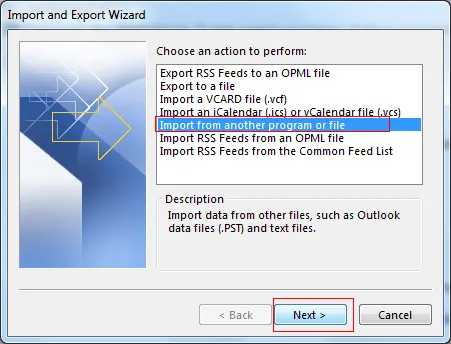
- Select Export to a File and press Next button.
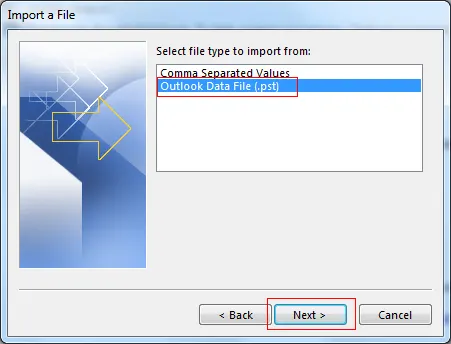
- Choose Outlook Data File option.
- Select Tasks folder and Save file to your local.
- Open same in Excel and Delete duplicates.
- Click Import or Export option by going back to Outlook.
- Finally, Import cleaned file into Outlook.
Method 4: Grouping Tasks By Filters
This approach allows users to group similar or redundant to do list on basis of advanced filters.
Follow these steps:
- Open Task tab in your Outlook
- Navigate to View and then View settings.
- Tap and Apply Filters, like sender, date, etc.
- Check these grouped tasks
- Choose replicated to-do list and remove it.
Drawbacks of these Manual Solutions
However, manual methods are very useful for smaller Outlook to do list duplicates, but when it comes to limitations, these are vert time consuming processes, especially for large number of duplicated tasks. It includes a high risk of manual data loss due to human error. Additionally, all these methods are not reliable, secure, and 100% accurate. So, to fix that, we need to choose an advanced method that can easily delete duplicate tasks in Outlook.
How to Remove Duplicate Tasks in Outlook Using Automated Tool
If all manual solutions do not work well, then use an advanced utility. For secure and reliable results, we recommend using Best Outlook Duplicate Remover Tool designed by FreeViewer. This software seamlessly removes batch duplicate tasks in Outlook inbox. Also, it can easily delete many repeated items without losing any data.
This professional software offers an easy-to-operate and simple user-friendly interface for both tech and non-tech users. This dedicated tool can effectively delete duplicate emails from Outlook mailbox along with attachments.
Step Guide to Delete Duplicate Tasks in Outlook
For depth elimination, follow this quick removal guide:
- Download and install the above-suggested software.
- Upload data files by pressing Add File and Folder option.
- This offers dual mode feature that is Within and Across folders.
- Tap Browse button to change Location path to store resultant file.
- Click Select Item types to choose Tasks Option.
- Apply and save tasks applied filters in specified duplicate criteria.
- Hit OK button to complete Outlook to do list duplicates removal process.


Best Tips to Prevent Outlook To Do List Duplicates
User should use these to avoid duplicates in future.
- Turn off third-party or unwanted add-ins.
- Prevent configuring same profiles multiple times.
- Always take a backup before changing something in data.
- One should regularly empty one’s mailbox.
Conclusion
In the above article, we have guided how to delete duplicate tasks in Outlook using 4 top methods, which include both manual and automated solutions. We know that it becomes very frustrating for all to detect similar tasks from Outlook mailbox and clean it for better management. For that reason, we have listed all possible ways to remove duplicate tasks from Outlook. Using these approaches, one can easily avoid this Outlook to do list duplicates problem and have a clean future.
FAQs on Outlook To Do List Duplicates
Q.1 How Do I Remove Duplicate Tasks in Outlook?
A. One can eliminate by opening task tab and switching to list view, also by viewing and sorting method. Also, an expert-recommended software is mentioned above that can easily delete duplicate tasks in Outlook.
Q.2 How to Bulk Eliminate Duplicate Tasks in Outlook?
A. We would suggest using an automated utility developed by FreeViewer, which helps to remove duplicate tasks in Outlook in bulk.