Outlook PST MaxLargeFileSize Registry Setting: Complete Guide


MS Outlook use PST format to store complete mailbox data. This file becomes extremely large when usage grows. And it can lead to performance issues, synchronization problems, and even data corruption. Outlook provides registry to handle large PST file size by increasing the size, such as: HKEY_CURRENT_USER\Software\Microsoft\Office\16.0\Outlook\PST\MaxLargeFileSize.
Outlook starts showing errors and warnings when your file crosses the defined size, and users start searching for registry path. However, before modifying registry settings, it is important to understand how MaxLargeFileSize works, its limitations, causes of increasing PST file size, and alternate way to decrease mailbox size without deleting anything.
In this guide, we will explain everything about MaxLargeFileSize registry value, how to modify it, its risks, and why splitting large PST files is often a better long-term approach.
What Is MaxLargeFileSize?
Microsoft Outlook provides HKEY_CURRENT_USER software Microsoft Office 16.0 Outlook PST MaxLargeFileSize as registry setting, which defines the maximum size limit for a PST file. When the data file reaches the defined limit, Outlook stops adding new emails, attachments, and other items to the file. This setting helps to control PST file growth and reduce the risk of performance issues.
Registry Value: MaxLargeFileSize
This value is used by:
- Outlook 2016
- Outlook 2019
- Outlook 2021
- Microsoft 365 Outlook
Why Does Outlook Have PST Size Limits?
Microsoft introduces PST file size limitations to protect users from:
- PST corruption
- Performance degradation
- Search indexing failures
- Slow Outlook startup
- Data access issues
Without defining a size limit for PST, it could grow indefinitely, making Outlook unstable and increase risk of data loss.
Default PST File Size Limits in Outlook
| Outlook Version | Default PST Limit |
|---|---|
| Outlook 2010 | 50 GB |
| Outlook 2013 | 50 GB |
| Outlook 2016 | 50 GB |
| Outlook 2019 | 50 GB |
| Outlook 2021 | 50 GB |
| Microsoft 365 | 50 GB |
Understanding MaxLargeFileSize and WarnLargeFileSize
These are the two different registry values that work together:
MaxLargeFileSize
Allows to define maximum size of PST file.
WarnLargeFileSize
Helps to define when Outlook should begin displaying warnings before reaching the maximum size.
For Example:
MaxLargeFileSize = 102400
WarnLargeFileSize = 97280
In this configuration:
- Outlook warns users at approximately 95 GB.
- Outlook stops PST growth at approximately 100 GB.
Both values are specified in megabytes (MB).
How to Check Whether the PST Registry Key Exists?
- Use “Windows + R” keys to open “Run”.
- Type regedit and click “OK”.
- And navigate to: HKEY_CURRENT_USER\Software\Microsoft\Office\16.0\Outlook
- Now locate the PST key.
If the PST key is missing, then you can create it manually:
- Right click Outlook.
- Select “New” >> “Key”.
- Now name it as PST.
Next, you can create required DWORD values.
How to Modify HKEY_CURRENT_USER Software Microsoft Office 16.0 Outlook PST MaxLargeFileSize?
These are the steps to modify MaxLargeFileSize to increase file size manually:
- Use “Windows + R” keys and type: regedit to open “Registry Editor”.
- Now navigate this PST path: HKEY_CURRENT_USER\Software\Microsoft\Office\16.0\Outlook\PST
- Right click on the right pane.
- Choose “New” >> “DWORD (32-bit) Value”.
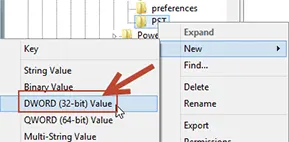
- And give it a name: MaxLargeFileSize.
- Double click on the value.
- Choose “Decimal” and provide desired size in MB.
- After this close “Registry Editor” and restart Outlook to verify changes.
Risks of Increasing File Size Manually
Increasing maximum size is beneficial; however, if you increased size randomly then it may make your file corrupt or damaged permanently. These are more drawbacks:
- MS Outlook requires more time to load and open folders, search emails, and perform indexing with large files.
- Also, large PST file is more vulnerable to corruption, because 100 GB damaged PST file is significantly harder to manage than a smaller file.
- Backing up large PST files takes more storage space, more network bandwidth, and more processing time.
- It makes finding old emails, archiving emails, and PST maintenance harder and more complicated.
What’s the Best Alternative to Decrease Outlook Data File Size?
Changing PST file is not an appropriate solution to prevent errors. You can divide your large file into smaller parts for better management using SysTools PST Splitter Tool. This splits your entire data into multiple smaller parts. You can manage your complete data into smaller and multiple parts of PST files. You can split by size, date, year, folder, category, subject, sender, and email ID.
Download the demo version of this software to handle your large data files.

It helps to:
- Improve Outlook performance.
- Faster search process.
- Reduce corruption risk.
- For easier backup.
- Better email organization.
Best Practices for PST Management
To avoid performance issues due to large file size, follow these practices:
- Archive your old emails regularly.
- Enable auto-archive for smooth performance.
- Analyze your PST file growth.
- Delete and separately store large attachments.
- Create backups frequently.
Conclusion
The HKEY_CURRENT_USER software Microsoft Office 16.0 Outlook PST MaxLargeFileSize registry value allows users to increase or decrease Outlook PST file size limit. Manually doing this can be risky for your data and file. However, you can use alternate solution for managing your large file.
It helps to divide your file into multiple files for better organization without losing emails and other items. Oversized files can lead slow Outlook performance, increase high risk of corruption and cause difficulties in data management. It is better to use automatic solution rather than increasing size repeatedly.