4 Ultimate Methods to Backup Yahoo Mail to Gmail (Migrate Seamlessly)


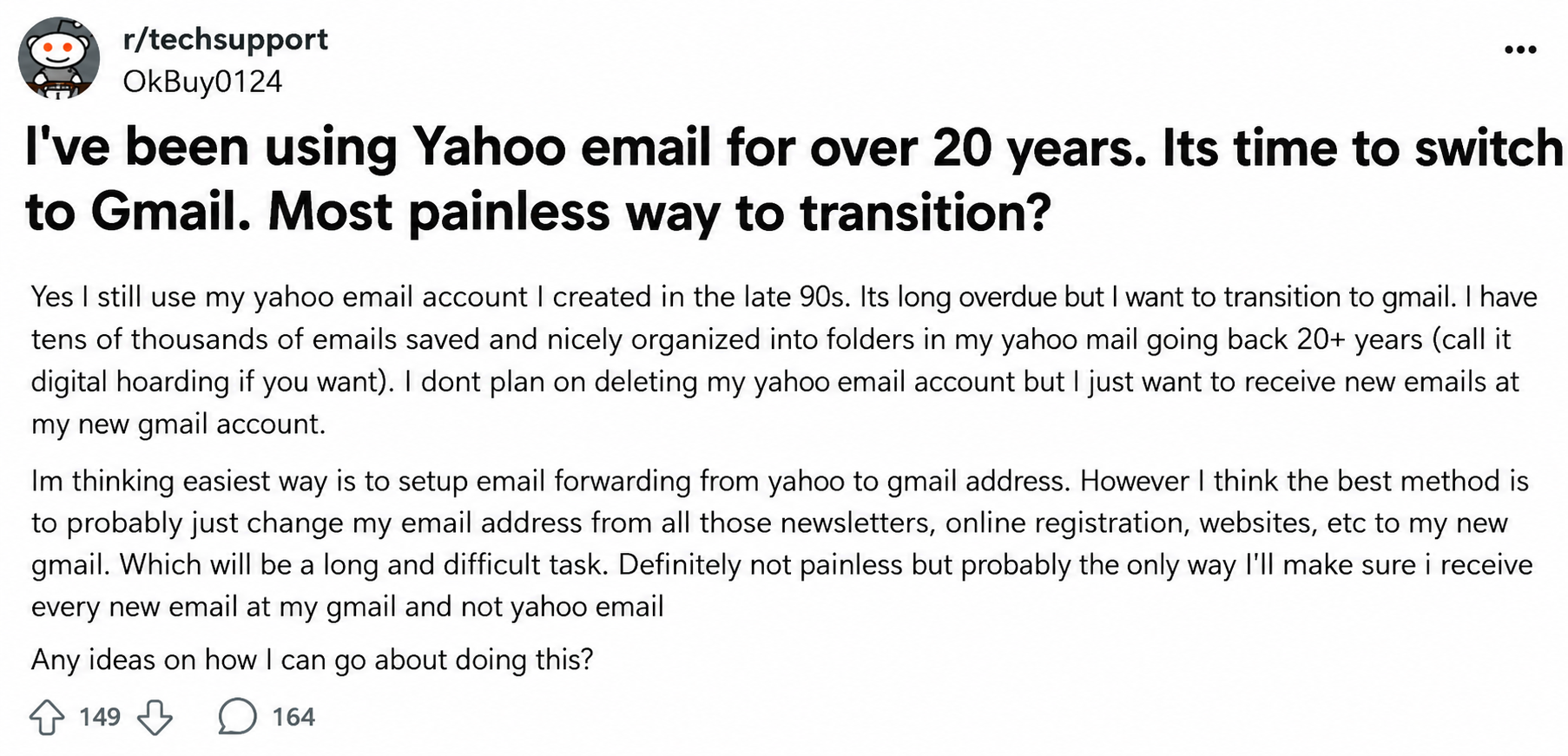
Switching Yahoo Mail to Gmail is generally considered a smart and future-proof move. Because when you migrate Yahoo emails to Gmail, you leave behind a dated infrastructure with ads eating up your inbox screen. And unlock charming & effective Gmail features such as:
- Add-Free Inbox
- Better search precision
- Smooth integration with Google Workspace
- Robust spam filters
- Dynamic Labels
However, transferring emails from Yahoo to Gmail is not a “copy-paste”. Without a systematic, transparent blueprint, it will always result in a migration failure or worse, permanent data loss.
So, to ensure a secure and error-free migration, must go through this technical guide. It shares 4 ultimate methods to backup Yahoo Mail to Gmail.
Why Switch From Yahoo Mail to Gmail?
Gmail provides an intelligent, automated workspace without intrusive banner ads and structural limitations. On the other hand, the headlining feature of Yahoo Mail is that it offers a massive 1TB of free storage. But the trade-off is unjustified for free-tier users!
Large banner ads and dated infrastructure make Yahoo Mail stale and ineffective in today’s email service market. Also, your inbox should be more than a digital storage locker. It needs to be smart and efficient. And that’s what Gmail promises when you plan to back up Yahoo Mail to Gmail.
So, if you’re still in a dilemma, check out the constructive reasons why you should switch from Yahoo to Gmail.
#1: Ad-Free Inbox: Both Yahoo and Gmail feature ads. But the difference is in the execution. Yahoo Mail felt like violating its free tier by displaying large display and banner ads, breaking message views and consuming a major portion of the screen.
Making its interface clunky and hard to navigate to the daily mail. Indirectly, prompting you to a paid monthly subscription. On the other hand, Google places small, text-based promotional tabs only at the top of “Social” or “Promotions” categories. Leaving the Primary inbox completely clean and ad-free.
#2: Better Search Precision: You have also experienced that Yahoo’s search often struggles to locate deep archives or break down parameters. On the other hand, Gmail is powered by Google’s core search algorithms that make the search output incredibly precise. It also allows advanced search operators that surface the exact document in seconds from your inbox containing hundreds of thousands of messages.
#3: The “Folder” Restriction: Yahoo allows an email to exist only in one place at a time, following a traditional folder system. Gmail completely abolishes this folder restriction with “Dynamic Labels”. It enables you to tag a single message with different tags. This doesn’t duplicate the emails and instantly surfaces the message under the category you click on. Also, it integrates Gmail’s automatic tab filtering (Primary, Social, Updates, Forums), significantly lowering the manual sorting efforts.
#4: Integrated Workspace Ecosystem: Yahoo is a standalone email service provider, whereas Gmail acts as a core epicenter for the entire Google Workspace ecosystem. In other words, when a flight confirmation email arrives in your Gmail, it automatically updates your Google Calendar. Or, seamlessly routes large video files via Google Drive links instead of failing to open them due to size limits.
Also Check Out: Export Yahoo Mail to PST: A Complete Guide
Pre-Migration Checklist (Backup Yahoo Mail to Gmail)
Preparing your Yahoo account is a critical, preventive measure to backup Yahoo Mail to Gmail without failing, stalling, or ruining your new Gmail inbox. You have to understand how Yahoo and Google handle data differently.
So, before you initiate the backup Yahoo Mail to Gmail process, acknowledge the given pre-migration steps for a smooth & seamless Yahoo to Gmail migration.
#1: Audit Yahoo Mail Size: A free Google account gives only 15 GB, almost 66.6% less than what Yahoo offers (1TB free storage). So, if you have a large Yahoo mailbox with attachments, say 20 GB, it will instantly exceed your Gmail storage quota. Once you hit the limit, your Gmail account will “brick,” and you will not be able to send or receive any email. Until you upgrade to a Google One subscription.
To avoid this, log in to Yahoo >> search for has: attachment >> delete large unwanted files. And if each email is necessary, upgrade your Google storage before starting the backup Yahoo Mail to Gmail process.
#2: Empty Trash and Spam Folder: When backing up Yahoo Mail to Gmail, migration tools like ShutterCloud and IMAP clients also copy unwanted/useless files stored in the “Trash” and “Spam” folders to the new Gmail inbox. Resulting in wasting hours of bandwidth and GBs of storage space. To prevent this, go to Yahoo Mail >> right-click the Trash Folder >> select Empty Trash. Repeat the same process with your Spam folder.
#3: Expand Nested Yahoo Folders: Flatten the Yahoo folders and transition them into one or two border folders before migration to prevent clunky labels in Gmail. Because when exporting emails from Yahoo to Gmail, the migration tool converts Yahoo folders into Gmail labels. It ensures that your new Gmail sidebar is significantly tidier and easy-to-navigate.
#4: Generate a 16-Character App Password: This step is non-negotiable if you have configured Two-Factor Authentication (2FA) on your Yahoo account. Using a standard Yahoo login password will cause the web importer to fail migration silently. Also block the third-party migration server. To create a temporary app password:
- Go to the Yahoo Account Security page.
- Scroll down to Other ways to sign in and right-click Generate app password.
- From the dropdown menu, click Other app and enter “Gmail”.
- Lastly, hit Generate and copy the 16-character code. You might have to paste this code in when you are navigating through ShuttleCloud. And the OAuth screen fails.
#5: Backup Contacts: Contacts are vulnerable and highly prone to getting lost when transferring emails from Yahoo to Gmail. So, to make certain that you do not lose your address book, back it up before migration. But how to import contacts from Yahoo to Google? Follow the given steps to backup contacts:
- Open a browser on your desktop and log into Yahoo Mail.
- In the left sidebar, go to the Contacts icon and click More (three dots) or Import/Export.
- Right-click Export to vCard (.vcf) and save the file on your desktop.
- Lastly, launch Google Contacts (contacts.google.com). Click Import and upload the generated .vcf file.
#6: Log out of All Yahoo and Gmail Accounts: Multiple Yahoo accounts opened in different tabs often trigger an “Authentication Error”. This manipulates you into a loop. Hence, it is crucial to log out of all Yahoo and Gmail accounts before moving Yahoo emails to Gmail. Open a fresh Incognito/Private Browsing window and log in to the new Gmail account.
How to Backup Yahoo Mail to Gmail? 4 Proven Methods
Here are the 4 best backup Yahoo Mail to Gmail methods:
Method #1: The Standard Built-In Importer
Gmail’s built-in importer is the standard method to backup Yahoo Mail to Gmail. It leverages an authorized third-party enterprise migration service, regarded as ShuttleCloud. Yes, even Google outsources some of its processes.
And, to backup Yahoo Mail to Gmail securely, ShuttleCloud involves a sequence of pop-up windows that validate your Yahoo Mail account. It is the correct answer to the query: How to forward Yahoo Mail to Gmail for free?
Note: The Built-in Importer is the ideal solution for inboxes under 10,000 emails.
Before you move to the first step, make sure you have disabled your browser’s pop-up blockers. To do so, open Google Chrome >> go to Settings >> click Privacy and security >> select Site Settings and click Pop-ups and redirects.
Then, add mail.google.com to the allowed list or temporarily disable the pop-up blocker.
Step #1: Log in to Gmail and Execute Import
- Open a desktop browser and log into your Gmail account.
- In the top-right corner, right-click the Gear icon (Settings) and select See all settings.
- Go to the Accounts and Import tab.
- In the Import mail and contacts section, click the Import from another address link. This will trigger a small pop-up window.
Step #2: Navigate ShuttleCloud Pop-Up Windows
- Window 1: In the first pop-up window, enter your full Yahoo email address and click Continue.
- Window 2: It will display a warning message stating that you are about to sign into Yahoo. Click Continue. It will open a Yahoo login screen. Simply type your standard Yahoo Password.
Note: The generated 16-character password will only be required when the OAuth screen fails. Or if you choose to use the standard POP3 fetching instead.
- Window 3: Yahoo will prompt a window requiring access to your profiles, contacts, and emails. Click Agree or Allow to grant the access. Most users panic here! But they don’t have to because ShuttleCloud is Google’s official partner for backing up Yahoo Mail to Gmail.
Step #3: Choose Preferred Export Option
Once the authentication is successful, the last pop-up window will appear with three checkboxes:
- Import Contacts
- Import Mail
- Import new mail for next 30 days (check this box to automatically transfer newly arrived emails from the Yahoo account into the Gmail inbox during transition).
Simply choose the desired option and hit “Start Import”. Close the pop-up window and the browser. The backup Yahoo Mail to Gmail process can take anywhere from 2 hours to 7 days depending on the size of the Yahoo mailbox.
Once the Import Yahoo Mail and contacts process is completed, a yellow banner will display at the top of the Gmail Inbox stating “Import Complete”.
Method #2: The “Desktop Bridge” Method
The Desktop Bridge method refers to using desktop email clients such as Mozilla Thunderbird, Microsoft Outlook, or Apple Mail to connect both Yahoo and Gmail accounts via IMAP. It allows granular control over migrating emails and bypasses third-party migration servers.
But the question arises, “Is it safe to move private emails from Yahoo to Gmail using a third-party tool?”
This is an ideal backup Yahoo Mail to Gmail method for selective migration. And since you’re not granting access to third-party migration servers like ShuttleCloud, it sharpens privacy. Also, you can easily export a hard .mbox or .pst file to store on an external hard drive for cold storage.
But before you move to the steps, here is the pre-flight checklist to prepare both accounts for third-party software access:
- Generating a 16-character app password is non-negotiable.
- Ensure IMAP is toggled on. To do so, log into Gmail on the Web, go to Settings >> Forwarding and POP/IMAP >> Toggle on IMAP.
- Download a professional, third-party desktop email client. We highly recommend Mozilla Thunderbird because it is free, open-source, and compatible with both Windows and Mac. Also, it handles intense IMAP transfers better than Outlook.
Steps to Backup Yahoo Mail to Gmail (Using Thunderbird)
- Launch Mozilla Thunderbird >> go to Account Settings.
- Click Add Mail Account >> enter Yahoo email address and paste the 16-character Yahoo App Password. Thunder will automatically configure the IMAP server settings.
- Again, click Add Mail Account and type Gmail address. It will trigger a pop-up asking you to log in to Google; right-click Allow.
- Wait until the status bar is completely clear (look at the bottom left corner of Thunderbird.
- Select the Yahoo folder to transfer >> click Copy To >> provide Gmail Address >> Destination Folder.
- Finally, wait until the status bar at the bottom signals the upload is completed. You can leave your computer on while it downloads the emails from Yahoo’s server and uploads them to Google’s server at the same time. Just ensure that Thunderbird does not get closed.
Note: Do not drag a folder from Yahoo and drop it directly into Gmail. It triggers a “Move” command that deletes the original email from Yahoo before uploading to Gmail. It simply translates into: If your Wi-Fi drops or Google temporarily throttles your upload bandwidth (for transfers exceeding the 500 MB limit), the email gets deleted from Yahoo and doesn’t reach Gmail. Resulting in permanently lost data.
Related Reads: How to Import Yahoo Mail to Thunderbird? Quick Guide
Method #3: Cloud-Based Migration Services
Want to transfer emails from Yahoo to Gmail flawlessly without leaving your computer on? If yes, leverage corporate-ready cloud-based migration services like VaultMe or ShuttleCloud Enterprise to execute server-to-server migrations.
These services are specifically designed to bypass Yahoo’s strict bandwidth limits. And accurately copy the Yahoo folders into the Gmail folder. Since the email migration happens on the enterprise servers, you can completely close your browser and shut off your computer.
- Simply log into the service’s website.
- Authenticate your Yahoo account as the “Source” and your Gmail account as the “Destination”
And click Start.
Method #4: Dedicated Desktop Migration Software
If you’re wondering, “How do I migrate multiple Yahoo mailboxes into Gmail at once?”, the credible answer is dedicated desktop Yahoo Mail software.
How to Transfer New Emails from Yahoo to Gmail?
Transferring new emails from Yahoo Mail to the Gmail inbox automatically is a 5-minute process. Simply follow the given instructions to enable auto-forwarding and ensure the future Yahoo emails will land automatically in your Gmail account.
- Go to Yahoo Mail. Click the Settings gear and select More settings.
- Right-click Mailboxes and select your Yahoo address.
- Under the Forwarding section, type your Gmail address and click Verify.
- Launch Gmail. Locate the verification email from Yahoo and confirm it.
Post-Migration Checklist
A successful Yahoo Mail to Gmail backup is necessary to make certain that you don’t lose access to important accounts or miss incoming messages. So, follow the given post-migration tasks listed below:
#1: Check Data and Label Import: Once Gmail notifies you that the Import is finished, ensure that your original Yahoo folder structure has converted into Gmail Labels (in the left sidebar). And your Yahoo nested folders will display as slash-separated labels (Work/Invoices). To sort them cleanly under the parent labels, simply click the “Edit Label” in Gmail.
#2: Configure Yahoo Alias Inside Gmail: It sets up Gmail to send messages with your old Yahoo address as the “From” header. The core purpose of configuring is to hide the email change from clients who still send messages to your Yahoo account.
- Open Gmail, go to Settings >> click Accounts and Import.
- Locate Send mail as >> select Add another email address.
- Type your name and your old Yahoo email address.
- Uncheck “Treat as an alias” >> enter smtp.mail.yahoo.com, Port: 465 or 587 in the SMTP server prompt.
- Enter your full Yahoo email as the username, and the password will be the 16-character Yahoo App password.
#3: Set Up Auto-Forwarding Labels & Filters: This prevents new Yahoo forwarding emails from cluttering your Gmail inbox. Simply create a filter that automatically labels and archives them. Here’s the filter setup:
Search in Gmail for: to:[email protected]
Click “Create Filter” and check: Apply label: “Imported Yahoo Mail”
#4: Preserve the Legacy Yahoo Account: Securing your Yahoo account is a must to keep forwarding active. And since Yahoo has strict policy with respect to inactivity, make sure to log into the web interface once a year. You can set a recurring calendar reminder. Also, keep the recovery options (phone number/secondary email) current on Yahoo. It ensures that you don’t get blocked out.
H2: Conclusion
In this ultimate guide to “backup Yahoo Mail to Gmail”, we have shared all the possible and proven methods to forward Yahoo Mail to Gmail. So, use the given methods and ensure a secure & friction-less email migration to Gmail.
People Also Explored: How to Solve Yahoo Mail Not Opening Attachments Issue?
FAQs (Frequently Asked Questions)
Q.1 How to backup Yahoo Mail to Gmail?
Use the Standard Built-In Importer or a third-party desktop email client like Thunderbird to connect both accounts with IMAP. You can also use industry-standard cloud migration services like VaultMe or Shuttle Cloud Enterprise for server-to-server migration.
Q.2 How can I transfer my Yahoo email to Gmail easily?
Use Thunderbird to connect your Yahoo and Gmail accounts using IMAP, or leverage a cloud migration service. But the only catch is that these methods are paid.
Q.3 Why won’t Gmail connect to Yahoo or migrate my mail?
It happens when using a Yahoo standard password instead of a new, temporary 16-character app password. Or due to server timeouts when transferring massive amounts of data.
Q.4 How do I use my Yahoo Mail address to reply to emails directly from Gmail?
To do so, follow the given steps:
- In Gmail, go to Settings >> Accounts and Import.
- Find Send mail as >> Add another email address.
- Enter your name and your old Yahoo email address.
- Uncheck “Treat as an alias” >> Type smtp.mail.yahoo.com, Port: 465 or 587 in the SMTP server prompt.
- Type your full Yahoo email as the username, and the password will be the 16-character Yahoo App password.
Q.5 How long does the Yahoo Mail to Gmail migration process take?
The backup Yahoo Mail to Gmail process can take anywhere from 2 hours to 7 days depending on the size of the Yahoo mailbox.