How to Convert Excel to VCF Without Software? Best Guide


Stuck in a situation where you have to convert Excel to VCF without software? If your answer is yes, and you are keen to know how to make the conversion effortless, you are at the right place. Using Windows Contacts, Google Contacts, and professional tools, users can complete the entire task easily. This blog explains the best methods to convert XLS to vCard format in a hassle-free way.
Well, MS Excel is one of the most popular formats used to store large amounts of contact data in a tabular structure. However, there is an application dependency problem with XLS files. On the other hand, the vCard file format is widely accepted across different platforms. Therefore, this file is easy to share. So, let’s start with a discussion.
Why Need to Convert XLS to VCF File Format?
XLS/XLSX files are useful for managing contact data, but are not supported by many applications. Converting Excel to VCF format makes it more shareable and accessible across various devices and platforms. Here are the common reasons why users need to convert Excel to VCF without software:
- vCard files are supported by most of the email clients, smartphones, and apps for contact management.
- The vCard file is small and generated from an Excel file. VCF files take up less space.
- By exporting the XLSX to vCard file format, users can import this file to multiple platforms.
- VCF files are easier to access because Excel files can only be accessed in the MS Excel application.
- Converting XLS to VCF format makes contact migration between systems and applications more reliable.
In short, converting Excel contacts to VCF files ensures better accessibility and easy contact management across multiple platforms. Whether you are switching mobile devices or need to share contact information, vCard file format is a ready-to-use solution for managing spreadsheet contact data seamlessly.
How to Convert Excel to VCF Without Software? Easy Methods
If you are wondering how to convert XLS to VCF format without software, there are some simple manual solutions you can opt for in the conversion process. In this section, we’ll explore the free way to convert contacts from Excel to VCF format.
So, using free solutions, users can make management of small contact files easy to edit, share, and access from anywhere. Now, let’s dive into these techniques. Always remember that there is no direct manual solution available for converting XLS/XLSX contacts to other file formats.
Convert Excel to VCF Format Using Google Contacts
Google Contacts allows users to import XLS contacts and save them in CSV file format. After that, export the file directly to vCard format. This solution is divided into 3 parts. Here are the steps to be followed:
#1 Convert XLS File to CSV Format
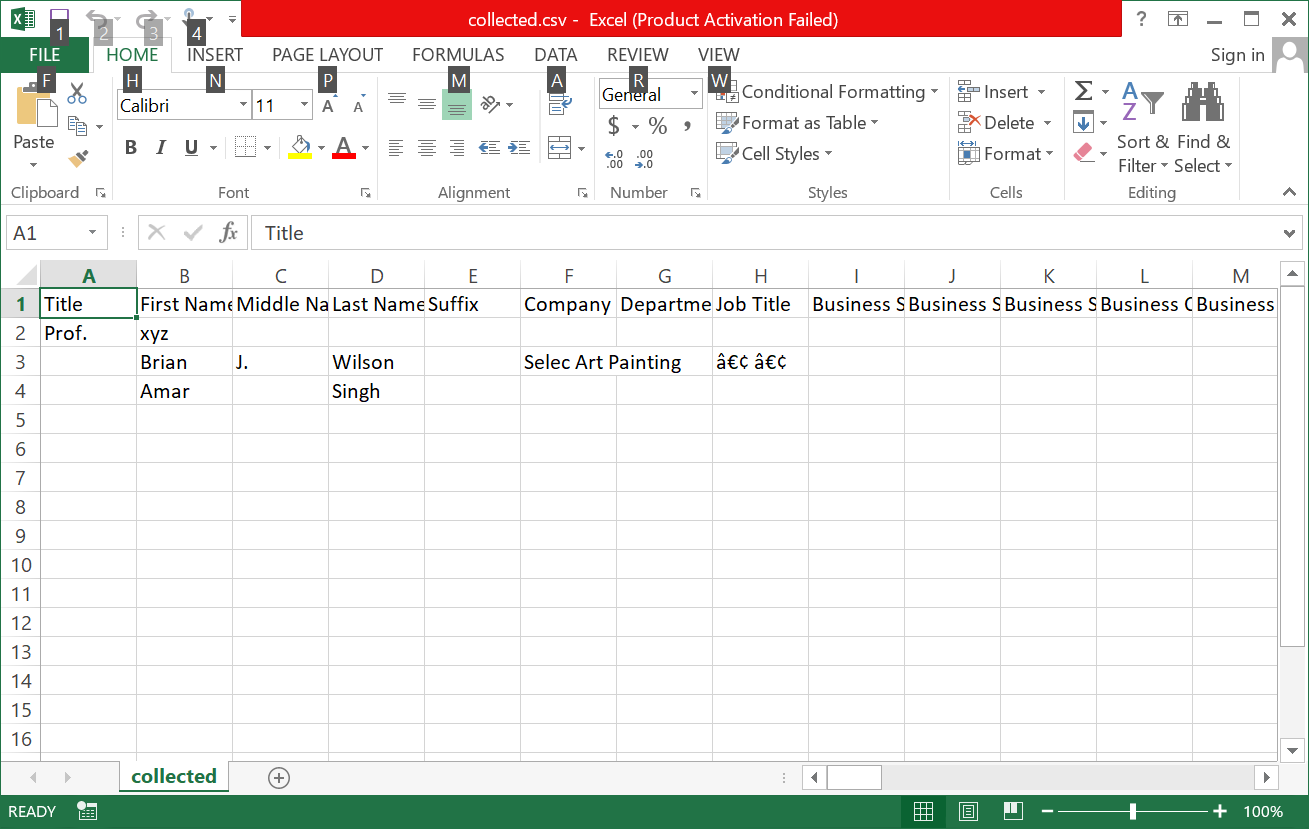
- First, open your Excel files
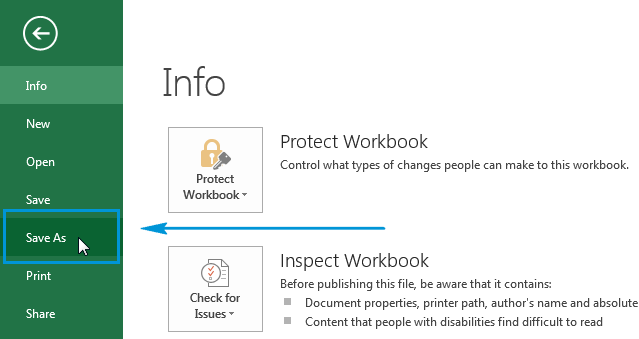
- Click on the File option
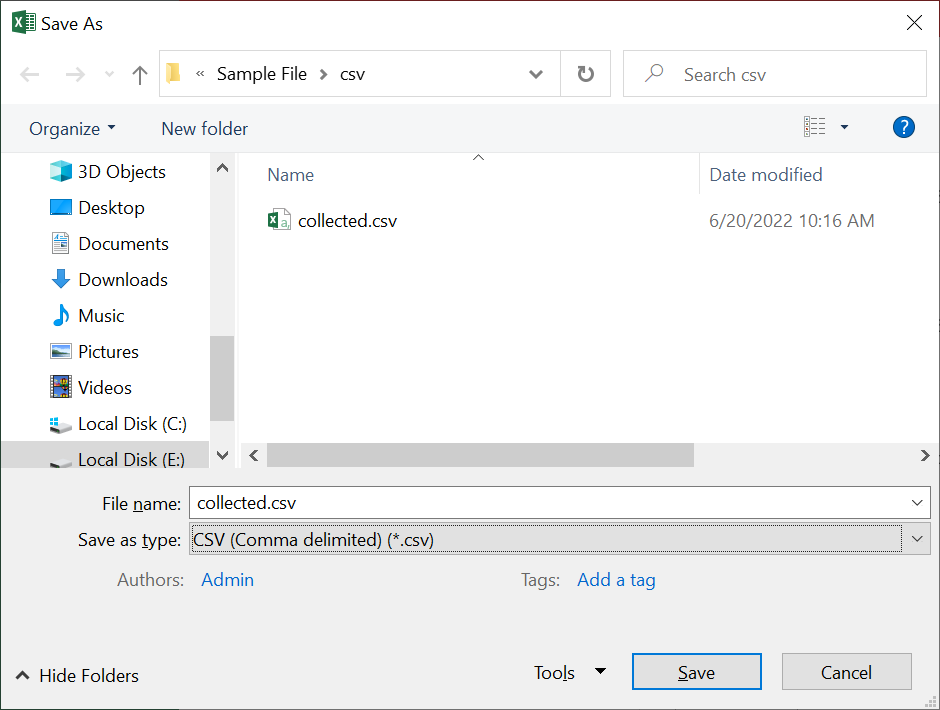
- After clicking the File option, you will get the CSV option
- Click Save to complete the conversion.
#2 Import Contacts from CSV File
After converting the Excel file to CSV format, the user has to import the contacts from the converted CSV files. Follow the steps mentioned below.
- First, click the Start button and type contacts from the search bar
- Go to Contacts Tab, from the displayed result
- Then, you will get an Import option from the ribbon bar
- Go to the Import Windows Contacts option & click the Import option
- After this, Browse the selected file & go to the next step
- At last, click on the Finish button to complete the solution
- Finally, you can convert Excel to VCF without software by using the solution.
#3 Export XLS to VCF Format
- Move your contacts by searching contacts on the search bar
- After this, click the Export option and select vCard/VCF file format
- Click the Export button and browse the Destination for the converted VCF files
- Click OK to complete the conversion
Limitations of Using Manual Approach
- This method is time-consuming and contains multiple steps.
- Do not convert Excel to VCF format in bulk mode.
- It increases the risk and data loss during conversion.
- Suitable for handling small contact files stored in spreadsheet.
- Does not support advanced fields or custom attributes.
Lets explore the best Excel Contacts Converter Software
Pro Tip: Convert XLS to vCard Using Professional Software
Many users need a quick and reliable solution to convert contacts from Excel to VCF format. While manual technique may work with small datasets, but not suitable for handling large XLS/XLSX contact files. Using the Excel to vCard Converter tool, users can make the conversion with just a few clicks.
This robust software supports all types of spreadsheets and provides advanced features for converting XLS to vCard effortlessly. Professional methods work faster and complete the entire task while maintaining data accuracy. Download the demo version of this tool and try all its features.
Working Steps to Convert Excel to vCard Format
- Download and install the software on your system.

- Browse and upload the Excel file into the tool.

- Preview and map the column of each field.

- Select vCard version (2,1, 3.0, 4.0) from the tool.

- Hit the Convert button to generate a .vcf contact file.

Key Features of Using Pro Utility
- Convert Excel contact data to vCard format in batch mode.
- Support both Excel file formats (XLS & XLSX).
- Allow users to preview all contact data before conversion.
- Maintains original formatting and accuracy of data.
- Provides an intuitive interface suitable for all users.
- The tool is available for both Windows & macOS.
Frequently Asked Questions
Q1:How to Convert Excel Contacts to VCF File?
A: If you need to make the conversion easy, then follow the steps of advanced software:
- Download & run this application on your PC.
- Now add Excel file & preview all data.
- After that, view the list of match attributes.
- Now convert XLS to VCF format without any trouble.
Q2: How do I manually convert Excel to VCF?
A: Yes, users can convert Excel to VCF format without software. But remember one thing manual method has some limitations. If you have technical knowledge, you can perform the manual methods.
Q3: How to Convert Excel File to Phone Contacts?
A: If you need to import contacts from Excel to Android phone, follow the given steps:
- Save the XLS file in CSV Format.
- Import CSV file to your Gmail account.
- Export all contacts from Gmail to VCF format.
- Lastly, import VCF file to Android Phone.
Concluding Words!
In this article, we have discussed how to convert Excel to VCF without software quickly. We provided the best manual technique, but free solutions always come with some limitations. So, for better contact management, using an automated method to convert XLS to VCF format is one of the secure and most effective solution. Choose the right approach that suits your needs and preferences.