How to Recover Deleted Files from External Hard Drive? Complete Guide


Nowadays, external hard drives are the most demanding and commonly used devices. Because it is quite easy to carry the computer’s or laptop’s data from one place to another, most users keep their crucial and important data files on the external hard drive. Almost all computers and laptops support an external hard drive without any issues.
We also know about the use of external hard drives in our day-to-day lives. Despite the many advantages of using an external hard drive, in this article, I am going to explain one of the most frequently asked questions: how to recover lost files from external hard drive in Windows 11, 10?
Important: Stop Using the External Hard Drive
If you have accidentally deleted your files from your external hard drive then you must stop using it immediately. Every time you save new files Windows may overwrite the space where your deleted files are stored. Once that happens recovery becomes much more difficult or even impossible.
Avoid these actions before you attempting any recovery steps:
- Don’t copy new files to the drive.
- Don’t format the drive.
- Not to install recovery software on the same drive.
- And must avoid running unnecessary repair tools.
The sooner you start the recovery process the better your chances of getting your files back.
Can You Recover Deleted Files from an External Hard Drive?
Yes, in many cases you can recover deleted files from an external hard drive. When a file is deleted Windows simply removes its reference from the file instead of deleting your actual data right away. Until new data changes that location our recovery software will still be able to restore your files.
Your chances of recovery depend on several factors including how the files were deleted and whether the drive has been used afterward. For more detail you can check the table below:
Recovery Chance by Data Loss Situation
| Situation | Recovery Chance |
|---|---|
| Recently deleted files | High |
| Shift + Deleted files | High |
| Formatted external HDD | Medium to High |
| Corrupted file system | Medium |
| Physically damaged drive | Low |
If your drive is physically damaged or it is making unusual clicking sounds well it is the time when you should stop using it immediately to avoid further damage.
Signs Your External Hard Drive May Need Data Recovery
Sometimes problem is not accidental deletion so your external hard drive may already be experiencing file system issues or corruption and you can easily identify this by checking these common signs mention below:
- Files suddenly disappear.
- The drive asks to be formatted.
- Windows says “Access Denied.”
- The drive appears as RAW.
- Hard drive is detected but it won’t open.
- File names become unreadable.
- And folders appear empty even though storage space is being used.
If you notice any of these symptoms mentioned above then you should avoid making changes to the drive until you have recovered your important files.
Reasons to Recover Deleted Data from External Hard Drive
With an external hard drive, data sharing becomes even easier. It has a large capacity and can store a large number of files, including movies, presentations, tons of photos, music, and much more. Apart from this, storing backups as well as the operating systems and applications you need are additional benefits offered by external drives.
However, they may be removed for the following reasons:
- A power failure can damage the internal components of your external hard drive. Files that are running due to an incorrect or unexpected shutdown will also be deleted.
- If your hard drive fails, data corruption and file deletion are more likely.
- Bad sectors and technical damage such as read/write head misalignment.
- Virus and malware attacks occur after visiting malicious websites and downloading virus-laden applications from unauthorized sources.
- Human errors are mainly caused by the inexperience or carelessness of users when working with computer systems.
Things You Should Avoid Before Recovering Your Files
There are many users who accidentally make recovery harder by trying some random fixes they find online. A few simple precautions can greatly improve your chances of successful recovery. You must avoid these common mistakes:
- Formatting the external hard drive.
- Saving your new files to the same drive.
- Running repair tools without understanding the cause of problem.
- Installing recovery software on your affected drive.
- And saving recovered files back to the original drive.
Always recover your files to another storage device such as a different hard drive or SSD.
Recover Deleted Files from External Hard Drive Manually
Cutting to the chase, this section introduces three reliable fixes that you can use to retrieve deleted files from external hard disks in Windows 10. If one fix doesn’t work, don’t get discouraged and move on to the next one. Now, let’s look at the solutions one by one.
Method 1: Check the Recycle
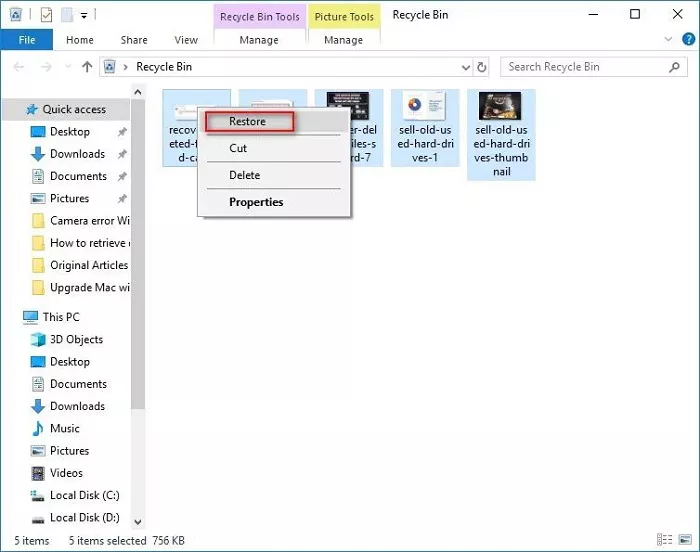
The Recycle Bin is one of the lesser-known Windows features that can help you find deleted files on your hard drive.
- If you haven’t deleted the file, the first thing you should do is search the recycle bin.
- Just open the recycle bin and find the file. Once you find them, just select them and click “Restore.” Your files are now safely restored.
Method 2: Restore Files Using File History
If you have enabled File History before the files were deleted then Windows may already have a backup of your data and you just need to follow these steps:
- Open the folder where the deleted files were stored.
- Right click inside the folder.
- Select Restore Previous Versions.
- Choose the available backup.
- And just click Restore.
This method works for you only if File History or Windows Backup was turned on before data loss occurred.
Method 3: Retrieve Deleted Files from external Hard Disk from Previous Versions
Windows has many valuable features that most people are unaware of. One of the cool features is that you can restore previous versions of specific folders. With this feature, you can easily recover deleted data from external hard drive . Here’s how:
- Find the folder where you deleted the file. Right-click the folder and choose Restore Previous Version from the menu.
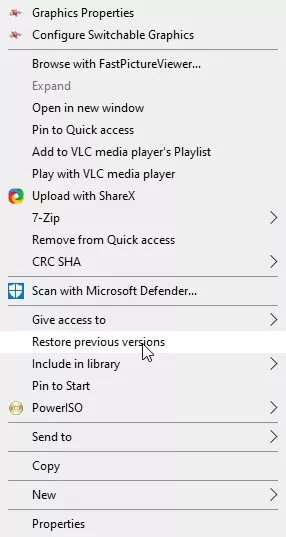
2. Choose the version dated before the file was deleted from the list of available previous versions displayed on the screen.
3. Click the Recover button and click OK to restore the folder. The folder will be restored to its previous version.
If this successfully answers your question on how to restore files from external hard drive in Windows 10, great, but if not, move on to the next fix.
Method 4: Recover Deleted Files from External Hard Drive via Command Prompt
Here’s how to retrieve deleted files from external hard disk with Windows CMD:
- Attach the external hard disk to your computer’s PC.
- Use the Windows + R keyboard shortcut to open the Run command window.
- Type the CMD and select Enter or click OK.
- Run the following command: ATTRIB -H -R -S /S /D X:*.*, ensuring you type your external HDD’s drive letter instead of X.
This command will remove hidden, read-only and system properties and search for missing files in all folders and subfolders of the external hard drive. After this, you will see the recovered data in a new folder.
Why Manual Methods Don’t Always Work
Manual recovery methods are useful only for simple situations but they cannot recover every type of data loss situation. For example they usually cannot recover:
- Permanently deleted files.
- Files from formatted external hard drives.
- Corrupted partitions.
- Lost folders.
- Files removed by malware.
- And Data from RAW drives.
If your files are still missing after trying the manual methods then you can use FreeViewer recovery solution.
Alert: The user must have a thorough understanding of this manual method as well as other system characteristics. Home users are advised to use expert suggested solution like data recovery tool.
Alternative Way to Recover Deleted Files from External Hard Drive
If none of the above methods can answer your question on how to recover deleted files from an external hard drive, then it’s time to turn to a professional solution like Windows Data Recovery Software by FreeViewer. The tool provides unmatched accuracy and speed compared to the competition and guarantees complete deleted file recovery every time.
The utility is capable enough to retrieve permanently deleted data, corrupted data, and formatted hard drives. It can also recover hidden files from external hard drive or formatted data from an internal and external hard drive or solid-state storage devices. With this tool, you can sort recovered data items in ascending or descending order based on attributes such as name, size, and date. However, this option is only available if the user has recovered permanently deleted data.
Steps to Recover permanently Deleted Files from External Hard Drive
-
- Download and run the hard drive recovery tool.
- Next, we scan the hard drive partitions.
- Preview the deleted data files.
- Finally, save all the data files from the hard drive.
- Save to the user’s desired location on the system.
Conclusion
Now the answer to your query is clear: Can you recover deleted files from external hard drive? If your data is really connected with your soul, you must restore lost files from external hard drive at any cost. The program is a hard drive data saver. Retrieve your deleted or formatted data at any cost.