How to Remove Duplicate Rows and Columns in CSV File?


Kieran West
“I exported almost 150,000 customer records from my CRM into a CSV file but the thing I am struggling with after merging multiple reports, I noticed that there are duplicate email addresses, repeated customer IDs and copied rows everywhere. Thereafter Excel started freezing and some records disappeared just after cleanup and now I’m worried about damaging the original CSV structure. So I just want help and want to ask how to remove duplicate rows in CSV file safely without losing my important data?”
If you are facing a similar issue then this guide will help you understand the complete case and reasons why duplicate CSV records appear, how to remove duplicate rows from CSV using free and professional methods and also which solution works best for large business datasets.
CSV files are widely used for storing customer databases, inventory lists, email marketing records, financial reports and application exports. However when you merge multiple CSV files or update them repeatedly in this case the duplicate rows and duplicate columns become a very common problem. These repeated records can increase your file size, slow down processing, create reporting errors and also cause failed imports in business applications.
Now this is the point where many users want manual methods to remove duplicate rows in CSV file using Excel or they want to try some untrusted online tools, but do you know these tools are not safe and if you have large datasets then it frequently becomes unstable or corrupted during the process. In some of the cases important records are accidentally deleted due to duplicate detection that was not configured correctly.
Why Duplicate Rows Appear in CSV Files
Duplicate entries do not appear randomly and in most of the cases they are created during data handling, exports, imports, syncing or during manual editing processes. Now understanding the reason for duplicate rows will help you prevent the issue from occurring repeatedly in future CSV implementations.
Common Reasons Behind Duplicate CSV Records
1. Multiple CSV File Merges
One of the most common reasons why anyone needs to remove duplicate rows from CSV is merging several CSV files into one dataset. During the merge process repeated customer records, email addresses or transaction IDs are copied multiple times.
2. Repeated CRM or Database Exports
There are many business tools like CRMs, accounting software, and financial analysis platforms that sometimes bring old and new data together. This creates repetitive rows in the CSV file that may not be immediately visible.
3. Manual Copy Paste Errors
When you manually update your CSV spreadsheets then duplicate rows can accidentally be inserted during the copy paste operations while you are handling large datasets.
4. Import Synchronization Problems
Applications that analyze data originating from APIs or cloud environments may delete records if the analysis fails or it is repeated.
5. Hidden Formatting Differences
Sometimes rows are displayed differently or unique because of the following reasons:
- extra spaces
- hidden characters
- uppercase/lowercase differences
- formatting inconsistencies
These hidden issues make CSV duplicate cleanup more difficult for you later.
Types of Duplicate Data Found in CSV Files
Before choosing any solution it is very important for you to understand what type of duplicate data exists in your CSV file as different duplicate types require different cleanup methods for accurate results.
Exact Duplicate Rows
Below in the table you can see these are rows where every column value is identical. This is the easiest duplicate type to detect and remove.
Check Below Some Example:
| Name | Country | |
|---|---|---|
| John Smith | [email protected] | USA |
| John Smith | [email protected] | USA |
Exact duplicates usually occur during the repeated exports or if you merge a CSV file.
Partial Duplicate Records
In partial duplicates there are only specific fields that are repeated and these are:
- same email address
- same customer ID
- same phone number
However other columns may contain different values. This type of duplicate cleaning requires the selected matrix like column matching.
Duplicate Columns in CSV Files
Sometimes your entire columns are duplicated during the exports process or data transformation tasks. You can check below some of the example:
- repeated “Email” columns
- duplicate “Phone Number” fields
- cloned inventory columns
These unnecessary columns can increase CSV complexity and this can create import errors.
Hidden Duplicate Entries
Hidden duplicates are more difficult that you can not easily identify because they may contain the following:
- extra spaces
- invisible characters
- inconsistent capitalization
- encoding differences
You can check with some example given below:
Why You Should Remove Duplicate Entries from Rows in CSV File
Duplicate CSV records can affect both your personal and business workflows so even a small amount of repeated data can create major problems in reporting, email campaigns, analytics and in database management.
Most of the users delay CSV cleanup until their dataset becomes too large to manage manually. So at this point the performance issues and import failures become more common.
Problems Caused by Duplicate CSV Data
- Inaccurate Business Reports: Due to duplicate records there is complete distortion in reporting metrics and this leads to incorrect business decisions.
- Email Marketing Problems: Duplicate emails can cause subscribers to receive too many emails that increase spam complaints and reduce campaign performance.
- Failed Application Imports: Many CRMs and database platforms can reject CSVs with duplicate records or if having invalid attributes.
- Increased File Size: Unnecessary repeated rows increase the size of the CSV file making the dataset slow to process and difficult to manage.
- Data Integrity Risks: When you manually remove duplicate entries from rows in CSV file then important records can be accidentally deleted if proper validation is not done.
Reading Tips: Understand Why Am I Unable to Open Large CSV File in Excel and find 6 accurate solutions to fix this issue.
Methods to Remove Duplicate Rows and Columns in CSV File
You can check below all the manual and practical methods to remove duplicate entries. These methods are tried and tested and each step is designed to solve your problem in a correct manner. So let’s start using Excel.
Method 1: Remove Duplicate Rows in CSV File Using Excel
Microsoft Excel is one of the most commonly used tools for CSV cleanup as it provides a built-in “Remove Duplicates” feature that works well if you are handling small datasets. However Excel may become unstable when you try to deal with large CSV files that contain hundreds of thousands of rows.
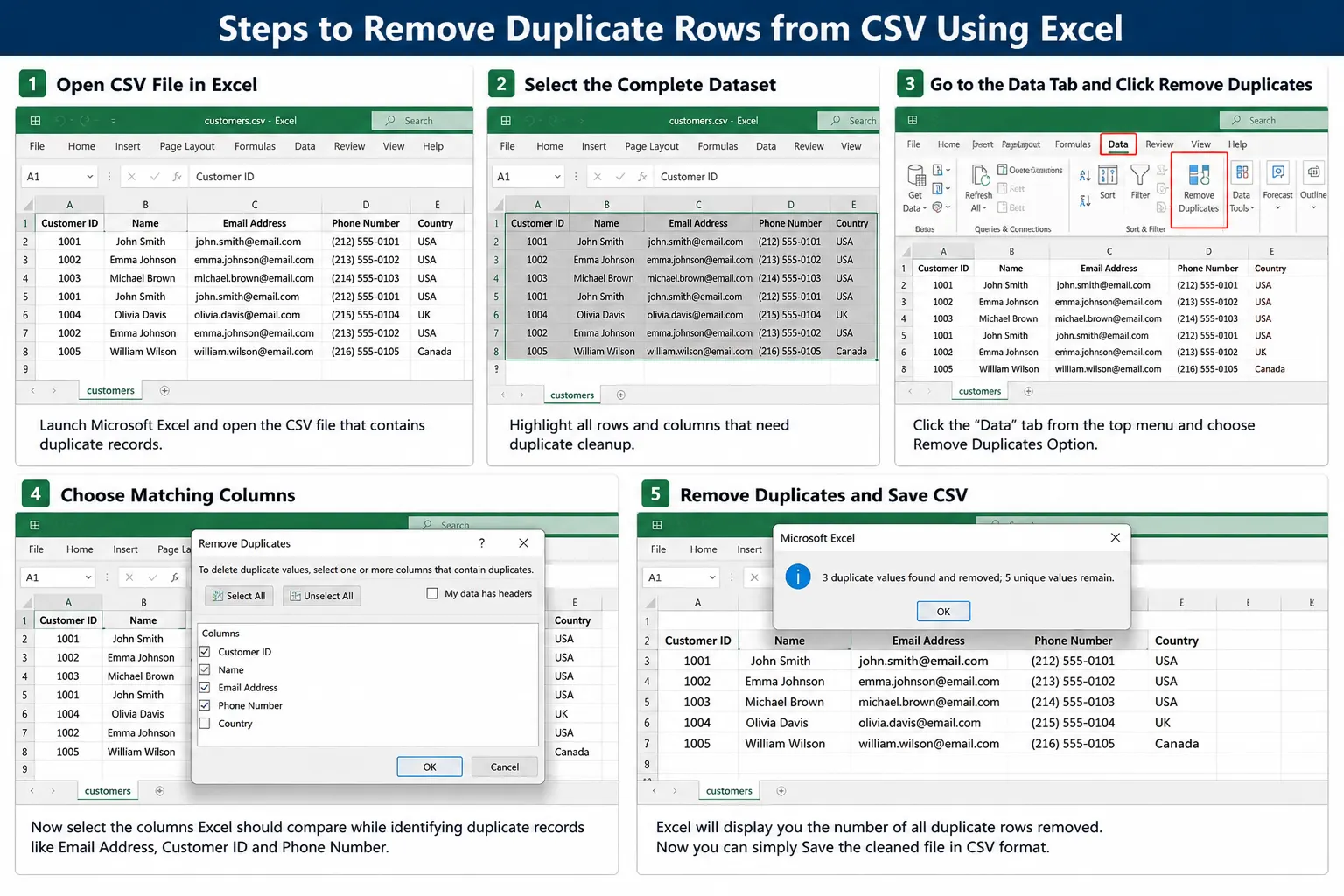
Steps to Remove Duplicate Rows Using Excel
-
- Open CSV File in Excel: You just need to launch Microsoft Excel and open the CSV file that contains duplicate records.
- Select the Complete Dataset: Highlight all rows and columns that need duplicate cleanup.
- Go to the Data Tab: Now Click the “Data” tab from the top menu and choose Remove Duplicates Option.
- Choose Matching Columns: Now select the columns Excel should compare while identifying duplicate records like Email Address, Customer ID and Phone Number.
- Remove repeated Entries and Save CSV: Excel will display you the number of all duplicate rows removed. Now you can simply Save the cleaned file in CSV format.
Limitations of Excel for CSV Duplicate Cleanup
Although Excel is easy for only basic CSV cleanup and it struggles with large datasets. Excel may accidentally remove your important records, change CSV formatting and having lack automation features for bulk duplicate removal tasks.
Method 2: Remove Repeated/Copy Records Using Google Sheets
Google Sheets provides an online option for CSV duplicate cleanup. It is ideal for users who want to perform browser based and interactive functionality. But performance limitations and privacy concerns make it less suitable for large scale or expensive applications.
Steps to Remove Duplicate Rows Using Google Sheets
- Upload CSV File: You need to import the CSV file into Google Sheets first.
- Select the Dataset: Now highlight all records that contain duplicate entries.
- Open Data Cleanup Tools: Now you need to navigate (Data → Data Cleanup → Remove Duplicates)
- Select Matching Criteria: Choose the columns that are used for duplicate detection.
- Download Cleaned CSV: Last you need to export the cleaned spreadsheet back into CSV format.
Method 3: Remove Duplicate Rows from CSV Using Python
Python is a very powerful solution for developers who want to automate the CSV cleanup tasks. Using libraries like pandas you can quickly deduplicate your large csv files. This method is highly efficient but this may not be suitable if you are a non-technical user.
You can check below Python Example to Remove Duplicate Rows
import pandas as pd
- df = pd.read_csv(“customers.csv”)
- df = df.drop_duplicates()
- df.to_csv(“cleaned_file.csv”, index=False)
This script extracts the correctly matched rows from the CSV file and stores a clean version.
Professional Solution to Remove Duplicate Rows in CSV File
Manual methods work with small CSV files only but this is inefficient and becomes unreliable for large datasets with thousands or millions of records. FreeViewer CSV Duplicate Remover Software provides you better accuracy, faster processing and also much safer duplicate cleanup without damaging your original file structure. Download and install this secure tool today and automate your CSV data cleaning task.
Check All The Key Features of FreeViewer Software
- Remove Duplicate Records from Multiple CSV Files
- Remove Repeated Columns Entries Automatically
- Smart Duplicate Detection
- Supports Large CSV Files
- Preserve Data Integrity
Conclusion
Choosing the right method to remove duplicate rows in CSV file is completely dependent on your dataset size and technical skills. Now if you want fast, accurate and secure CSV cleanup then you must choose professional tools that will help you remove repeated records from CSV files without risking formatting issues or important data loss.