How to Import JSON into Google Sheets? Step-by-Step Approach


Do you need to view structured JSON data in a Google Spreadsheet but struggle to organize it into rows and columns? You can import JSON into Google Sheets using Google Apps Script, convert JSON to CSV file before importing it, or use Python Code. Understanding these techniques helps professionals and beginners make data import hassle-free.
Before getting started, it is crucial to understand how you need your data to appear in Google spreadsheets. A well-managed sheet makes it faster to read single records, sort data, apply filters, and perform calculations. This helps you work with a large amount of information without manually reviewing each entry. Preserving the content structure during import ensures that the sensitive data remains useful for analysis and reporting in the future. In this guide, we will walk you through the entire importing process with step-by-step instructions. Now, let’s begin.
Understanding the Challenges of Importing JSON into Google Sheets
Google Sheets does not offer a built-in feature to upload a JSON file directly into rows and columns. You need to process JSON data or transform it into a compatible format before importing it. During the whole task, you may face challenges depending on the structure of the file and volume of data. Here are some of them, mentioned below:
- Nested File Structure: JSON contains complex nested objects and arrays that cannot be presented directly in a flat spreadsheet format. Ot requires additional processing to manage the data.
- Formatting Errors: Values such as numbers, dates, Boolean values, and null fields do not retain their intended format during import or conversion.
- Large File Size: When you import JSON file into Google Sheets with thousands of records or complex structures, it can be time-consuming and affect performance.
- Missing Values: JSON file may contain optional fields or different key-value combinations that can result in blank cells.
- Special Characters & Encoding: Symbols, multilingual text, characters, etc may not display perfectly if the file encoding is not handled correctly.
Before importing JSON data into Google Sheets, it is important to verify its structure, size of file, and data accuracy. Preparing the data can help users to prevent import issues and make sure that the final output file remains readable.
Pro Tip: If the JSON file is too big or heavy, then use FreeViewer JSON Splitter Tool, which is designed to divide large JSON datasets into manageable or smaller parts in just a few clicks. This helps to make the process easy and import JSON data into Google Sheets.
How to Import JSON File into Google Sheets? 3 Effective Methods
Now that we have discussed the problem of importing JSON into Google Spreadsheet, let’s move towards the practical solutions. If you are searching for how to overcome these disadvantages and maintain your structured JSON file in well-organized Google Sheets, there are three best approaches you can follow.
In this section, we will cover all these techniques to load JSON data into a spreadsheet. Each solution comes with its own process, needs, benefits, and limitations, which help users to understand how to complete the task and achieve the desired output. Now, let’s move on to understanding these approaches in detail.
#1 Using Google Apps Script to Import JSON Data into Google Spreadsheet
This approach allows you to process JSON information and populate Google Sheets using custom functions, and you can also use built-in formulas. It is the best way when you need to fetch data from an online source. Now, let’s follow the quick steps:
- Open Google Sheets and create a new spreadsheet.
- Navigate to Extensions > Apps Script.
- Delete the default code from the script editor.
- Enter JavaScript code to read and parse JSON data.
- Use the JSON.parse() function to extract JSON values.
- Arrange the extracted data into a rows-and-columns format.
- Finally, click Run and allow the required permissions.
- Requires JavaScript knowledge to import JSON into Google Sheets.
- Local JSON data files require extra file-handling code.
- Nested JSON structures need additional processing.
- Large or heavy JSON datasets
#2 How to Import JSON into Google Sheets? No-Code Solution
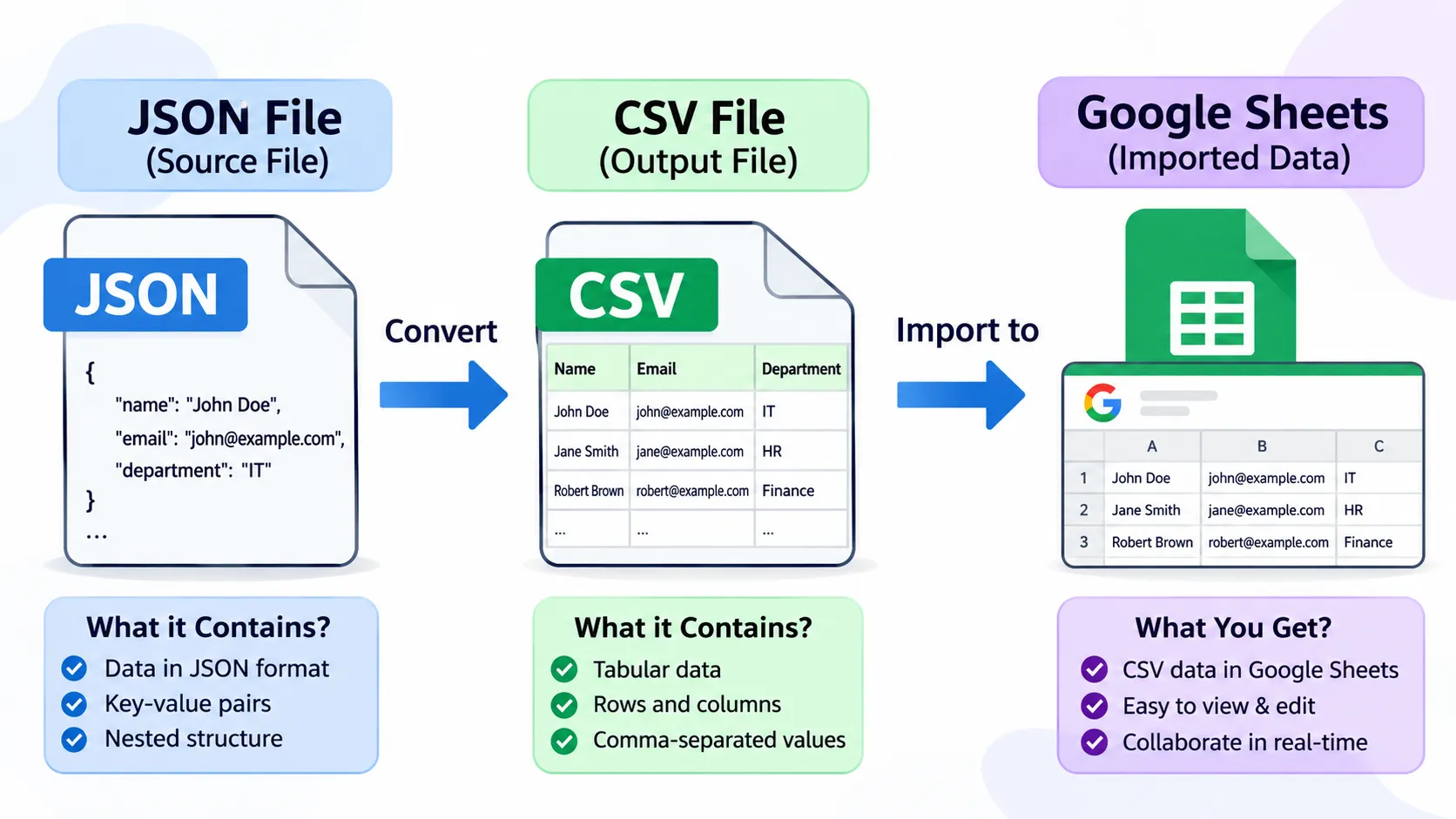
This is the easiest and most suitable method for users who need to import data without writing any code. Here, in this approach, first we need to transform JSON-structured file into CSV format using a dedicated FreeViewer JSON Converter Tool for a hassle-free process. Once the conversion task is finished, you need to import the resulting CSV file into Google Spreasheets. This makes the import process direct and helps to arrange records in rows and columns.
Using this robust utility, you can easily transform your complex nested data into a spreadsheet. Moreover, this software is compatible with both Windows & Mac OS. So, download the tool and explore its functions to understand how quickly it handles JSON files. Now, let’s understand its step-by-step instructions.
Working Steps to Use the Advanced Utility
- Launch and run the aforementioned software on your machine.

- Use Add Files and Folders to load JSON datasets in bulk.

- Choose CSV as output file format.

- Set the location and click the Export button.

- Lastly, tap View Report to open resulting file.

Quick Steps to Import CSV File into Google Spreadsheets
- Firstly, open Google Sheets on your PC.
- Create a new spreadsheet and follow the on-screen steps.
- Navigate to File > Import > Upload options.
- Now, browse and select the converted CSV file.
- Finally, select the import destination and click Import Data option.
Visual Guide to Import JSON into Google Sheets
Key Benefits of Using Pro Software
- Supports multiple file formats that are compatible with Google Sheets.
- Keeps the original folder structure intact while processing data.
- Offers a user-friendly interface for both technical and non-technical users.
- Handles complex nested objects, arrays, and structured JSON data.
- A complete offline solution that runs locally on your computers.
- It functions with both Windows and Mac operating systems.
- 24/7 live chat support to assist users in solving product-related queries.
- A free trial is offered to evaluate the tool features during conversion.
#3 Import JSON File into Google Sheets – Python Script
Another way to work with JSON files and get their contents ready for Google Sheets is by using Python. You can use libraries like Pandas and JSON to parse out the records, flatten the nested data, and then write them out to CSV. Follow these easy guidelines to use this approach:
- Install Python on your operating system.
- Now, open Command Prompt and install library (Pandas).
- Open a Python editor and import the desired libraries.
- Browse your JSON file and convert it into a DataFrame.
- Export the processed data into CSV format.
- Now load CSV file into Google Sheets by clicking on Import Data.
- Requires installation of Python and technical expertise.
- It is a code-based solution that is not suitable for novice users.
- Complex nested structures require an additional coding process.
- Large or heavy files may require memory-intensive processing.
Concluding Words!
In the following guide, we have covered three effective ways to import JSON files into Google Sheets, including Google Apps Script, CSV conversion, and Python Script. Choose the method that best suits your needs, follow the instructions exactly, and format your JSON data into a Google spreadsheet format in just a few clicks. If you do not have expertise in coding, use an offline desktop-based tool to import JSON data into Google Sheets with ease.